Welcome to the FMCO Inventory Management System (IMS). This manual is for FMCO staff and managers who use the system day to day: administrators who set it up, warehouse teams, drivers, food safety officers, branch staff and approvers.
Instead of describing each screen on its own, this manual follows one item on its whole journey through the system. Every chapter uses the same example records, so you can see how each screen feeds the next one: a litre of milk is set up, received from a supplier, requested by a café, approved, packed, inspected, delivered, received and finally used on the POS.
The manual has three parts:
The system supports English and Arabic. Use the EN / عربي toggle in the top bar to switch. Arabic switches the whole screen to right-to-left.
The left-hand menu only shows the sections your role can access, and some buttons only appear with the right permission. Each module lists the role that performs it. If a button is missing on your screen, ask your administrator for access.
The FMCO IMS connects four places: the supplier who delivers goods, the warehouse that holds them, the branch (café) that uses them, and the POS where products are served. Every stock movement between them is recorded in the stock ledger.
All screenshots use the following test records. The names start with "QA" because they were created on the test system for this manual.
| Record | Example used |
|---|---|
| Inventory item | QA Fresh Milk (QA-MILK-001), stock unit LTR (litre) |
| POS product | QA Milk Training Drink (QA-DRINK-001); recipe: 0.2 LTR QA Fresh Milk per serve |
| Supplier | QA Demo Dairy Supplier (QA-SUP-DEMO) |
| Warehouse and bin | QA Demo Warehouse (QA-WH-DEMO), bin A-01-01 "QA Dairy chiller" |
| Branch and Main storage | QA Demo Cafe (QA-DEMO-01), Main storage QA-DEMO-01-MAIN |
| Kitchen (POS register) and menu | QA Demo Cafe POS (QA-POS-DEMO), menu QA Demo Menu |
| Vehicle | QA Demo Van, plate QA-0001 |
The milk is a simplified example: a real latte also uses coffee beans and a cup, which you would add to the recipe in exactly the same way.
| Role | Main tasks in the journey |
|---|---|
| Super Admin / Administrator | Set up master data, users, roles and settings (Part A). |
| Warehouse Staff | Record goods-in, prepare, pick and pack orders, create dispatches. |
| Warehouse Manager | Post goods receipts and release dispatches; oversee warehouse stock. |
| Barista | Raise supply requests for the branch, receive deliveries, count branch stock. |
| Project Manager | First approval of supply requests. |
| Client Representative | Final approval of supply requests. |
| Quality Inspector | Inspect packed orders before dispatch. |
| Driver | Collect, transport and hand over deliveries. |
| Food Safety Officer (FSO) | Inspect deliveries at the branch before they are received. |
| POS Operator | Serve products on the POS. |
Some steps must be completed by a different person from the one who started them (for example, posting a goods receipt or approving a large stock change). Plan your team so that two authorised users are available.
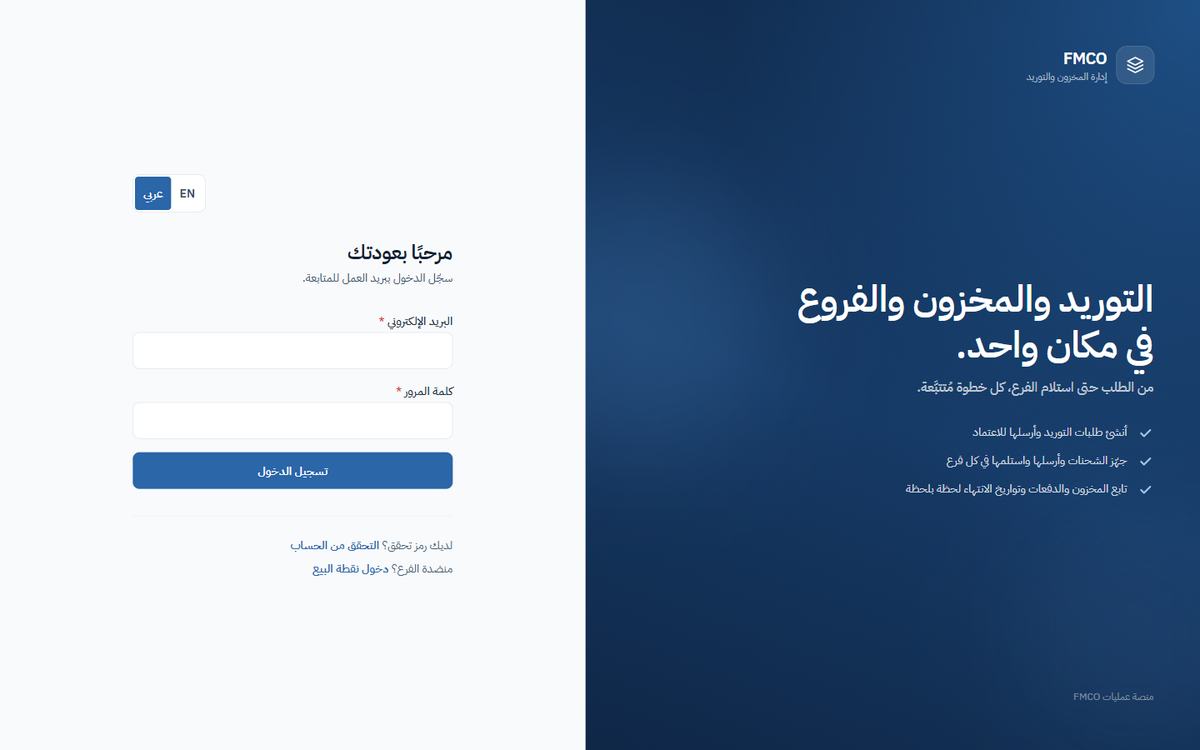
Open the FMCO IMS address in your browser. The sign-in page has an English / Arabic switch at the top right.
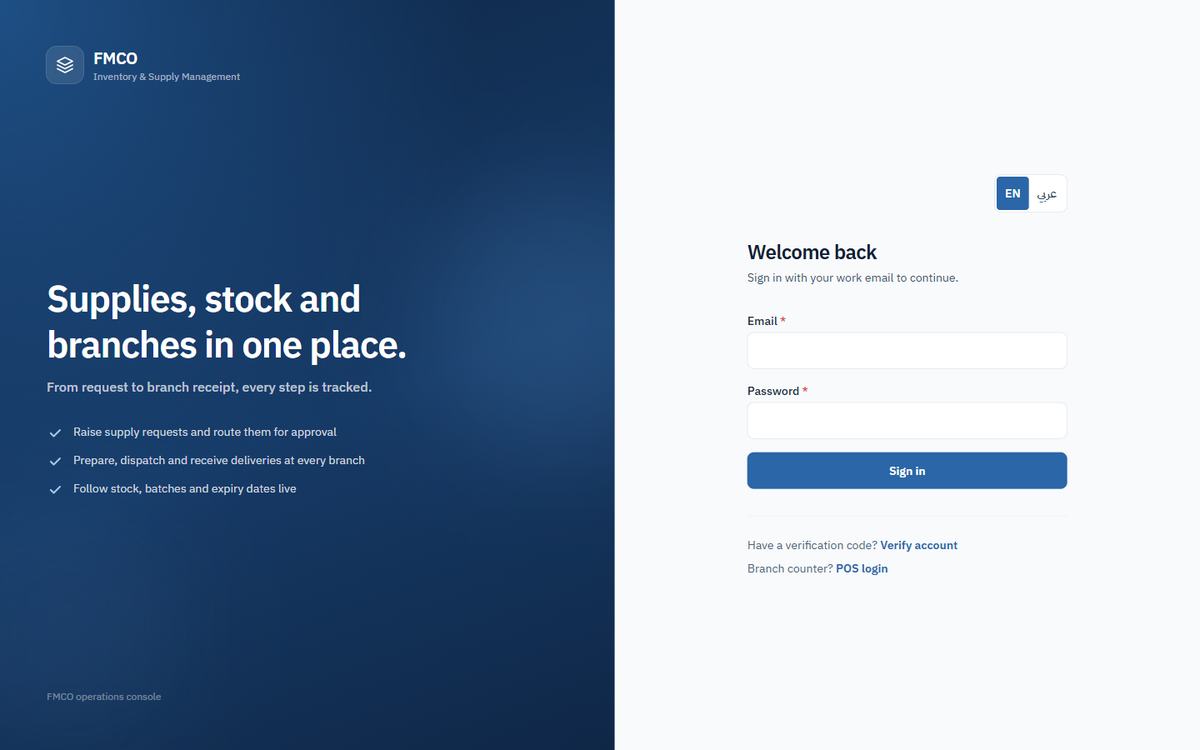
| Field / Button | What it means & how to use it |
|---|---|
| EN / عربي | Switch the whole application between English and Arabic (right-to-left). Available on every screen. |
| Email * / Password * | Your work email and password, given to you by your administrator. |
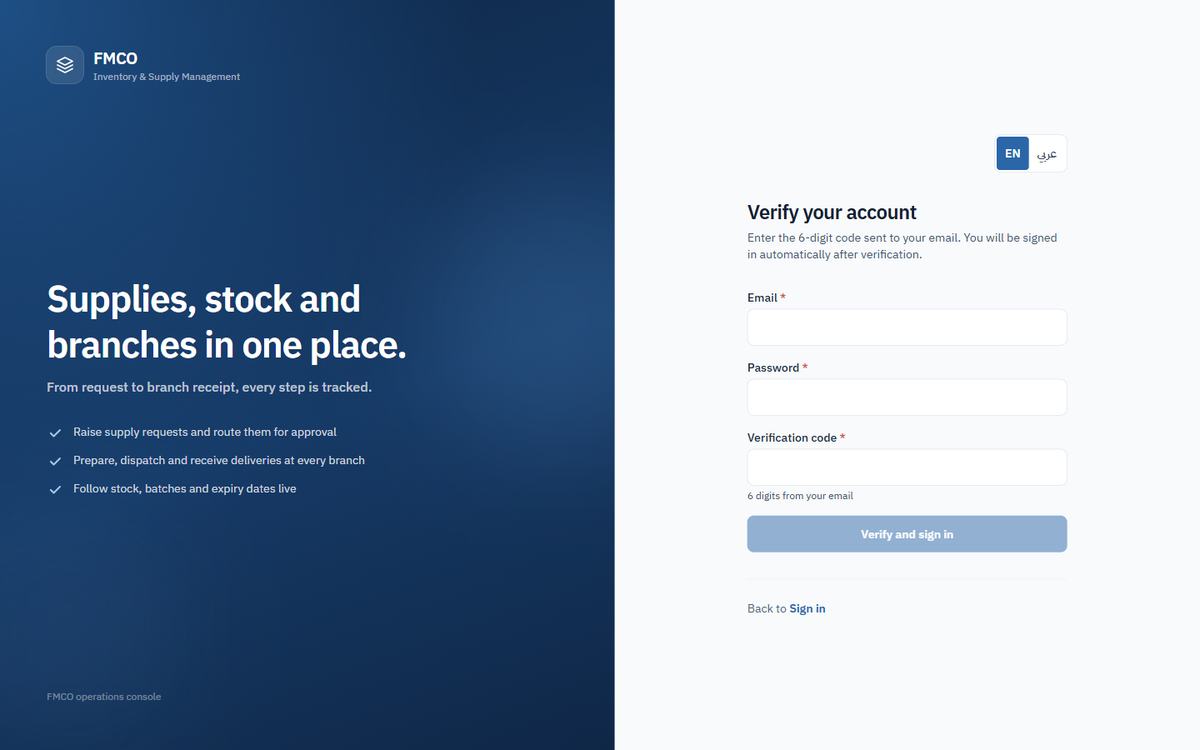
| Verify account | For a new account. Enter your email, password and the 6-digit code sent to your email, then click Verify and sign in. |
| POS login | The counter login for branch POS staff (see below). |
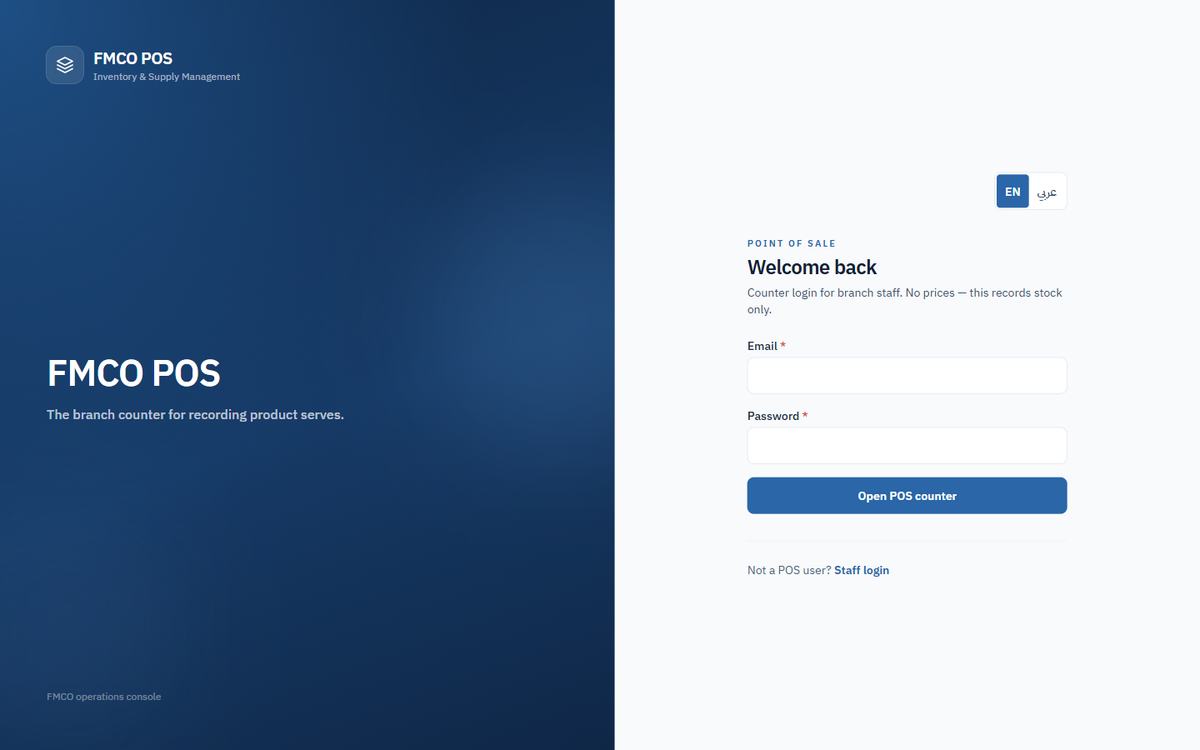
POS operators click POS login on the sign-in page. The FMCO POS page says: "Counter login for branch staff. No prices — this records stock only." Enter Email and Password and click Open POS counter. "Staff login" returns to the normal sign-in page.
Ask your administrator. They can set a new password for you in Admin → Users (Module 12).
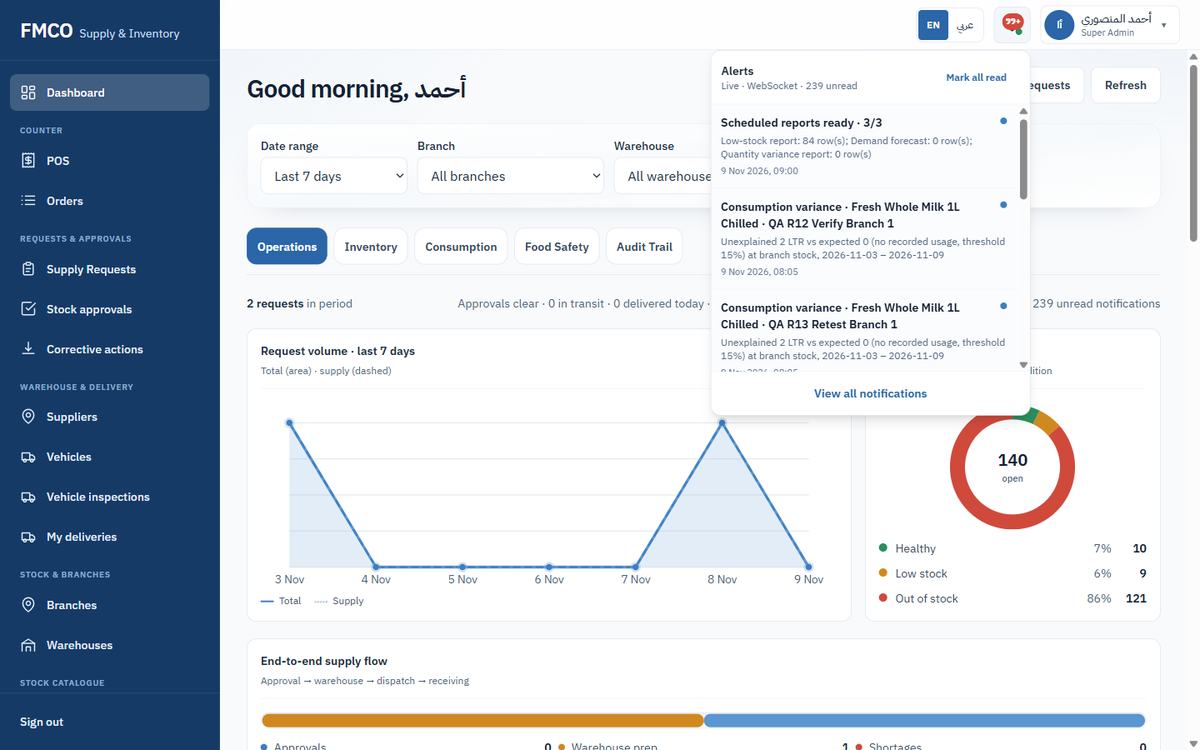
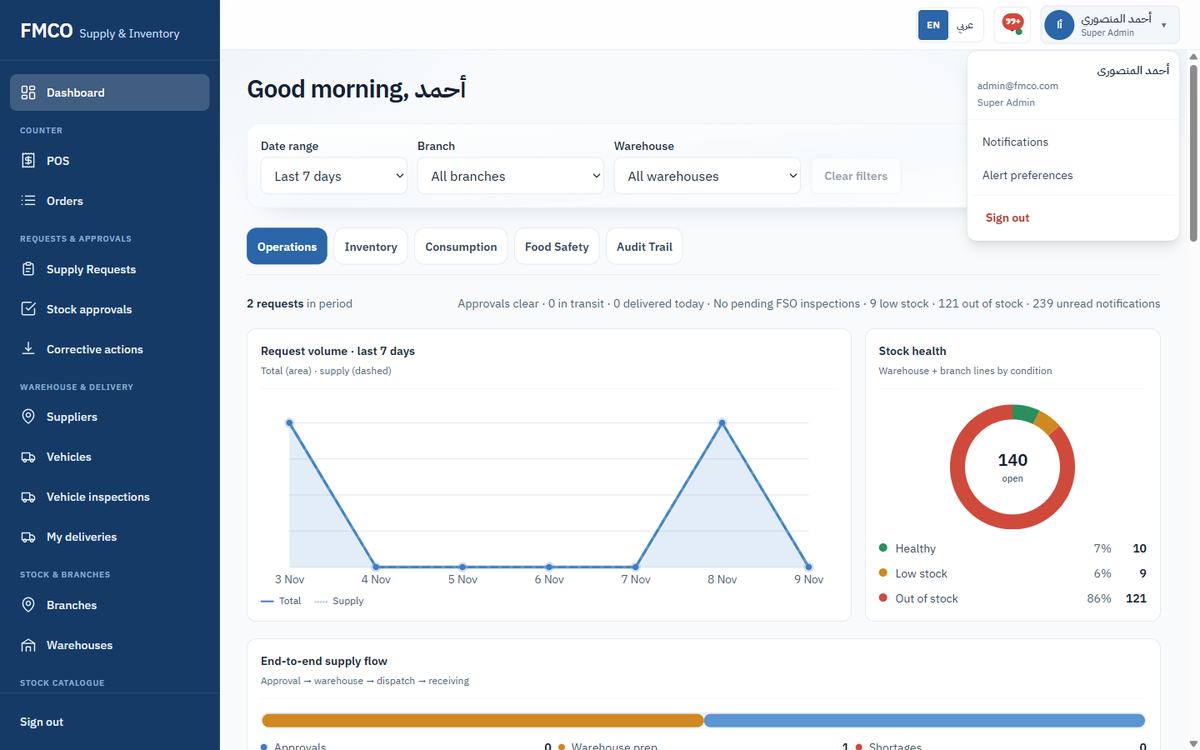
Left menu → Dashboard. It gives managers a live picture of requests, stock and deliveries. Use the filters Date range (Today, Last 7 / 14 / 30 days), Branch and Warehouse; Clear filters resets them. Open requests and Refresh are at the top.
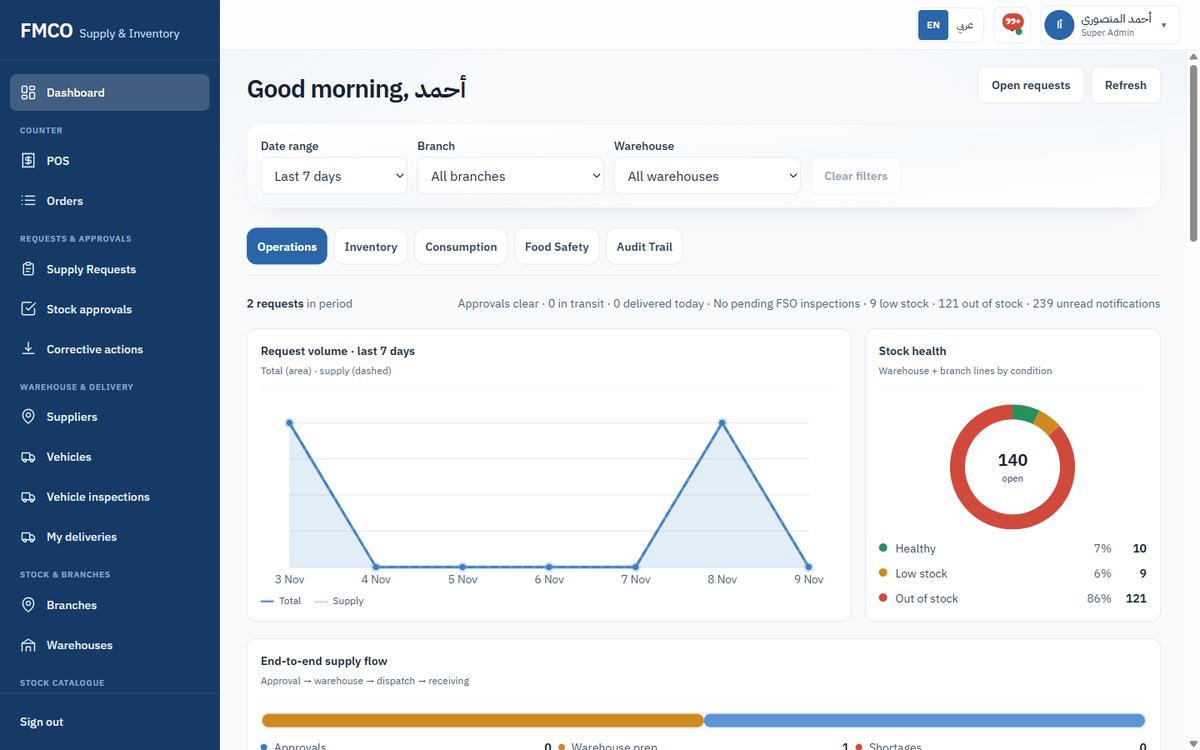
| Tab | What it shows |
|---|---|
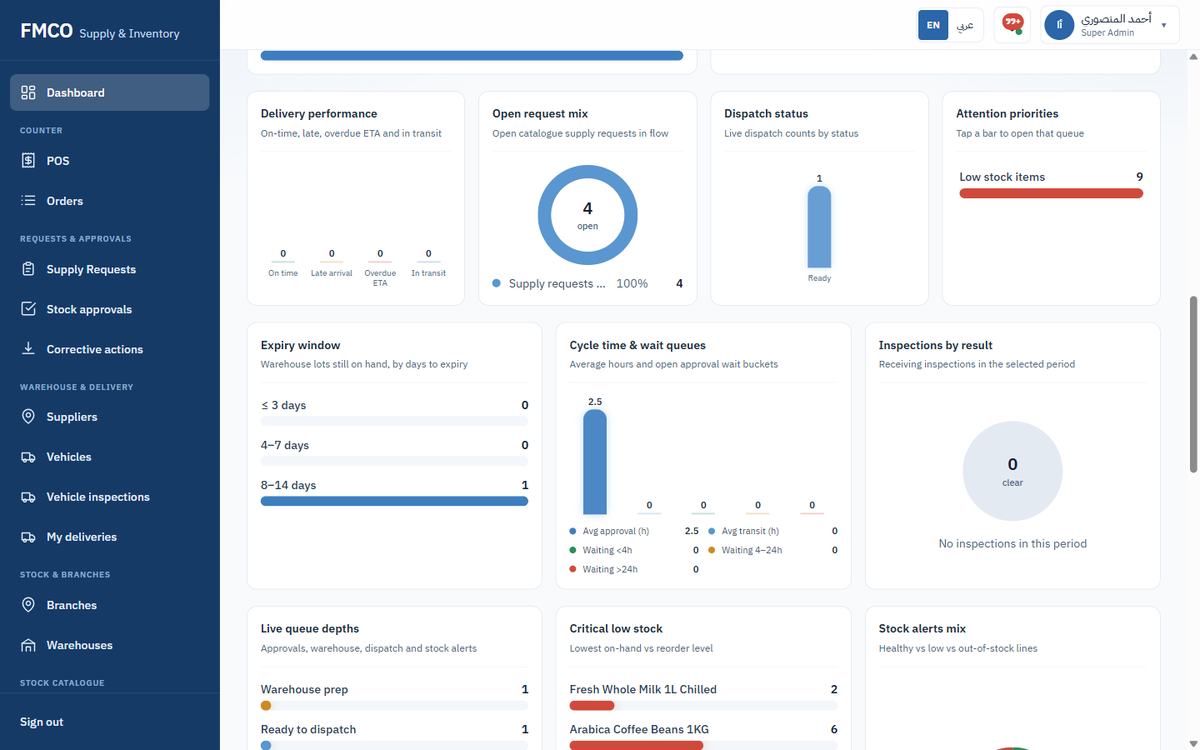
| Operations | Request volume, stock health, the end-to-end supply flow (approvals → warehouse → dispatch → receiving), requests by branch, shortages, delivery performance, dispatch status, attention priorities, expiry window, cycle time, inspections, queue depths, critical low stock, stock alerts and quarantine holds. Lower down: the Open requests table (Export Excel, View all), System alerts and Quick actions. |
| Inventory | On hand, reserved, in transit, quarantined, damaged and expiring stock, with links to warehouse stock, branch stock, lots, quarantine and low stock. |
| Consumption | Usage by item and product, POS serves, waste and adjustments, with links to the consumption reports. |
| Food Safety | Inspections and their results, rejections, corrective actions (open and overdue) and quarantine. |
| Audit Trail | User actions and stock movements in the period, with links to the audit log and transaction reports. |
Many cards can be clicked ("Tap a bar to open that queue"). The Quick actions at the bottom open the most used screens directly: Create daily order, Approvals queue, Warehouse queue, Ready for dispatch, In transit, My deliveries, FSO inspections, Branch receiving, Reports and Notifications.
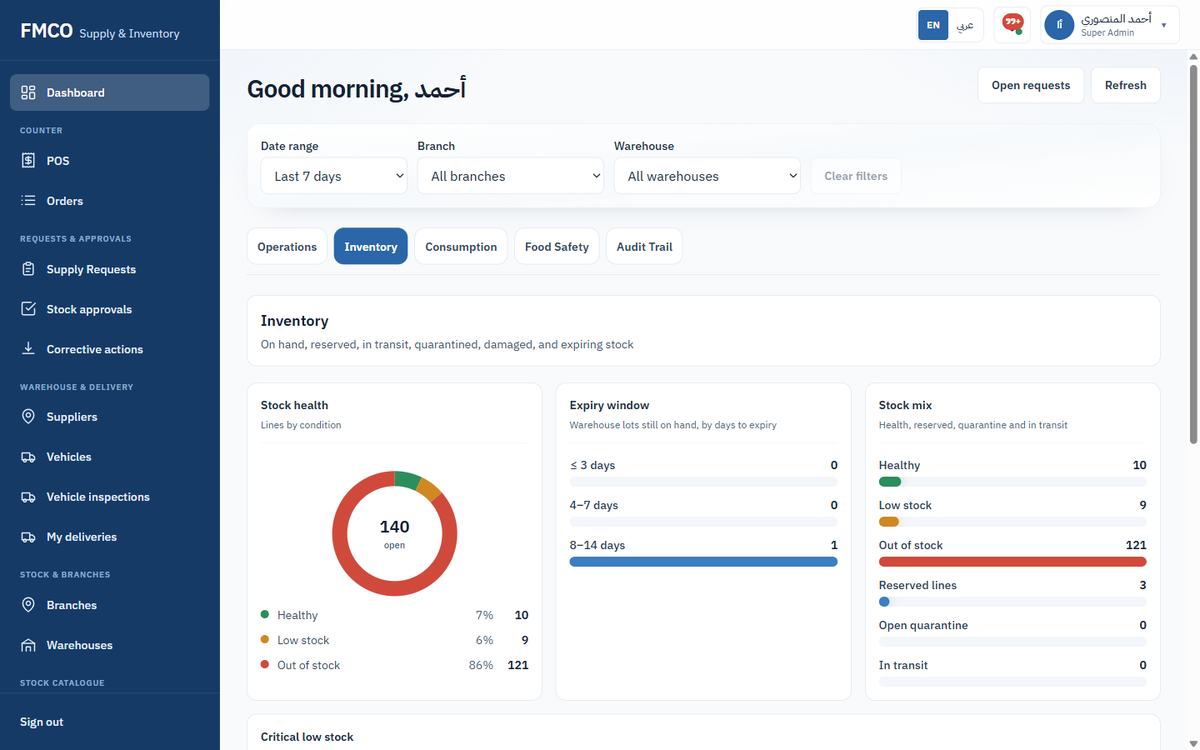
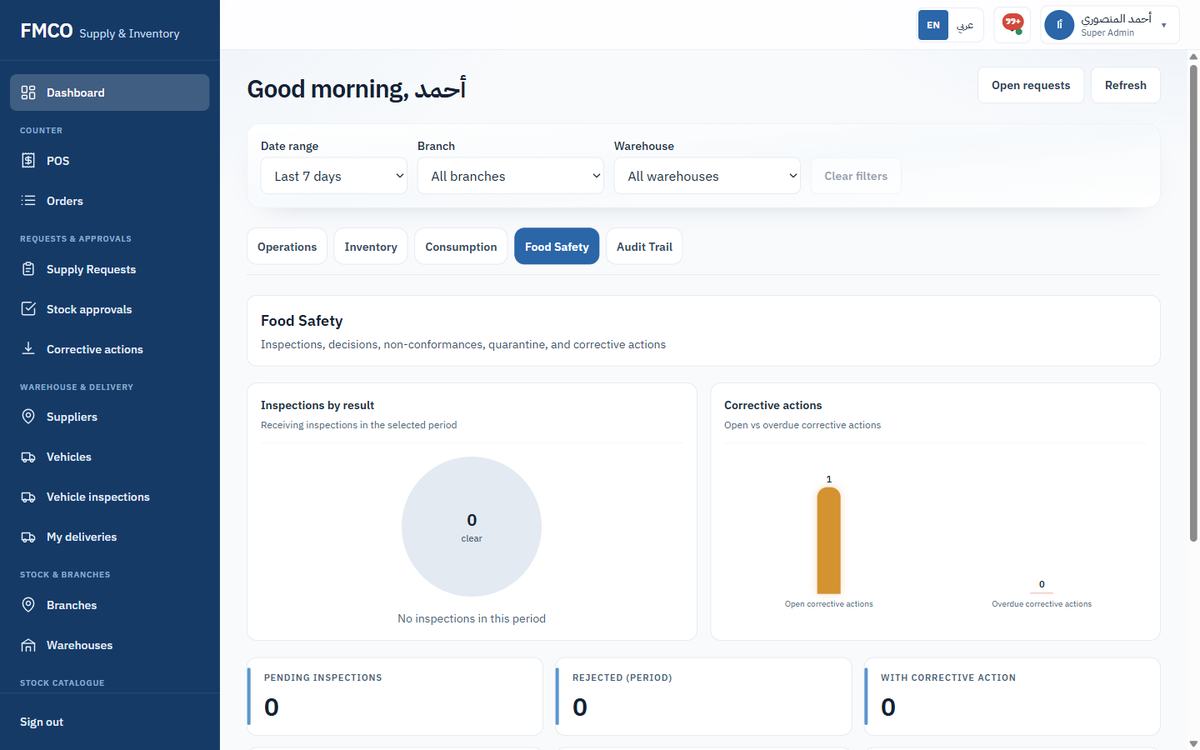
Each role sees only the menu items it needs and starts on the screen it uses most.
| Role | Starts on | Left menu |
|---|---|---|
| Super Admin / Administrator | Dashboard | All menus: Counter, Requests & approvals, Warehouse & delivery, Stock & branches, Stock catalogue, Menu & POS, Insights, Admin. |
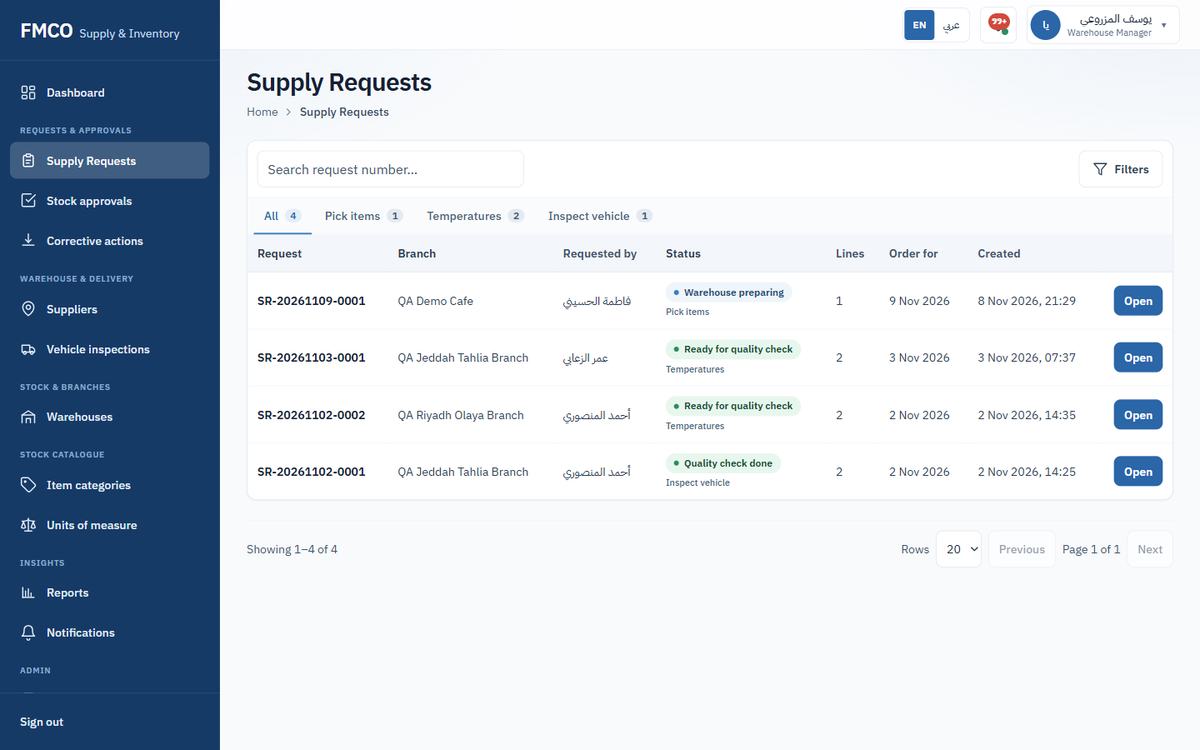
| Warehouse Manager | Supply Requests | Dashboard; Supply Requests, Stock approvals, Corrective actions; Suppliers, Vehicle inspections; Warehouses; Item categories, Units of measure; Reports, Notifications; Devices, Stock exceptions. |
| Warehouse Staff | Supply Requests | Dashboard; Supply Requests; Suppliers, Vehicle inspections, Warehouse stock; Notifications. |
| Quality Inspector | Supply Requests ready for quality check | Supply Requests, Corrective actions; Notifications. |
| Driver | My deliveries (handheld screen) | No left menu — a phone-sized screen. |
| Food Safety Officer | Dashboard (Operations, Food Safety, Audit Trail) | Dashboard; Supply Requests, Stock approvals, Corrective actions; Notifications. |
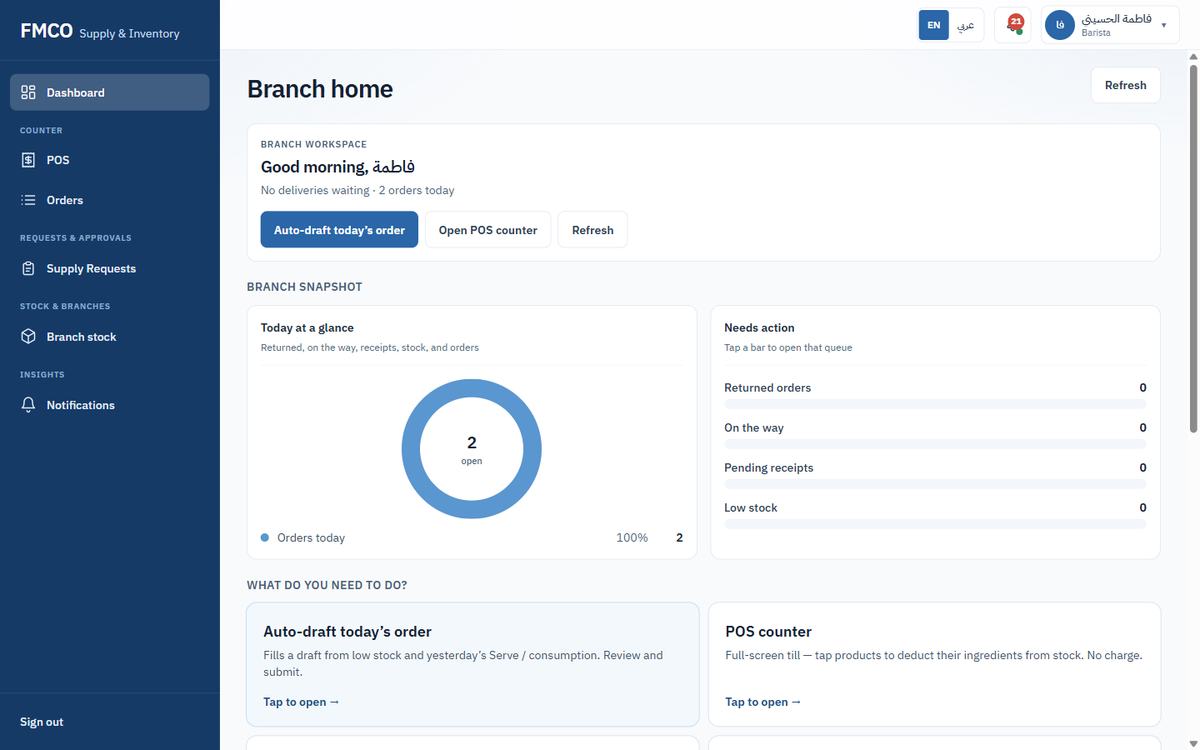
| Barista | Branch home | Dashboard; POS, Orders; Supply Requests; Branch stock; Notifications. |
| POS Operator | POS counter (full screen) | No left menu. |
| Project Manager | Supply Requests waiting for their approval | Dashboard; Supply Requests; Feedback, Notifications; Users. |
| Client Representative | Supply Requests waiting for their approval | Dashboard; Supply Requests; Feedback, Notifications. |
Baristas start on Branch home: today at a glance (orders today, returned orders, deliveries on the way, pending receipts, low stock) and large tiles for their daily tasks — Auto-draft today’s order (fills a draft from low stock and yesterday’s serves), POS counter, Create today’s order, Receive a delivery and Satisfaction Feedback. "Needs your attention" lists returned orders and pending receipts.
Warehouse managers and staff start on the Supply Requests list. The chips at the top count requests by the step they are waiting on (e.g. Pick items, Temperatures, Inspect vehicle); click a chip to filter, and Open to work on a request.
Tell the system how quantities are measured
Every inventory item is counted in one stock unit (litre, kilogram, piece, box…). Conversions let people enter quantities in a different unit — a recipe may use millilitres while stock is kept in litres. The system converts automatically and always stores quantities in the item's stock unit.
Who: Super Admin / Administrator
Left menu → Stock catalogue → Units of measure. The page lists all units (Code, Name, Description, Status, Actions). The Conversions section is at the bottom of the same page.
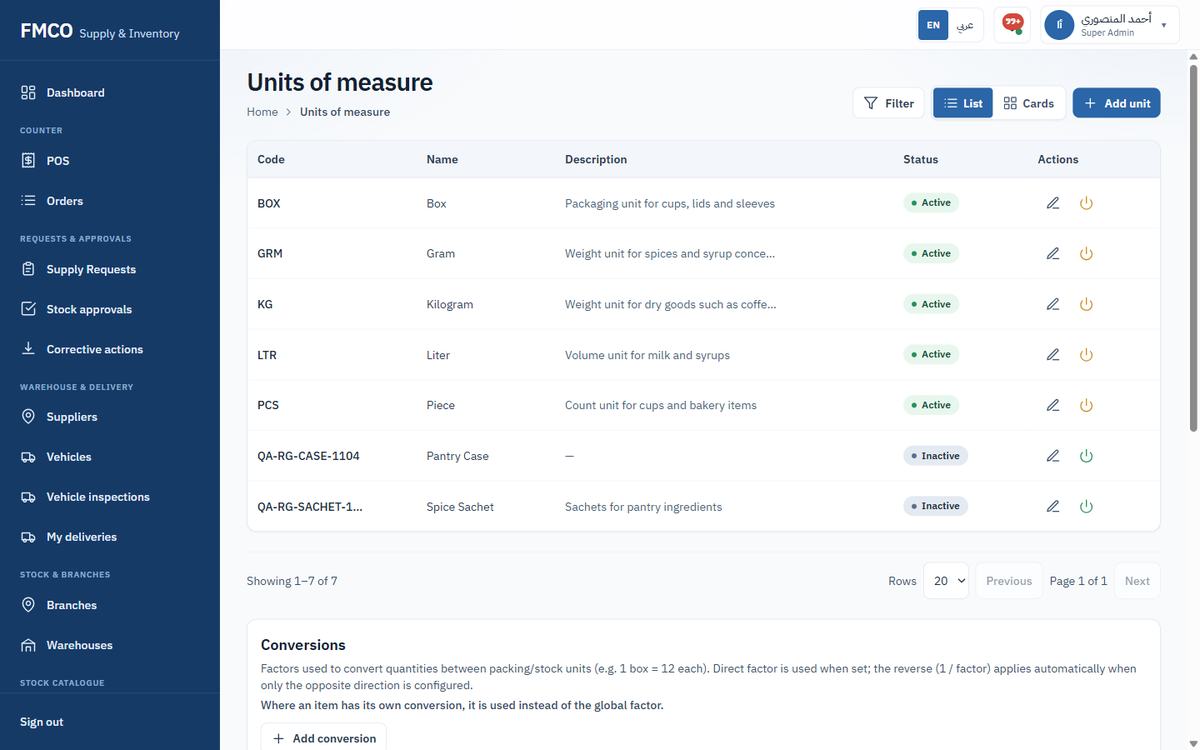
The system already has LTR (Liter). For our milk example we add ML (Millilitre).
ML and Name Millilitre. Optionally add the Arabic name and a description.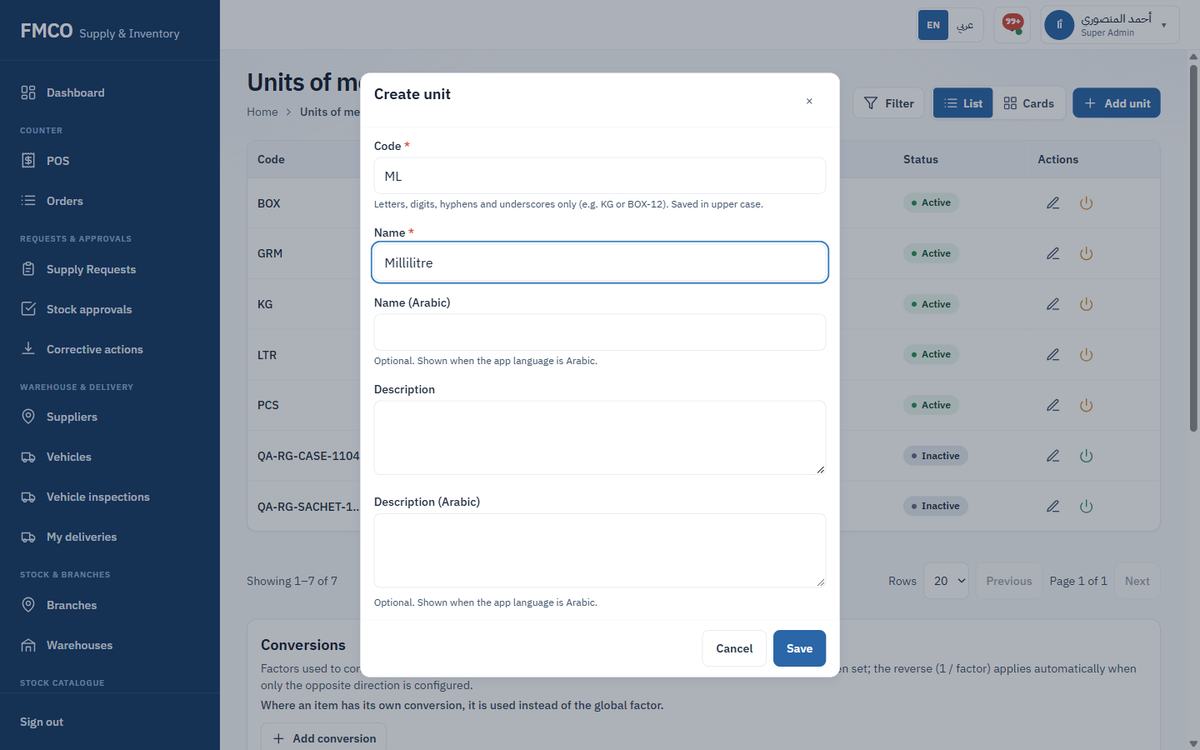
| Field / Button | What it means & how to use it |
|---|---|
| Code * | Short unit code (e.g. KG, BOX-12). Letters, digits, hyphens and underscores only. Saved in upper case. |
| Name * | The unit name in English (e.g. Millilitre). |
| Name (Arabic) | Optional. Shown when the app language is Arabic. |
| Description / Description (Arabic) | Optional notes about the unit. |
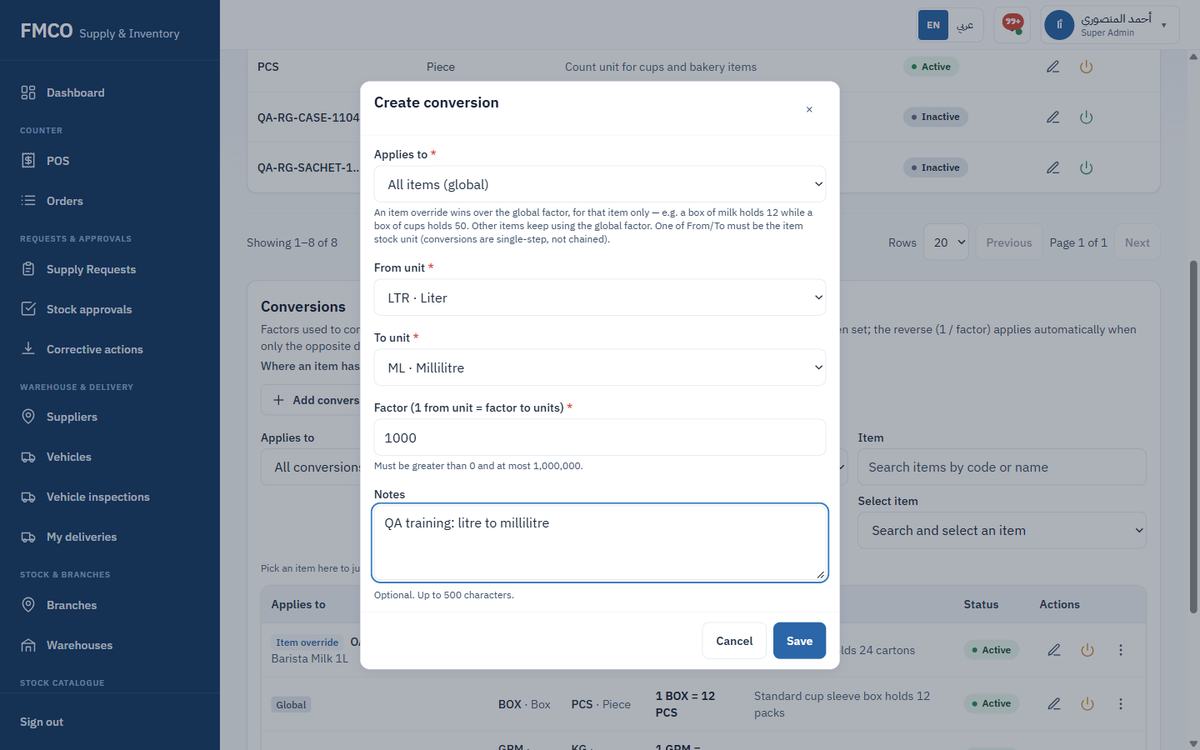
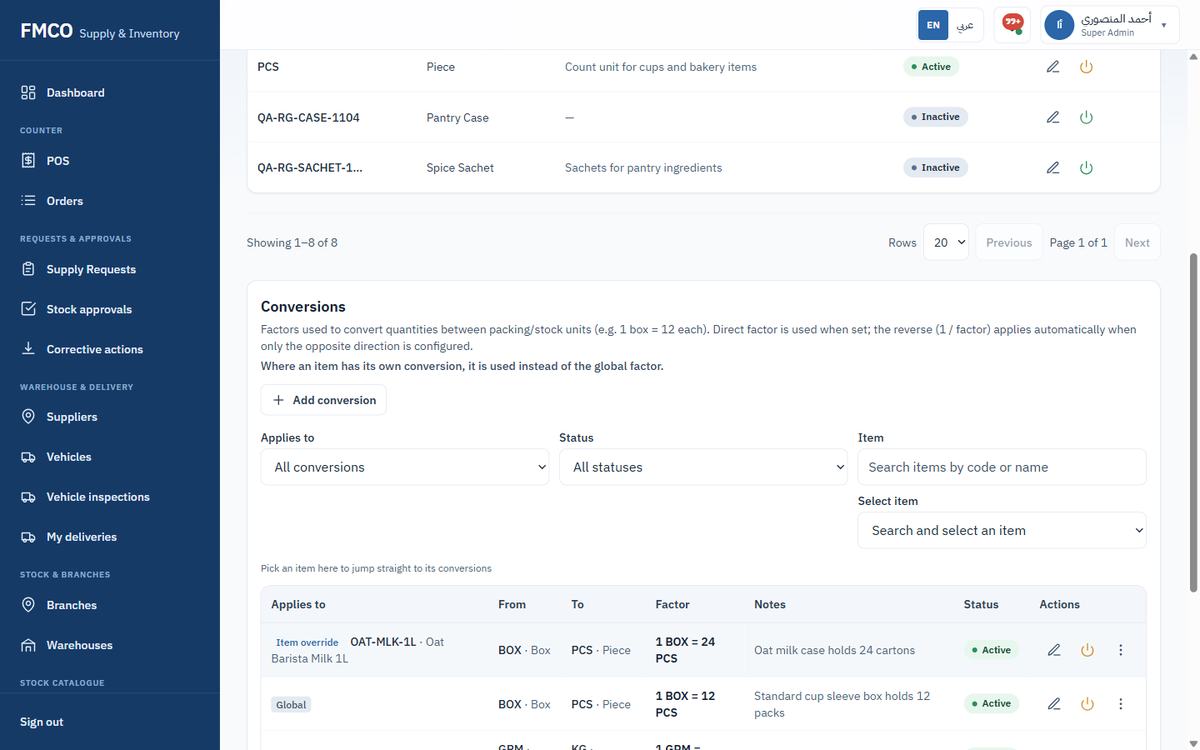
| Field / Button | What it means & how to use it |
|---|---|
| Applies to * | All items (global) or One item (override). An item override wins over the global factor for that item only (e.g. a box of milk holds 12 while a box of cups holds 50). For an override, one of From/To must be the item's stock unit. |
| From unit * / To unit * | The two units being converted. Conversions are single-step, not chained. |
| Factor * | How many "to" units make one "from" unit. Must be greater than 0 and at most 1,000,000. The reverse (1 / factor) applies automatically. |
| Notes | Optional, up to 500 characters. |
| Filters | Applies to (All / Global only / Item-specific only), Status, and Item — pick an item to jump to its conversions. |
Set up units and conversions first. A unit cannot be changed on an item after the item is created.
Group inventory items so they are easy to find and report on
Item categories organise the inventory catalogue (e.g. Beverages › Coffee, Dairy & Chilled). Every inventory item belongs to one category. Categories can have one level of sub-categories.
Who: Super Admin / Administrator
Left menu → Stock catalogue → Item categories. The list shows Name, Code, Description, Stock items, Status and Actions. Sub-categories are shown under their parent; use "Collapse all" to fold them.
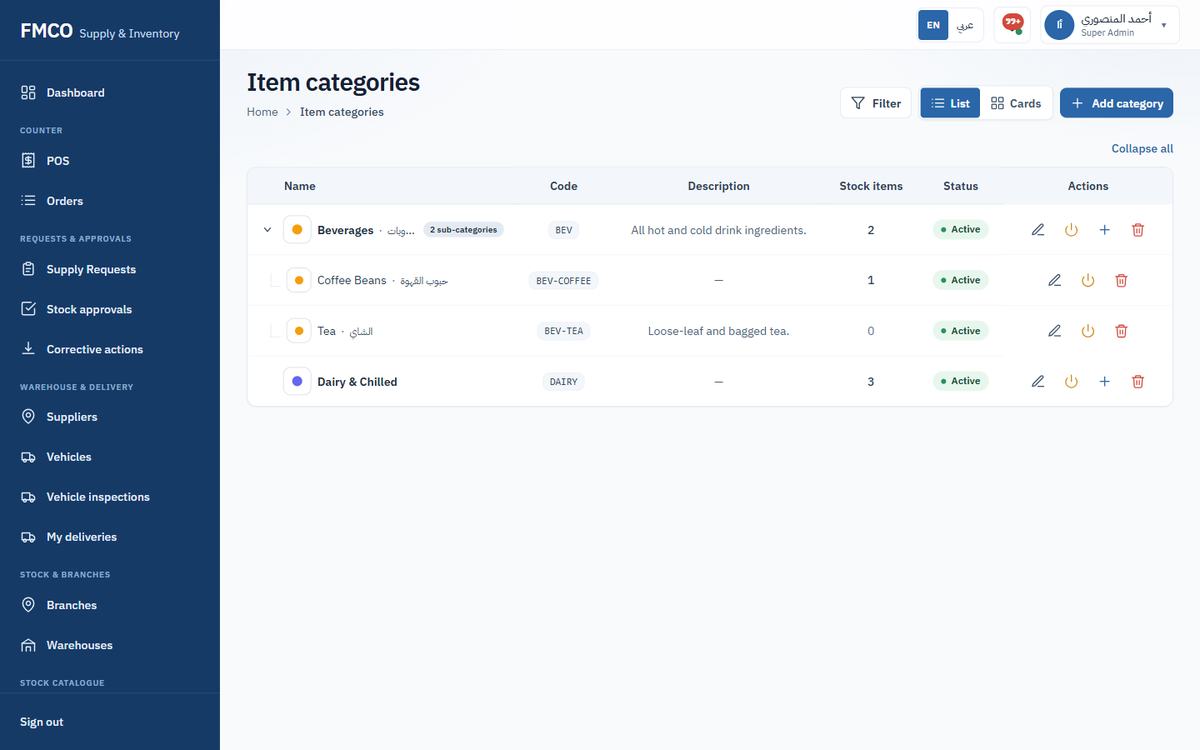
QA-DAIRY, Parent category None – top-level category, Name QA Dairy.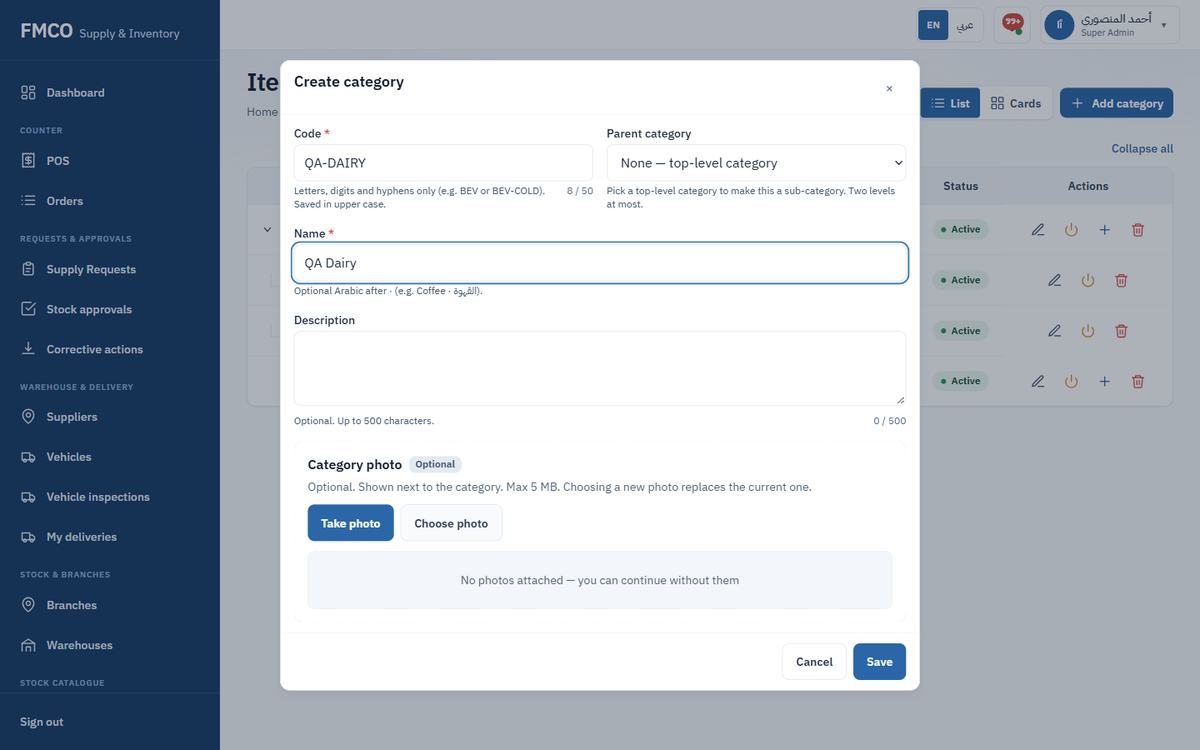
| Field / Button | What it means & how to use it |
|---|---|
| Code * | Letters, digits and hyphens only (e.g. BEV or BEV-COLD). Saved in upper case. Up to 50 characters. |
| Parent category | Leave as "None" for a top-level category, or pick a top-level category to make this a sub-category. Two levels at most. |
| Name * | The category name. Optional Arabic can be added after a "·" (e.g. Coffee · القهوة). |
| Description | Optional, up to 500 characters. |
| Category photo | Optional. Take a photo or choose a file (max 5 MB). |
Create the physical goods that you store and move
An inventory item is a physical good you hold in stock — milk, coffee beans, cups. It is not what the POS sells; that is a product (Module 09). The product's recipe links the two. When an item is created its stock is zero everywhere: stock arrives later through goods-in (Module 15).
Who: Super Admin / Administrator
Left menu → Stock catalogue → Inventory items. The list shows Item (name, code), Barcode, Category, UoM, Unit cost (SAR), Flags (Catalogue / Temp / Ambient), Status and Actions (Edit, Activate/Deactivate, ⋮ → Remove).
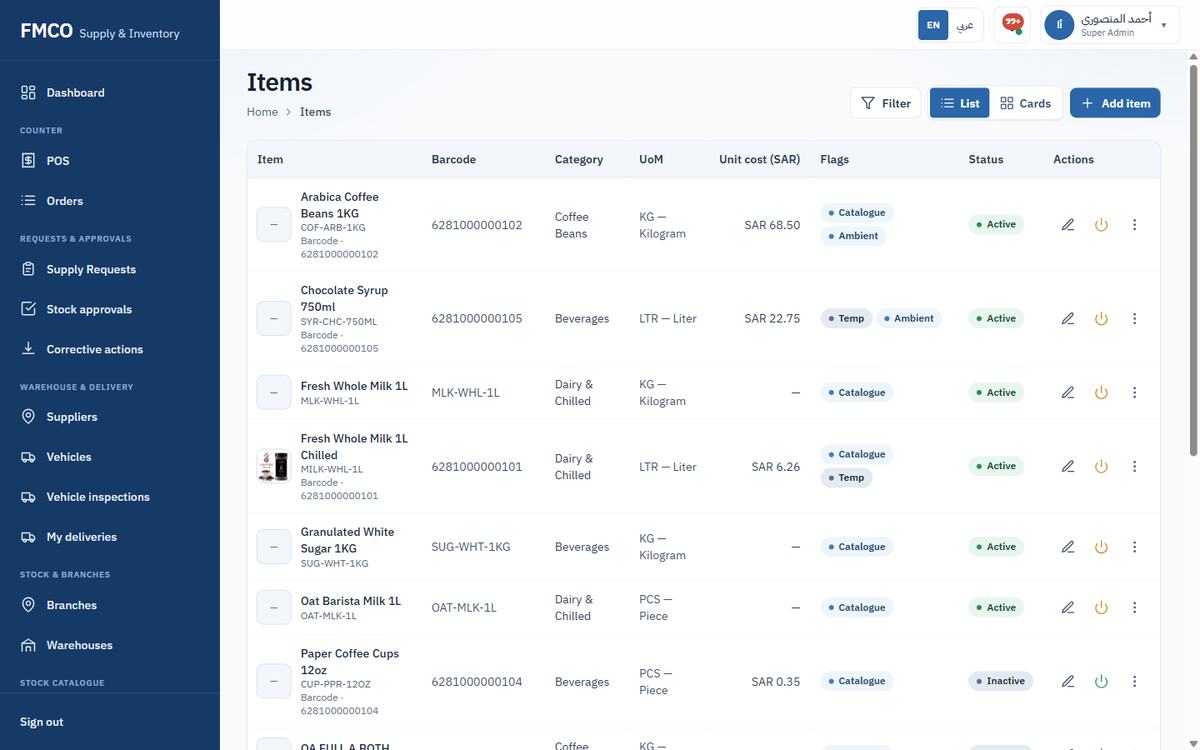
QA-MILK-001, Item name QA Fresh Milk, Category QA-DAIRY, Unit of measure LTR – Liter. Leave Barcode blank to use the item code as the barcode.6.00.0, Max °C 4 (milk is chilled).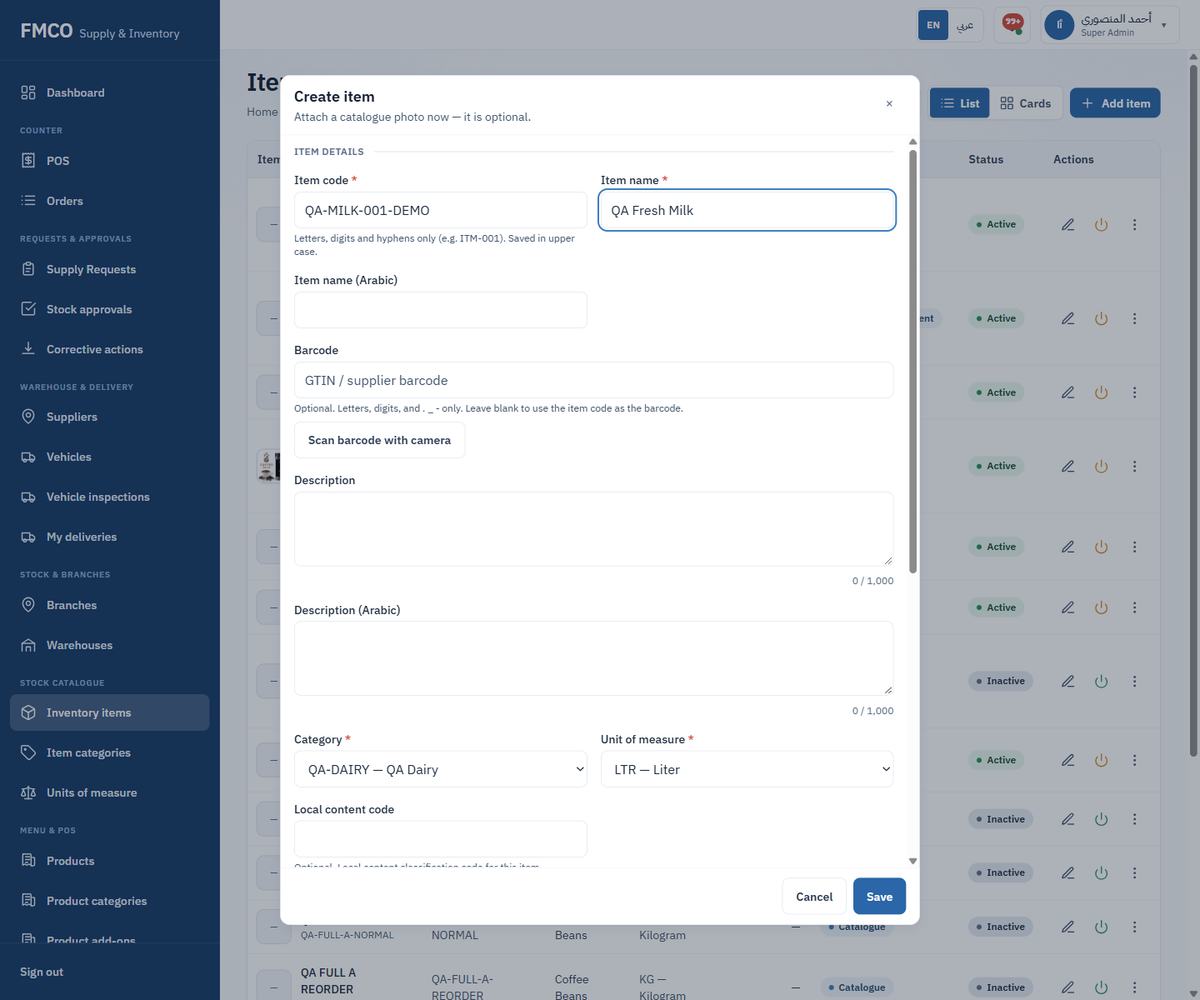
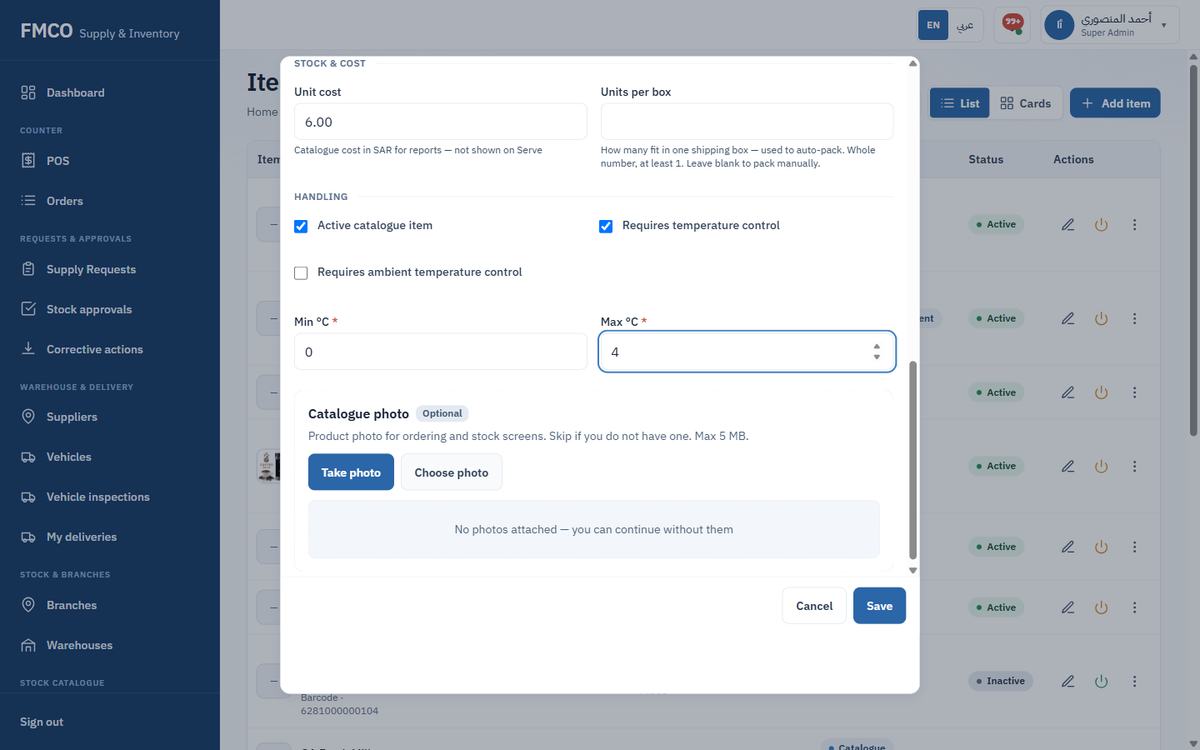
| Field / Button | What it means & how to use it |
|---|---|
| Item code * | Letters, digits and hyphens only (e.g. ITM-001). Saved in upper case. |
| Item name * / Item name (Arabic) | The name shown on every stock screen. |
| Barcode | GTIN or supplier barcode. Optional — letters, digits and . _ - only. Leave blank to use the item code as the barcode. "Scan barcode with camera" fills it from the device camera. |
| Description / Description (Arabic) | Optional, up to 1,000 characters. |
| Category * | The item category (Module 02). |
| Unit of measure * | The stock unit. Locked after create — stock quantities and costs use this unit. |
| Local content code | Optional local content classification code. |
| Unit cost | Catalogue cost in SAR for reports — not shown on Serve. |
| Units per box | How many fit in one shipping box — used to auto-pack orders. Whole number, at least 1. Leave blank to pack manually. |
| Active catalogue item | Only active items can be ordered, received and counted. |
| Requires temperature control / ambient temperature control | Marks chilled/frozen or ambient goods. Temperature control asks for Min °C * and Max °C *, used during inspections. |
| Catalogue photo | Optional product photo for ordering and stock screens (max 5 MB). |
Open an existing item with the pencil icon to see Order and issue units: the units the item can be entered in. QA Fresh Milk shows LTR (Stock unit) and "1 ML = 0.001 LTR · Global" from the conversion set up in Module 01.
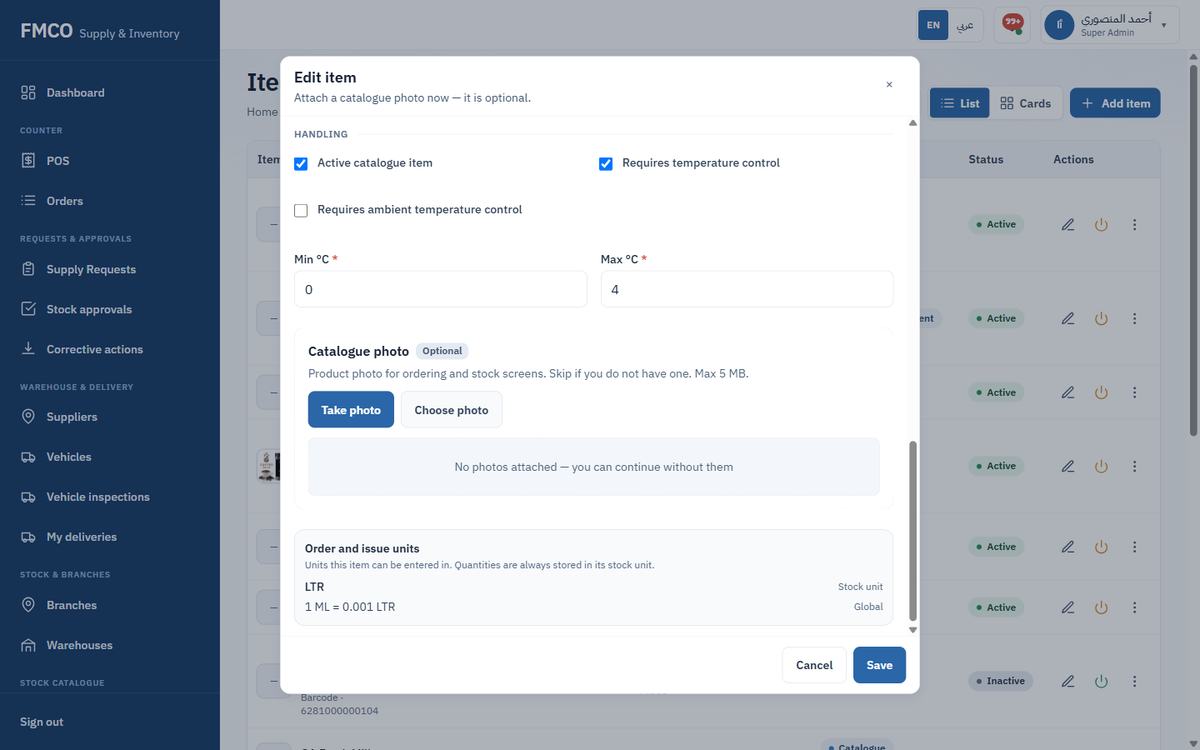
QA Fresh Milk is now known to the system, but its stock is 0 LTR everywhere. Nothing has been received yet.
Labels for branch storages and POS registers
Stock location types describe the storage areas inside a branch (general storage, chiller, bar…). Every storage must have one. Kitchen types categorise the POS registers of a branch (main register, kiosk, drive-thru…). Every kitchen must have one. Neither type affects how stock is deducted: POS sales always come from the branch's Main storage.
Who: Super Admin / Administrator
Left menu → Stock & branches → Branches, then click Stock location types or Kitchen types at the top of the page. Both screens list Code, Name, Status and Actions and offer Filter, List / Cards and Add type.
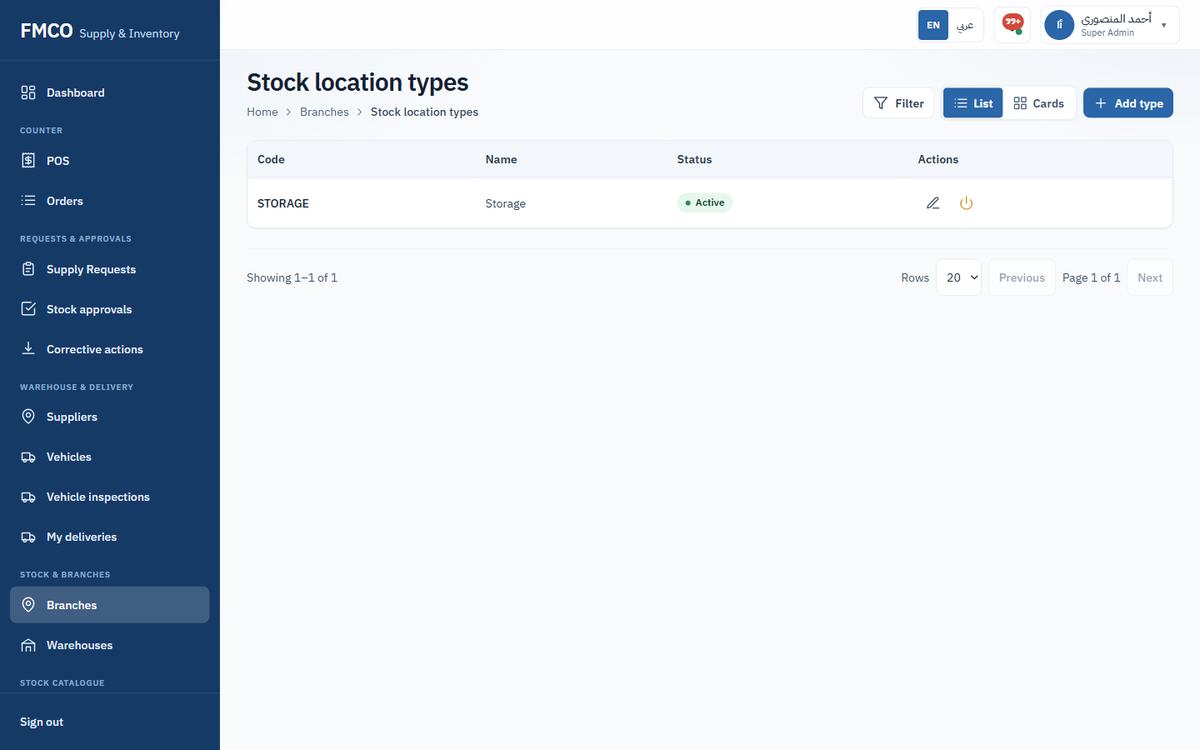
A kitchen cannot be created until at least one active kitchen type exists. If the Kitchen types screen shows "No types yet", add one first:
QA-MAIN and Name QA Main register (optionally the Arabic name).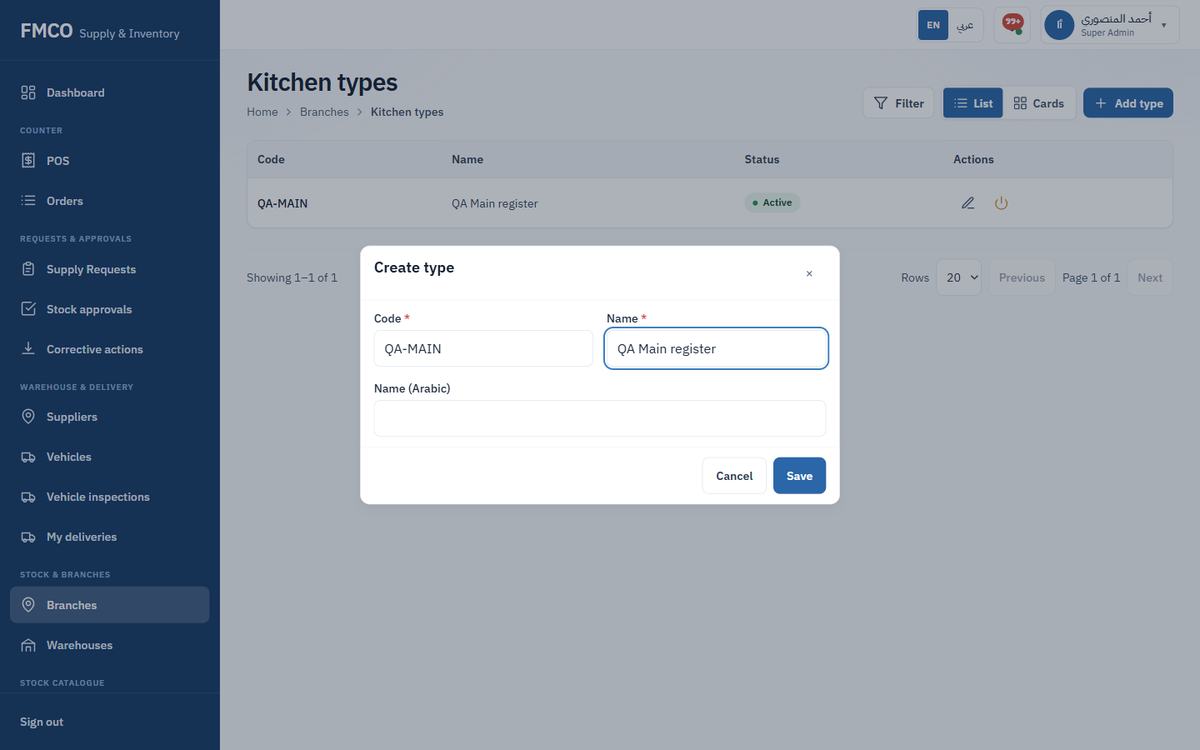
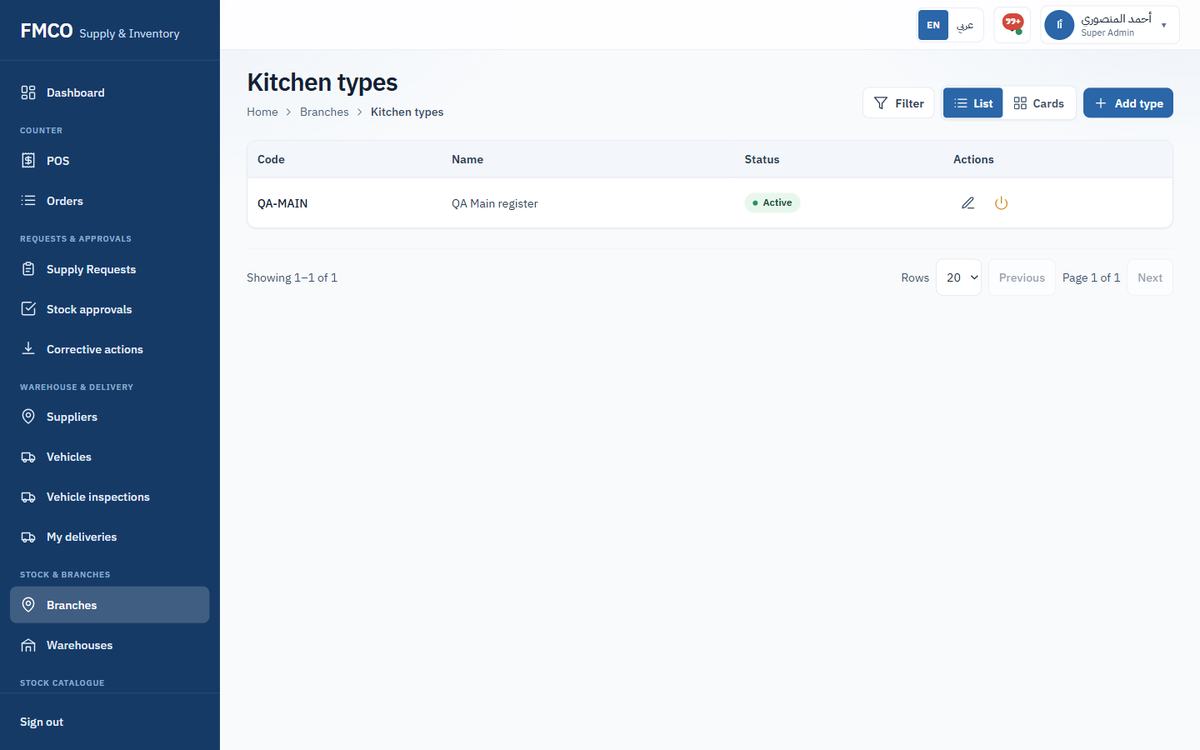
| Field / Button | What it means & how to use it |
|---|---|
| Code * | A short unique code (e.g. MAIN, KIOSK, CHILLED). Letters, digits, hyphens and underscores; saved in upper case. Cannot be changed after creation. |
| Name * | The readable name in English. Must be unique. |
| Name (Arabic) | Optional but recommended — shown when the app is in Arabic. |
| Edit (pencil icon) | Change the Name or Arabic name. The Code is fixed. |
| Deactivate / Activate (power icon) | Blocked while active storages (or kitchens) still use the type. Inactive types cannot be chosen for new records. |
| Filter / List / Cards | Search by code or name, filter by status, switch the view. |
Set up the cafés and sites where FMCO operates
A branch is a physical location where FMCO serves customers. Everything at that location belongs to its branch: storages, kitchens, menus and their transactions. Supply requests are raised for a branch and deliveries are received into it.
Who: Super Admin / Administrator
Left menu → Stock & branches → Branches. Each card shows the branch name, code, status, city, a Stock health bar (items tracked, healthy, low, out of stock) and counts of Kitchens, Menus and Stock locations.
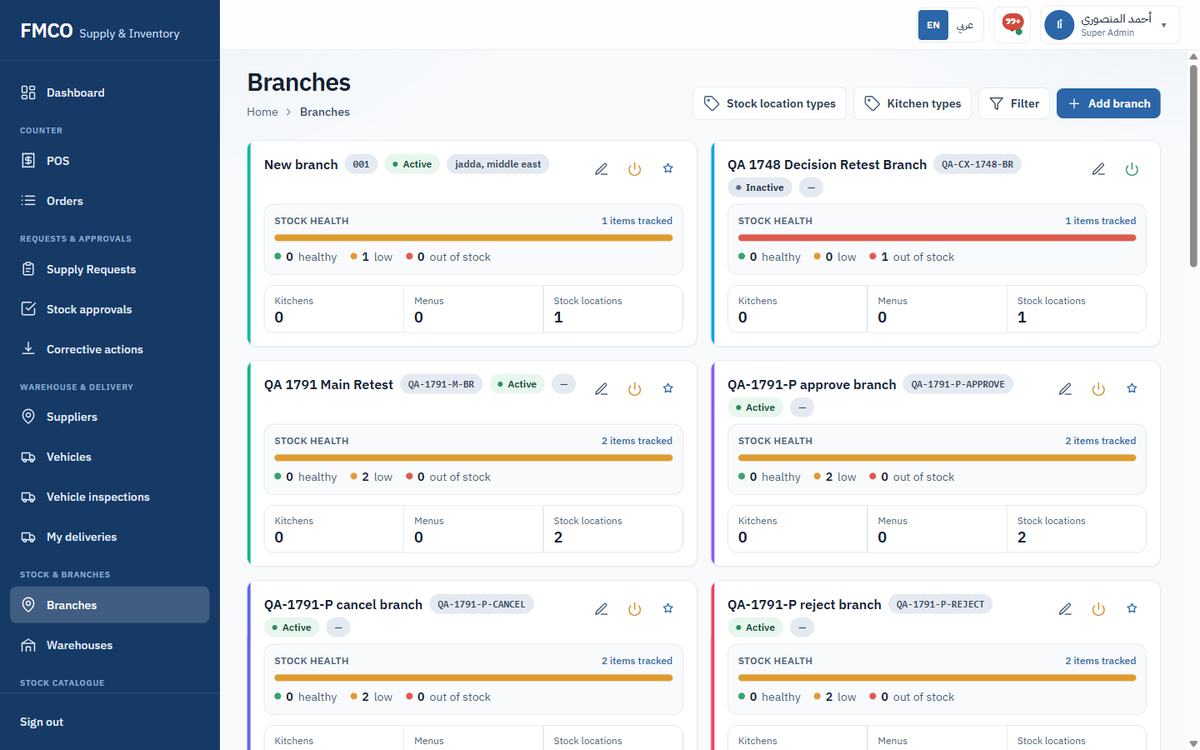
QA-DEMO-01, Name QA Demo Cafe, City Riyadh, Region Riyadh Province.QA-DEMO-01-MAIN, named "QA Demo Cafe · main".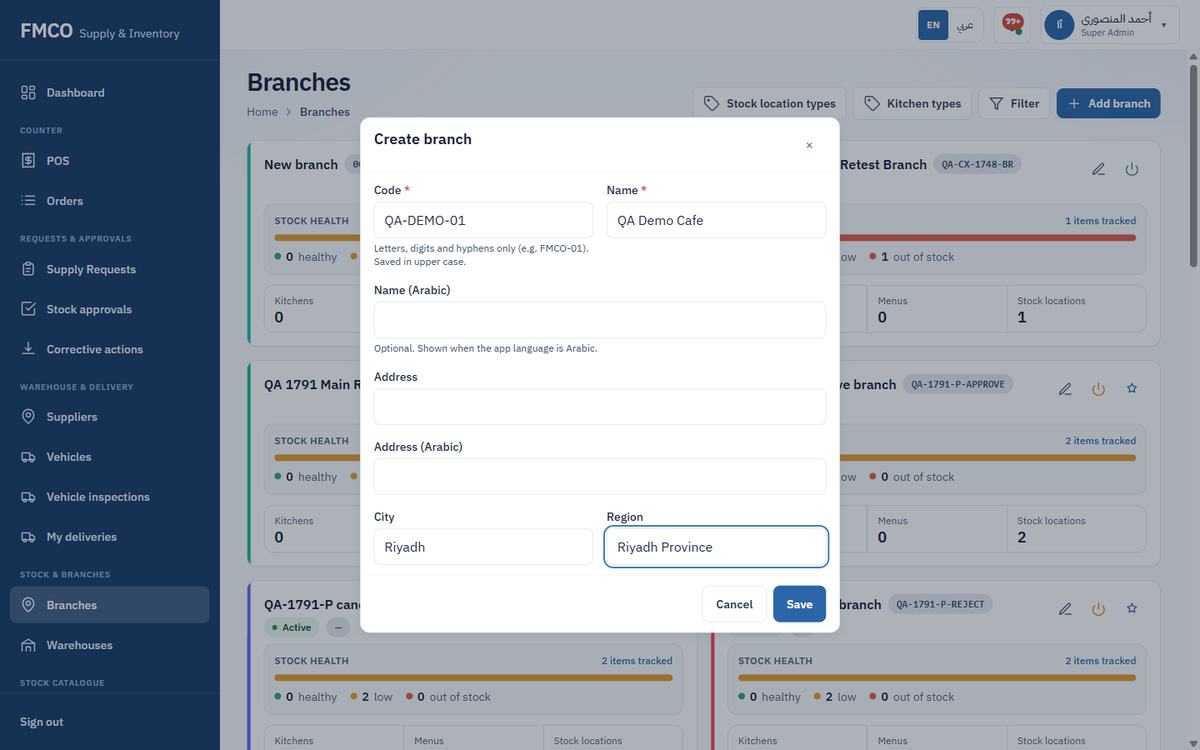
| Field / Button | What it means & how to use it |
|---|---|
| Code * | Letters, digits and hyphens only (e.g. FMCO-01). Saved in upper case. Cannot be changed after creation. |
| Name * / Name (Arabic) | The branch name; must be unique. Arabic is shown when the app language is Arabic. |
| Address / Address (Arabic), City, Region | Where the branch is. City and Region can be used to filter the list. |
| Edit (pencil icon) | Change the details. The Code stays fixed. |
| Deactivate / Activate (power icon) | An inactive branch cannot be used for operations. Deactivate only after its kitchens are deactivated and storages are empty. |
Click the branch name to open it. The header shows Items in stock, On hand and Low stock. The tabs are:
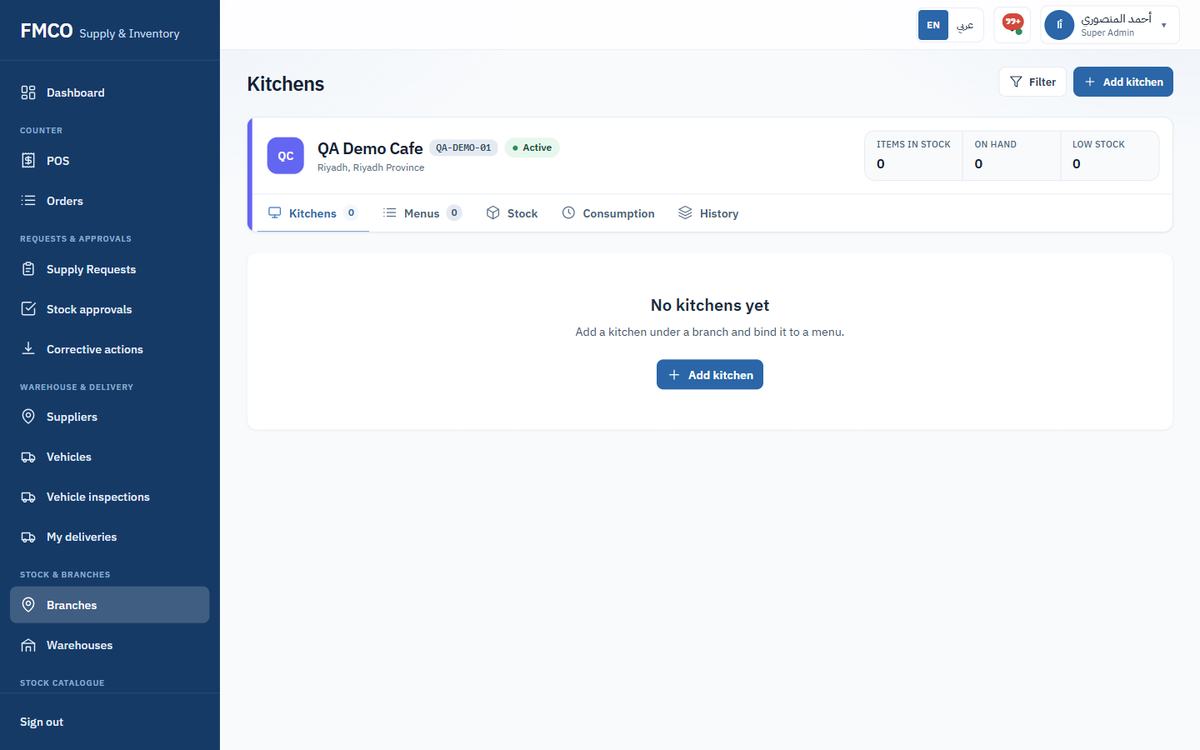
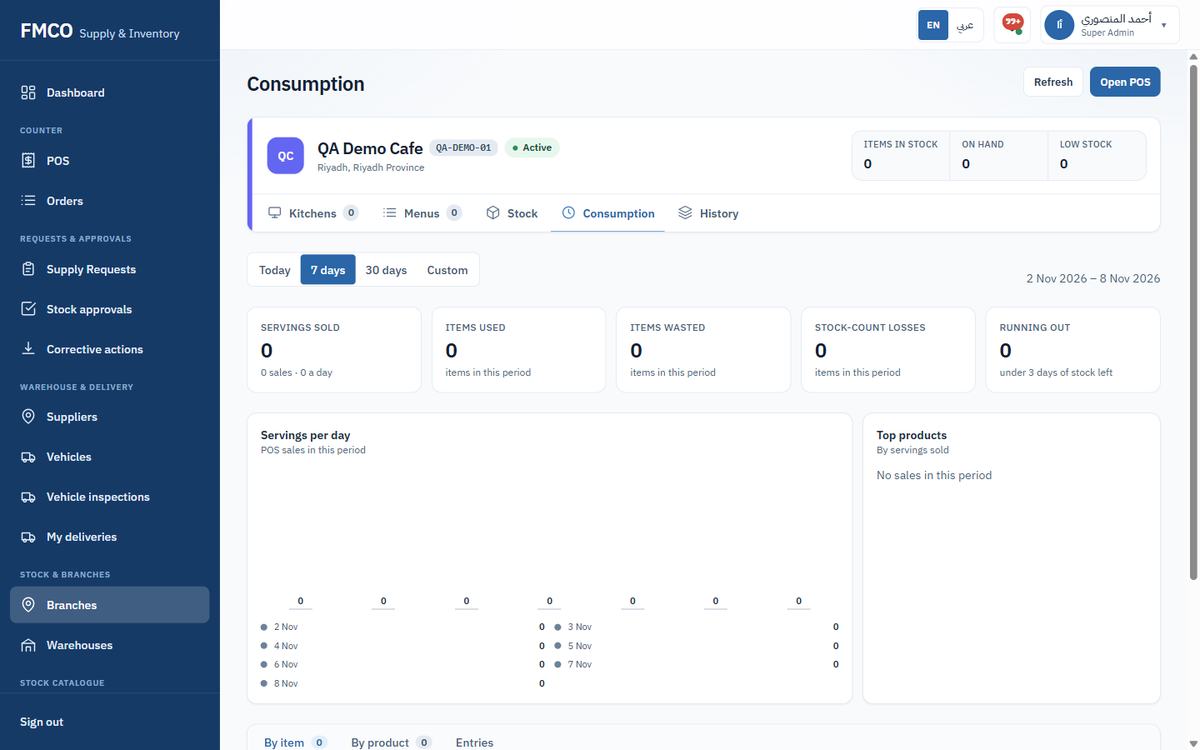
Net use = sold + recorded + waste + count losses − count gains. Days of cover = branch stock ÷ average daily use.
The places inside a branch where stock is kept
Storages are the stock places inside a branch: main store, chiller, bar. The branch total is the sum of all its storages. Exactly one storage per branch is the Main storage (marked ★).
Who: Super Admin / Administrator
Open the branch and click the Stock tab. The left panel lists Storages ("1 active of 1", an "All storages / Whole branch" row and one row per storage). The right panel lists the selected storage's items with All items / Low stock views and a search box.
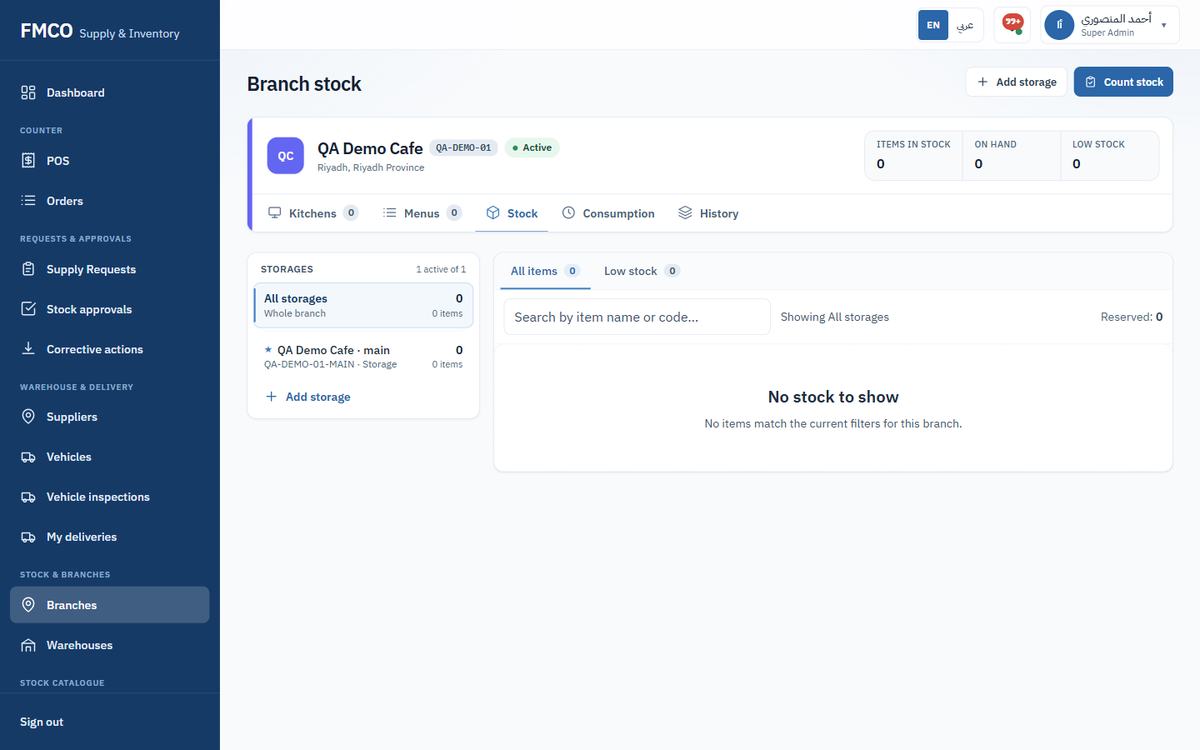
The Main storage receives every delivery to the branch, and every POS sale and POS waste is deducted from it. It cannot be deactivated. If a branch has no active Main storage, receiving and POS sales for that branch stop with an error.
Our example only needs the Main storage. To add a chiller or bar:
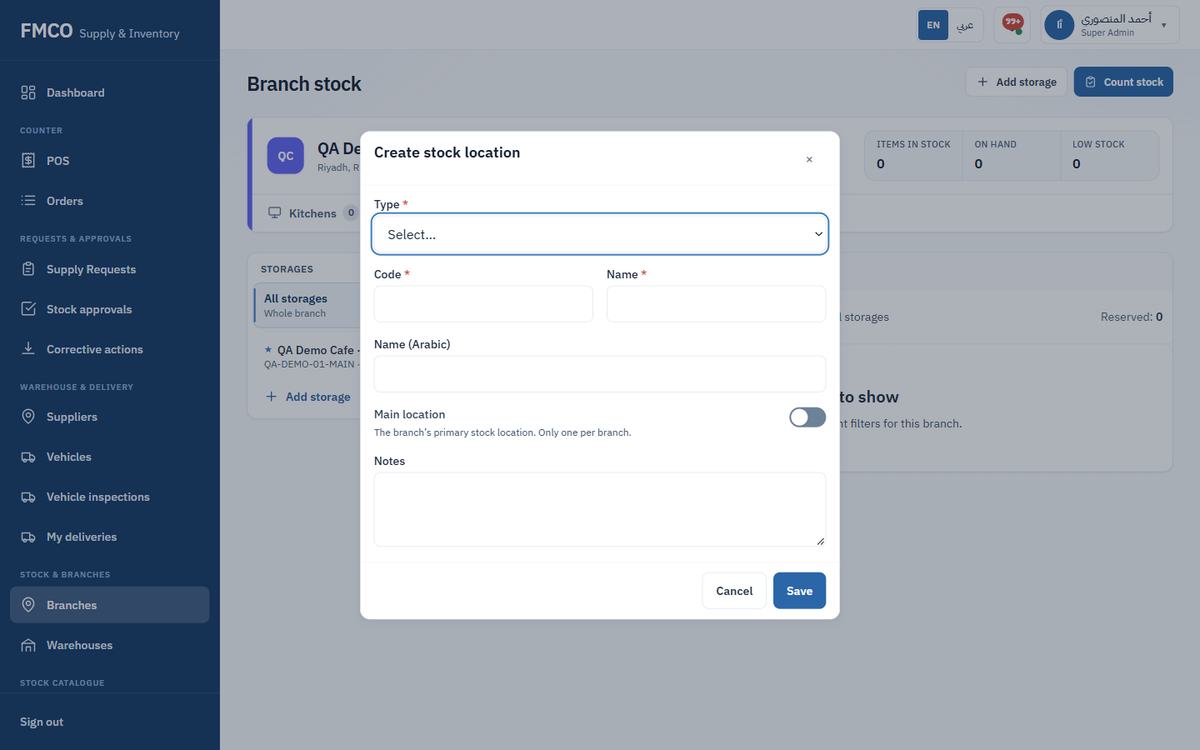
| Field / Button | What it means & how to use it |
|---|---|
| Type * | The stock location type (Module 04). Only active types are listed. |
| Code * / Name * / Name (Arabic) | Code is unique within the branch, saved in upper case and cannot be changed later. |
| Main location (switch) | "The branch's primary stock location. Only one per branch." Switching it on for a new storage moves Main away from the previous one. |
| Notes | Any extra information about the storage. |
| Deactivate / Activate | A storage can only be deactivated when it holds no stock and is not the Main. |
The supply facilities that stock your branches
A warehouse holds large quantities of stock before it is sent to branches. Inside a warehouse, bins are the exact shelf positions (aisle, rack, shelf) where lots are placed and picked.
Who: Super Admin / Administrator, Warehouse Manager
Left menu → Stock & branches → Warehouses. Each card shows name, code, status, a "Central" badge if applicable, location, Stock health and three figures: Warehouse bins, Lots with stock and Quarantine holds.
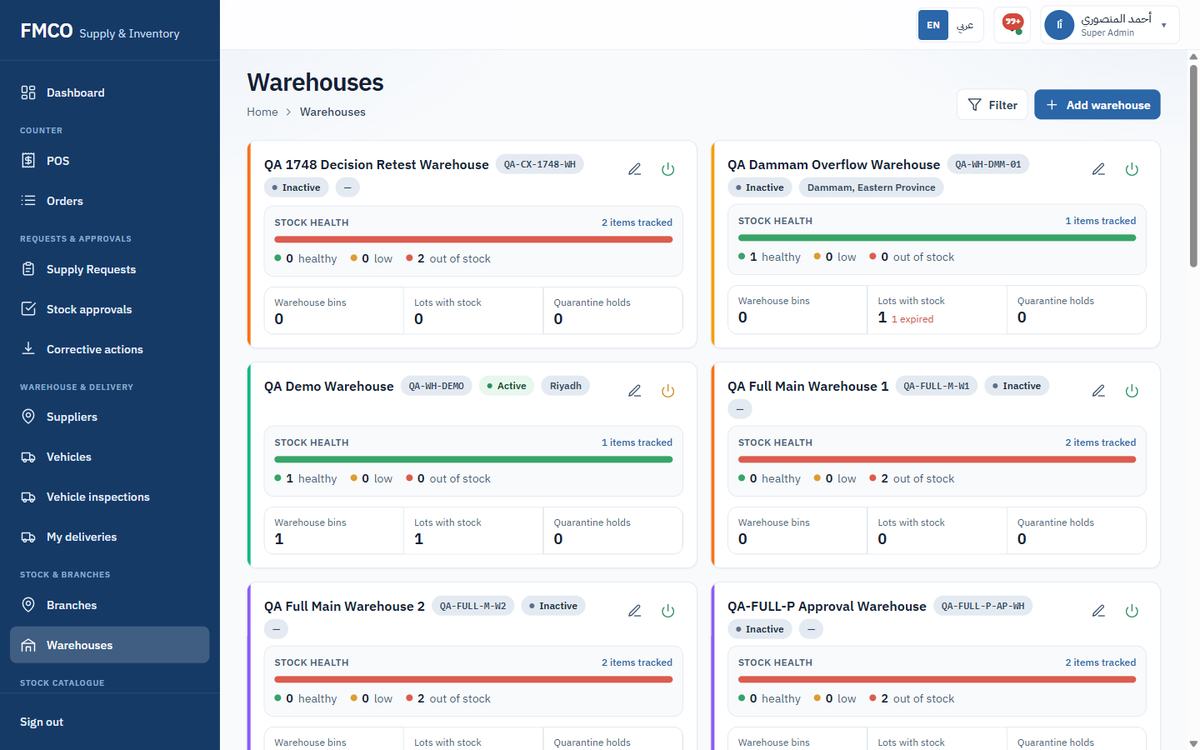
QA-WH-DEMO, Name QA Demo Warehouse, City Riyadh.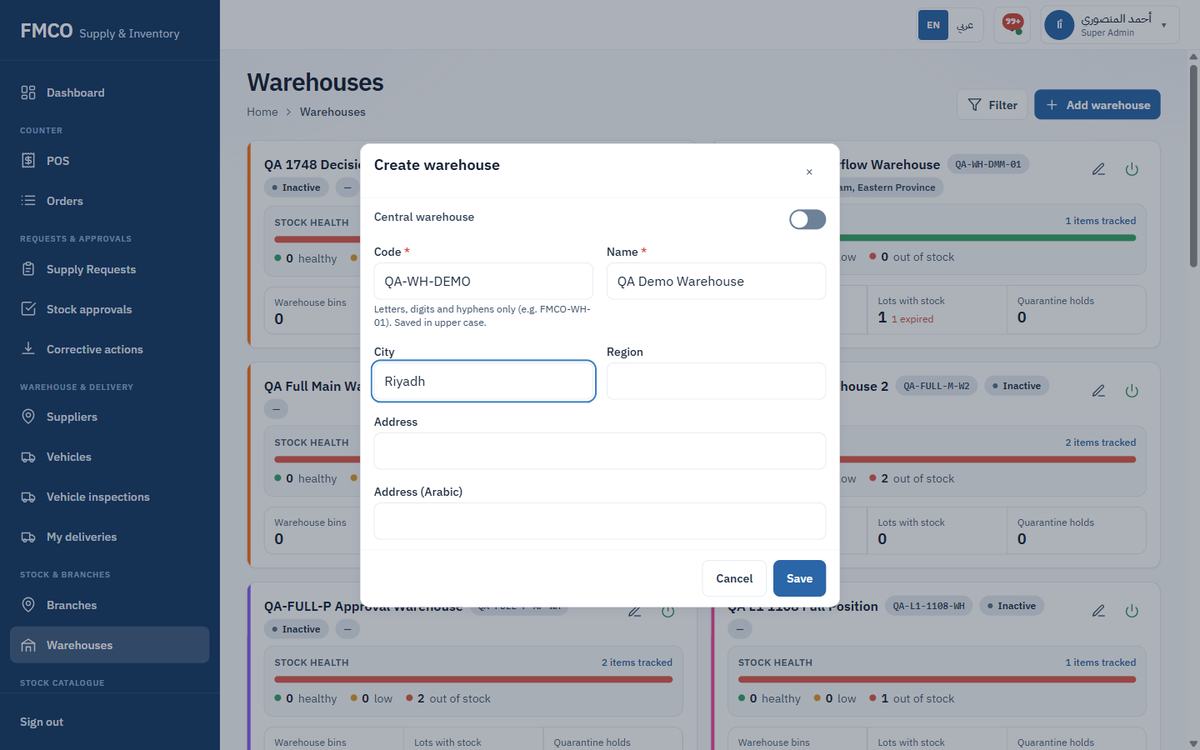
| Field / Button | What it means & how to use it |
|---|---|
| Central warehouse (switch) | Makes this the system's main supply hub. Only one warehouse can be central. |
| Code * | Letters, digits and hyphens only (e.g. FMCO-WH-01). Saved in upper case. Cannot be changed after creation. |
| Name * | Required and unique. |
| City, Region, Address, Address (Arabic) | The warehouse location. |
Supply requests are fulfilled from the Central warehouse by default. Marking another warehouse as Central removes the badge from the previous one.
Click the warehouse name to open it. The header shows Items in stock, Low stock and Expiring (7 days). The tabs are:
| Tab | What it shows |
|---|---|
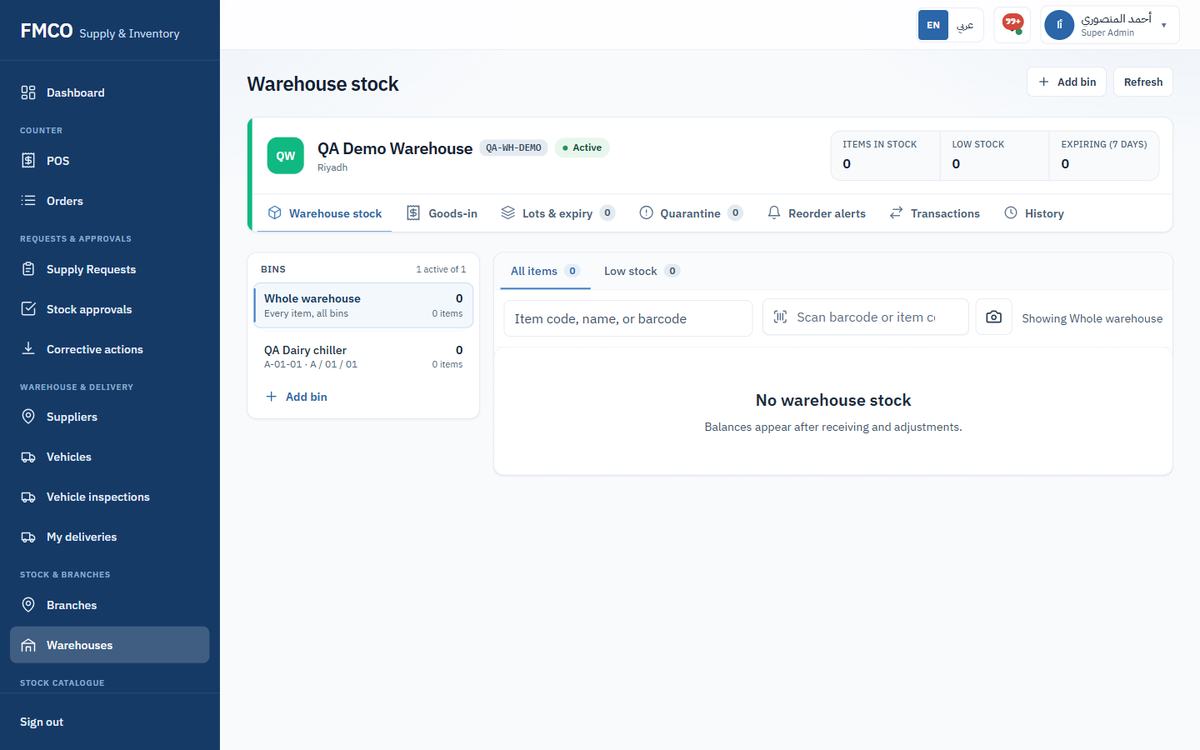
| Warehouse stock | Live On hand / Reserved / Available per item, plus the Bins panel (Module 25). |
| Goods-in | Deliveries from suppliers: draft, check and post goods receipts (Module 15). |
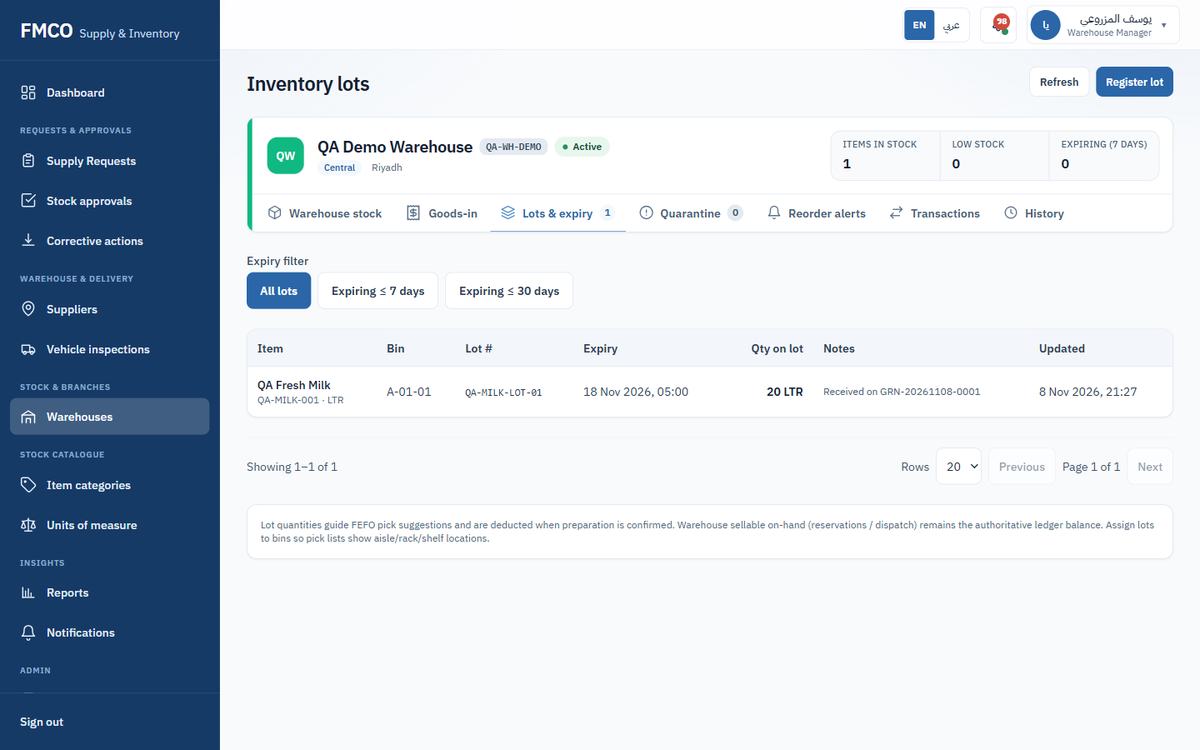
| Lots & expiry | Every lot with its expiry. Lot quantities guide FEFO (first-expiry-first-out) pick suggestions. Filter: All lots / Expiring ≤ 7 days / ≤ 30 days. |
| Quarantine | Stock on hold (Open, Partly resolved, Released, Destroyed, Resolved) and "Place on hold". |
| Reorder alerts | Suggested reorders for items at or below their reorder level. |
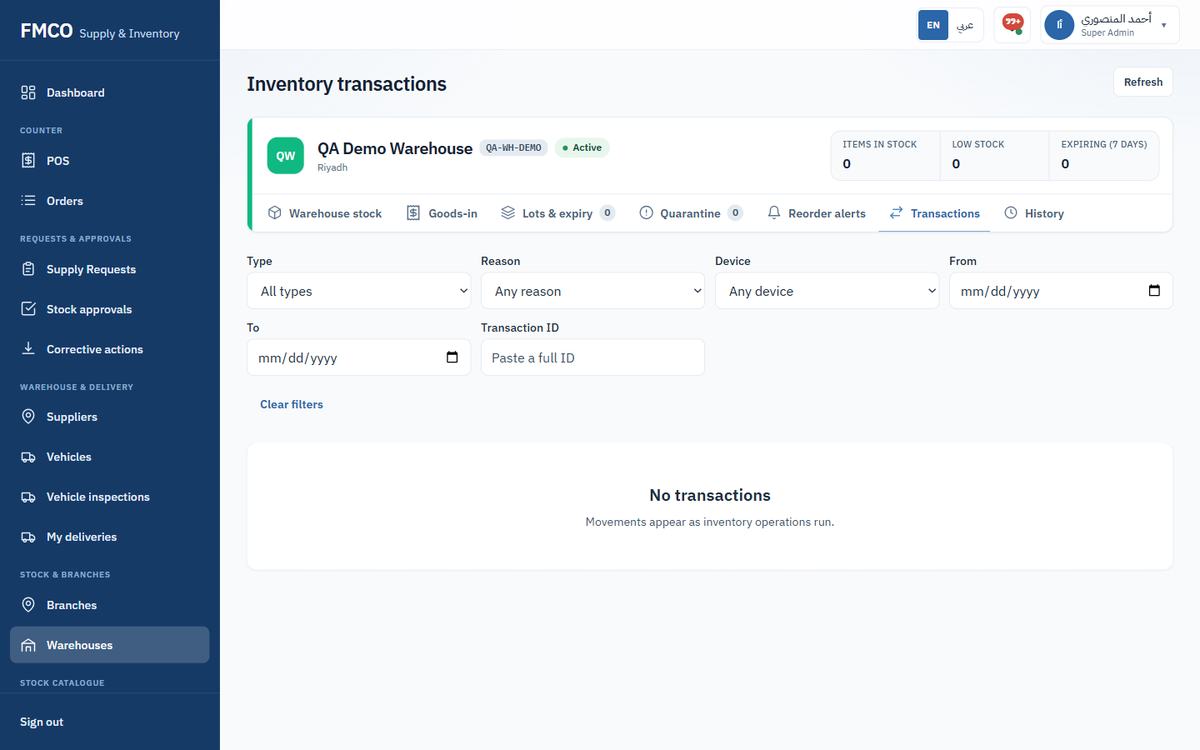
| Transactions | The warehouse stock ledger, filterable by type (Receipt, Dispatch, Adjustment, Reservation, Into/Out of transit…), reason, device and dates. |
| History | Daily stock snapshots. |
A-01-01, Name QA Dairy chiller, Aisle A, Rack 01, Shelf 01.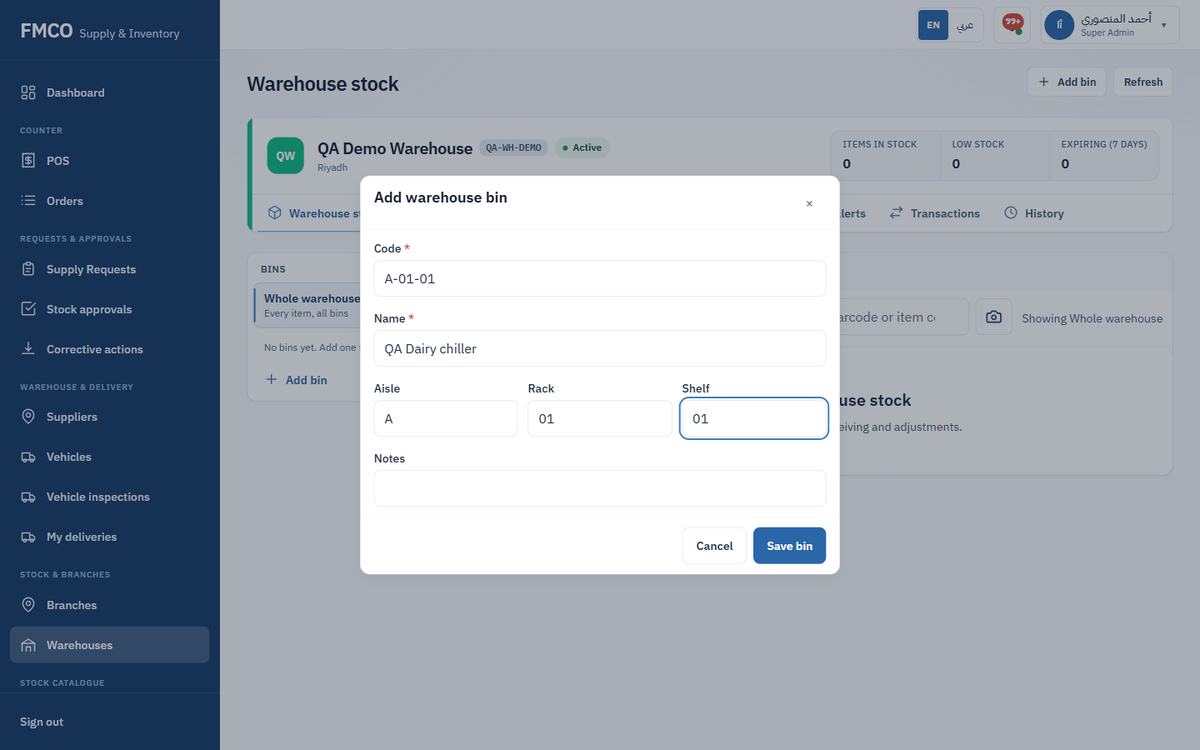
| Field / Button | What it means & how to use it |
|---|---|
| Code * | The bin identifier, unique within the warehouse, saved in upper case. Use the [Aisle]-[Rack]-[Shelf] format and label shelves to match. |
| Name * | What staff see when looking up bins (e.g. "Dairy chiller"). |
| Aisle, Rack, Shelf, Notes | Optional position details and notes (weight limits, item type…). |
| Delete (bin icon) | A bin that still holds lots with stock cannot be deleted — move the lots first. |
The companies that deliver goods to your warehouses
A supplier delivers goods to a warehouse. Each goods receipt (Module 15) names its supplier, so deliveries can be traced back. Branches never order from suppliers directly — they request stock from the warehouse.
Who: Super Admin / Administrator, Warehouse Manager
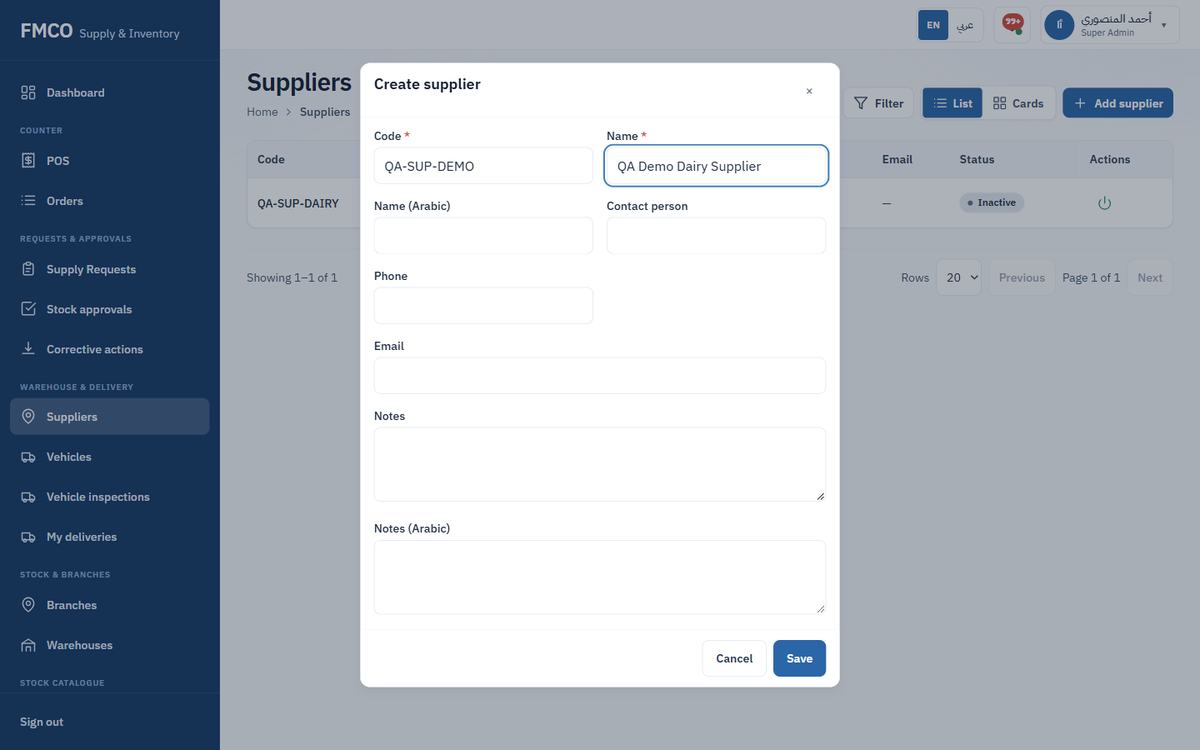
QA-SUP-DEMO, Name QA Demo Dairy Supplier. Add the contact person, phone and email if known.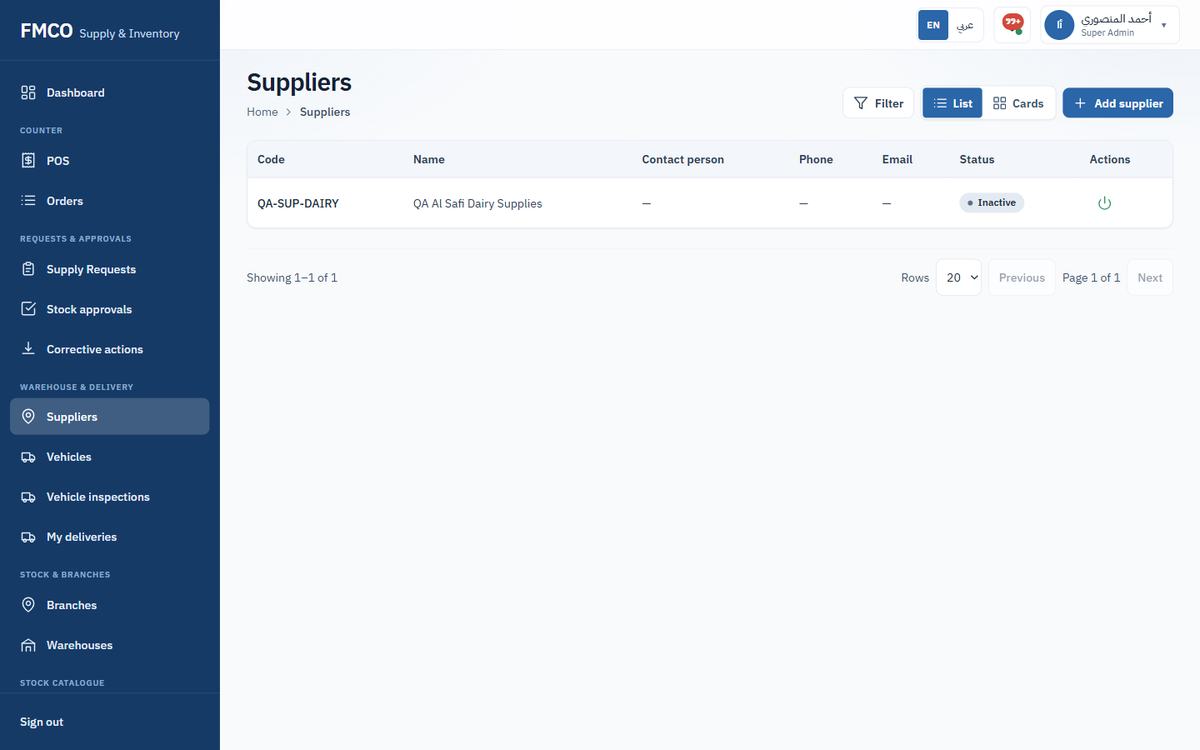
| Field / Button | What it means & how to use it |
|---|---|
| Code * / Name * / Name (Arabic) | Identify the supplier on goods receipts and reports. |
| Contact person, Phone, Email | Who to call about a delivery. |
| Notes / Notes (Arabic) | Any extra information (delivery days, terms…). |
What the POS serves, and which stock each serve uses
A product is what the POS serves — a drink or a pastry. Its recipe (ingredients) lists the inventory items used for one serve. When a product is served, the system deducts those ingredients from the branch's Main storage automatically. Products are grouped into product categories, which become the tabs on the POS.
Who: Super Admin / Administrator
QA-TRAINING, Name QA Training Drinks. Optionally set the Display order (lower numbers are listed first) and a photo shown on the POS category tab.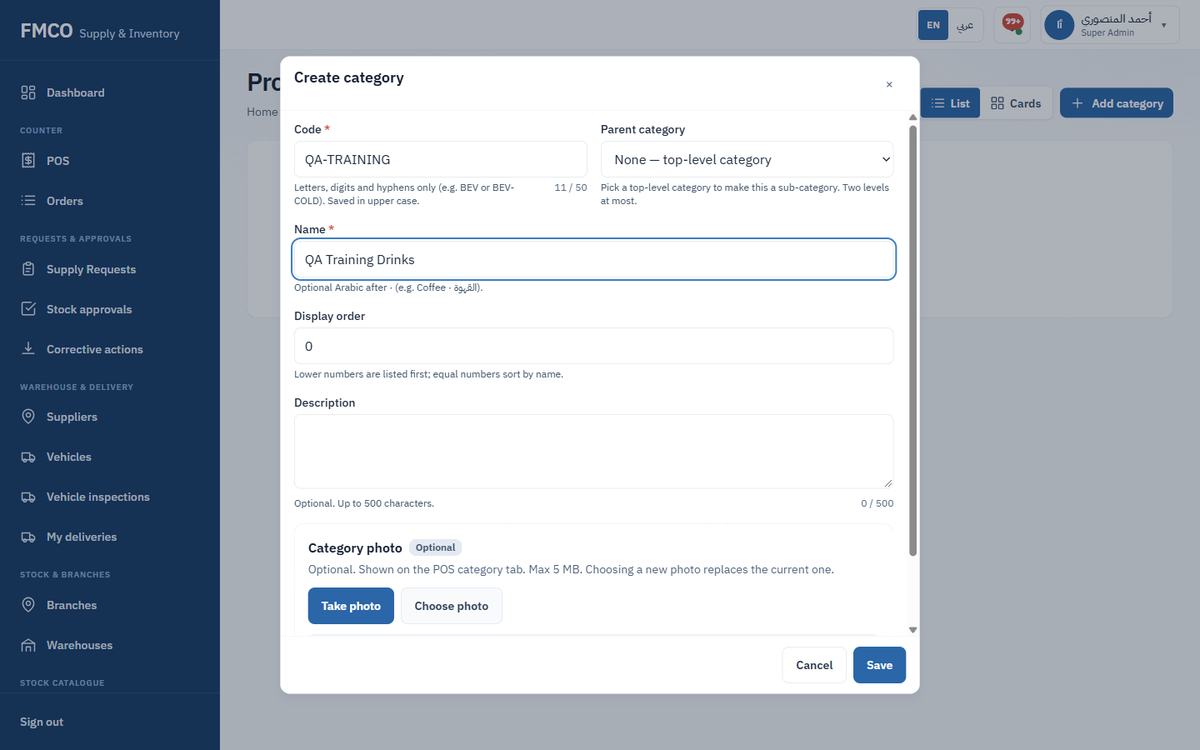
QA-DRINK-001, Category QA-TRAINING · QA Training Drinks, Status Active, Name QA Milk Training Drink.0.2 (litres per serve). Leave Wastage % at 0.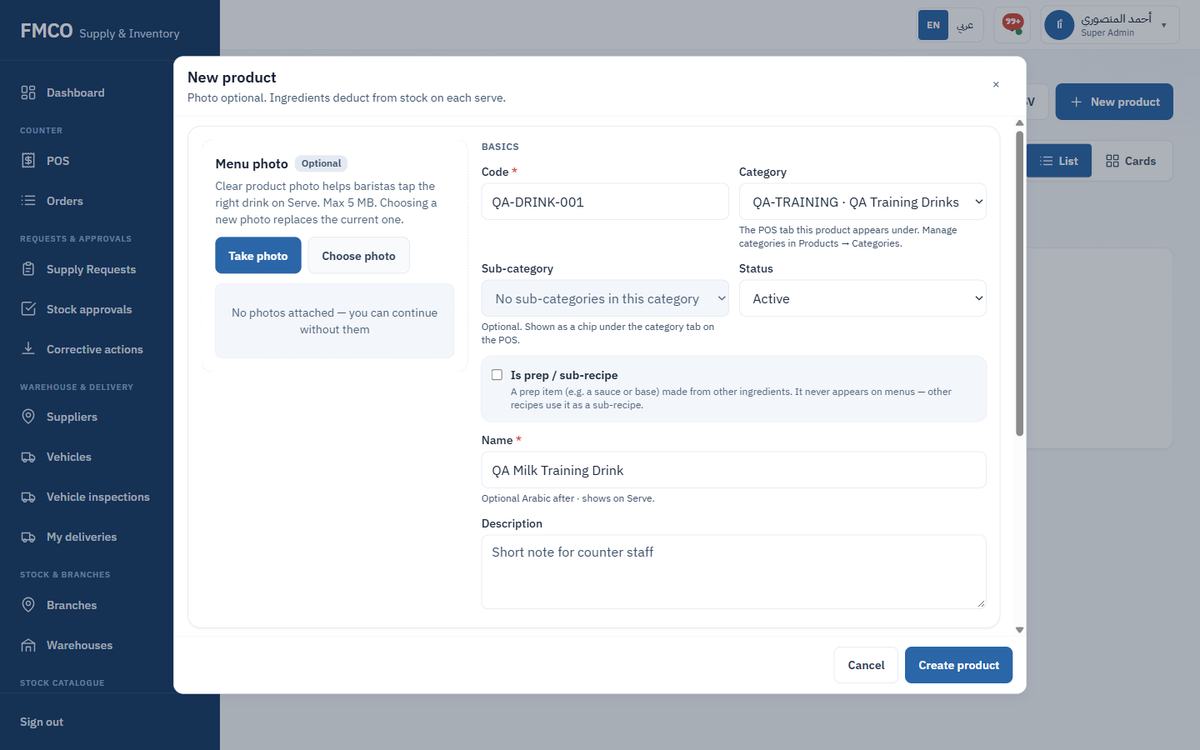
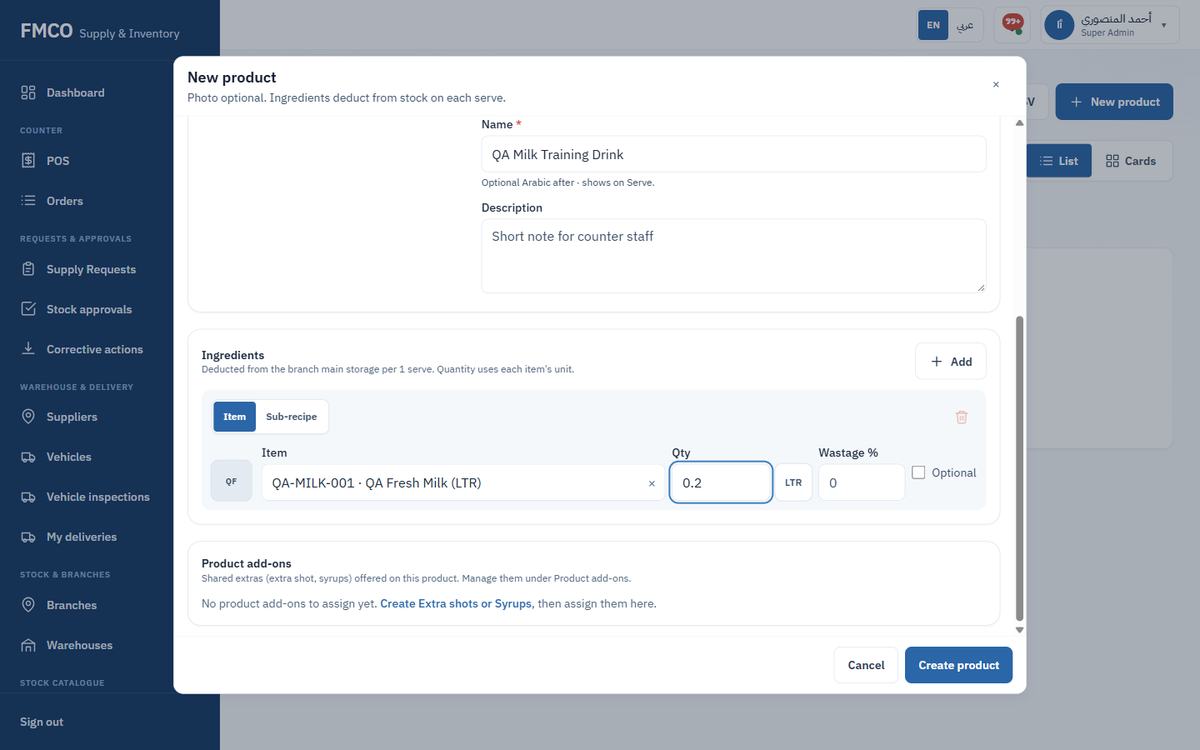
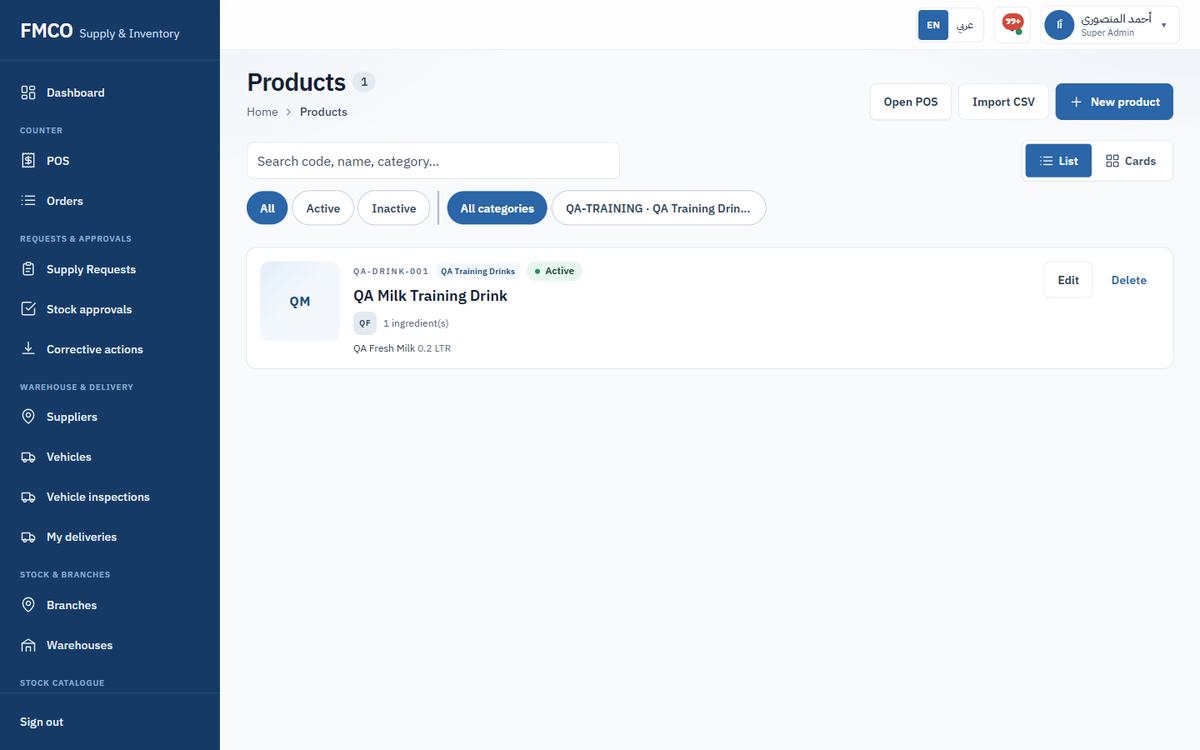
| Field / Button | What it means & how to use it |
|---|---|
| Menu photo | Optional. A clear photo helps baristas tap the right drink on Serve (max 5 MB). |
| Code * | Unique product code (e.g. RCP-CAPPUCCINO). |
| Category | The POS tab the product appears under. Products with no category are shown under "Other". |
| Sub-category | Optional. Shown as a chip under the category tab on the POS. |
| Status | Active or Inactive. Only active products appear on the POS. |
| Is prep / sub-recipe | For a prep item (a sauce or base) made from other ingredients. It never appears on menus — other recipes use it as a sub-recipe. |
| Name * / Description | Optional Arabic can be added after a "·"; it shows on Serve. |
| Ingredients → Item / Sub-recipe | Each line is an inventory item or a sub-recipe, deducted from the branch Main storage per 1 serve. |
| Qty | Quantity per serve, in the item's stock unit (shown next to the field, e.g. LTR). |
| Wastage % | Extra quantity allowed for normal preparation loss. |
| Optional | The ingredient can be left out when serving. |
| Product add-ons | Shared extras (extra shot, syrups) offered on this product. Manage them under Product add-ons. |
| Import CSV / Open POS | Import many products at once, or jump to the POS. |
QA Fresh Milk is an inventory item (it is stored and moved). QA Milk Training Drink is a product (it is served). The recipe connects them: 1 serve = 0.2 LTR milk. Products have no selling price in the IMS.
Left menu → Menu & POS → Product add-ons. Create shared extras once (e.g. Extra shot, Syrups) with New add-on, then offer them on the products that need them — or on all products. Our example does not use add-ons.
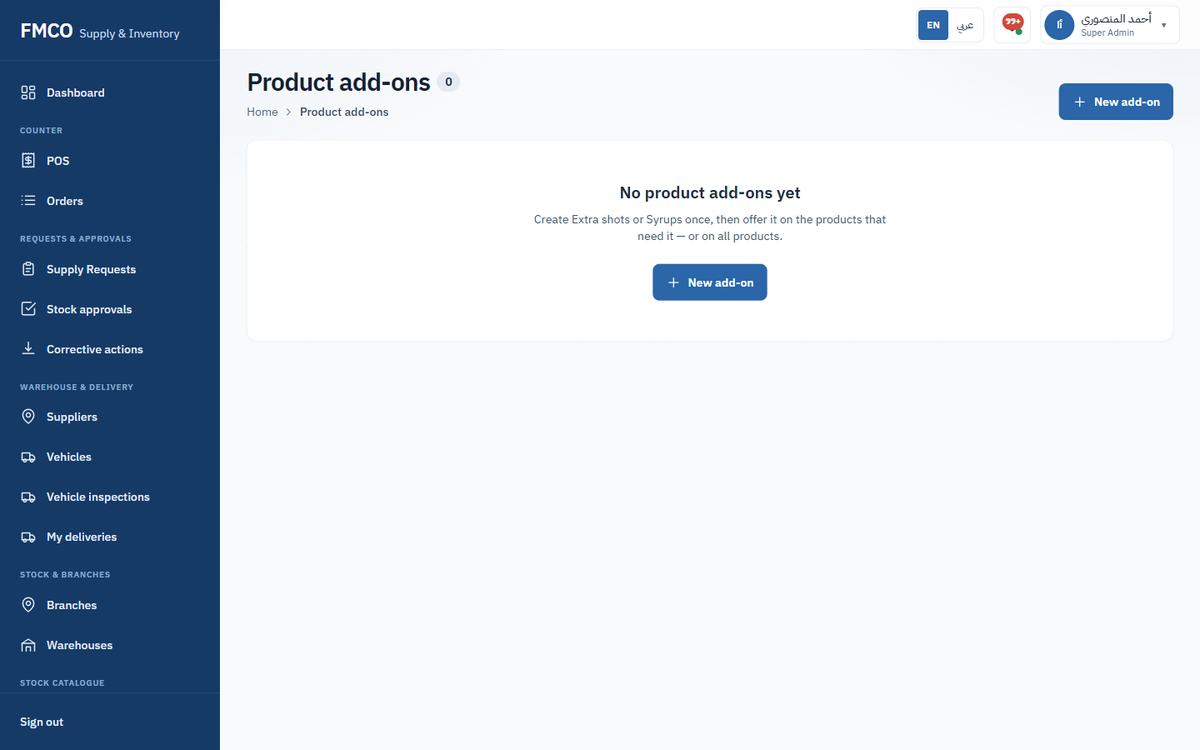
Choose what each branch's POS shows for sale
A menu is a set of product categories offered at one or more branches. Products in those categories appear on the POS automatically — only active, non-prep products in active categories.
Who: Super Admin / Administrator
QA Demo Menu, Code QA-MENU-DEMO (optional — generated if left blank), Status Active. Leave Default menu off.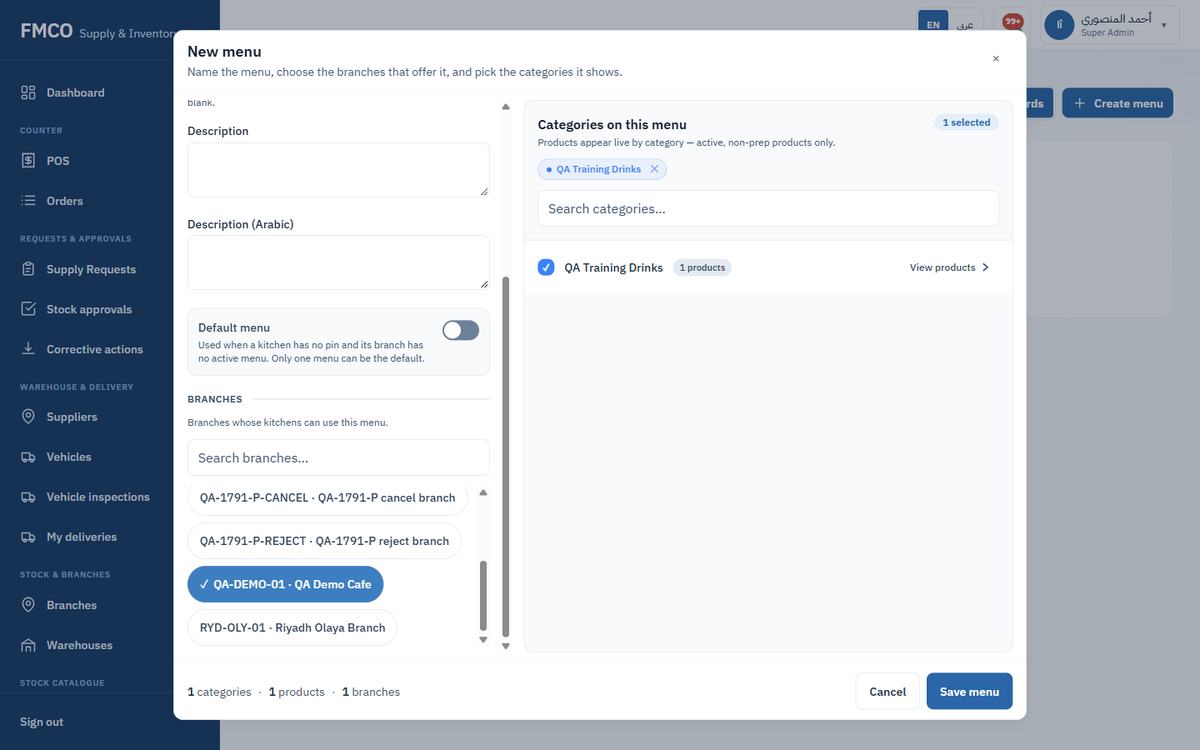
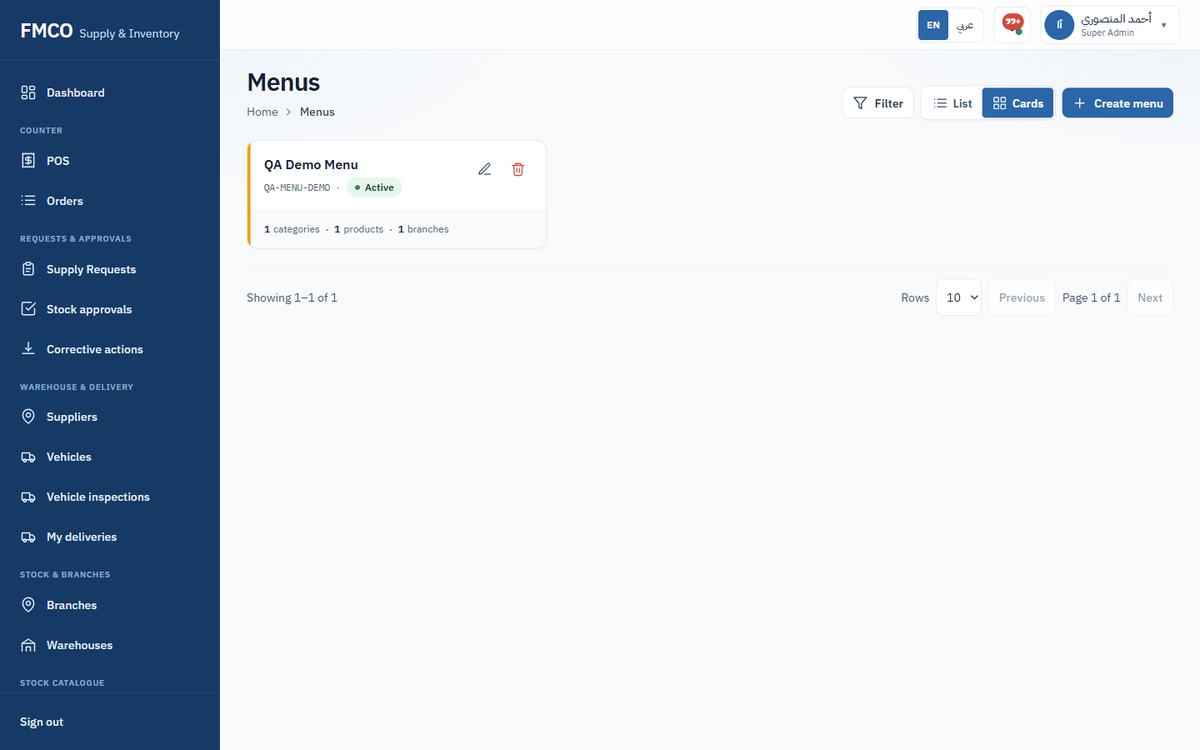
| Field / Button | What it means & how to use it |
|---|---|
| Name * / Name (Arabic) | The menu name. |
| Code | Optional — generated if left blank. Must be unique. |
| Status | Active or Inactive. An inactive menu is removed from every kitchen that had it. |
| Description / Description (Arabic) | Shown on the menu card. |
| Default menu (switch) | Used when a kitchen has no menu set and its branch has no active menu. Only one menu can be the default. |
| Branches | Branches whose kitchens can use this menu. |
| Categories on this menu | The product categories shown on the POS. Products appear live by category. |
1. The menu set on the kitchen itself (Module 11), if active. 2. Otherwise an active menu offered at the kitchen's branch. 3. Otherwise the company Default menu. 4. Otherwise no menu — the POS shows no products.
Set up the POS registers of a branch
A kitchen is a POS register of a branch — a counter, kiosk or drive-thru window. It is where serves are recorded. A kitchen is not a stock location: its sales are deducted from the branch's Main storage.
Who: Super Admin / Administrator
QA-POS-DEMO, Name QA Demo Cafe POS.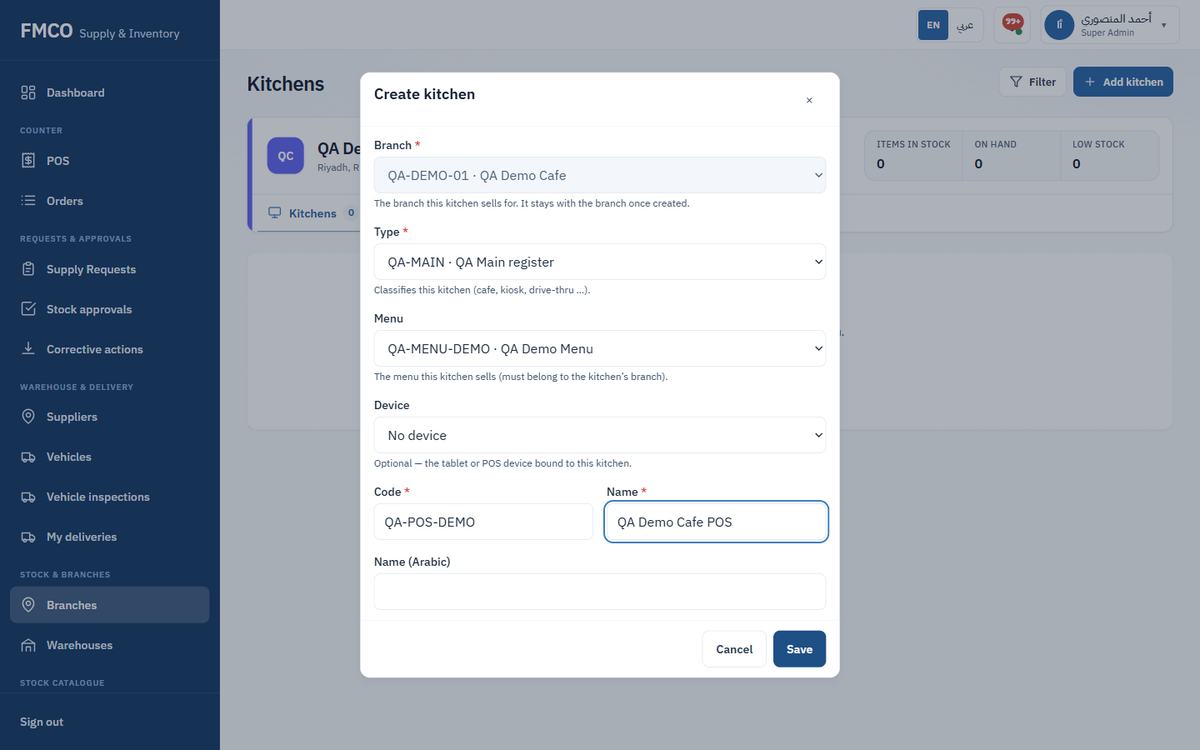
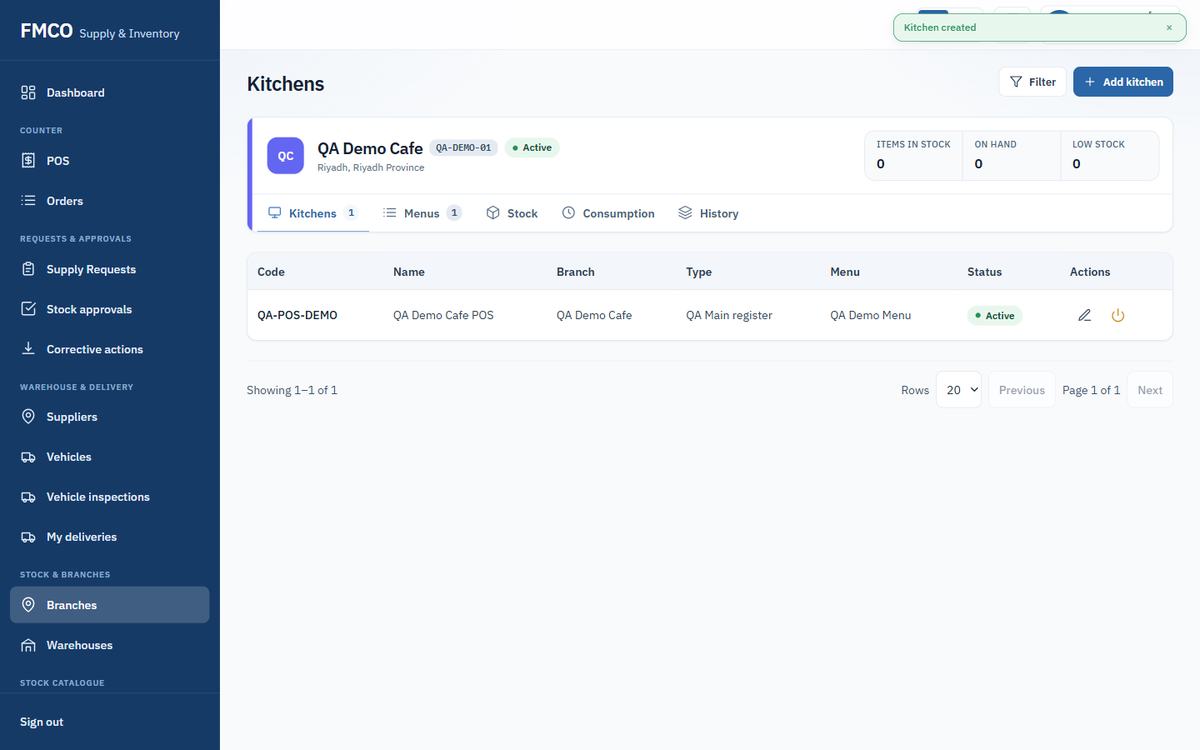
| Field / Button | What it means & how to use it |
|---|---|
| Branch * | The branch this kitchen sells for. Fixed once created. |
| Type * | The kitchen type (Module 04). Required. |
| Menu | The menu this kitchen sells. Optional; only menus offered at this branch are listed. |
| Device | Optional — the tablet or POS device bound to this kitchen. A device can be bound to only one kitchen. |
| Code * / Name * / Name (Arabic) | Code is unique, saved in upper case and cannot be changed after creation. |
| Deactivate / Activate | Only active kitchens can sell. |
Left menu → Admin → Devices → Add device. Enter Code and Name, choose the Device type (Warehouse, Driver, FSO, Branch, POS, Other) and the fields that type needs, then Save. Bind a POS device to a kitchen with the kitchen's Device field. Our example uses no device.
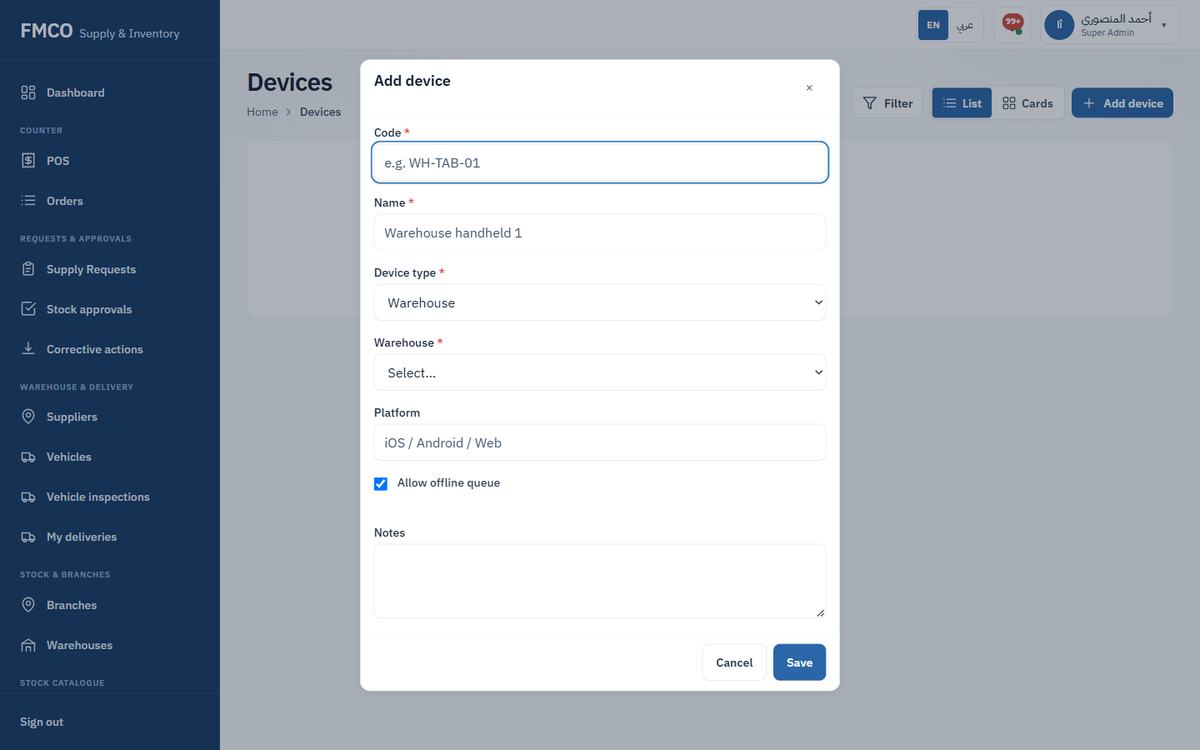
Give each person the access their job needs
Every person who uses the system has a user account with one role. The role decides which menus and buttons they see. Branch staff and project managers are also linked to the branches they work for.
Who: Super Admin / Administrator
Left menu → Admin → Users. The list shows Name/email, Role, Branches, Status, Verified and Actions.
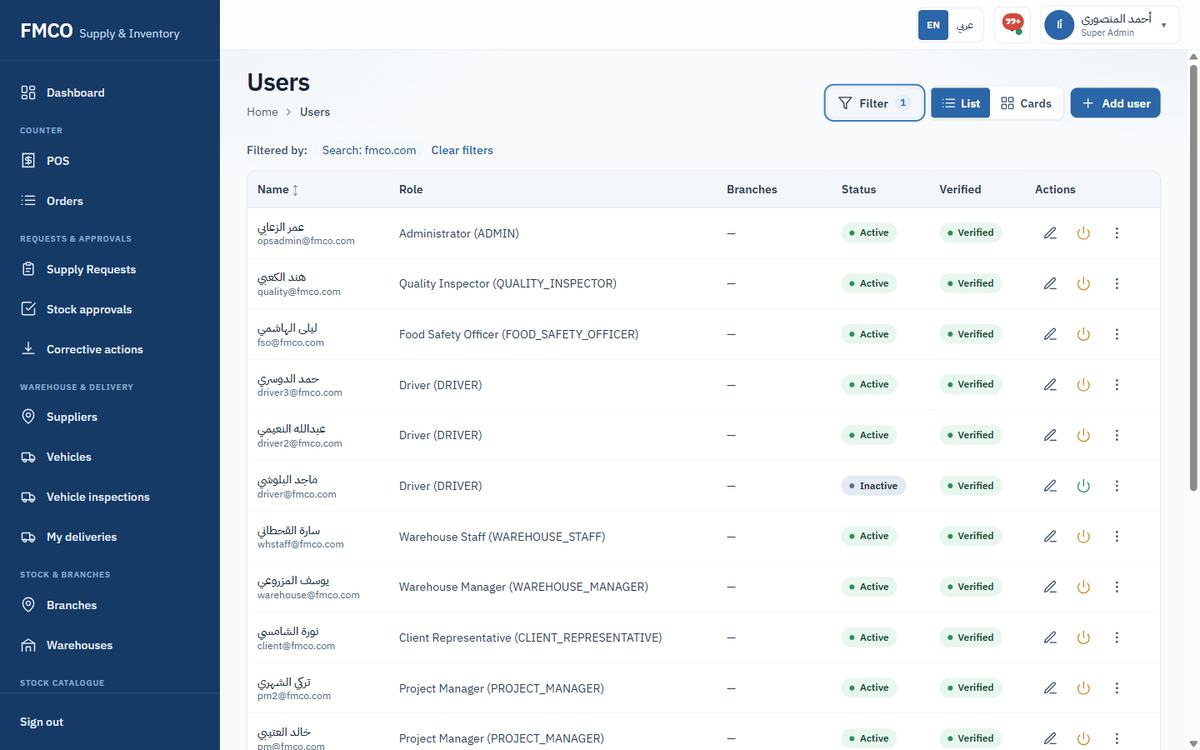
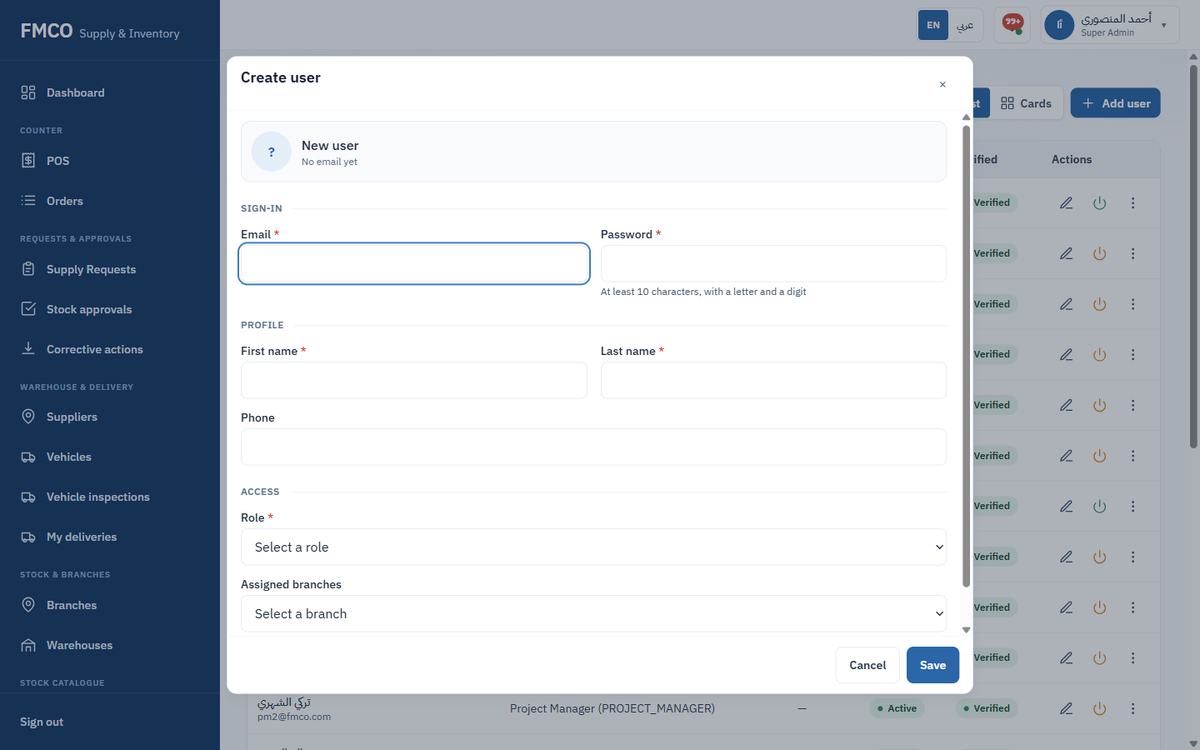
| Field / Button | What it means & how to use it |
|---|---|
| Role * | One of the 11 roles (see below). |
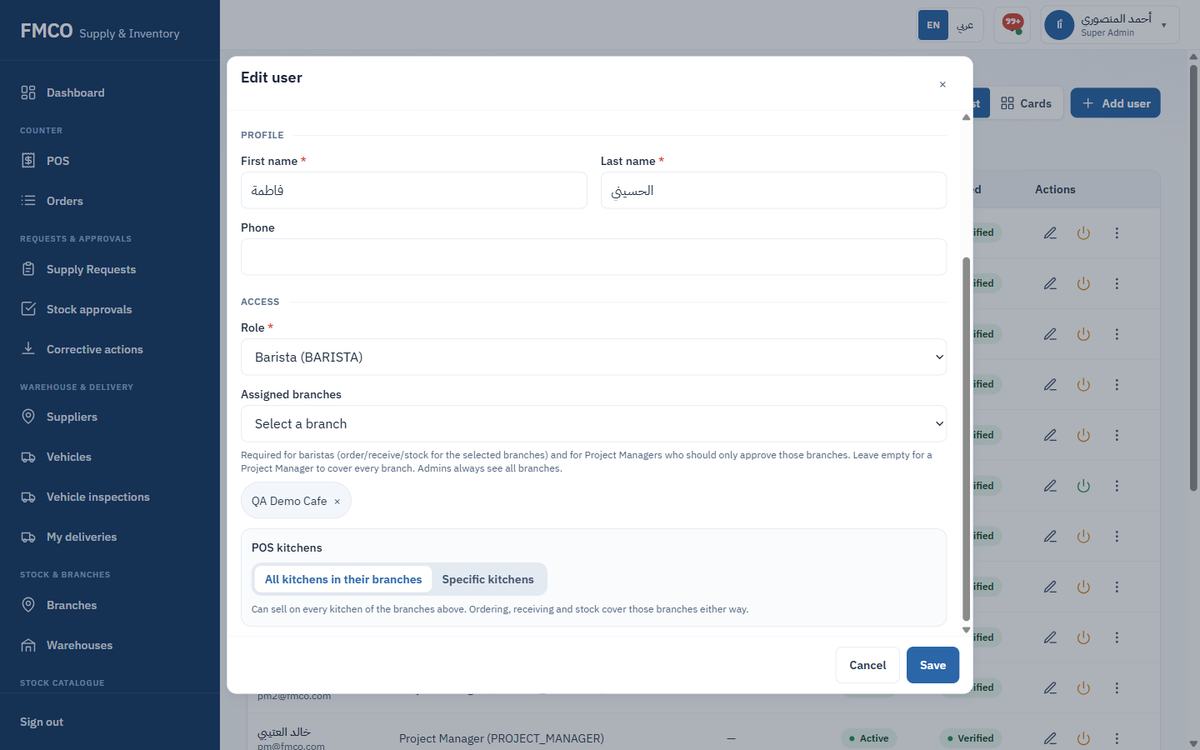
| Assigned branches | Required for baristas (order, receive and count stock for the selected branches) and for project managers who should only approve those branches. Leave empty for a project manager to cover every branch. Admins always see all branches. |
| POS kitchens | "All kitchens in their branches" or "Specific kitchens". Decides where the user can sell; ordering, receiving and stock cover the assigned branches either way. |
| New password (edit only) | Leave blank to keep the current password. |
For the journey, the existing barista, project manager and POS operator accounts were given access to QA Demo Cafe by adding it to their Assigned branches, keeping their other branches.
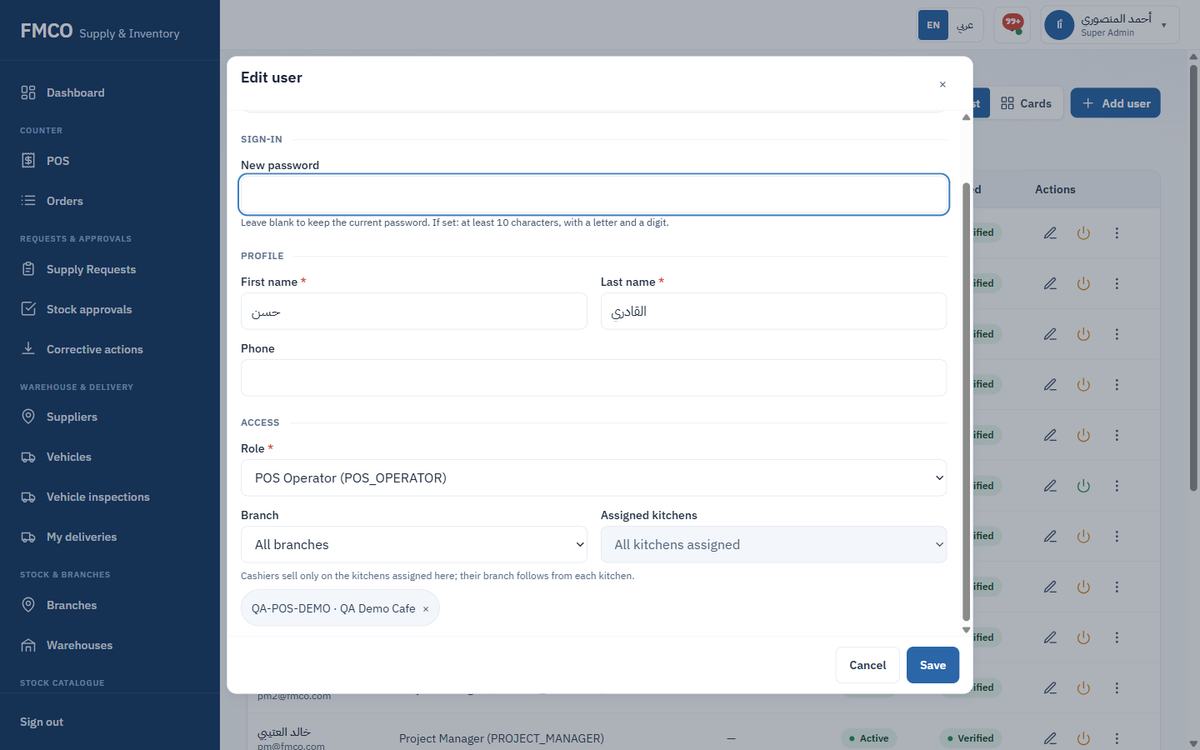
A POS Operator (cashier) is linked to kitchens instead of branches: in Assigned kitchens pick the kitchen (e.g. QA-POS-DEMO · QA Demo Cafe). Cashiers sell only on the kitchens assigned here; their branch follows from each kitchen. Assign at least one kitchen for a cashier.
Left menu → Admin → Roles. Each role shows its number of permissions and users. Click Permissions to see the permission groups (Approvals, Branch receipt, Branches, Corrective actions, Dashboard…) with each permission's name, description and key.
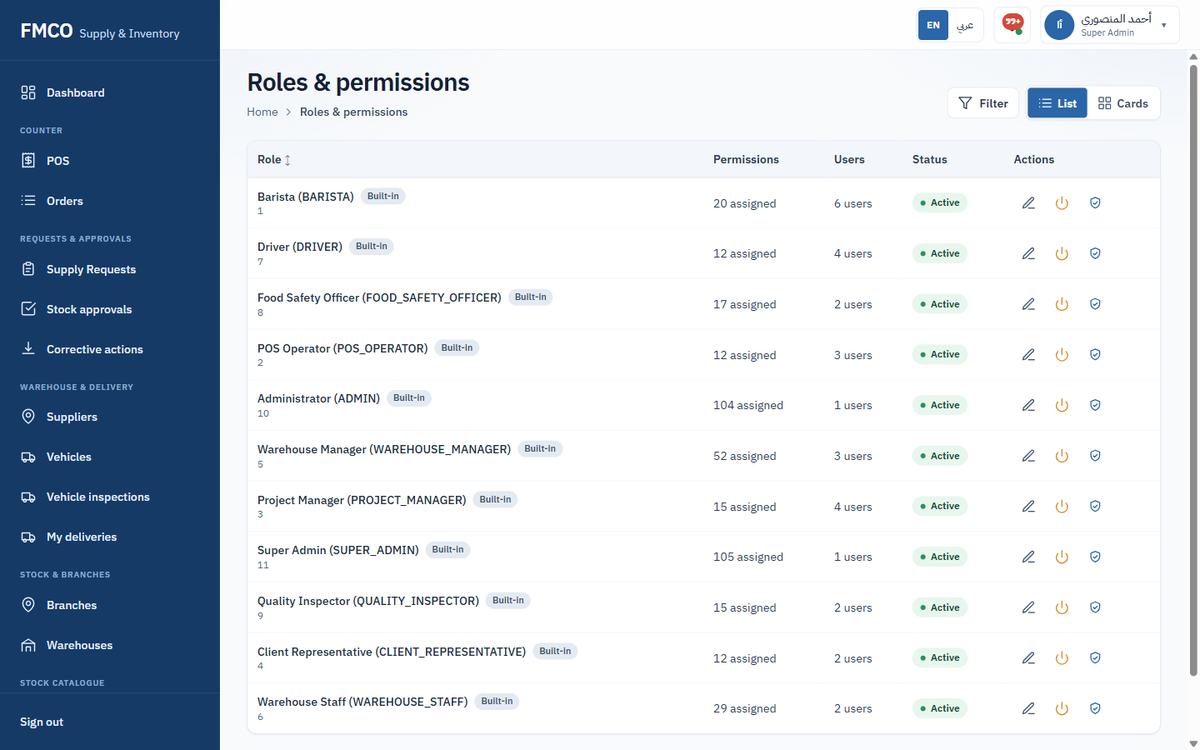
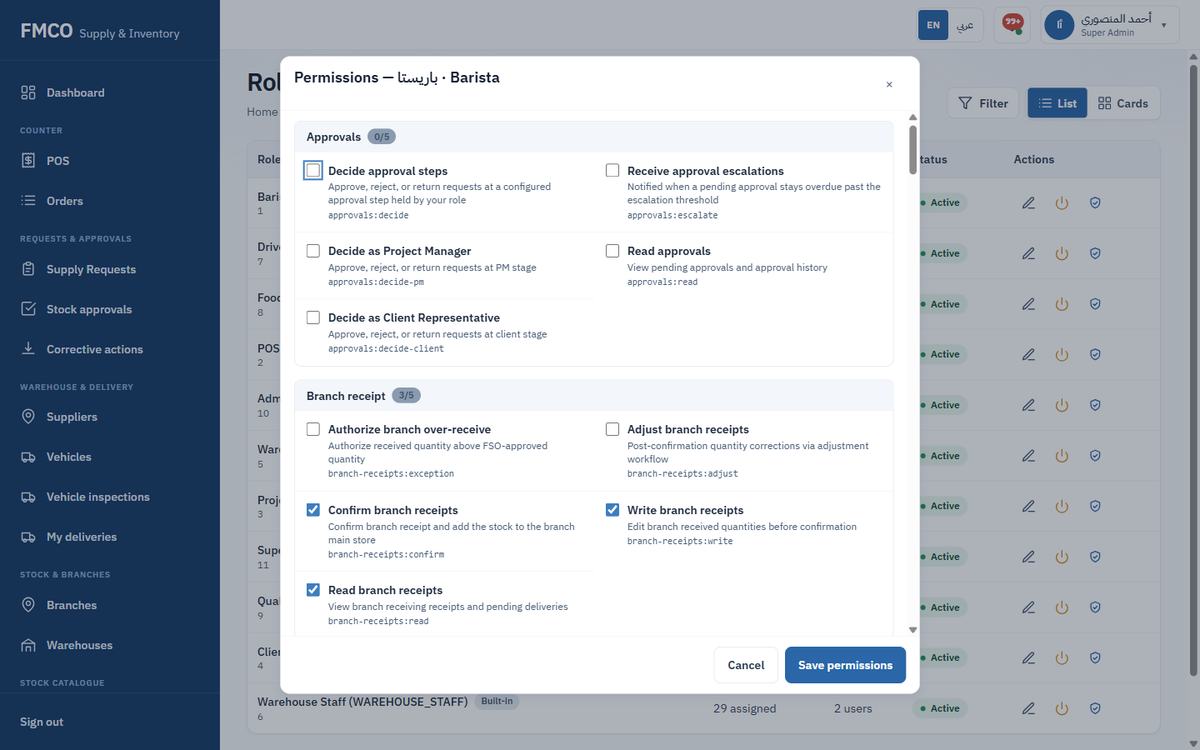
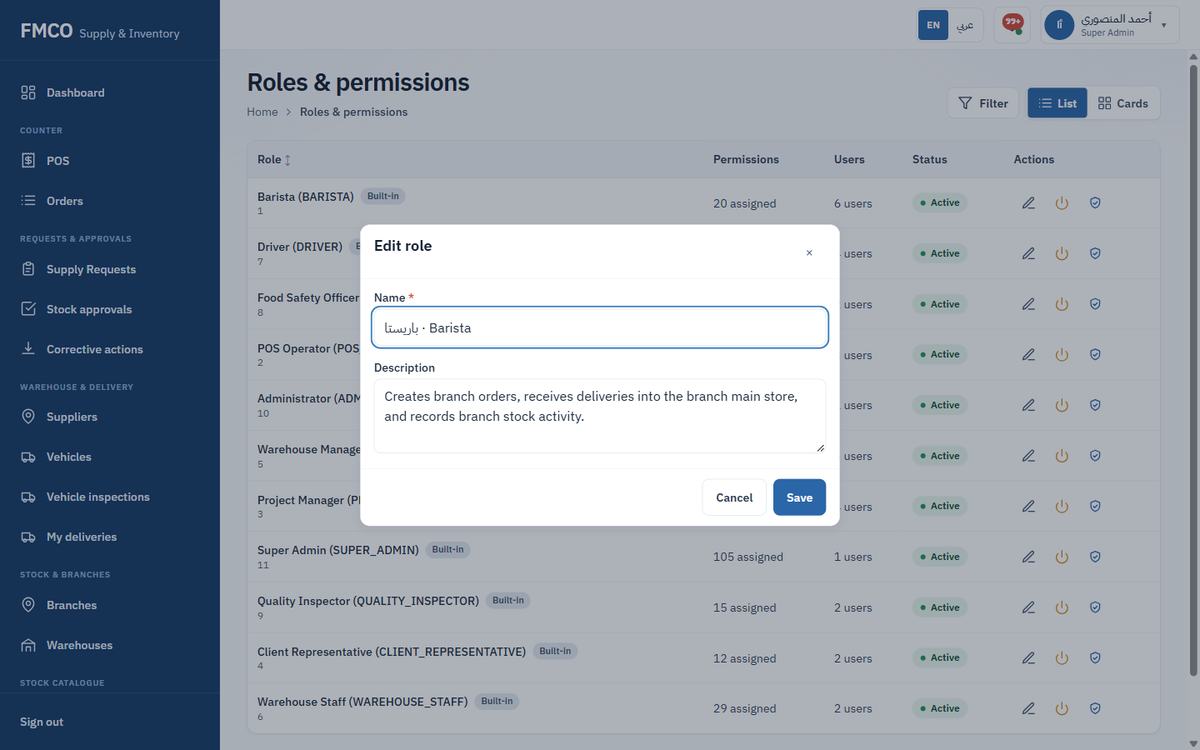
Row actions on a role: Edit (change its Name * and Description), Deactivate and Permissions.
Give each person the role that matches their job. Approval and posting steps check the role and, in several cases, that the approver is a different person from the requester.
Daily schedule, approvals and checklists for the whole system
Settings control rules that apply everywhere: the daily cut-off times, who approves supply requests, the stock adjustment approval limit and the checklists used in inspections. Change them only after agreeing with FMCO management.
Who: Super Admin (some settings: Administrator)
Left menu → Admin → Settings. Tabs: Daily schedule, Approvals, Approval ladder, Checklists, Import data, Advanced.
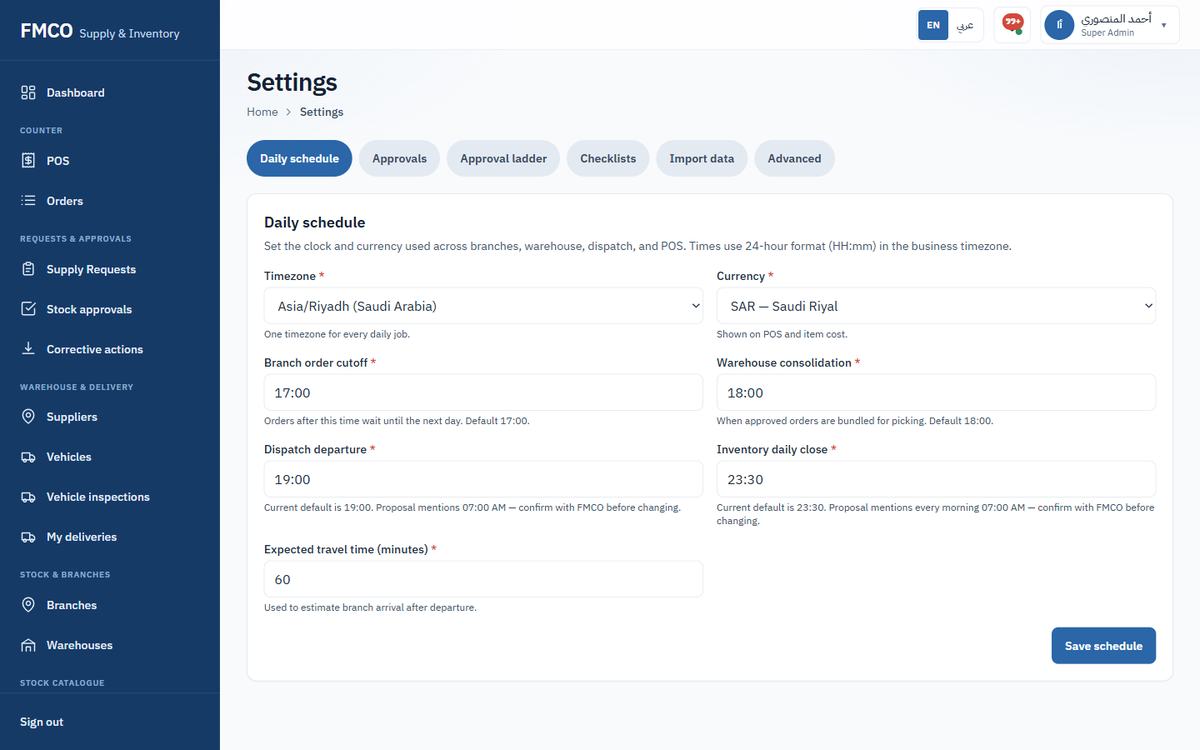
| Field / Button | What it means & how to use it |
|---|---|
| Timezone * / Currency * | The business timezone (e.g. Asia/Riyadh) and currency (e.g. SAR). |
| Branch order cutoff * | Daily time by which branches must submit supply requests for the next operational day. Default 17:00. |
| Warehouse consolidation * | Time the warehouse consolidates the day's approved requests. Default 18:00. |
| Dispatch departure * | Planned dispatch time. Default 19:00. |
| Inventory daily close * | Time of the daily stock close/rollup. Default 23:30. |
| Expected travel time (minutes) * | Used to plan deliveries. |
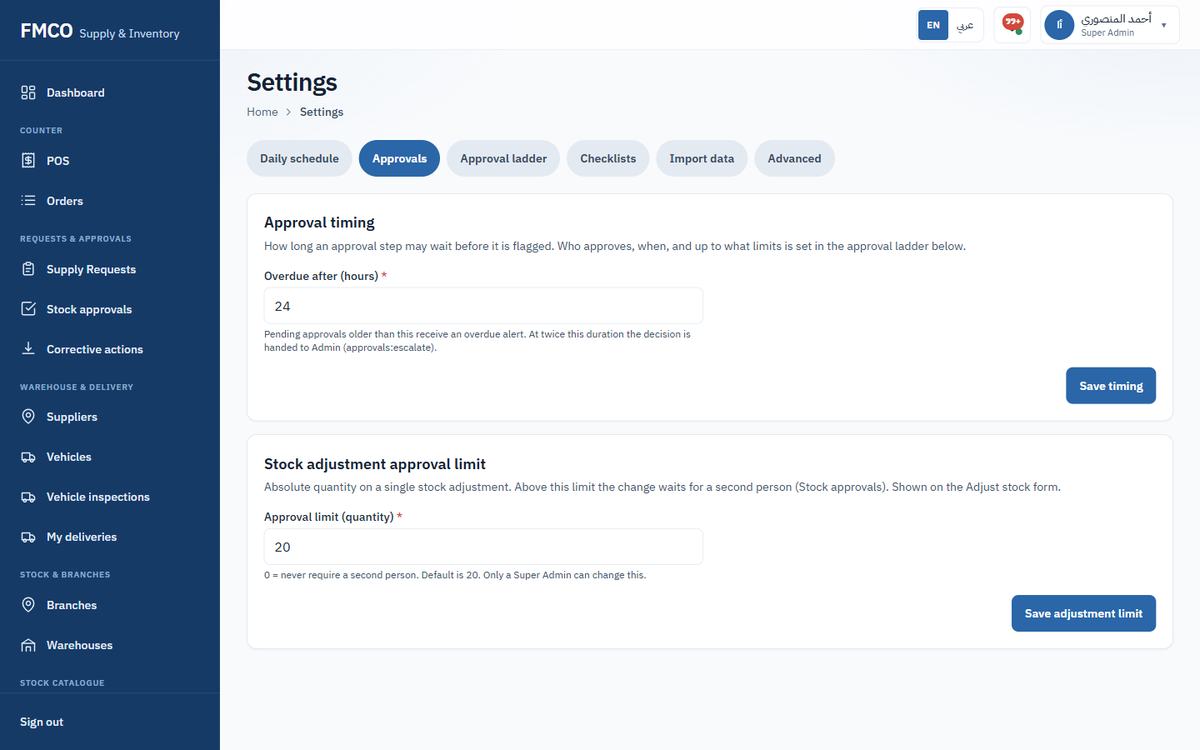
The Approvals tab holds the approval timing ("Overdue after (hours)") and the Stock adjustment approval limit: changes above this quantity wait for a second person (Module 28). 0 means a second person is never required; the default is 20; only a Super Admin can change it.
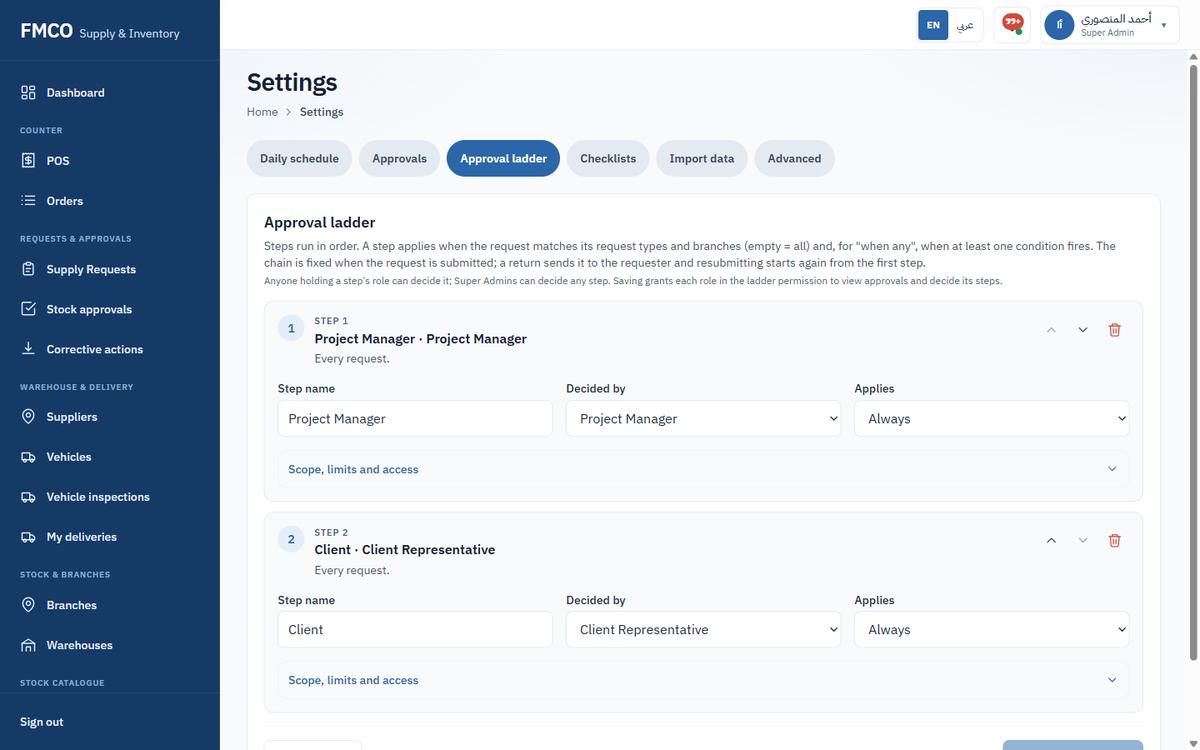
The Approval ladder tab defines the steps a supply request goes through. The standard ladder is step 1 Project Manager, step 2 Client. Each step has a Step name, Decided by, Applies (Always / Only when a condition is met) and its scope and limits.
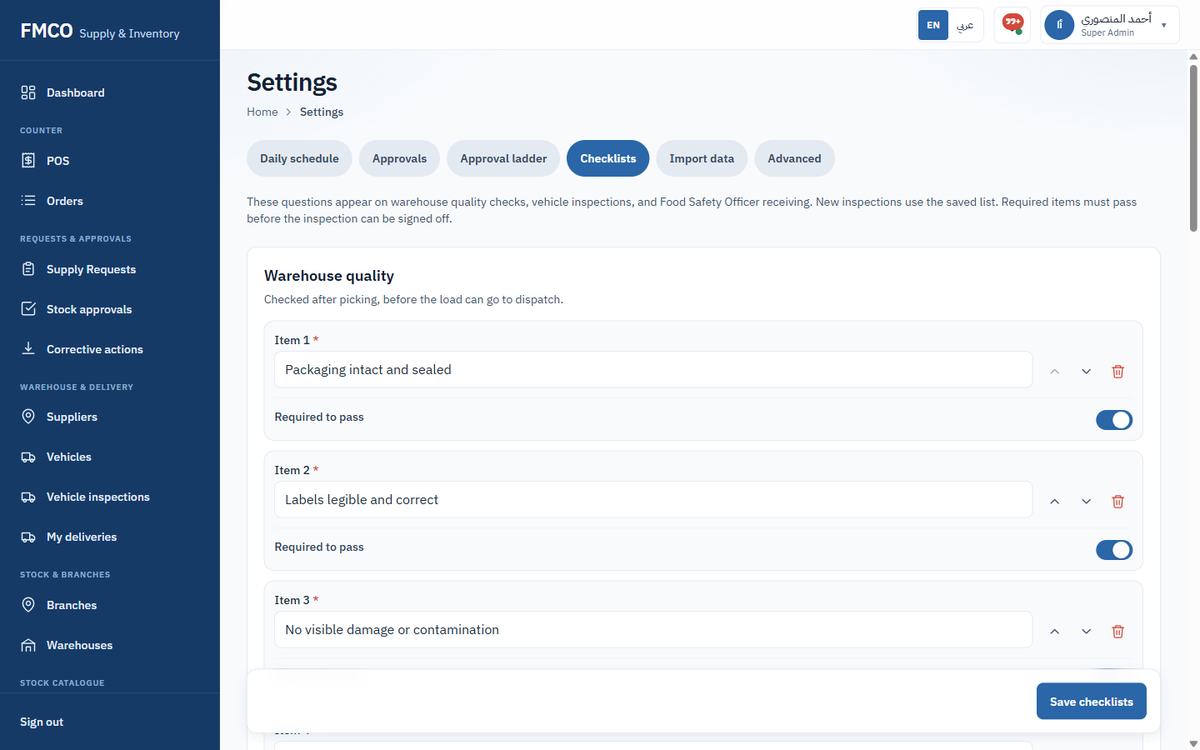
The Checklists tab holds the questions asked during the three inspections of the journey: Warehouse quality (Module 19), Vehicle inspection (Module 20) and Food Safety receiving (Module 22). Each item can be marked "Required to pass".
Import data loads initial master data from an Excel workbook: download the template, fill it, choose the file and click "Import workbook" (switch on "Update rows that already exist" to update). Advanced lists every system setting with its area, value and last update.
The vans that carry deliveries to branches
Every dispatch is carried by a vehicle, and every vehicle must pass an inspection before it leaves (Module 20).
Who: Super Admin / Administrator, Warehouse Manager
QA-0001, Make QA Make, Model QA Demo Van, Capacity notes (e.g. "refrigerated, 20 crates").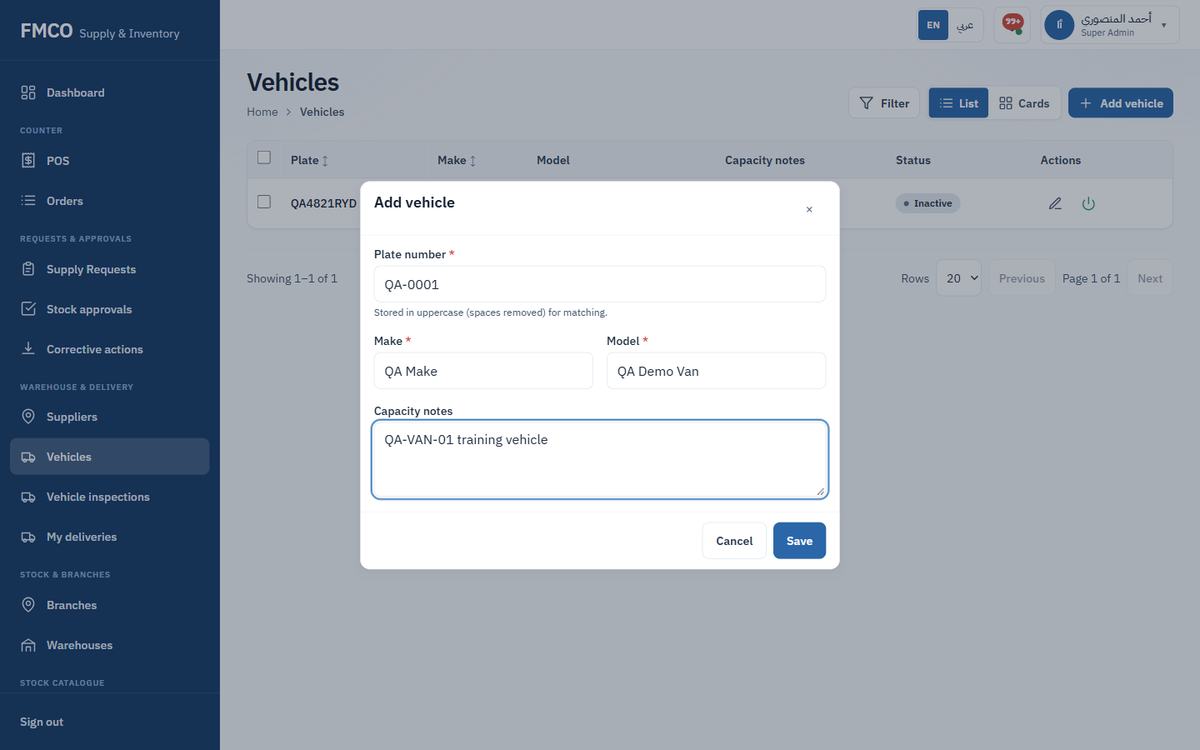
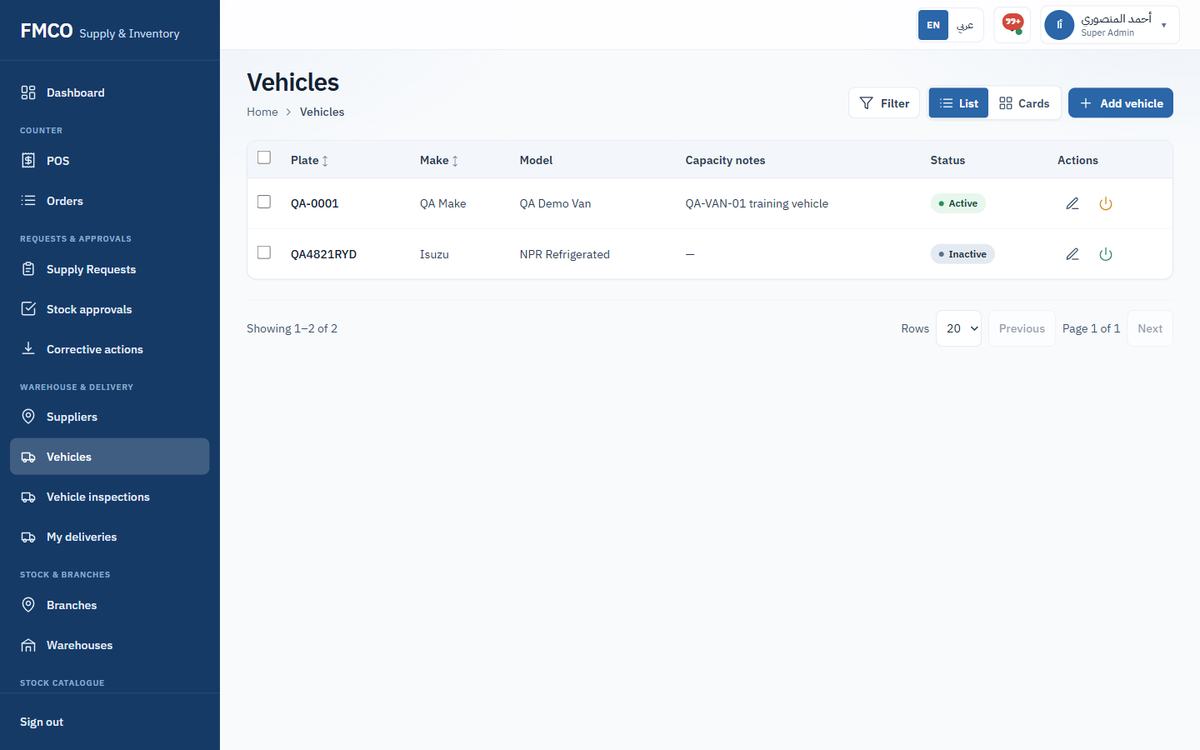
| Field / Button | What it means & how to use it |
|---|---|
| Plate number * | Stored in upper case with spaces removed, for matching. |
| Make * / Model * | Vehicle make and model. |
| Capacity notes | Free text: size, refrigeration, crate capacity. |
The system now knows the item, where it will be stored, who supplies it, what it is used for and who does the work. Stock is still zero everywhere: Part B brings the milk in.
Receive stock from a supplier into the warehouse
Goods-in records a delivery from a supplier. It is the only way new stock enters the system. Warehouse staff record the delivery as a draft, checking lots, expiry dates and temperatures. A warehouse manager then posts it, and the quantity is added to warehouse stock.
Record: Warehouse StaffPost: Warehouse Manager
Left menu → Stock & branches → Warehouses → open the warehouse (e.g. QA Demo Warehouse) → Goods-in tab. The tab lists every goods receipt with filters for Search, Supplier, Status (Draft / Posted / Cancelled) and a From / To date.
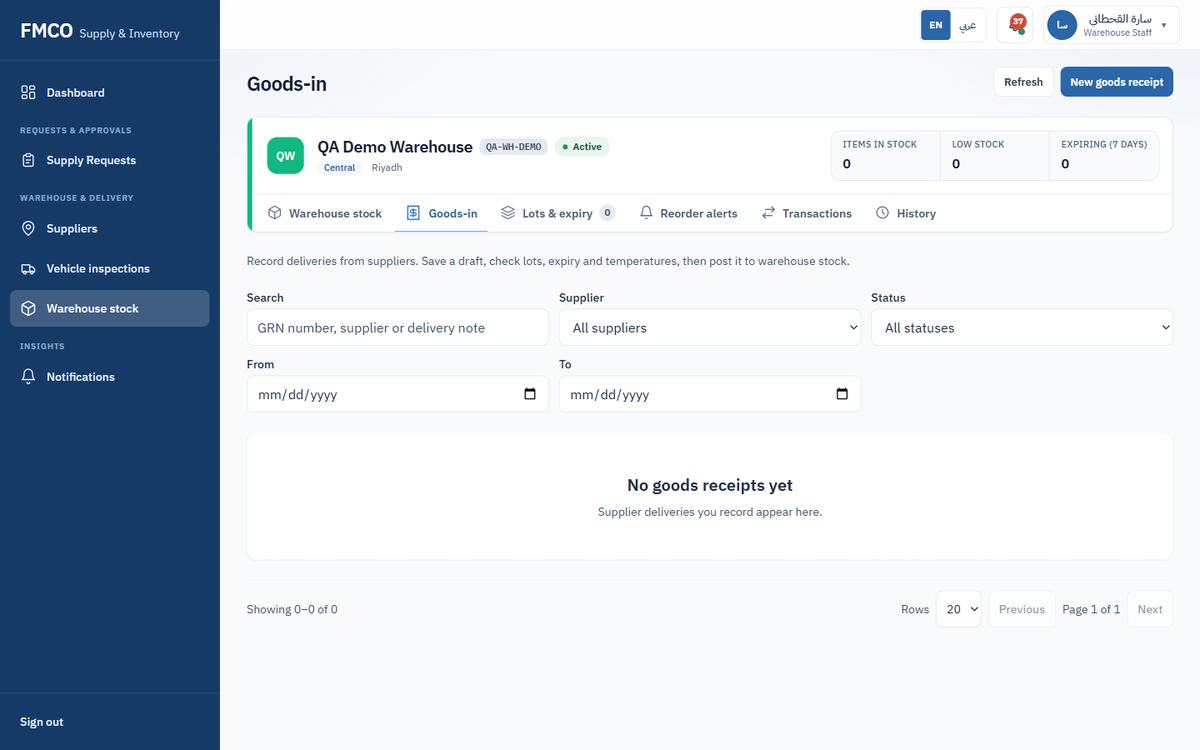
QA-DN-0001 (the supplier's delivery note number). Received at defaults to now.20, Unit LTR – stock unit, Bin A-01-01 – QA Dairy chiller, Lot number QA-MILK-LOT-01, Expiry date, and Temperature on arrival 4 °C.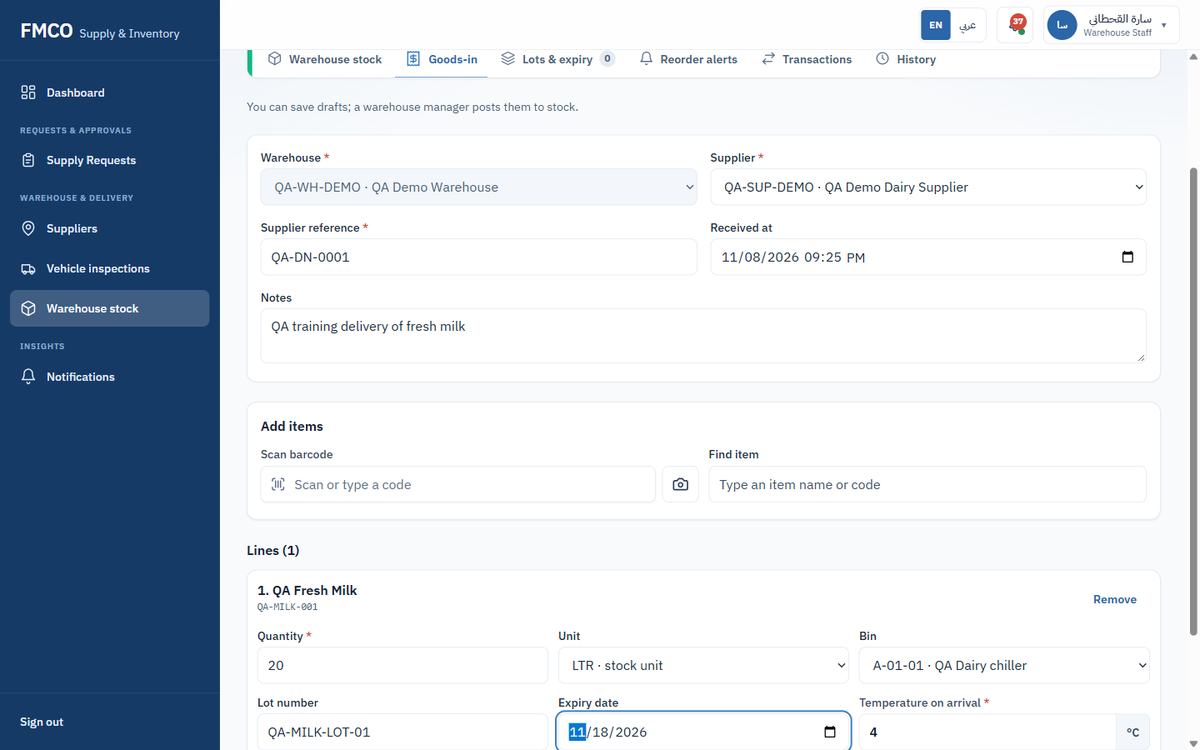
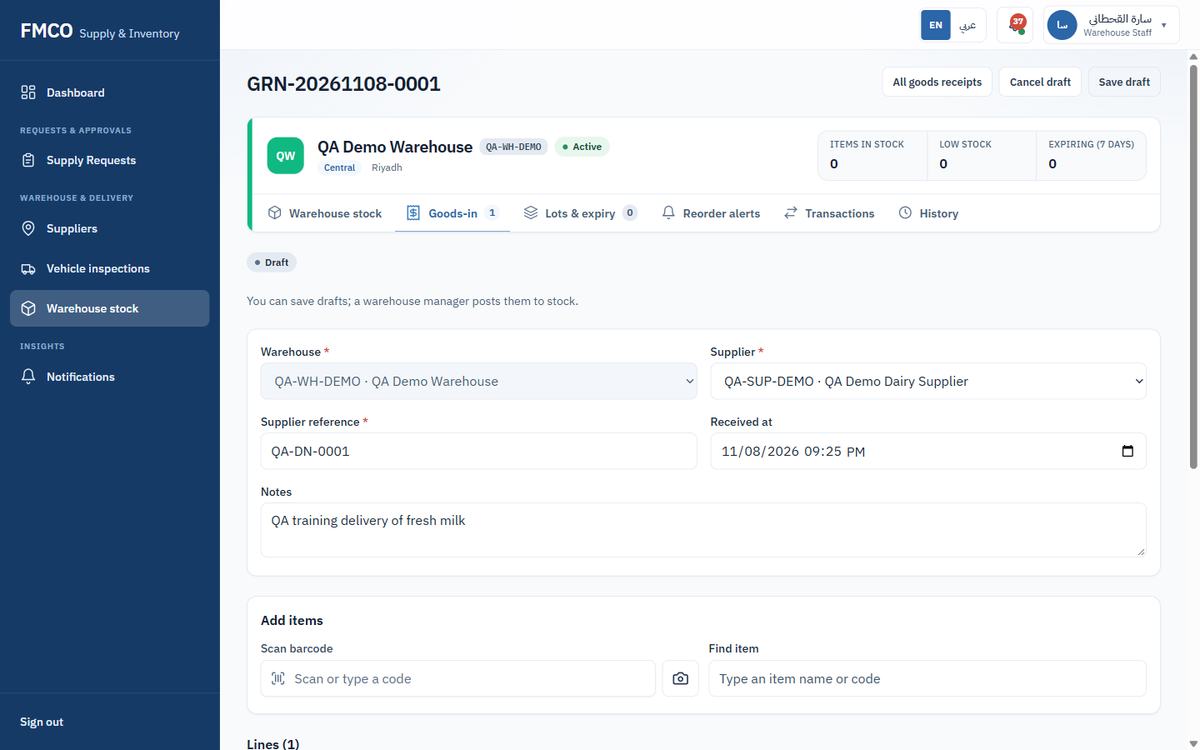
| Field / Button | What it means & how to use it |
|---|---|
| Warehouse * | The warehouse receiving the goods. Filled in when you start from the warehouse page. |
| Supplier * | The supplier delivering the goods (Module 08). |
| Supplier reference * | The supplier's delivery note or invoice number, for matching. |
| Received at | Date and time the goods arrived. Defaults to now. |
| Scan barcode / Find item | Add an item to the receipt by scanning its barcode or searching for it. |
| Quantity * / Unit | Quantity received. You can enter it in the stock unit or any unit set up in Module 01 (e.g. ML); it is stored in the stock unit. |
| Bin | The shelf the goods are put on (Module 07). |
| Lot number / Expiry date | The batch and its expiry. Lots guide FEFO (first-expiry, first-out) picking later. |
| Temperature on arrival * | Required for temperature-controlled items. The allowed range comes from the item (here 0 to 4 °C). |
| Delivery note & photos | Optional photos or video. Take photo, Record video or Choose files. |
| Save draft / Cancel draft | Keep working on the receipt, or cancel it. A draft does not change stock. |
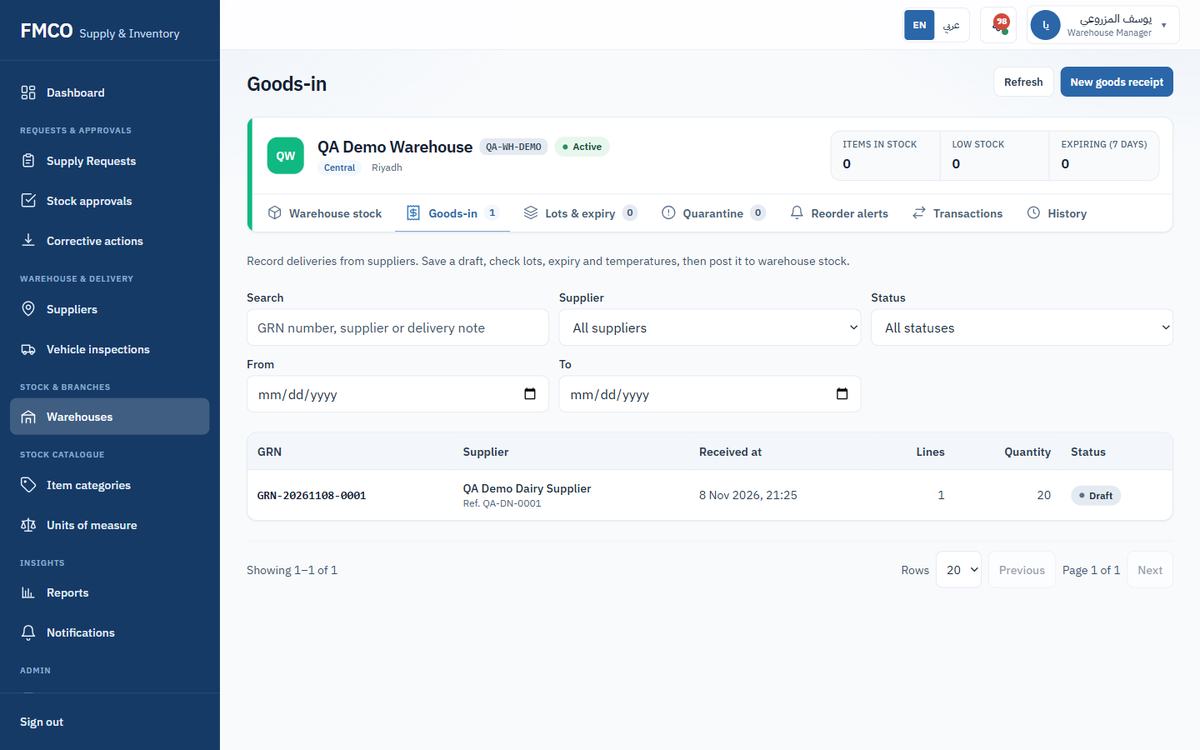
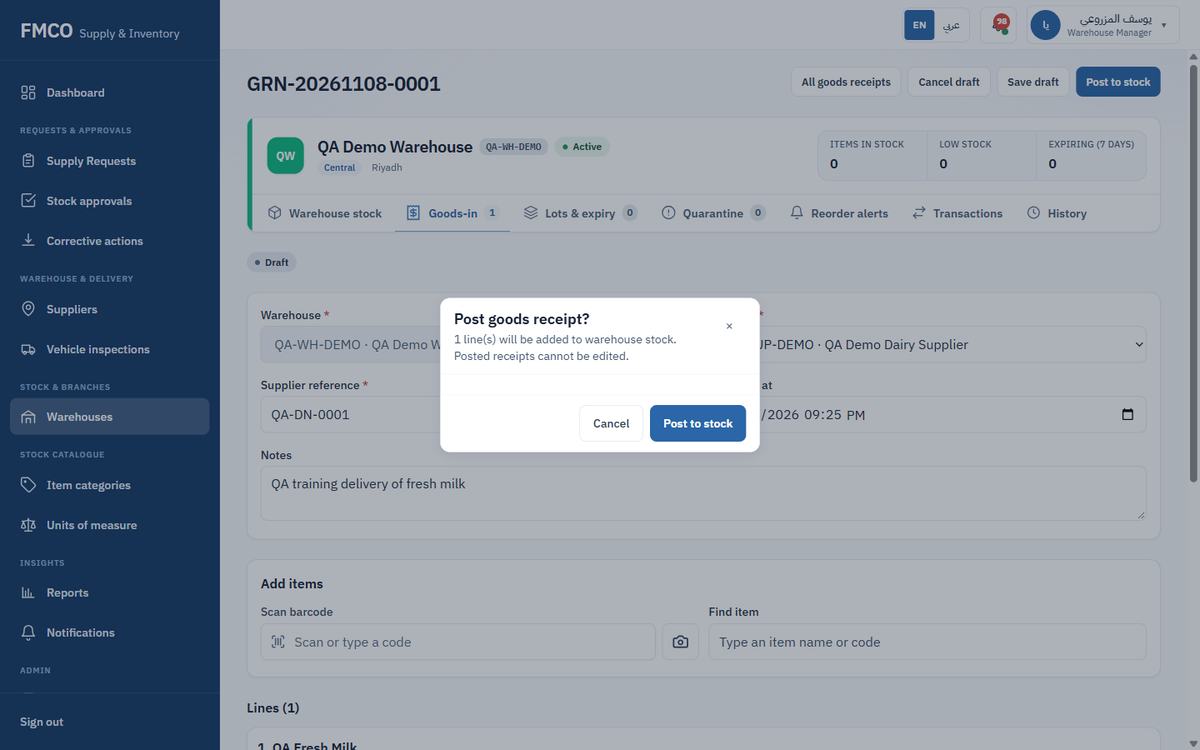
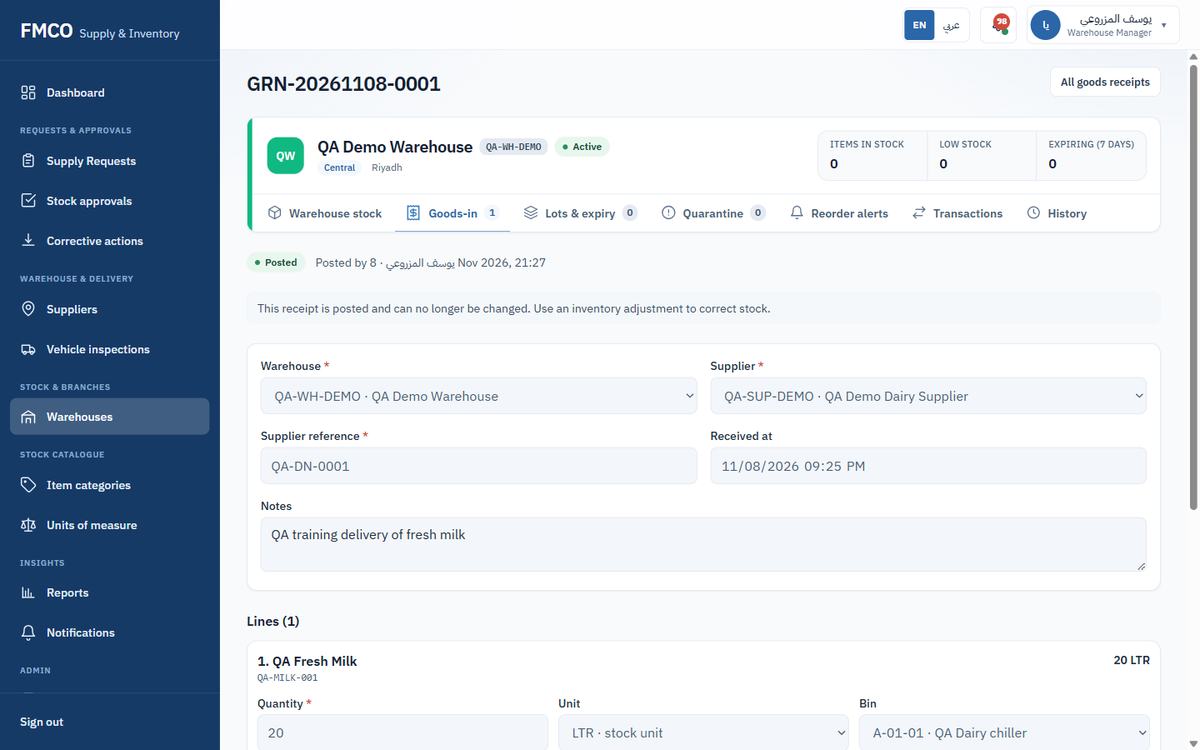
A posted receipt can no longer be changed. To correct stock afterwards, use a stock adjustment (Module 25).
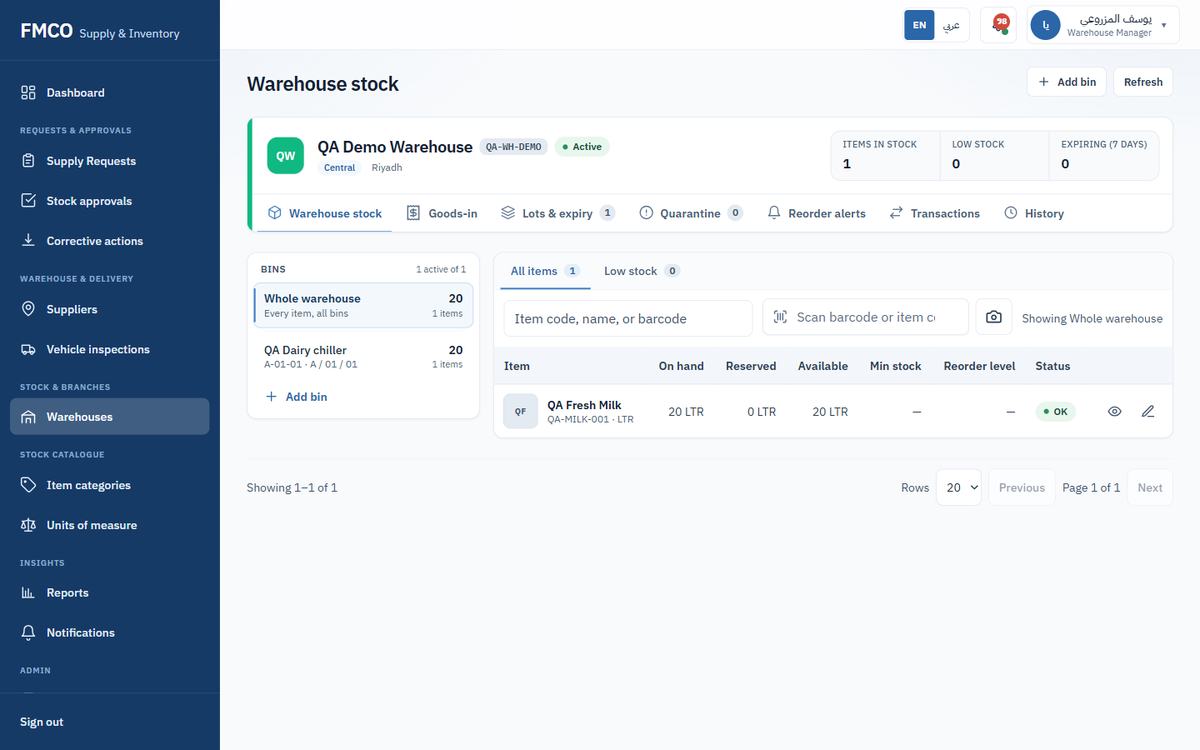
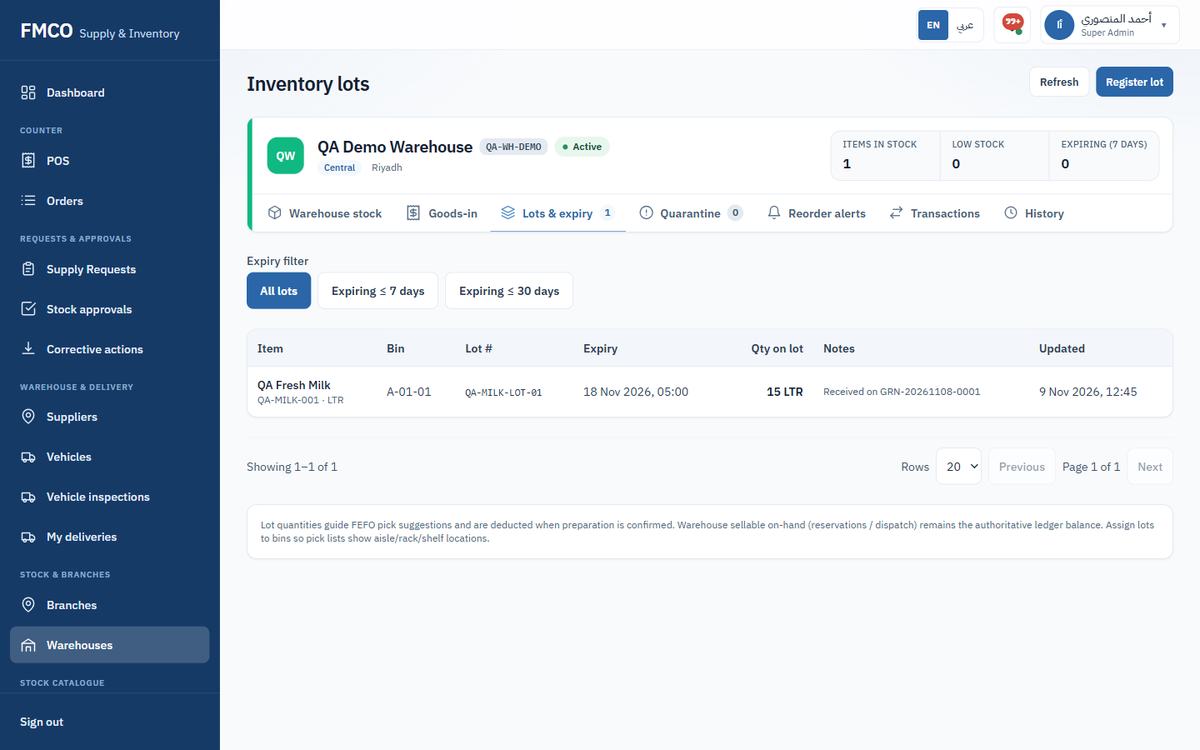
The warehouse's Warehouse stock tab now shows QA Fresh Milk: On hand 20 LTR, Reserved 0 LTR, Available 20 LTR, in bin A-01-01. The Lots & expiry tab shows lot QA-MILK-LOT-01 with its expiry date and "Received on GRN-20261108-0001".
A branch orders stock from the warehouse
A supply request is a branch's order for an operational day. The barista chooses the items and quantities, adds a short reason and sends it for approval. The request then moves through the approval ladder (Module 17), warehouse preparation, quality check and delivery, and its page shows every step.
Who: Barista (for their assigned branches)
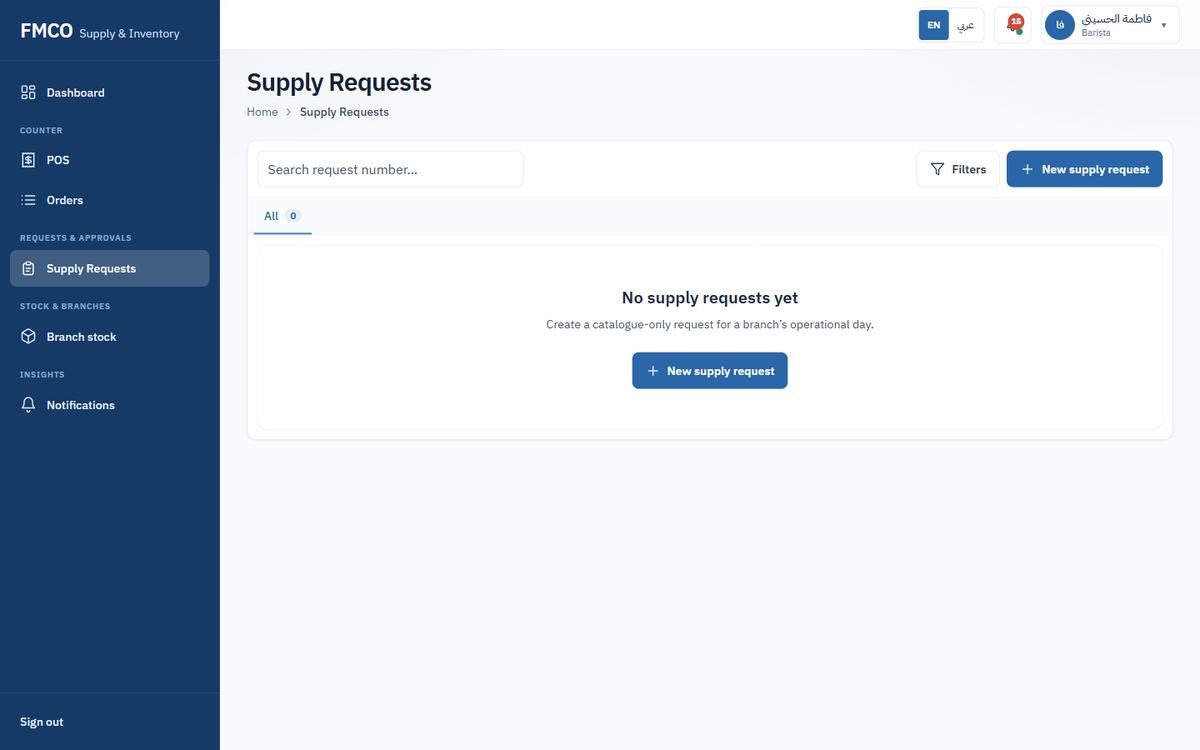
Left menu → Requests & approvals → Supply Requests. The list shows Request, Branch, Requested by, Status, Lines, Order for, Created and Actions, with a chip per status (All, Manager approval, …).
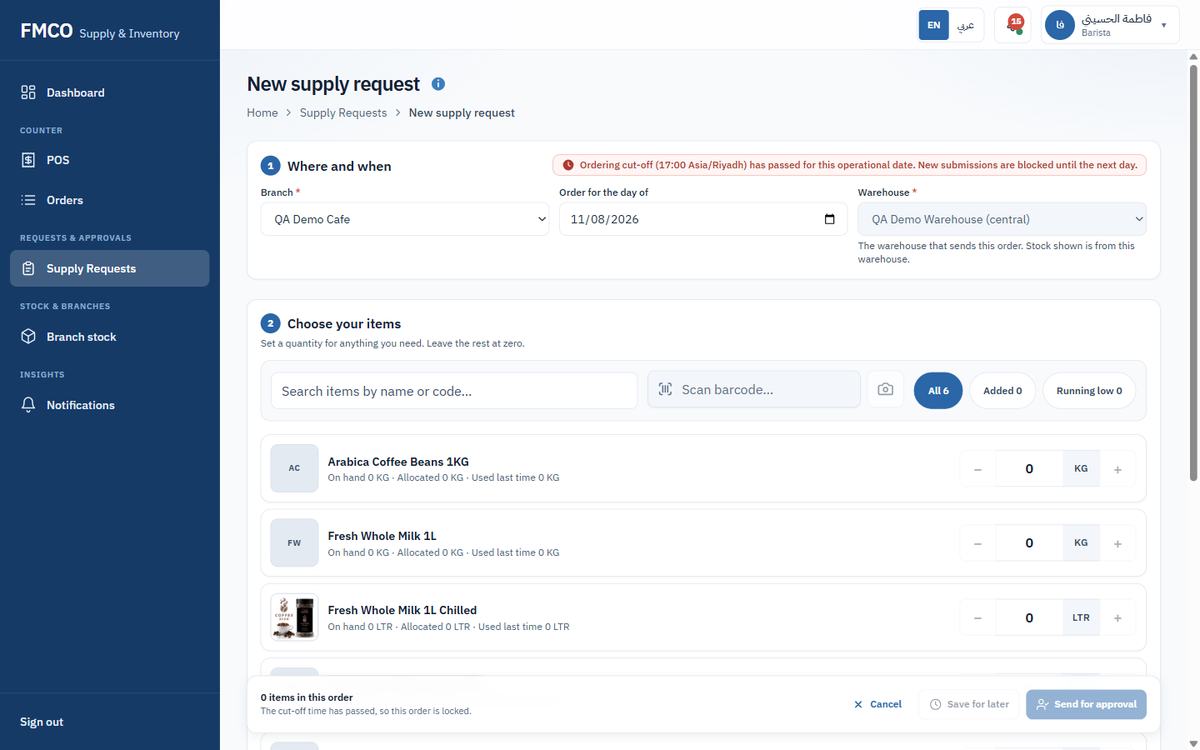
5 LTR with the + / − buttons or by typing. Leave the other items at zero.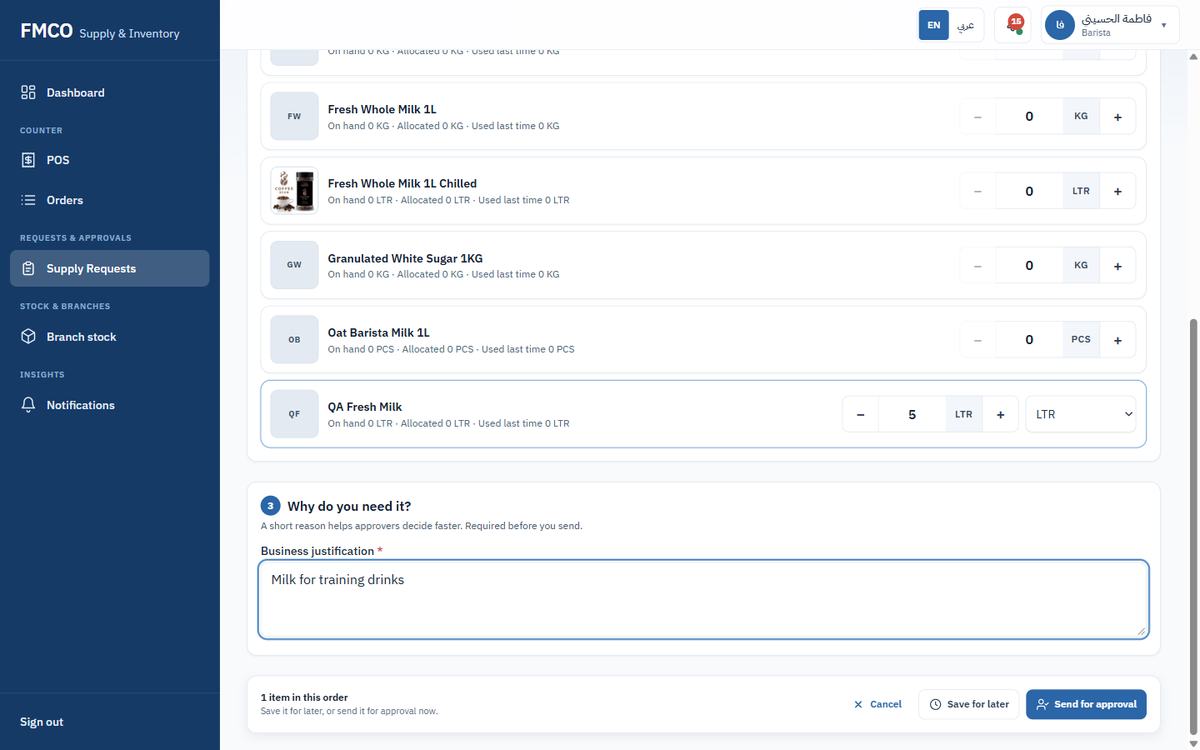
| Field / Button | What it means & how to use it |
|---|---|
| Branch * | The branch that is ordering (for a barista, the branch they are assigned to). |
| Order for the day of | The operational day the stock is needed for. |
| Warehouse * | The warehouse that sends this order. Stock shown is from this warehouse. |
| Use all suggestions / Clear | Fill in the suggested quantities for all items, or set every quantity back to zero. |
| Search / Scan barcode | Find an item by name or by scanning it. |
| All / Added / Running low | Show all items, only the items in this order, or only items running low at the branch. |
| Item card | Shows On hand at the branch, Allocated and Used last time, with − / + and the unit (e.g. LTR or ML). |
| Business justification * | A short reason. Required before sending; it helps approvers decide faster. |
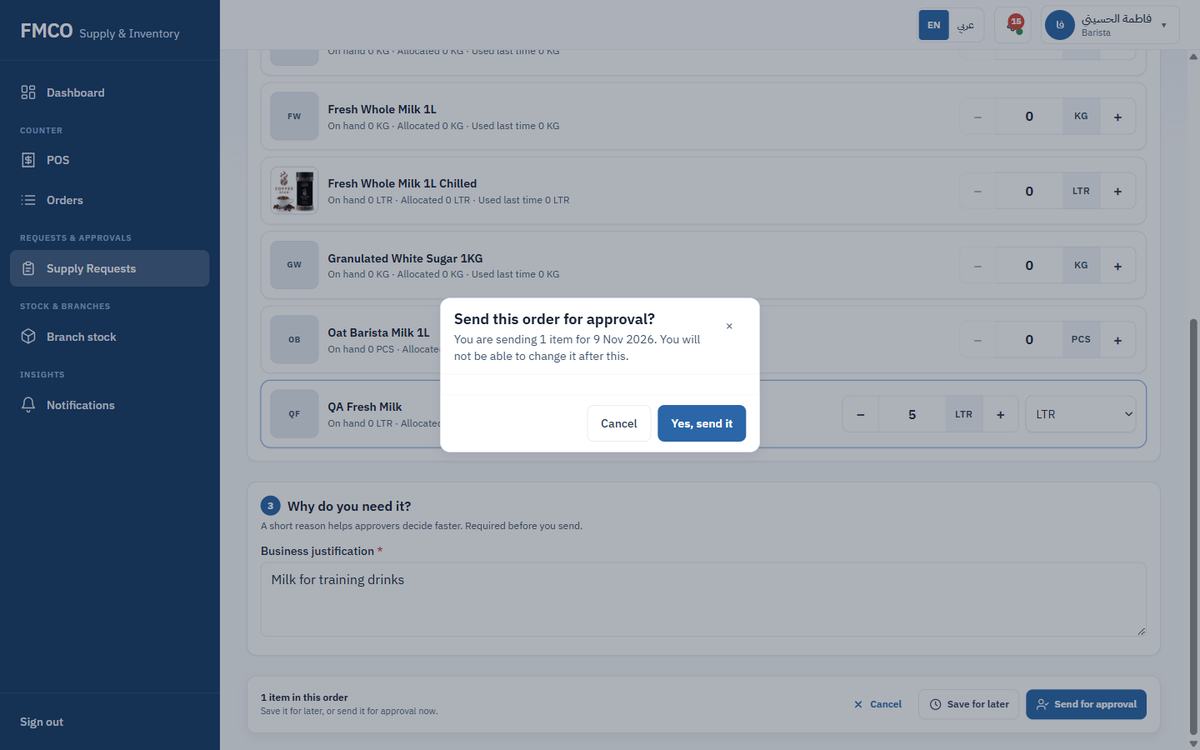
| Save for later / Send for approval | Keep the order as a draft, or send it. After sending, it cannot be changed. |
Orders for a day must be sent before the Branch order cutoff (Module 13, default 17:00). After the cut-off the screen says that new submissions for that date are blocked: choose the next operational day instead.
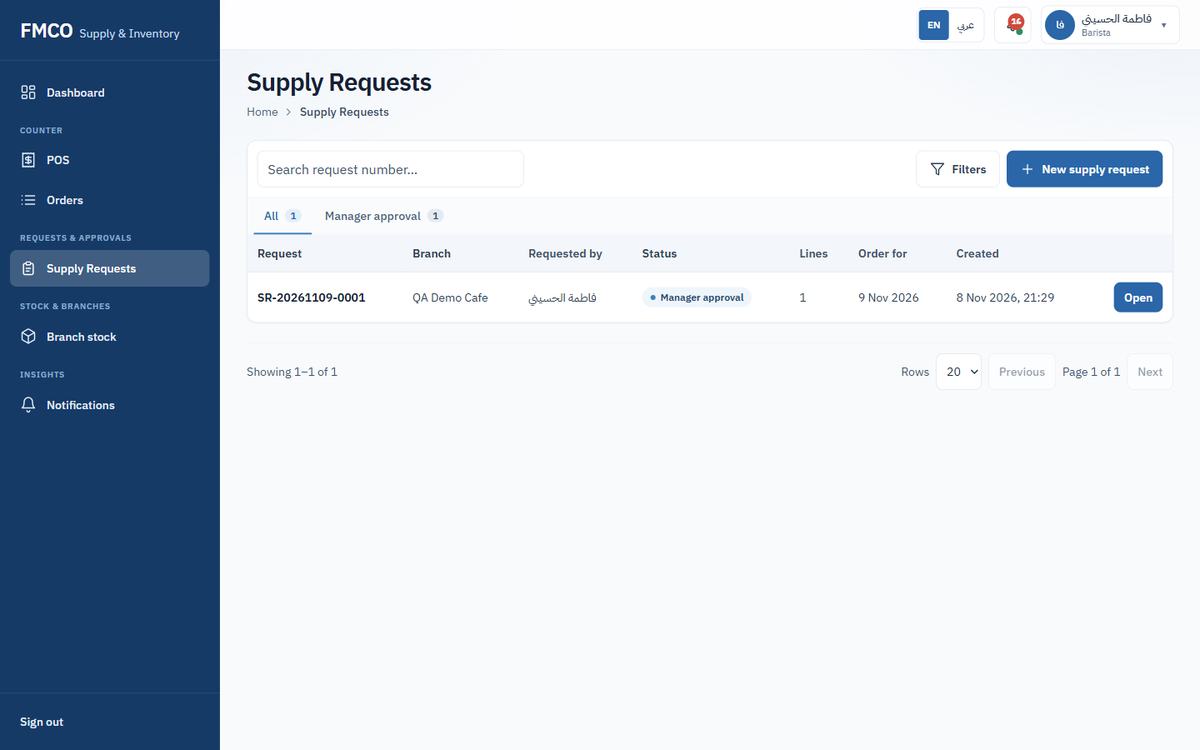
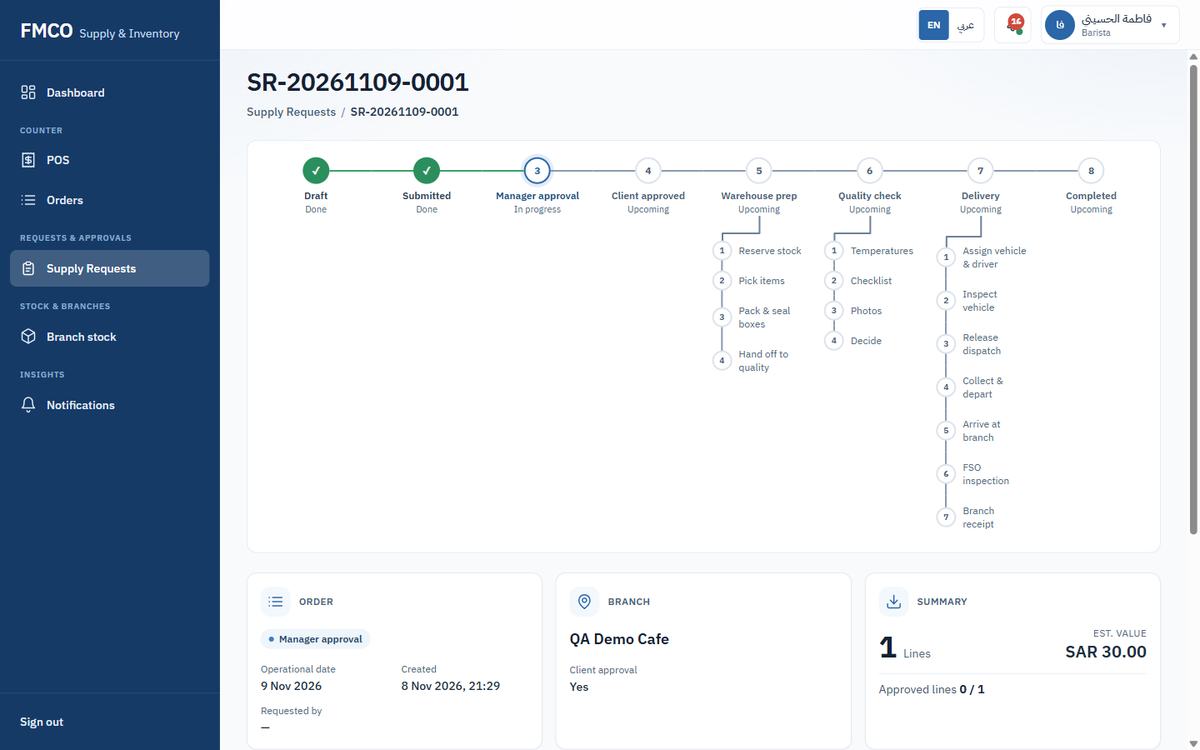
The request appears in the list with the status Manager approval. Click Open to see its page: the progress bar shows every stage — Draft, Submitted, Manager approval, Client approved, Warehouse prep, Quality check, Delivery, Completed — with the steps inside each stage. The side panel shows the branch, operational date, lines, estimated value and the justification; each item shows what was requested, what is allocated and how much the warehouse has.
The Project Manager and then the Client decide
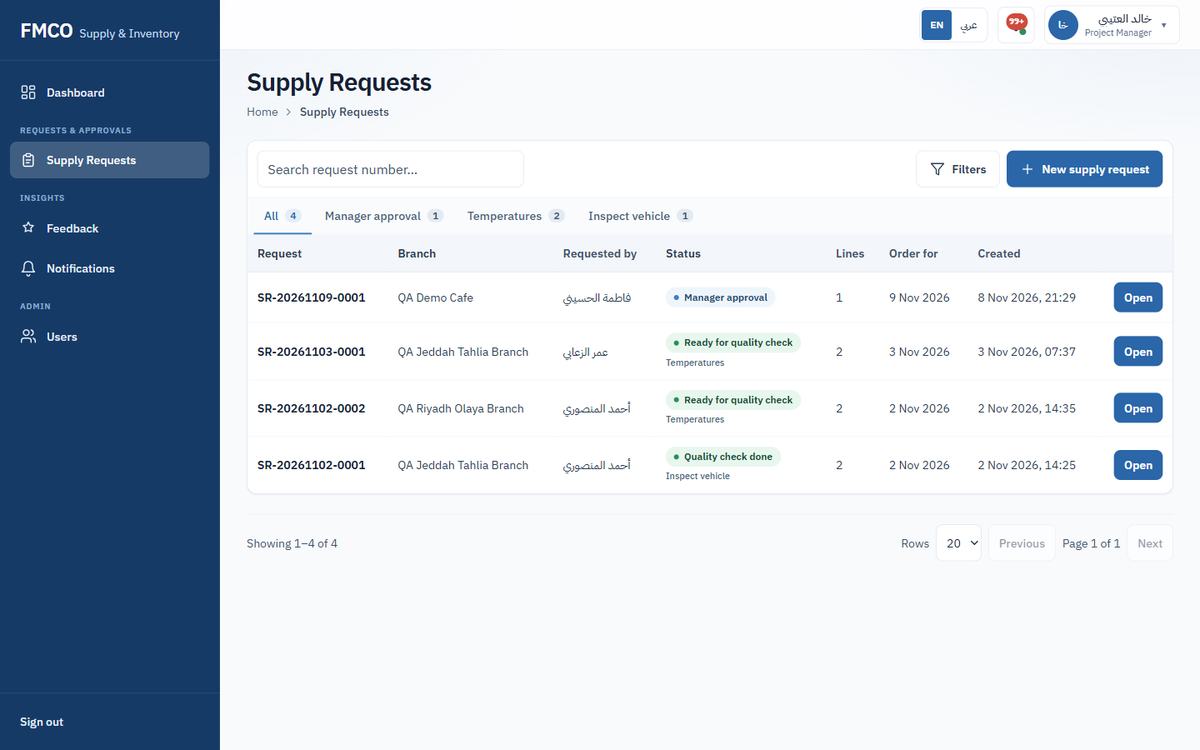
Every supply request goes through the approval ladder set in Settings (Module 13): first the Project Manager, then the Client. Each approver can approve, send the request back for changes, or reject it. Only after the last approval does the warehouse start preparing.
Step 1: Project ManagerStep 2: Client Representative
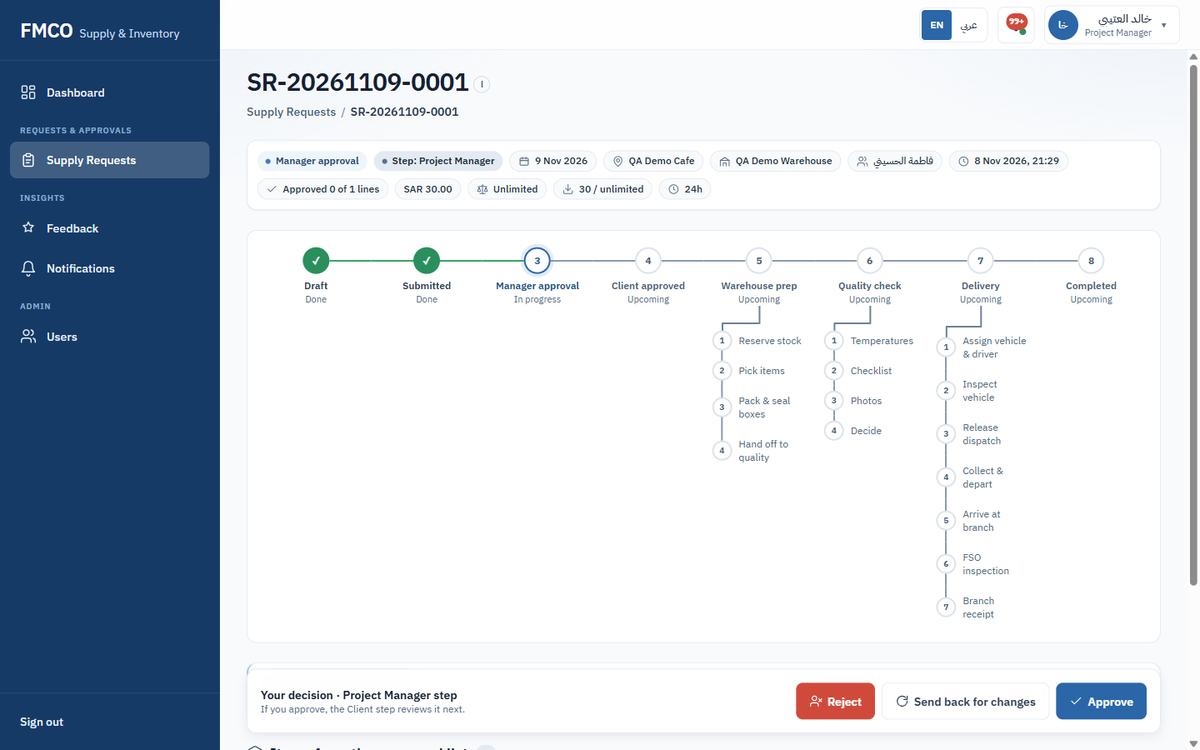
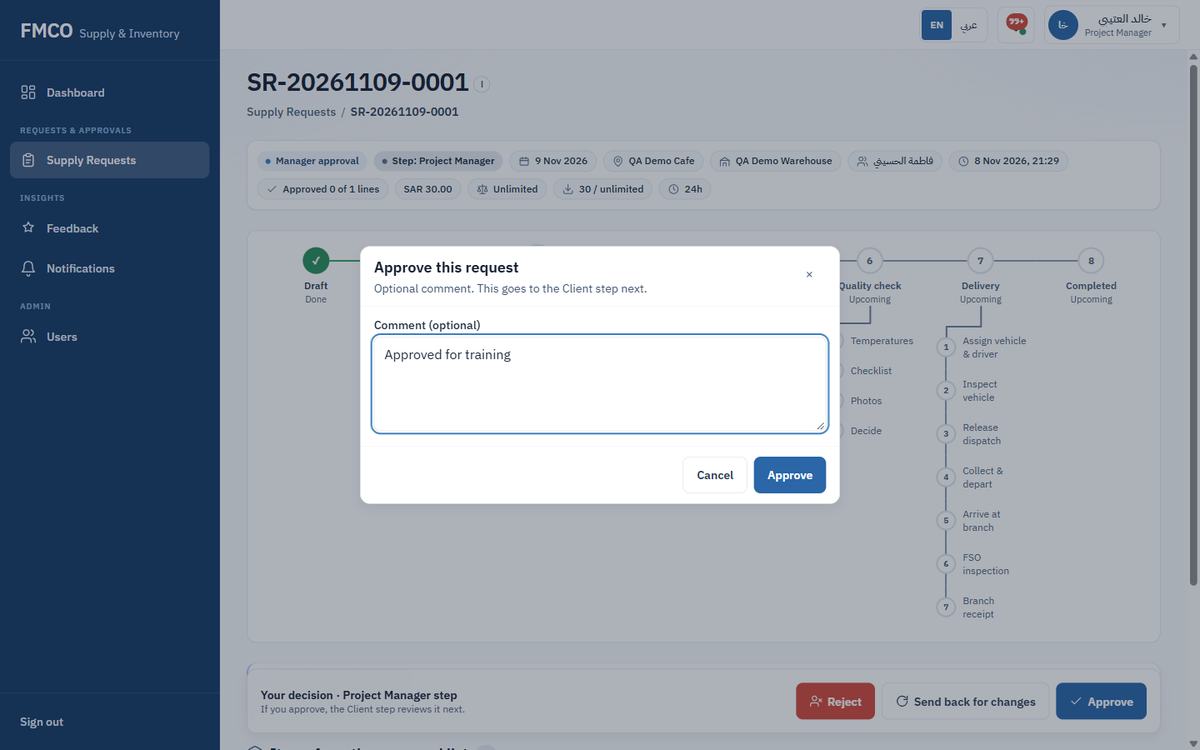
| Field / Button | What it means & how to use it |
|---|---|
| Approve | Accept the request. It moves to the next step of the ladder. |
| Send back for changes | Return the request to the barista with a comment. The barista corrects it and sends it again. |
| Reject | Stop the request. It will not be prepared. |
| Comment | Optional when approving; explains the decision to the next step and the requester. |
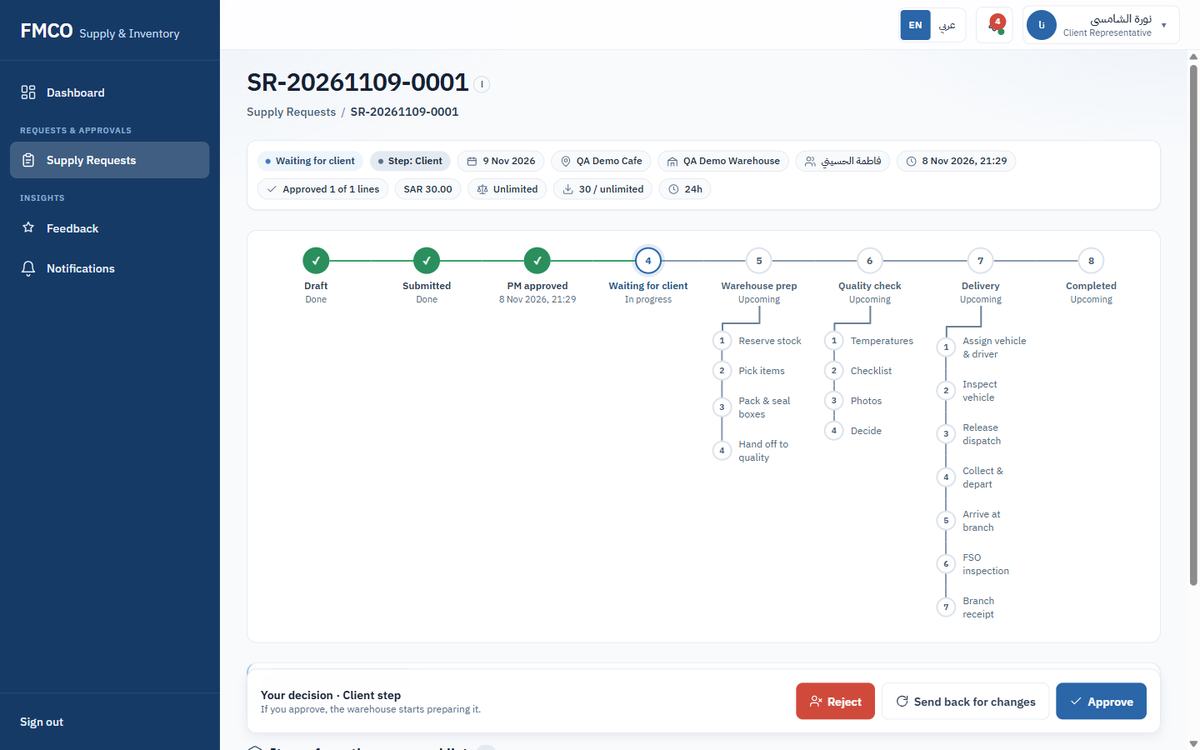
Each step has a time limit ("Overdue after (hours)" in Settings → Approvals). Requests not decided in time are flagged as overdue and the approver is reminded.
Reserve, pick, pack and seal the order
Once the request is approved, the warehouse prepares it in four steps shown on the request page: Reserve stock, Pick items, Pack & seal boxes and Hand off to quality. The bottom panel always shows the next step and its button: "Take the next warehouse step for this order."
Who: Warehouse Staff / Warehouse Manager
Open the request (status Warehouse preparing) and click Reserve stock. The 5 LTR is set aside for this order so it cannot be given to another one. In Warehouse stock the milk now shows On hand 20 LTR, Reserved 5 LTR, Available 15 LTR.
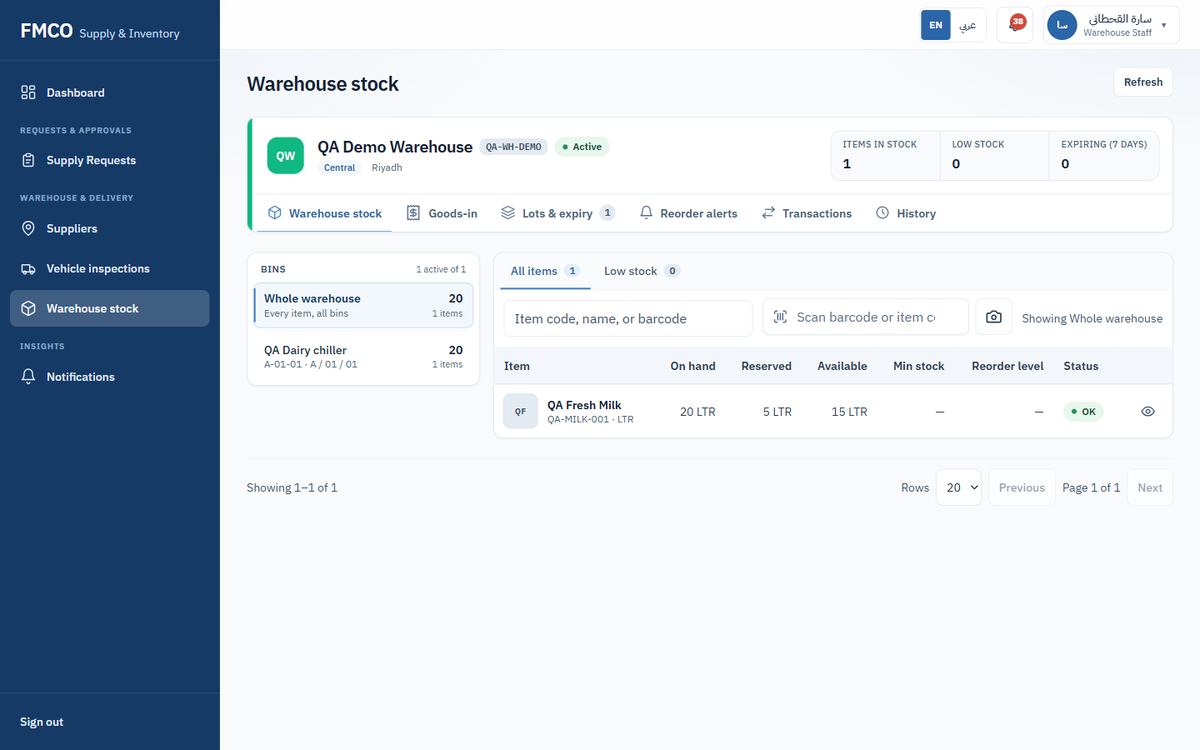
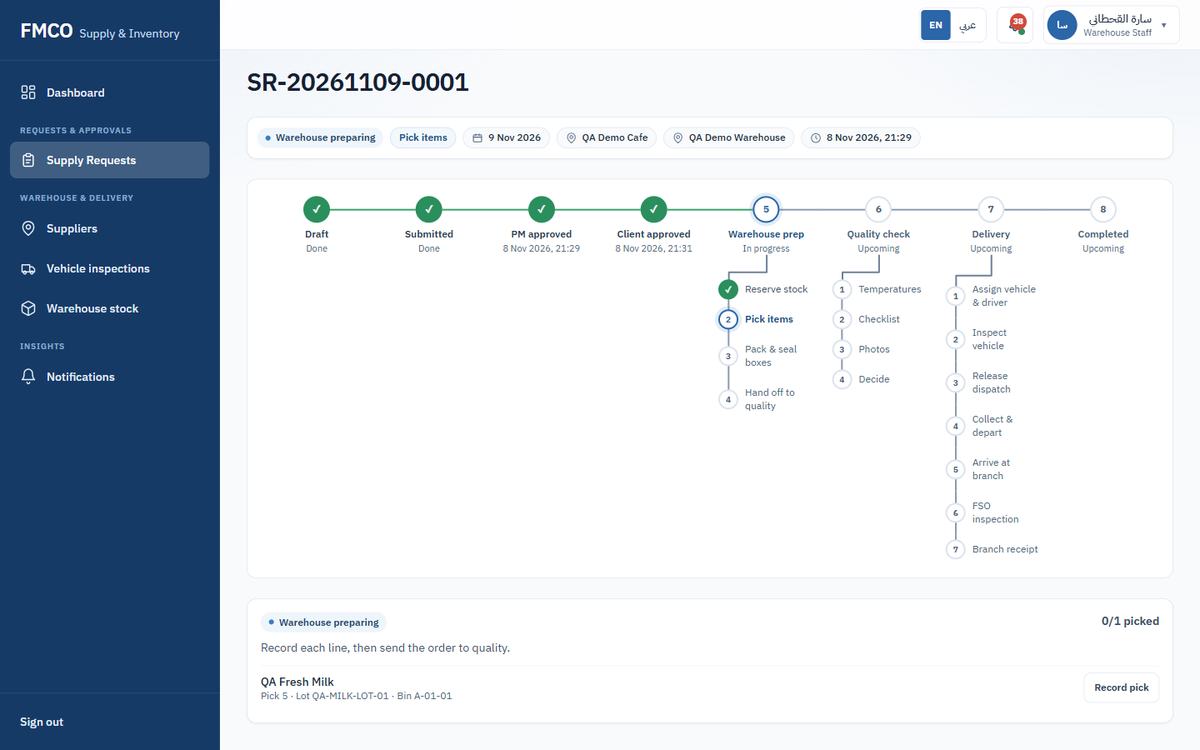
The panel now says "Record each line, then send the order to quality" and lists each line with the quantity, lot and bin to pick from (here: Pick 5 · Lot QA-MILK-LOT-01 · Bin A-01-01). The system suggests the lot that expires first (FEFO). Take the goods from the shelf and click Record pick on each line. The counter shows "1/1 picked" and the line is marked Picked.
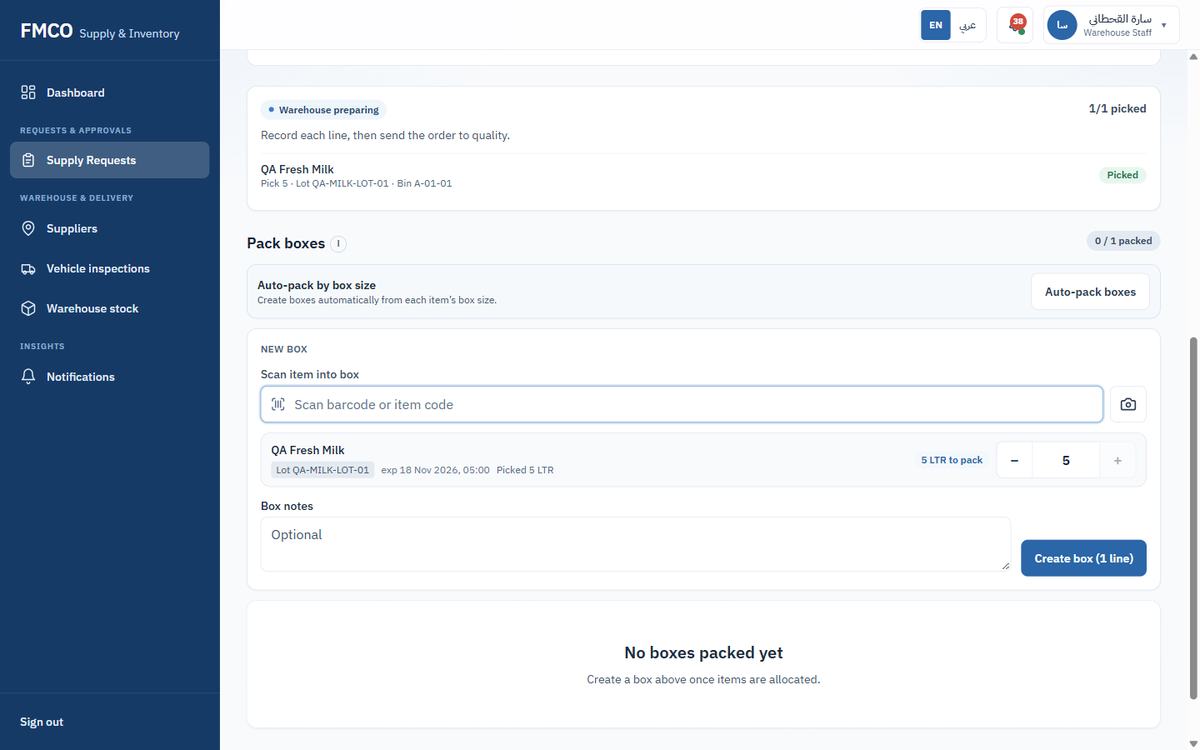
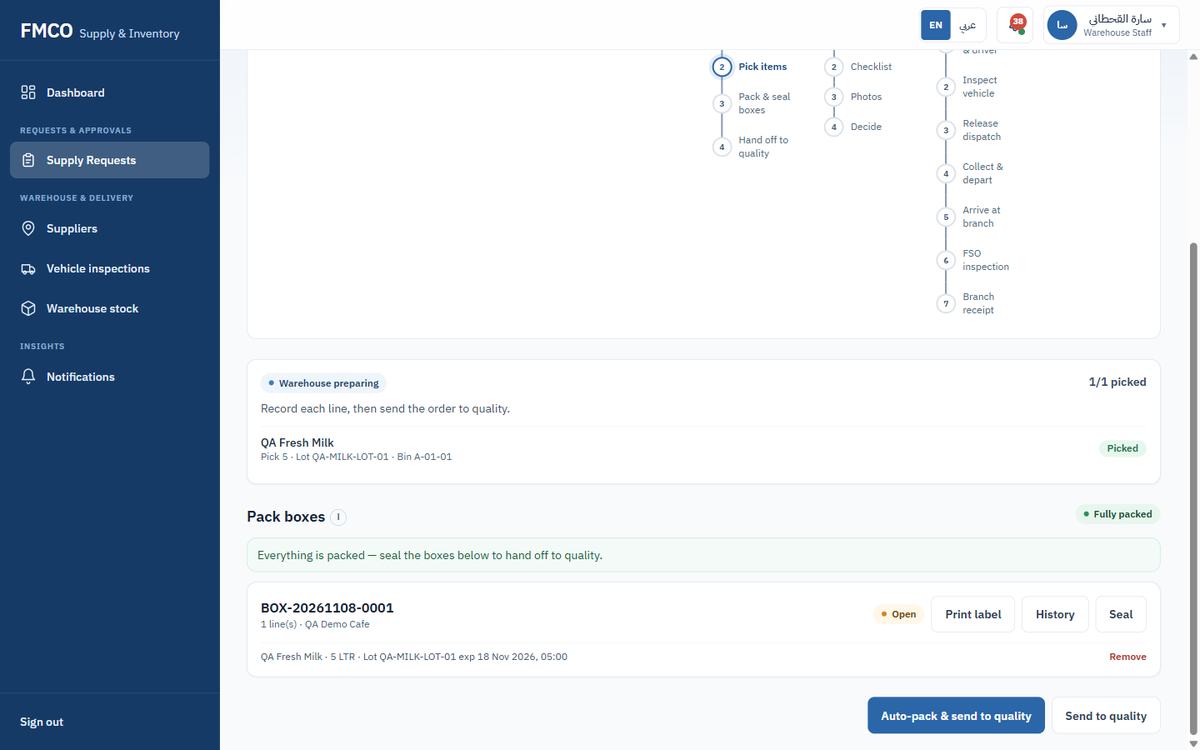
The box gets a number (e.g. BOX-20261108-0001) with status Open, and the order shows Fully packed: "Everything is packed — seal the boxes below to hand off to quality." Each box has Print label, History, Seal and Remove.
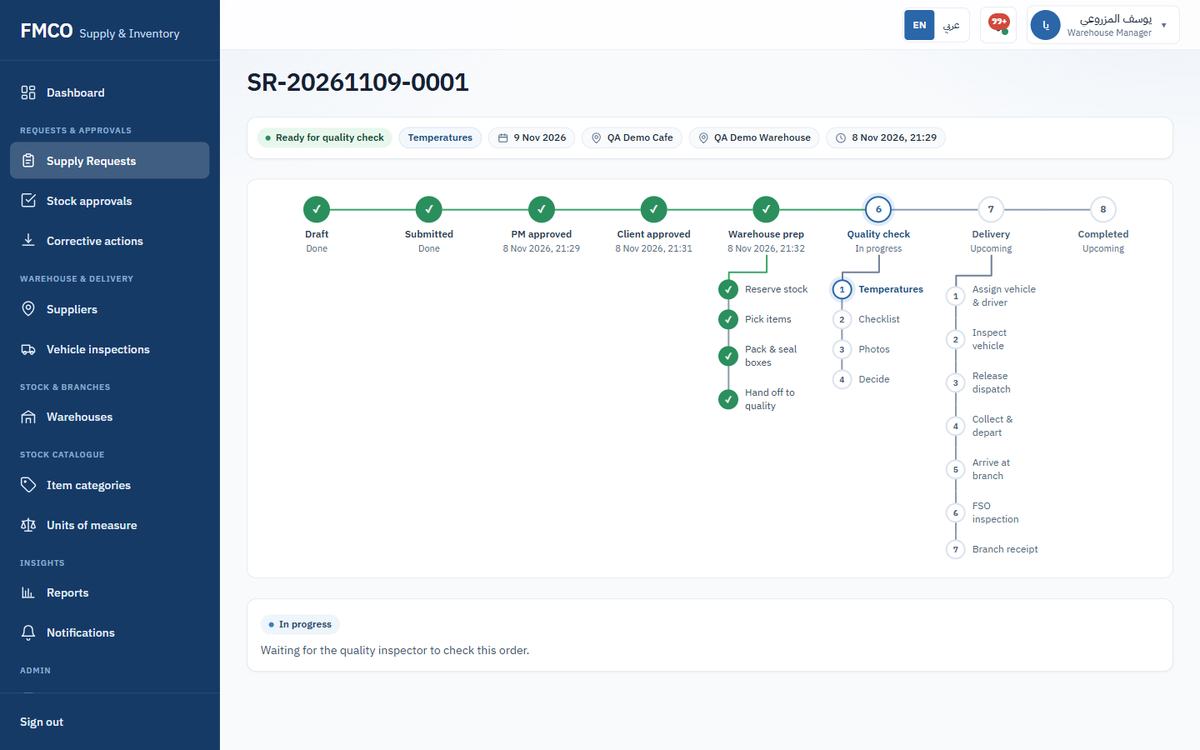
The request becomes Ready for quality check and the panel says "Waiting for the quality inspector to check this order." The quality inspector is alerted.
Inspect the packed order before it leaves the warehouse
Before dispatch, a quality inspector checks the packed order: temperatures, a checklist, optional photos, and a decision on each item. Only an order that passes can be dispatched.
Who: Quality Inspector
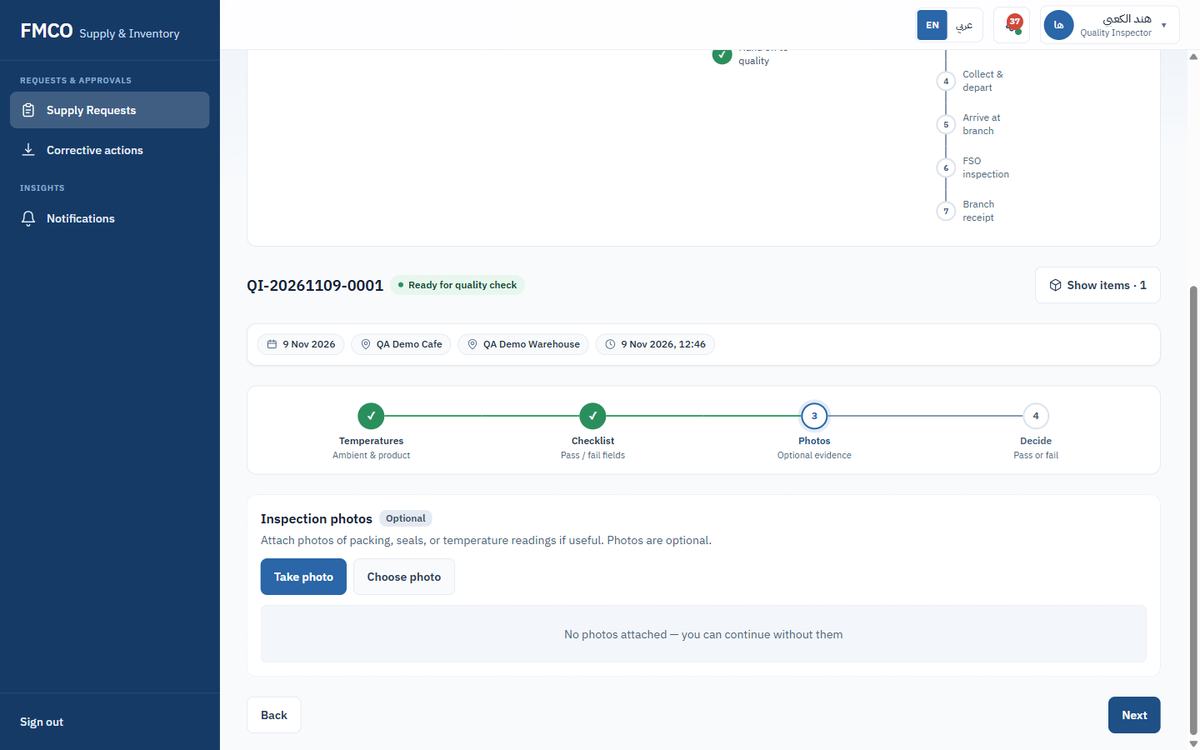
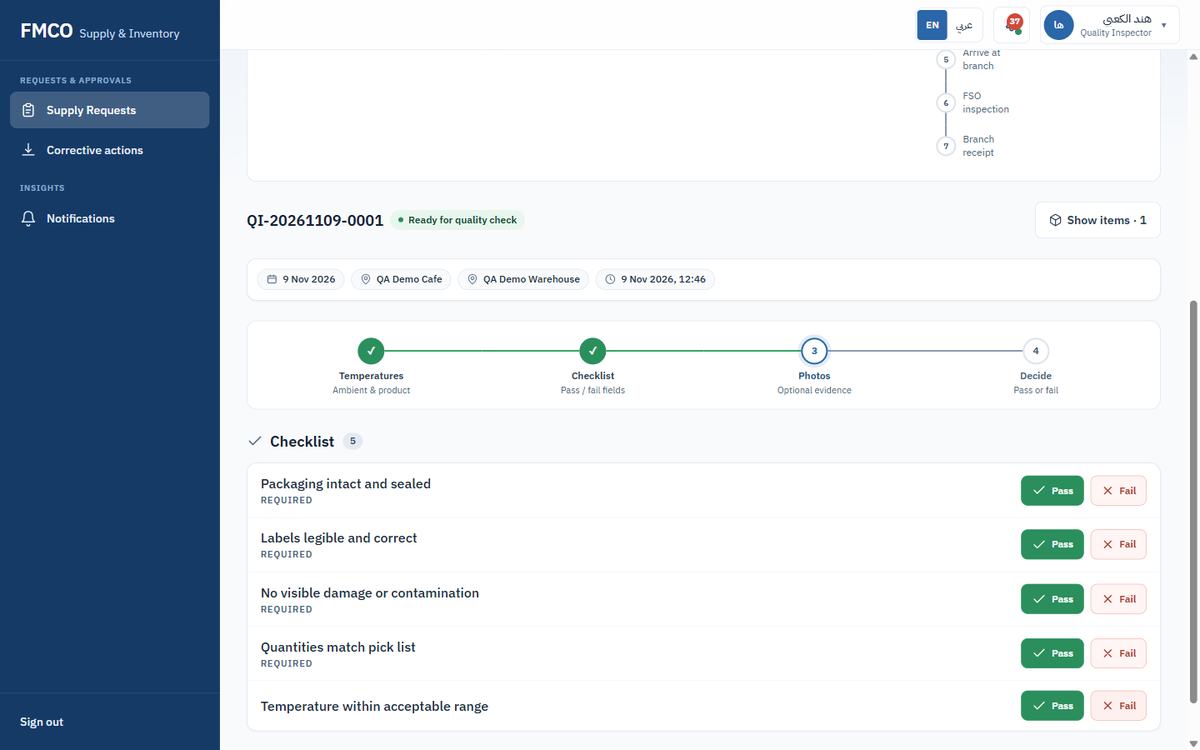
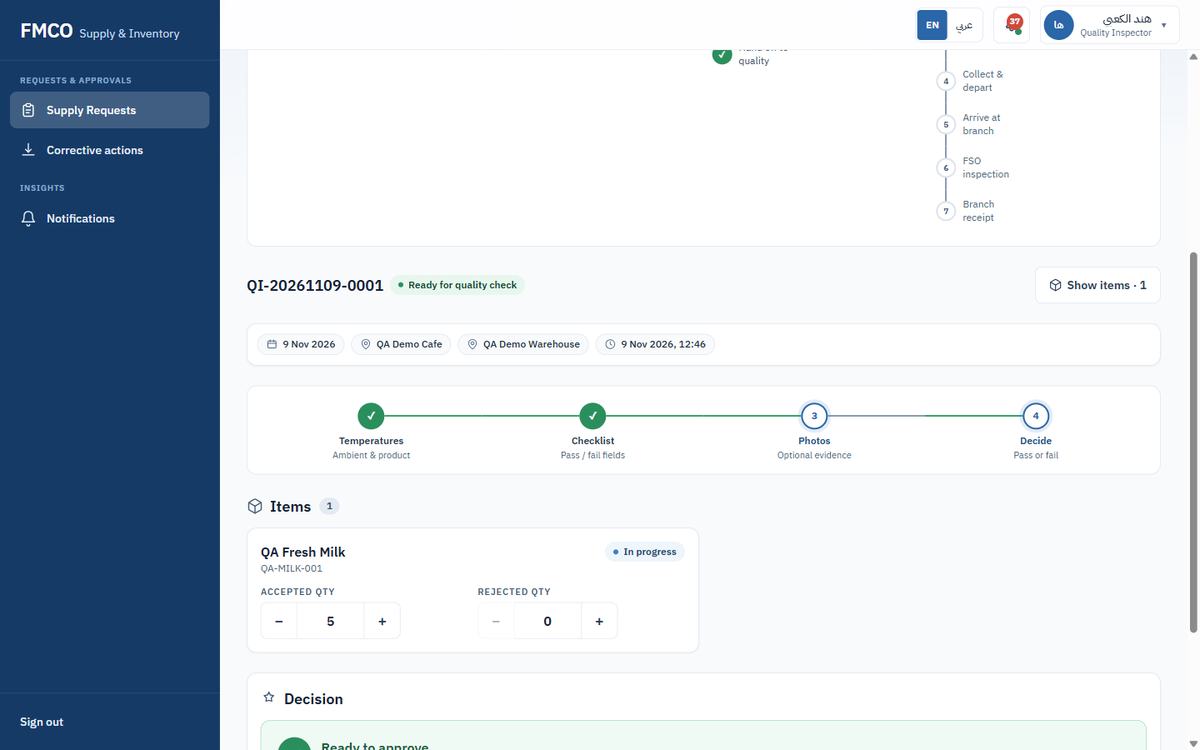
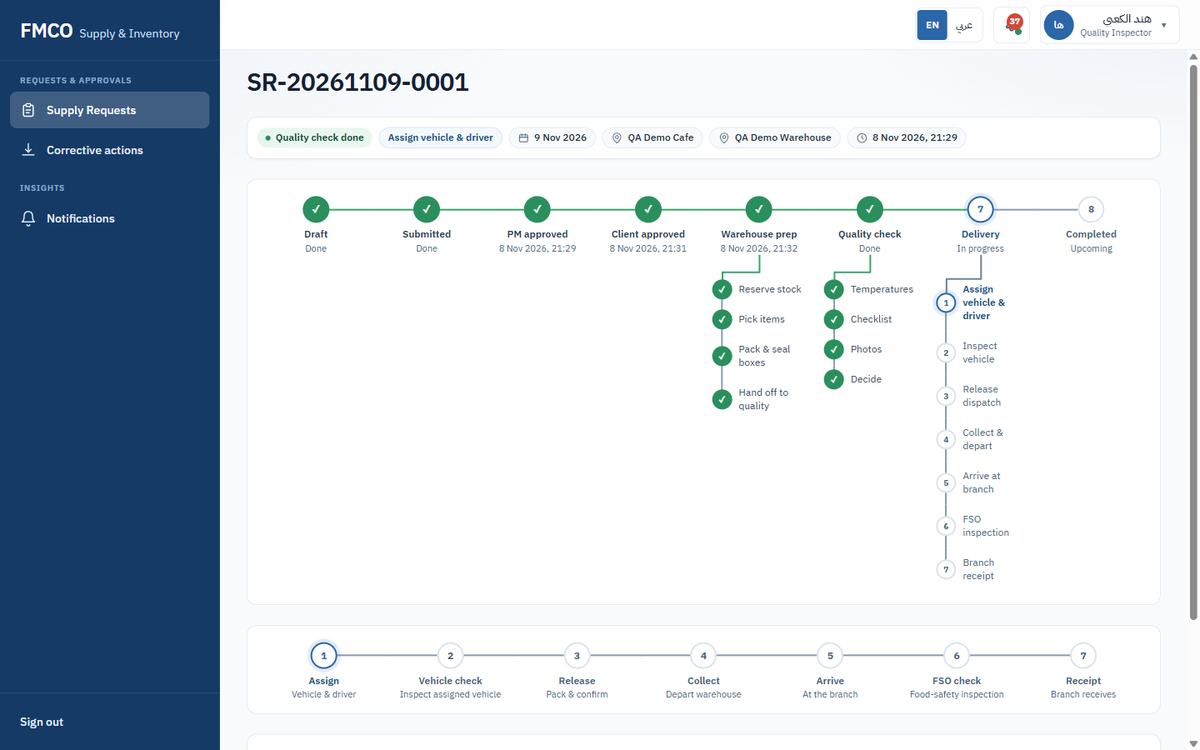
The message "QI-20261109-0001 passed · Next: Warehouse dispatch" confirms it. The request becomes Quality check done, waiting on "Assign vehicle & driver".
| Field / Button | What it means & how to use it |
|---|---|
| Ambient °C / Product °C | Room and product temperatures. The product temperature must be inside the item's range. |
| Checklist items | Set in Settings → Checklists → Warehouse quality (Module 13). Items marked Required must pass. |
| Accepted qty / Rejected qty | How much of each item passes. Rejected stock does not leave the warehouse. |
| Confirm pass / Reject instead | Approve the order for dispatch, or reject it. |
Assign the van and driver, inspect the van and release the load
After the quality check the warehouse creates a dispatch: it assigns a vehicle and a driver, inspects the vehicle, and releases the sealed boxes for collection. The delivery steps are shown on the request page: Assign, Vehicle check, Release, Collect, Arrive, FSO check, Receipt.
Who: Warehouse Manager / Administrator
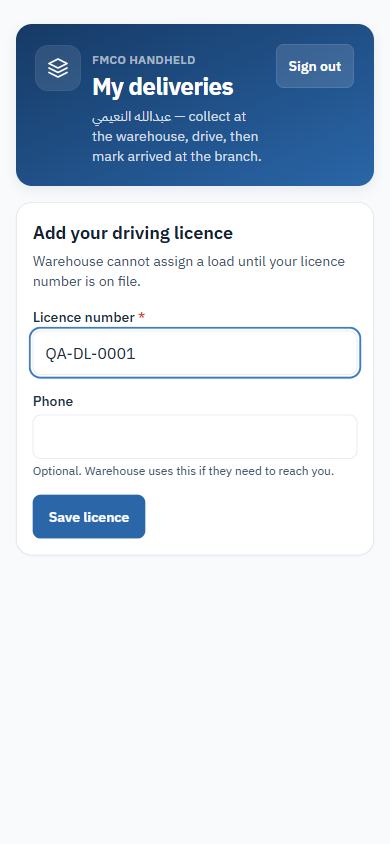
A driver can be assigned only after their driving licence number is on file. Drivers add it themselves the first time they open My deliveries (Module 21).
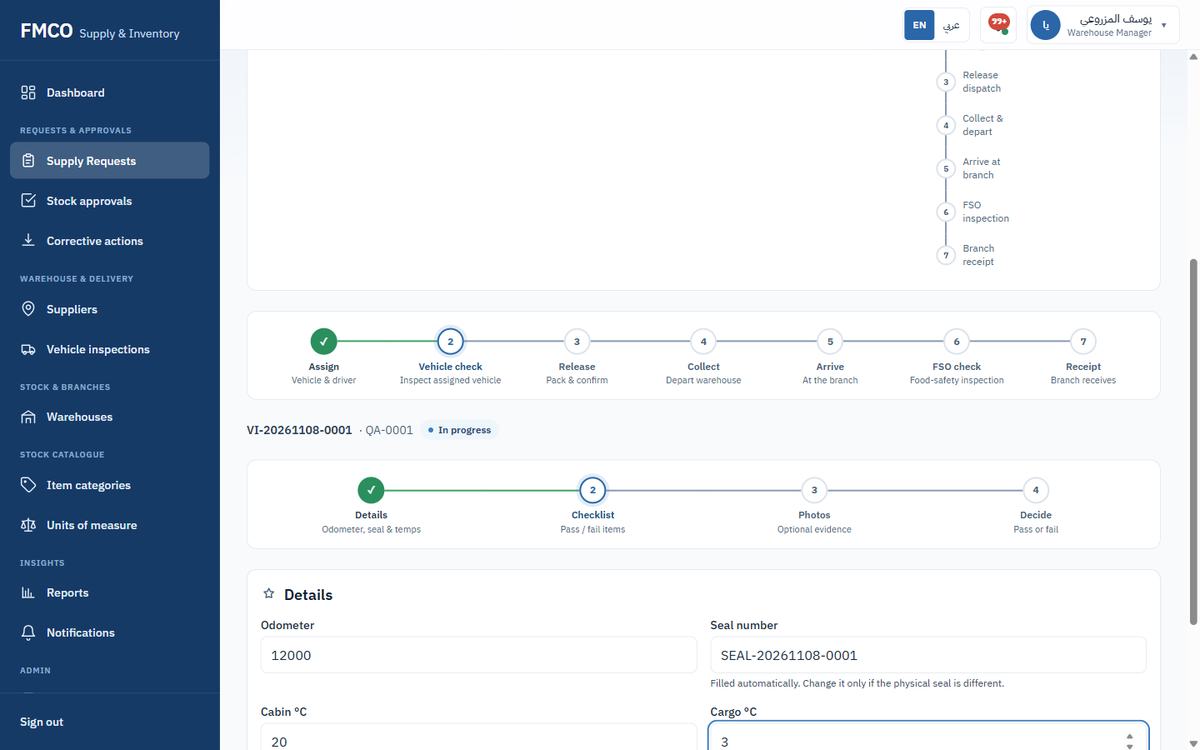
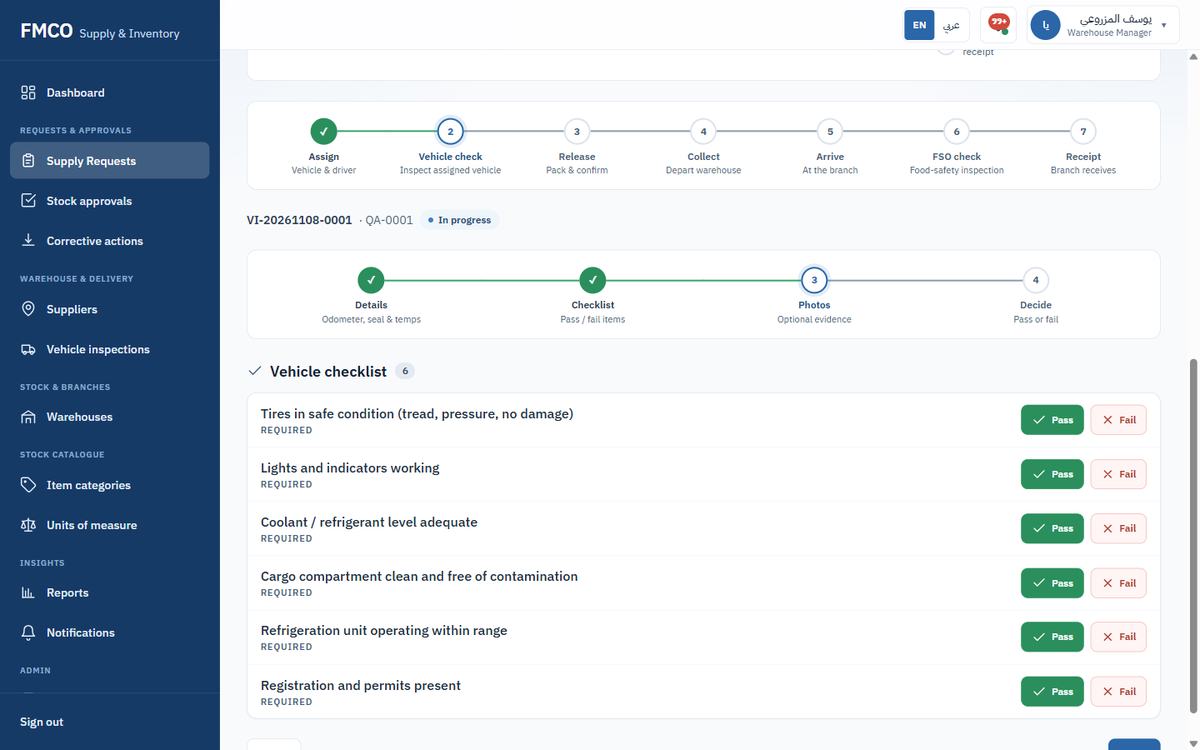
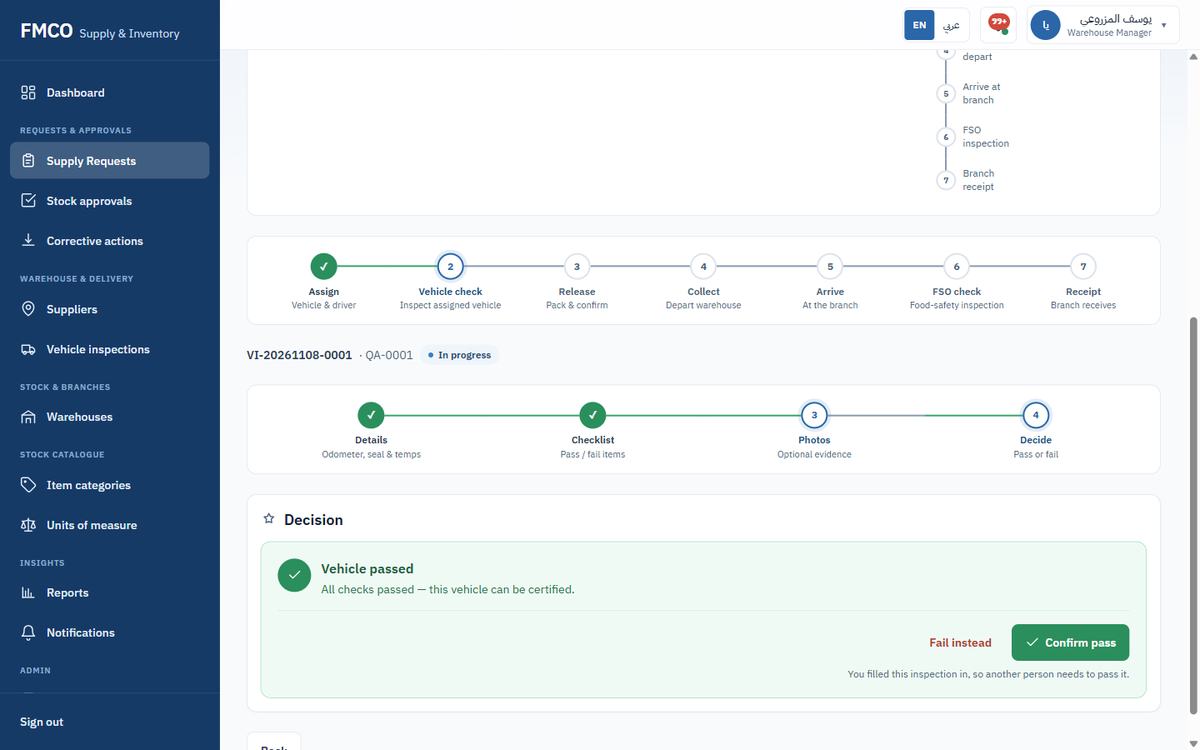
The person who filled in the vehicle inspection cannot pass it: "You filled this inspection in, so another person needs to pass it." A second authorised user confirms the pass.
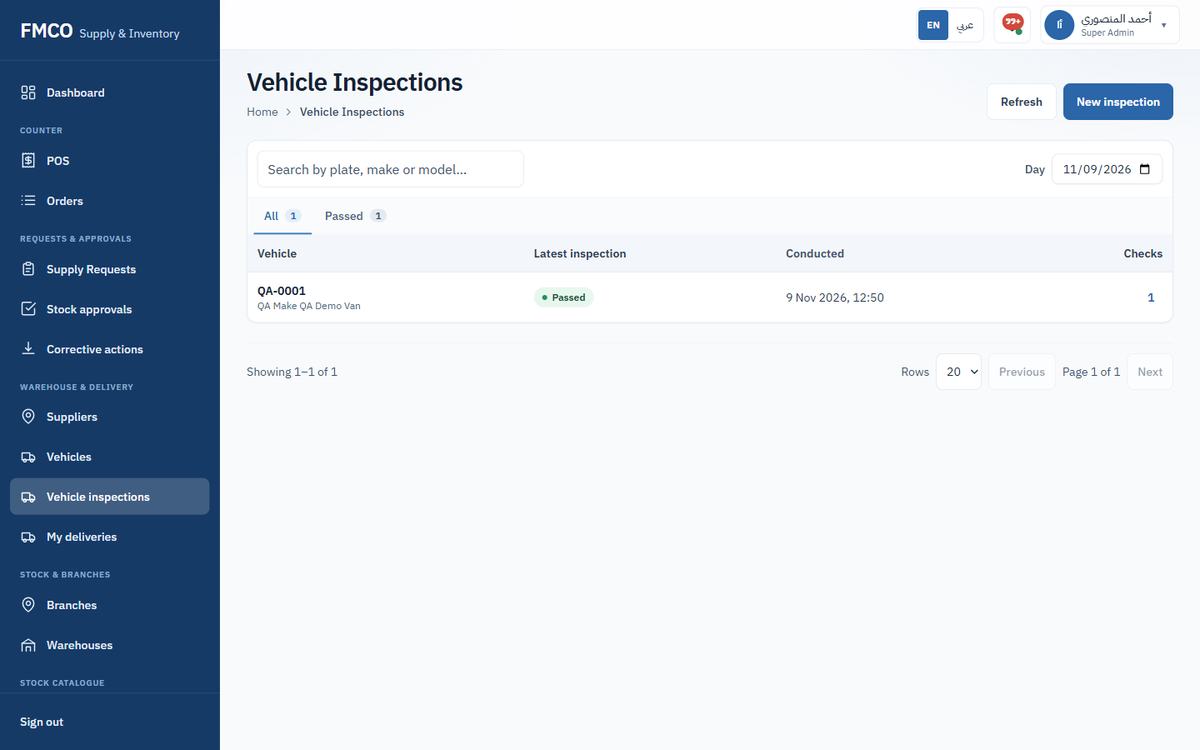
All inspections are listed under Left menu → Warehouse & delivery → Vehicle inspections, filtered by Day and result (All, Passed…). New inspection starts an inspection for a chosen vehicle outside a dispatch. A failed inspection raises a corrective action (Module 22).
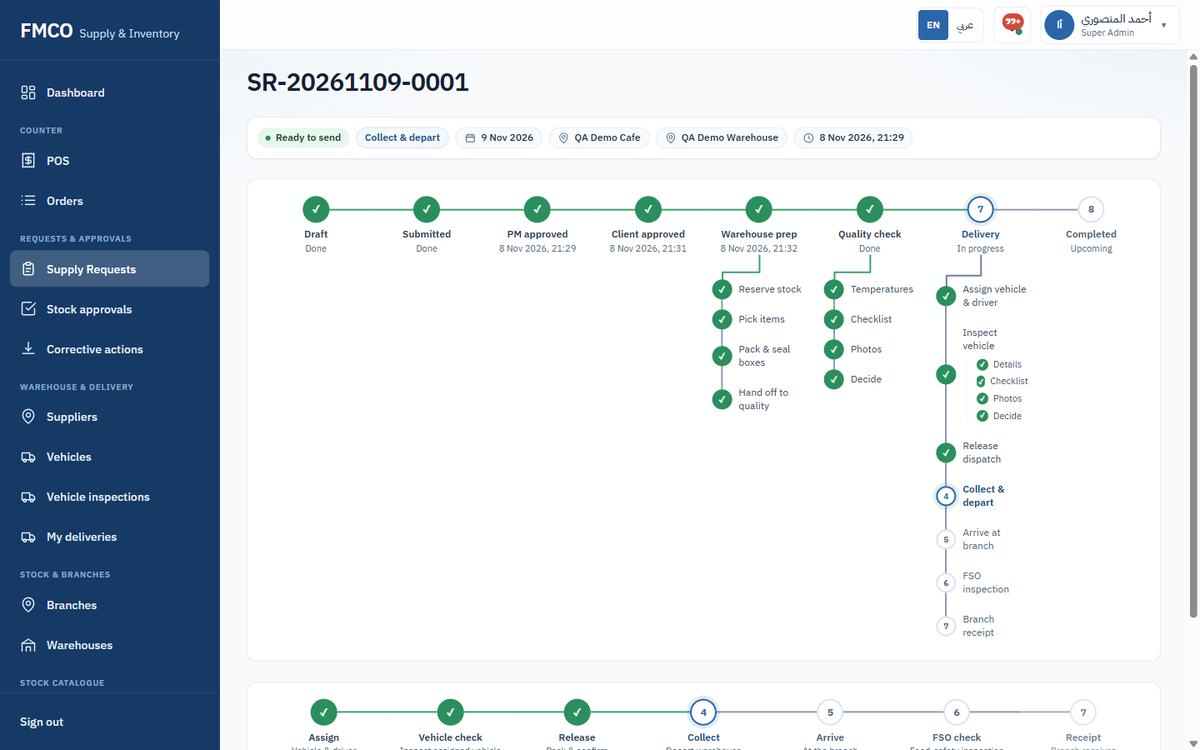
Collect, drive and arrive — on the driver's phone
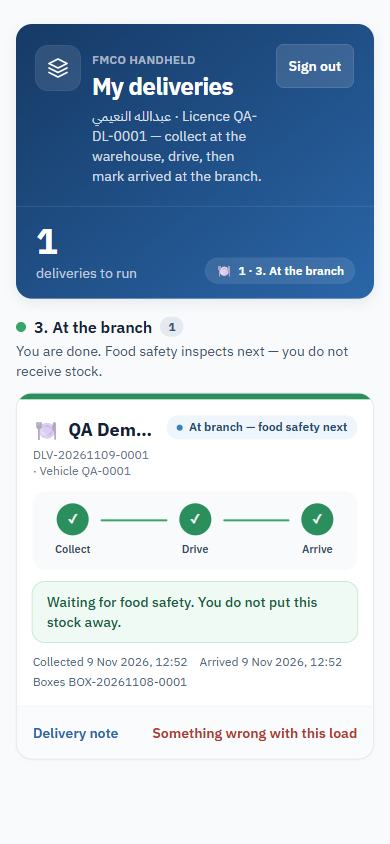
Drivers use My deliveries, a phone-sized screen. Each delivery has three steps: Collect at the warehouse, Drive, and Arrive at the branch. The driver does not receive stock: food safety inspects next.
Who: Driver
On the first sign-in the screen asks "Add your driving licence — Warehouse cannot assign a load until your licence number is on file." Enter the Licence number * and optionally a Phone, then tap Save licence.
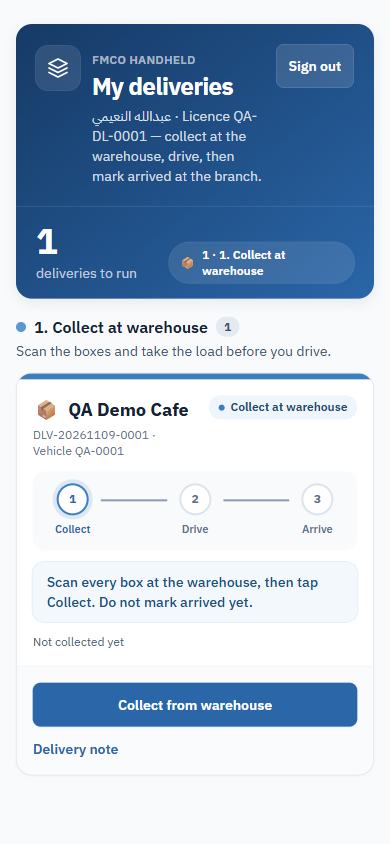
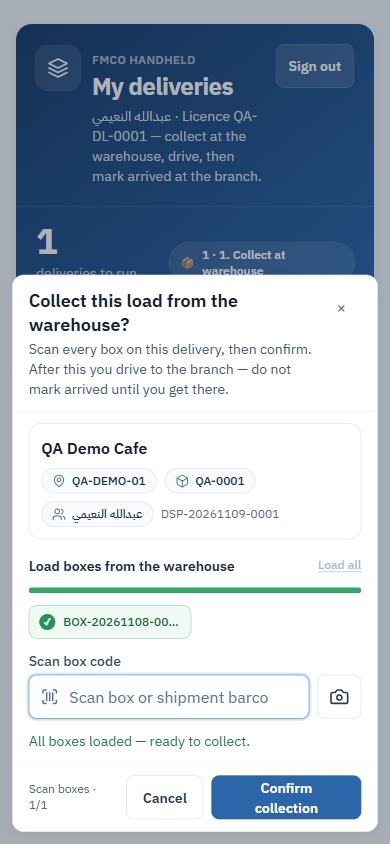
The delivery is now On the road: "Drive to QA Demo Cafe. When you are there, tap Arrived so food safety can inspect." If there is a problem, tap Something wrong with this load.
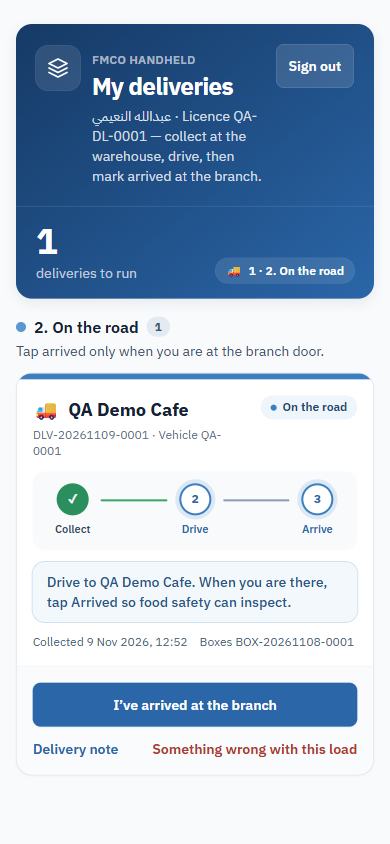
The delivery shows "At branch — food safety next". The driver's work is done.
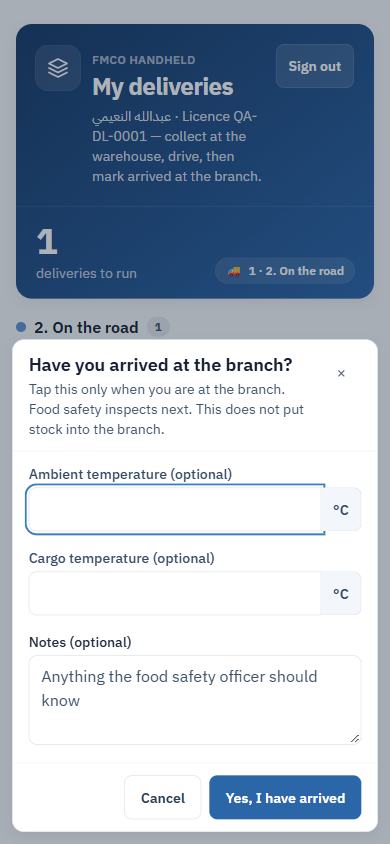
Check the delivery at the branch before it is received
At the branch, the Food Safety Officer (FSO) inspects the delivered goods: temperatures, a shipment checklist, each item's condition and evidence photos. Accepted items are released for branch receiving; failed items stay in quarantine. Problems are followed up with corrective actions.
Who: Food Safety Officer
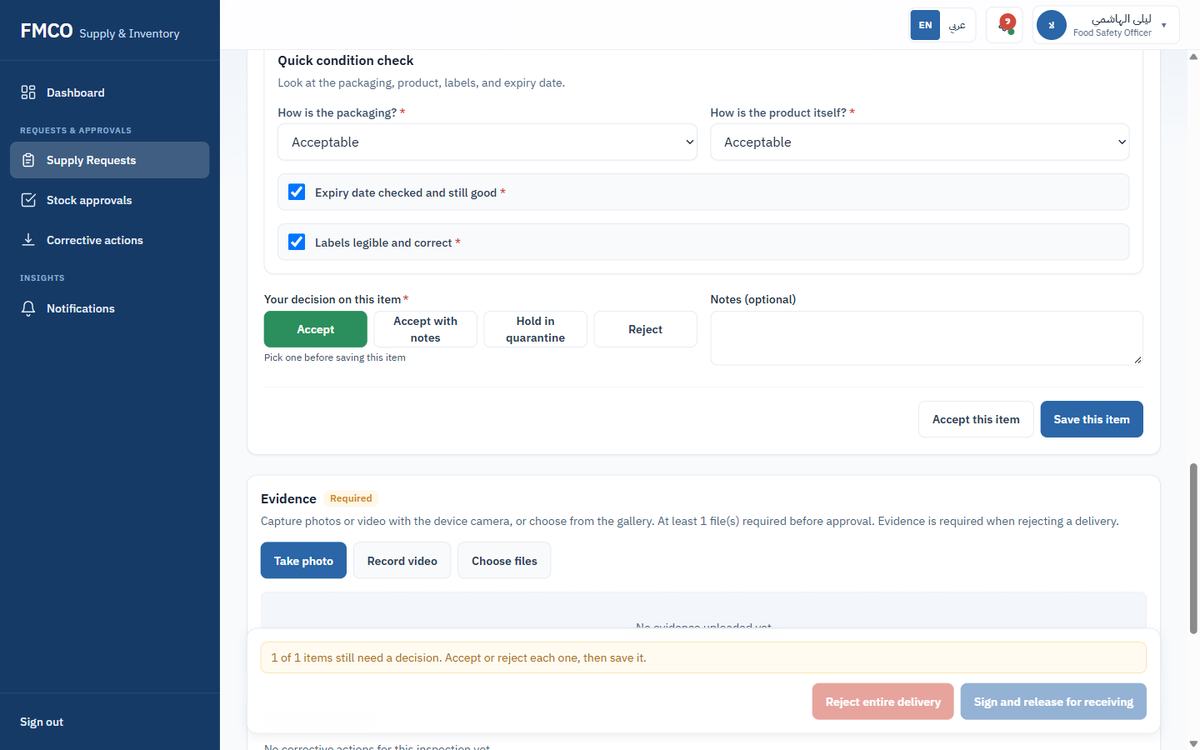
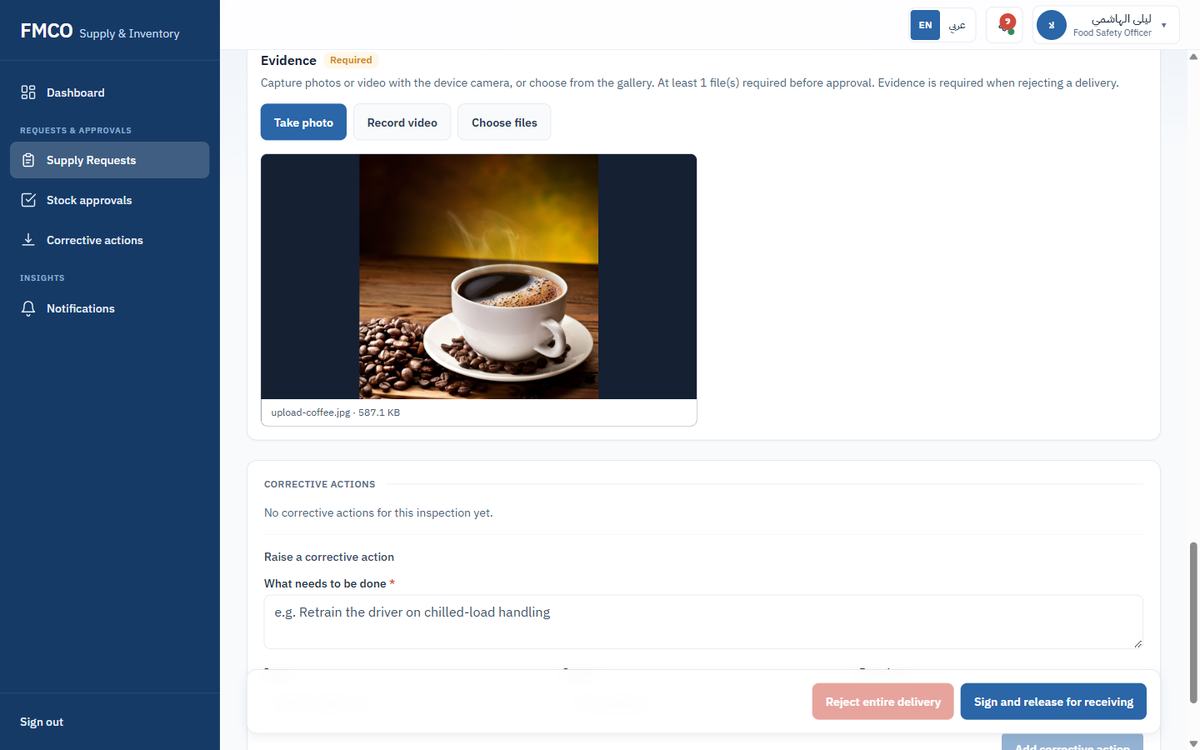
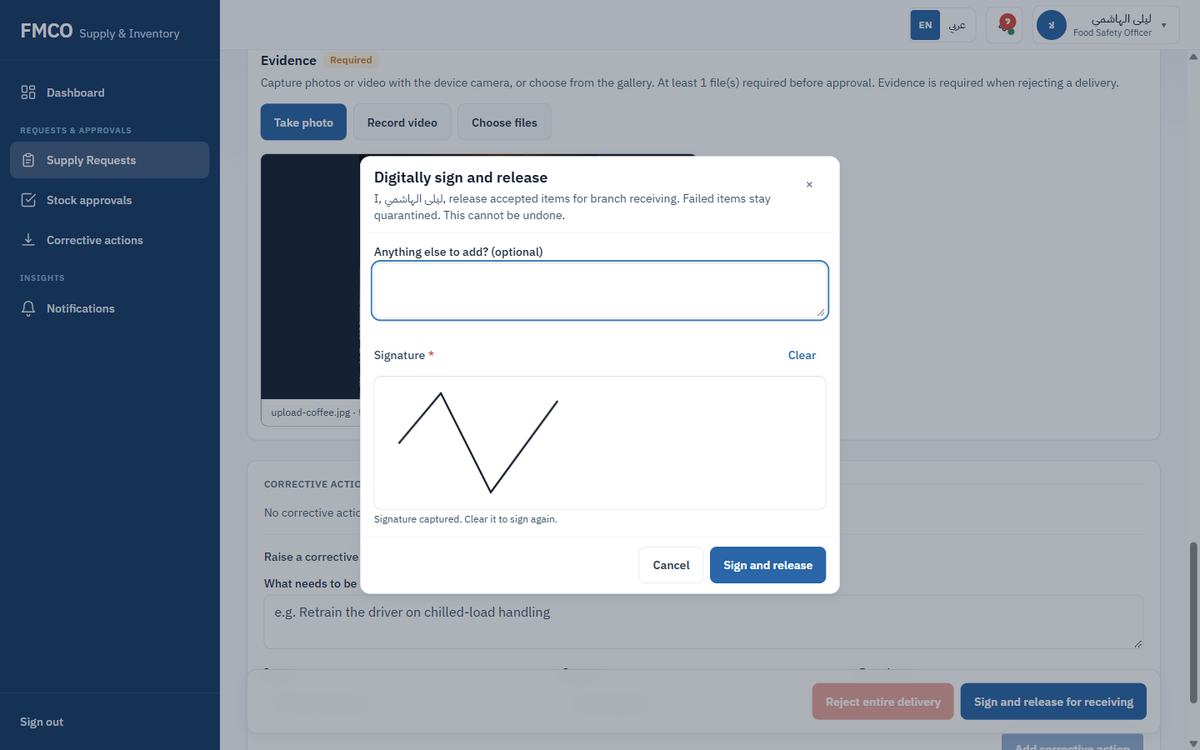
| Field / Button | What it means & how to use it |
|---|---|
| Accept / Accept with notes | The item can be received by the branch. |
| Hold in quarantine | The item is kept apart until a decision is made (Module 25). |
| Reject / Reject entire delivery | The item (or the whole delivery) is not received. Evidence is required when rejecting. |
| Raise a corrective action | Record what needs to be done, for which item, by whom (Owner) and by when (Due date). |
| Sign and release for receiving | "I release accepted items for branch receiving. Failed items stay quarantined. This cannot be undone." |
The request moves to Waiting for branch — Branch receipt.
Left menu → Requests & approvals → Corrective actions lists every corrective action raised from FSO or vehicle inspections, with its status (Open, In progress, Closed), owner and due date. Filter by Status or "Overdue only". Edit sets What needs to be done *, Owner, Due date and Status; Close closes it when done.
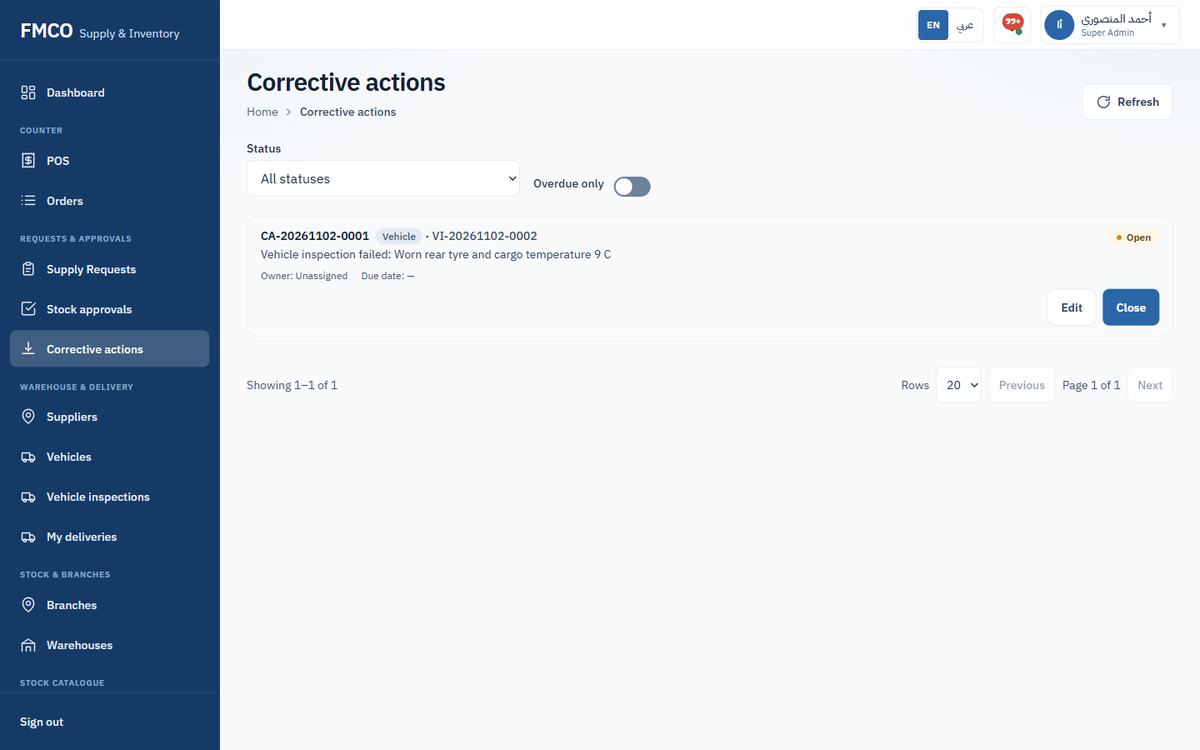
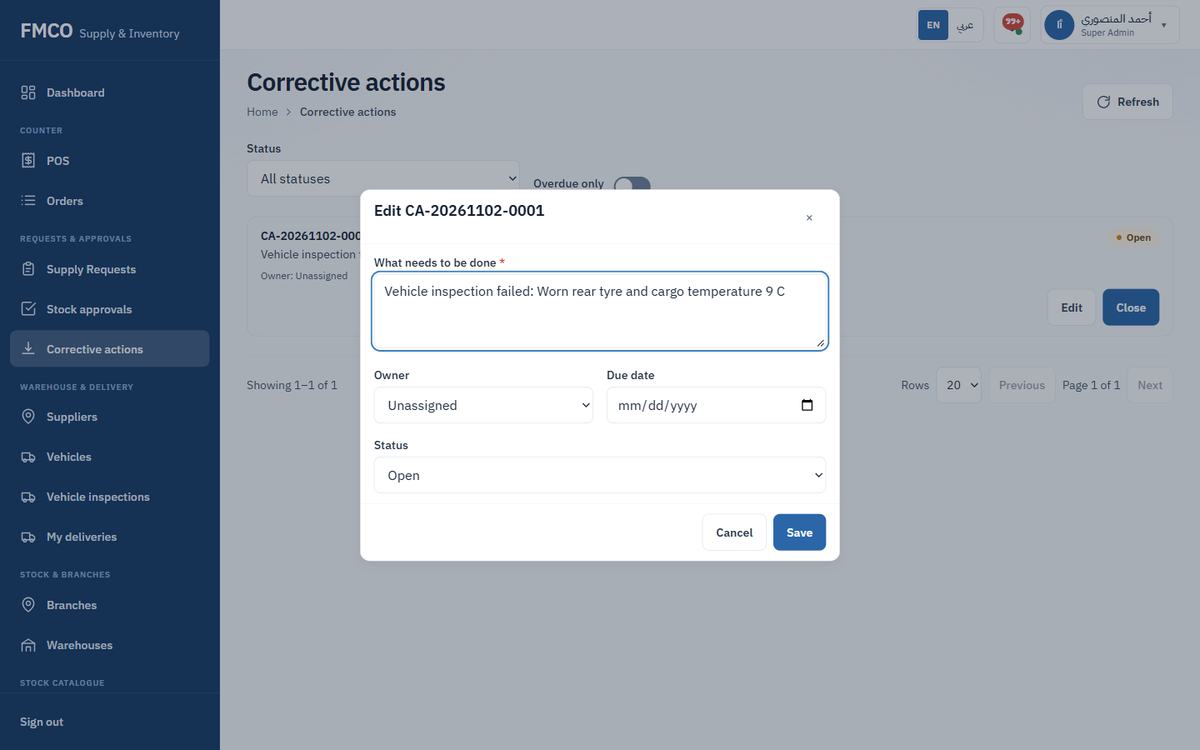
Confirm the delivery into branch stock
The barista confirms what arrived. The receipt compares what was requested, approved, dispatched and received (the three-way match) and posts the FSO-approved quantity into the branch's Main storage. This completes the supply request.
Who: Barista
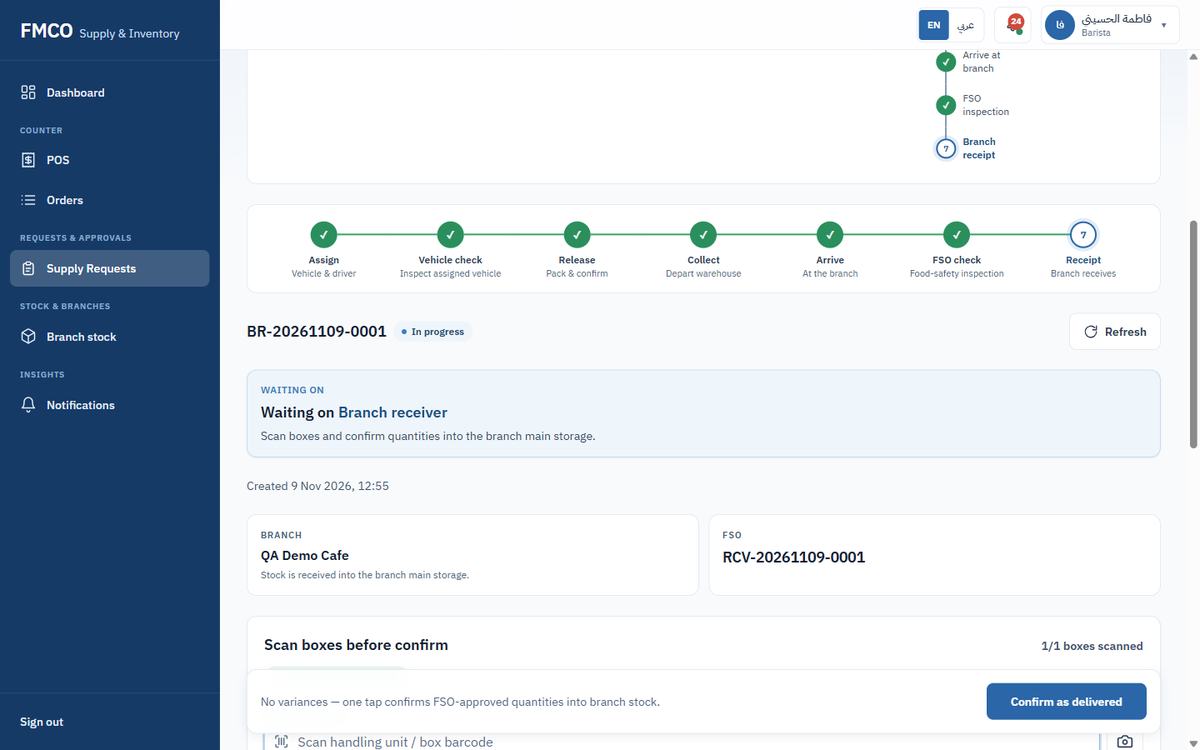
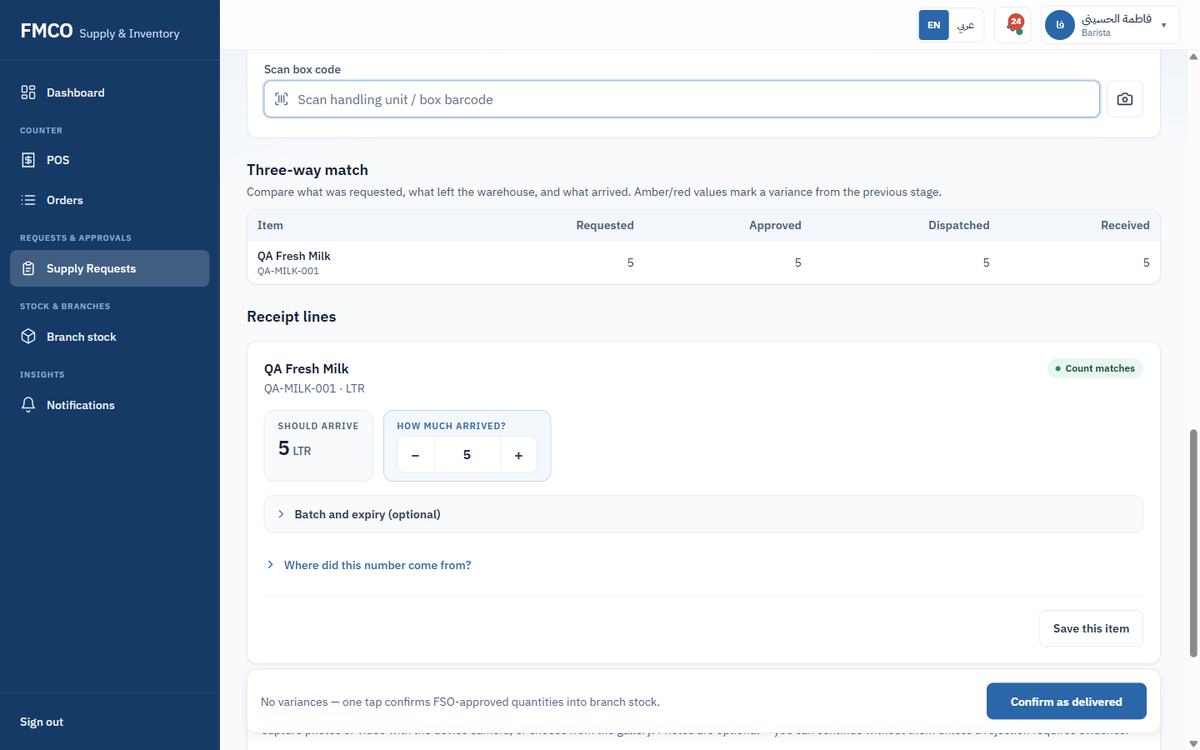
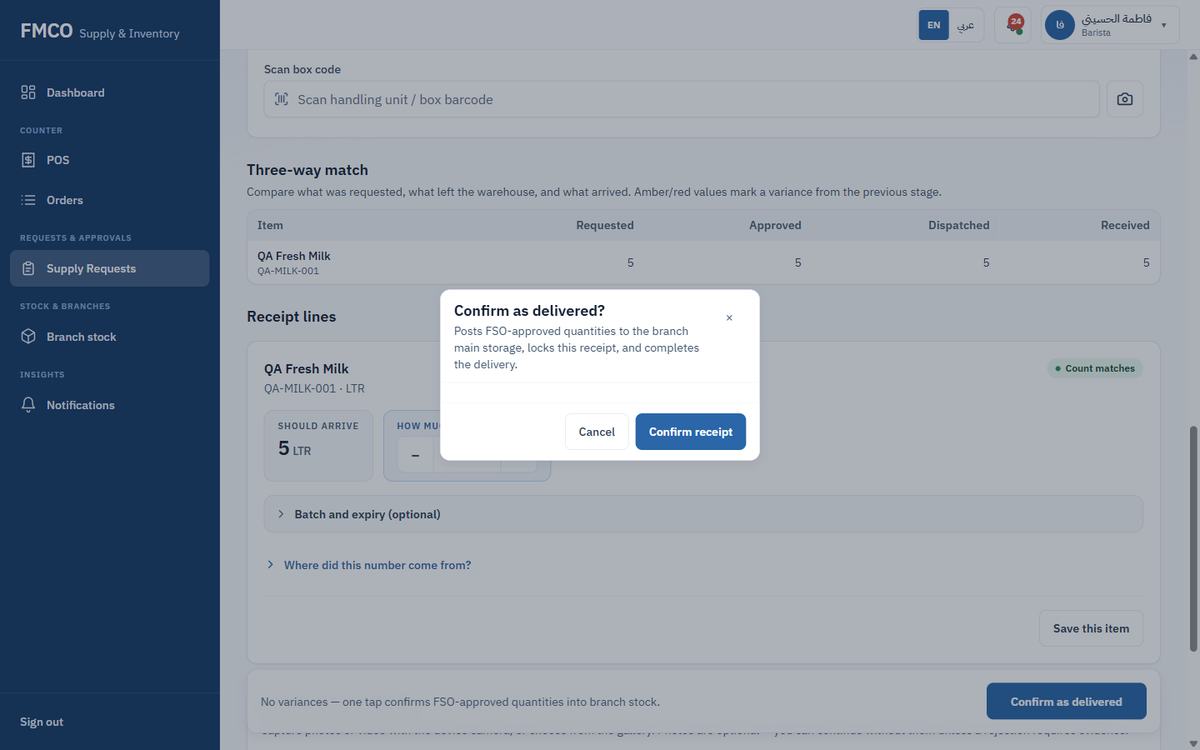
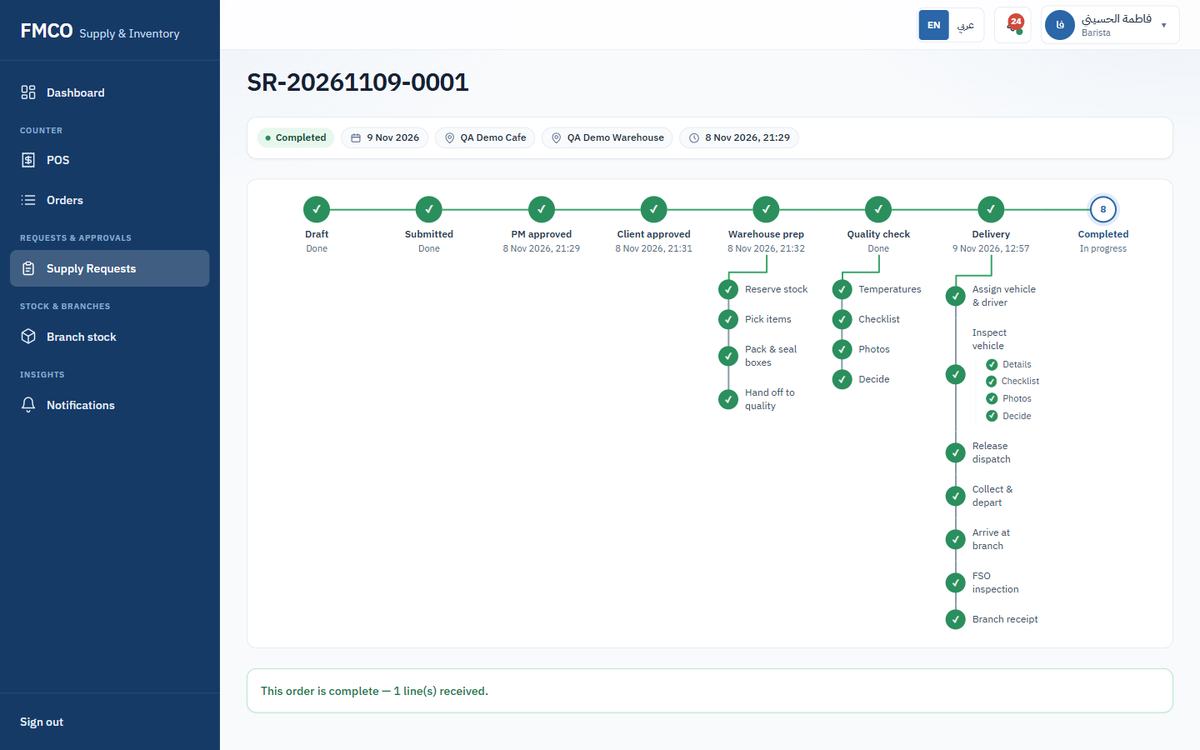
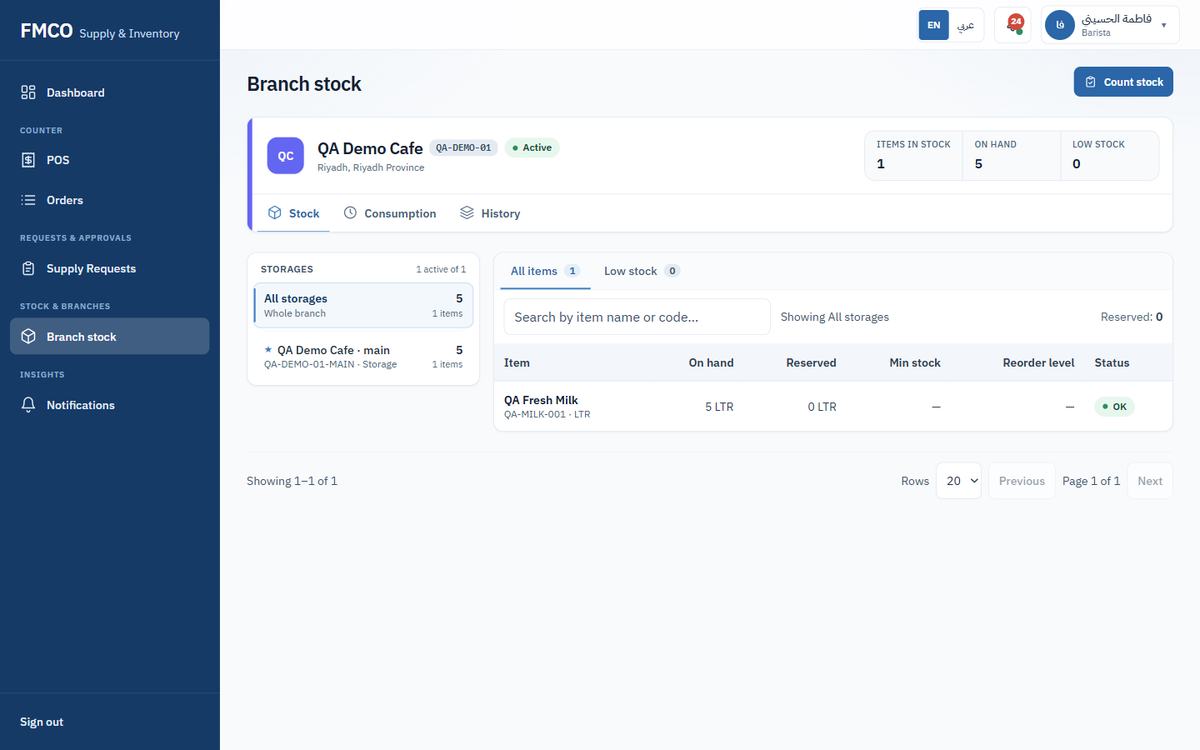
The request is Completed: "This order is complete — 1 line(s) received." Branch stock shows QA Fresh Milk 5 LTR in Main storage.
Record serves and deduct their ingredients automatically
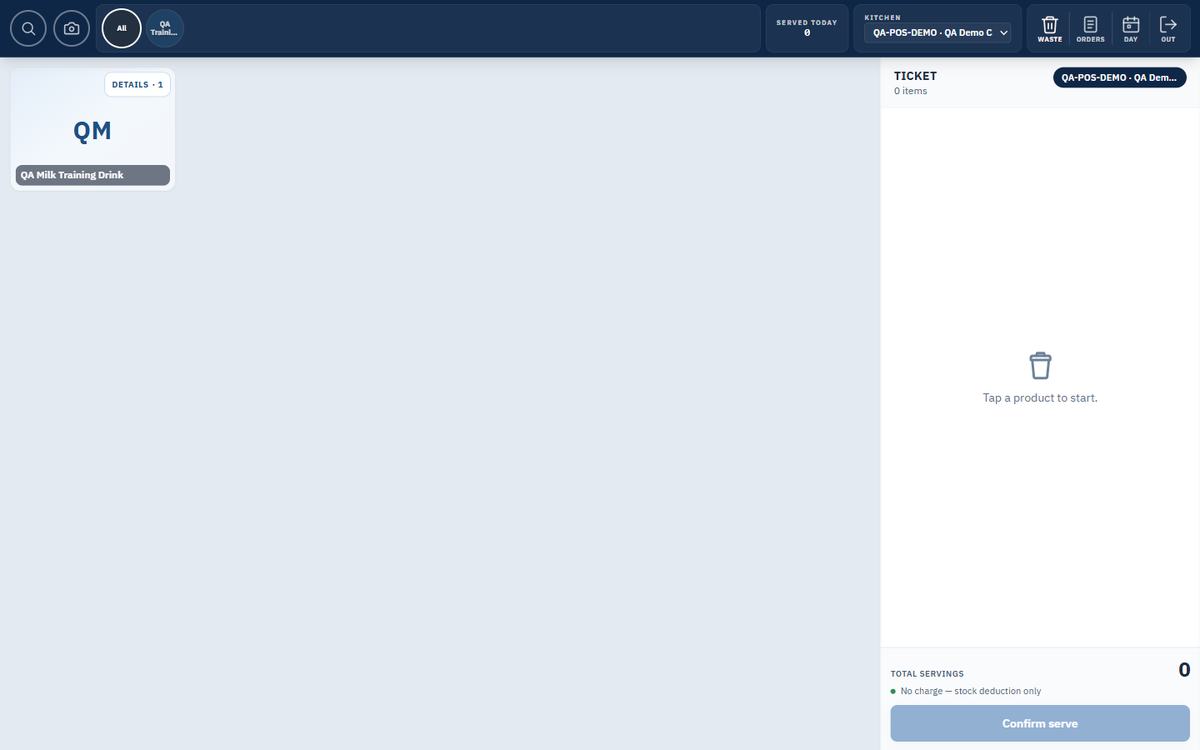
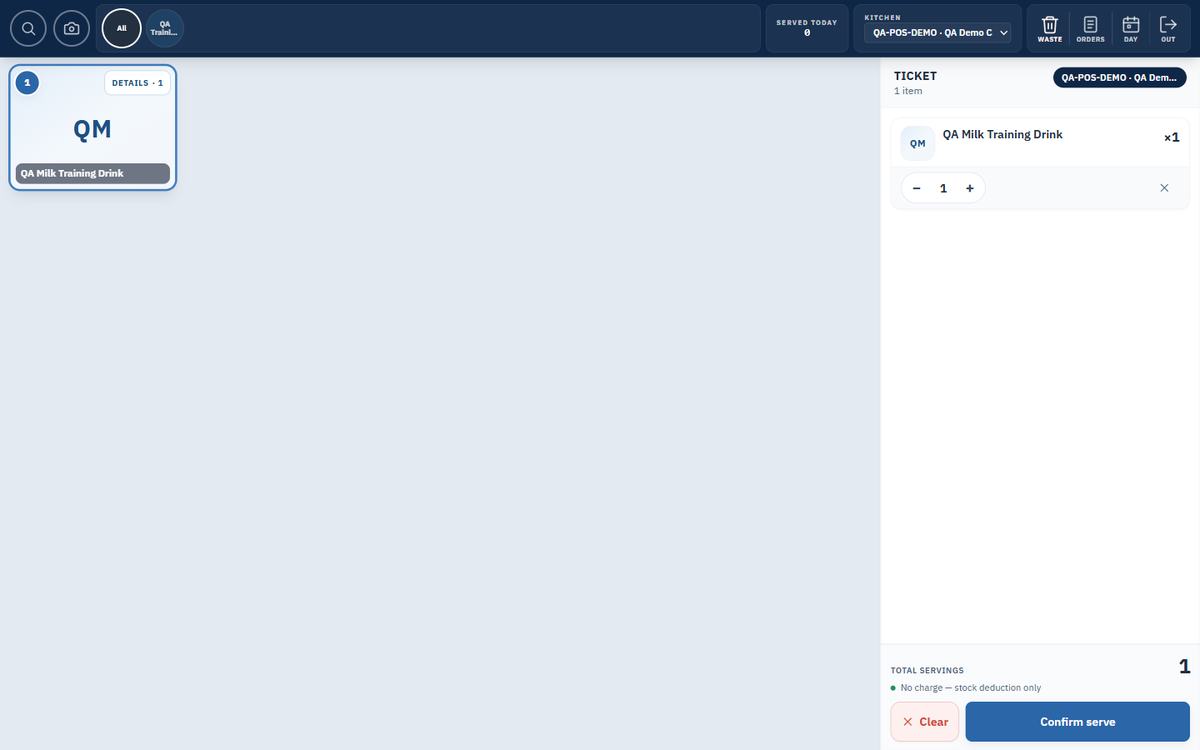
The POS counter records what is served. There are no prices: "No charge — stock deduction only". Each serve deducts the product's recipe ingredients from the branch Main storage.
Who: POS Operator, Barista
| Field / Button | What it means & how to use it |
|---|---|
| Category tabs | The product categories on the kitchen's menu (Module 10). |
| Product tile / DETAILS | Tap to add one serve; DETAILS shows the product. |
| Confirm serve | Records the ticket and deducts the ingredients from stock. |
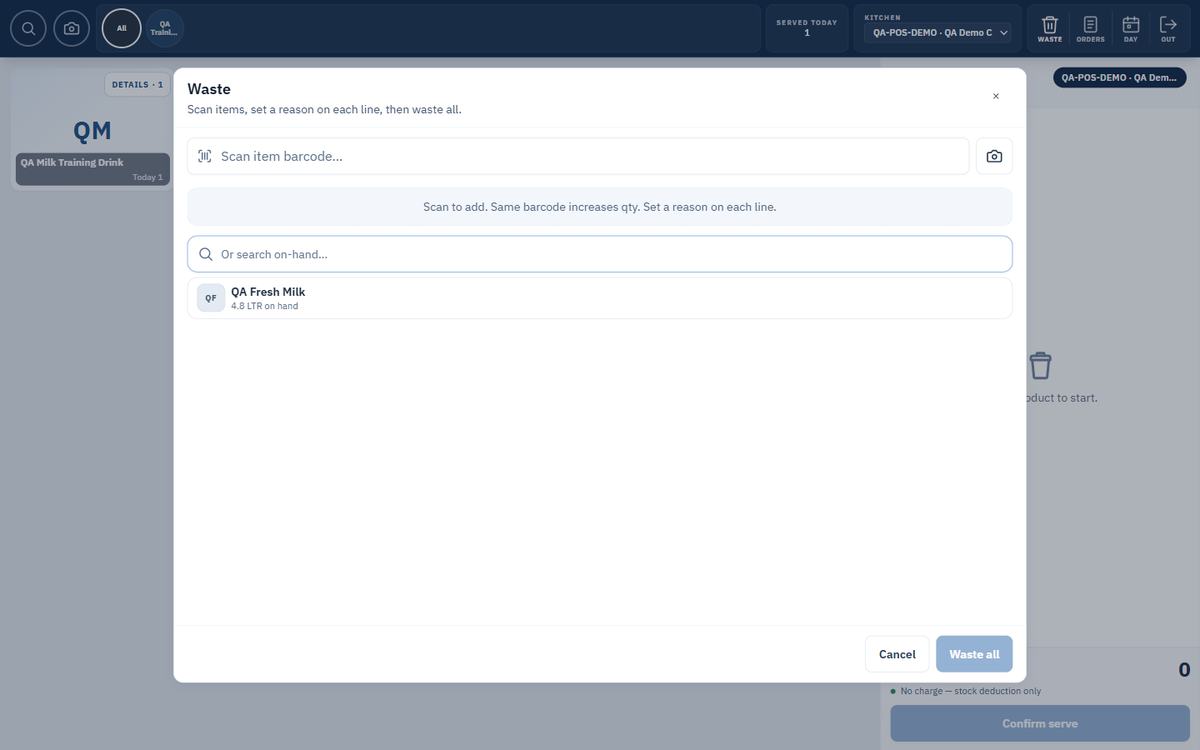
| WASTE | Record waste: scan items, set a reason on each line, then Waste all. Waste may need approval (Module 28). |
| ORDERS | Tickets rung up on this till; tap one to see its lines. |
| DAY | Day report: tickets, servings and servings by product for the business day. |
| OUT | Sign out of the counter. |
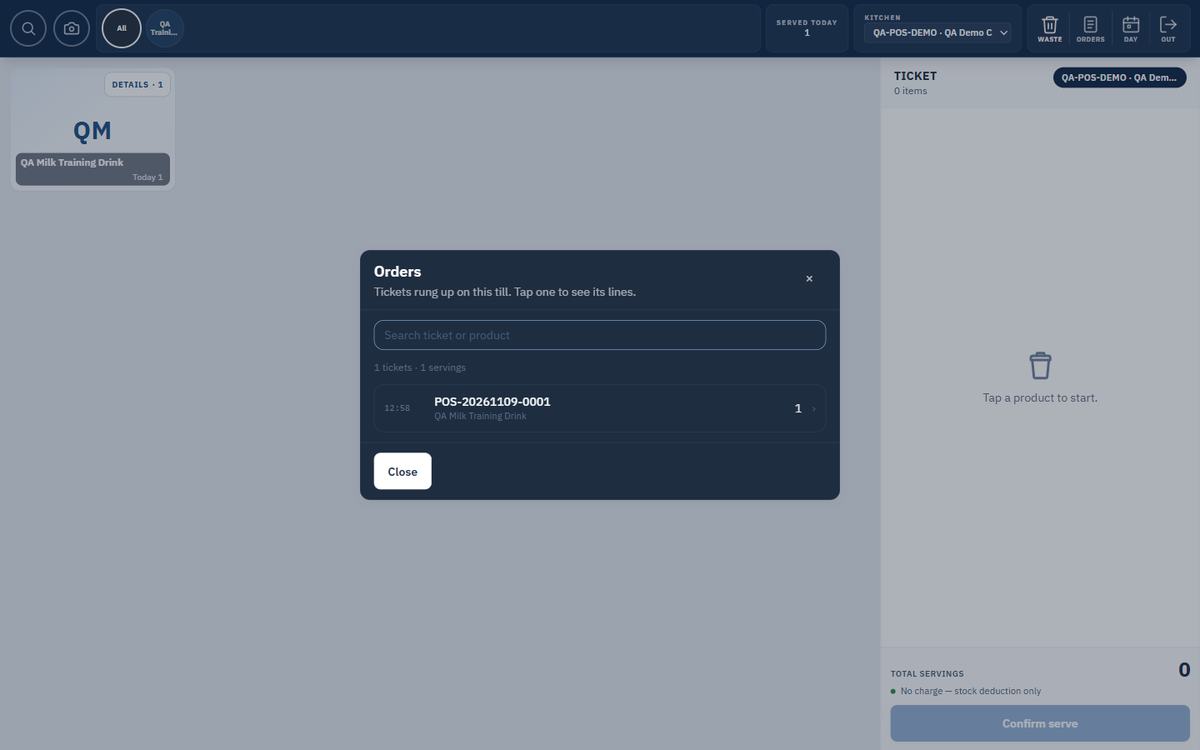
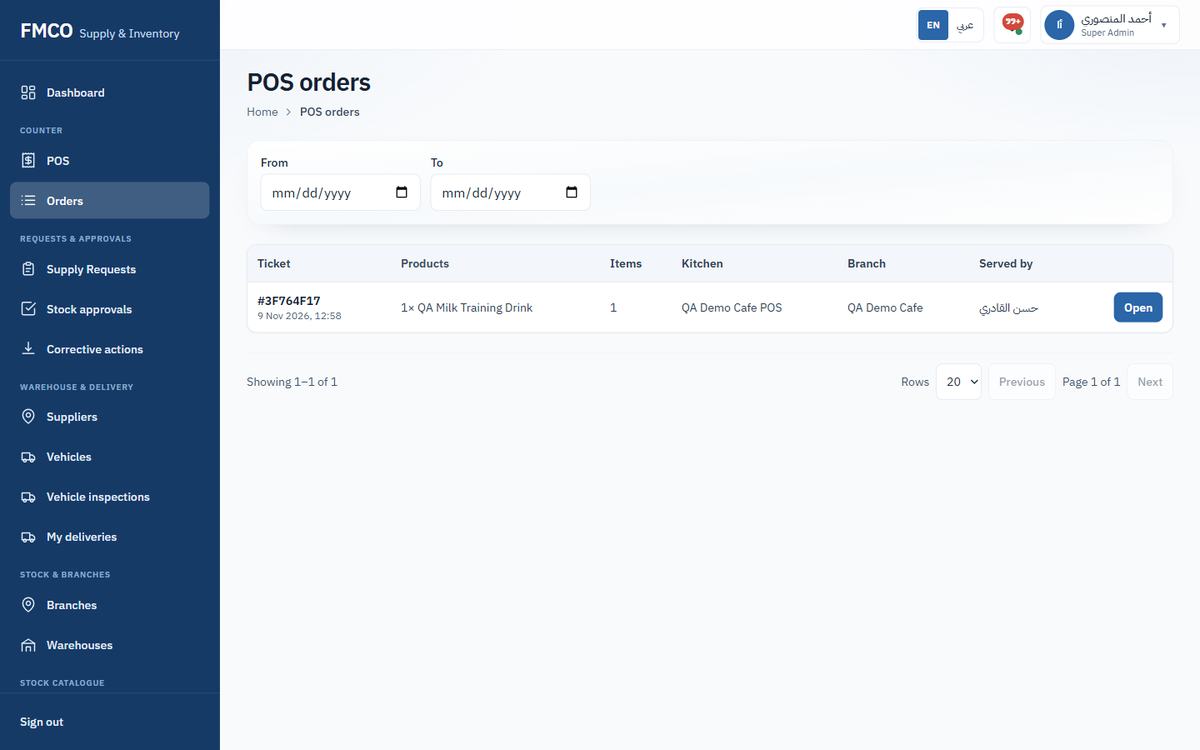
Left menu → Counter → Orders lists every POS ticket with Products, Items, Kitchen, Branch and Served by. Filter by From / To and click Open to see a ticket.
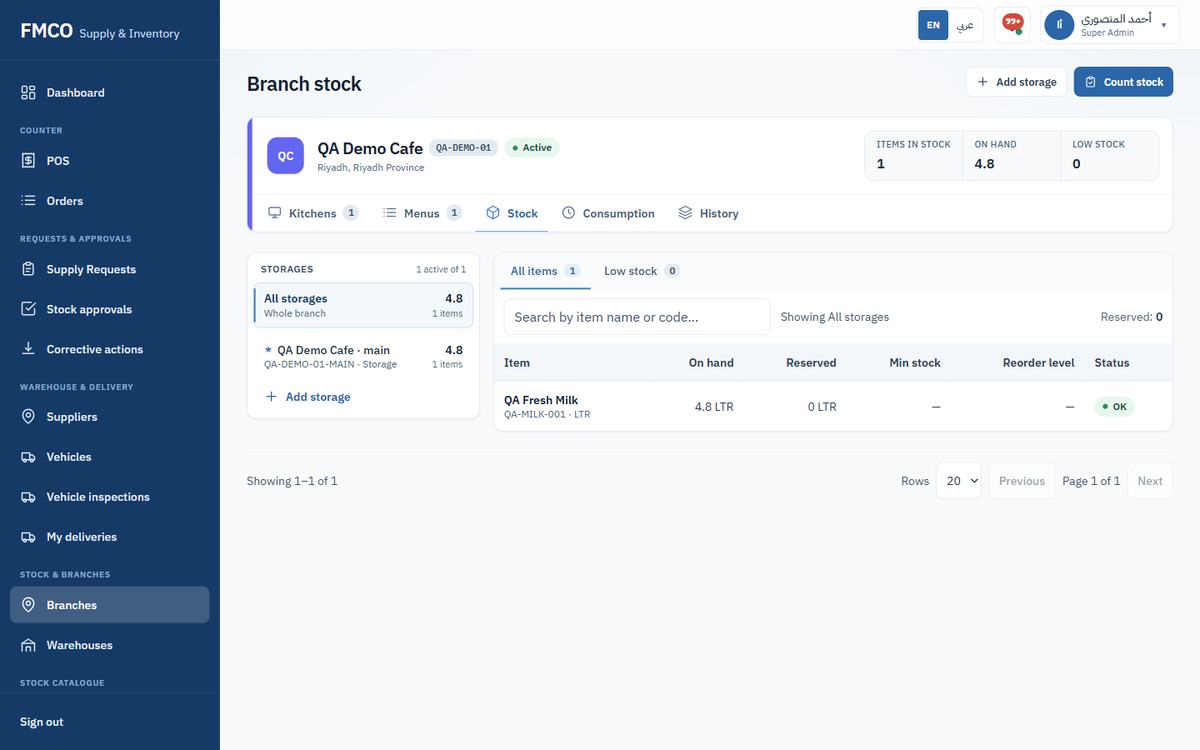
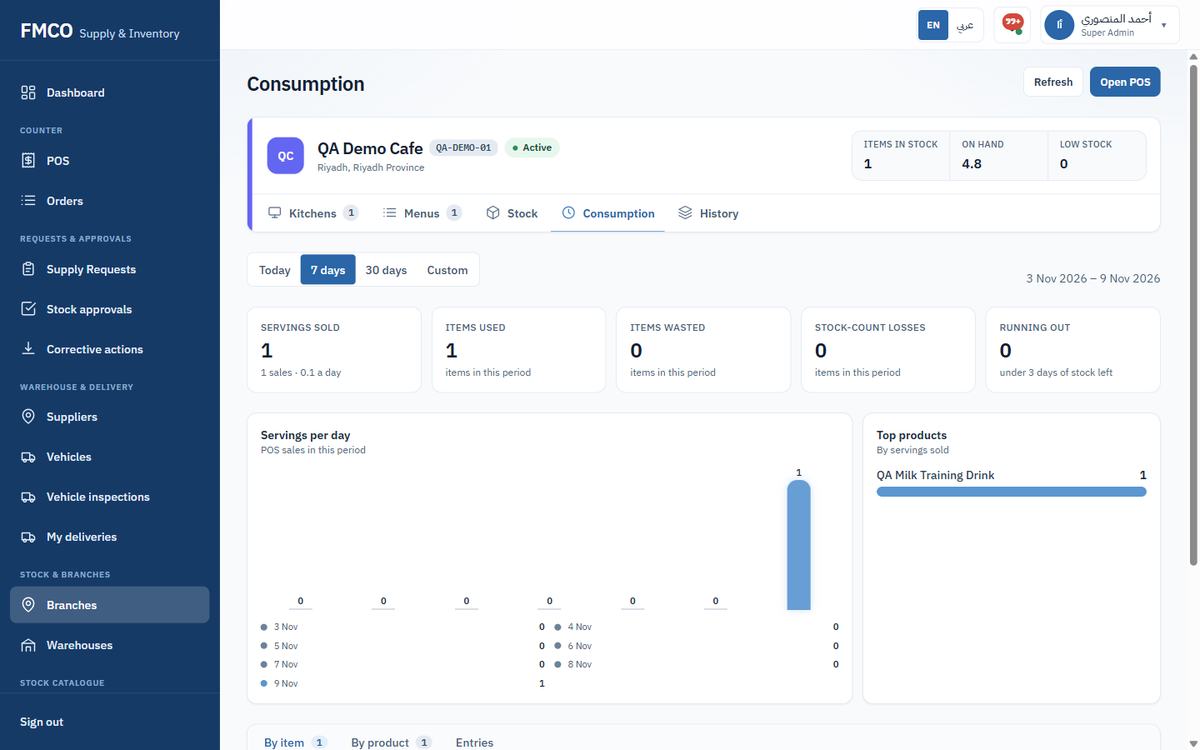
One serve used 0.2 LTR of milk. Branch stock is now 4.8 LTR.
See and manage everything held in a warehouse
The warehouse page shows what is held, where, in which lot, and every movement in and out. From here the warehouse adjusts stock, places stock on hold and sees reorder suggestions.
Who: Warehouse Manager (view: Warehouse Staff, Administrator)
Left menu → Stock & branches → Warehouses → open the warehouse (Warehouse staff: Left menu → Warehouse stock). The top shows Items in stock, Low stock and Expiring (7 days). The Bins panel lists the whole warehouse and each bin; the table shows each item's On hand, Reserved, Available, Min stock, Reorder level and Status. Filter by All items / Low stock, search, or scan a barcode.
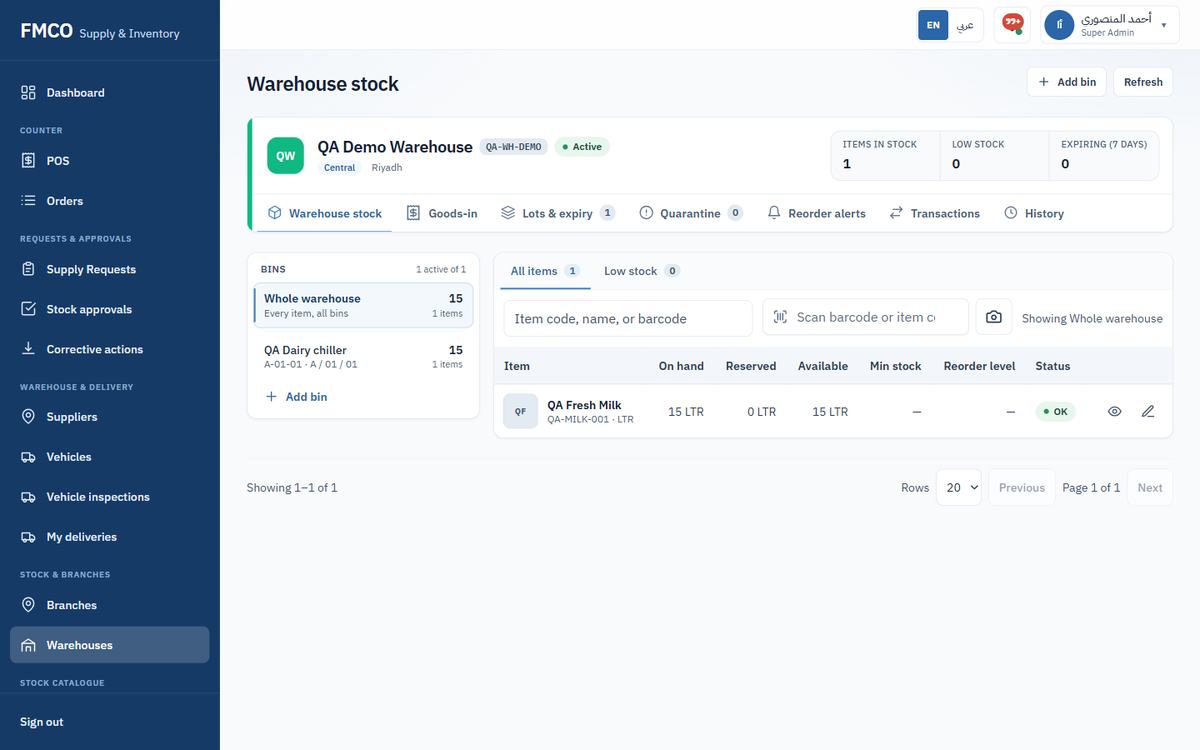
Use an adjustment to correct stock outside the normal flow (spillage, damage, a counting error). On the item's row click the Adjust icon (the Full position icon opens the item's full stock position).
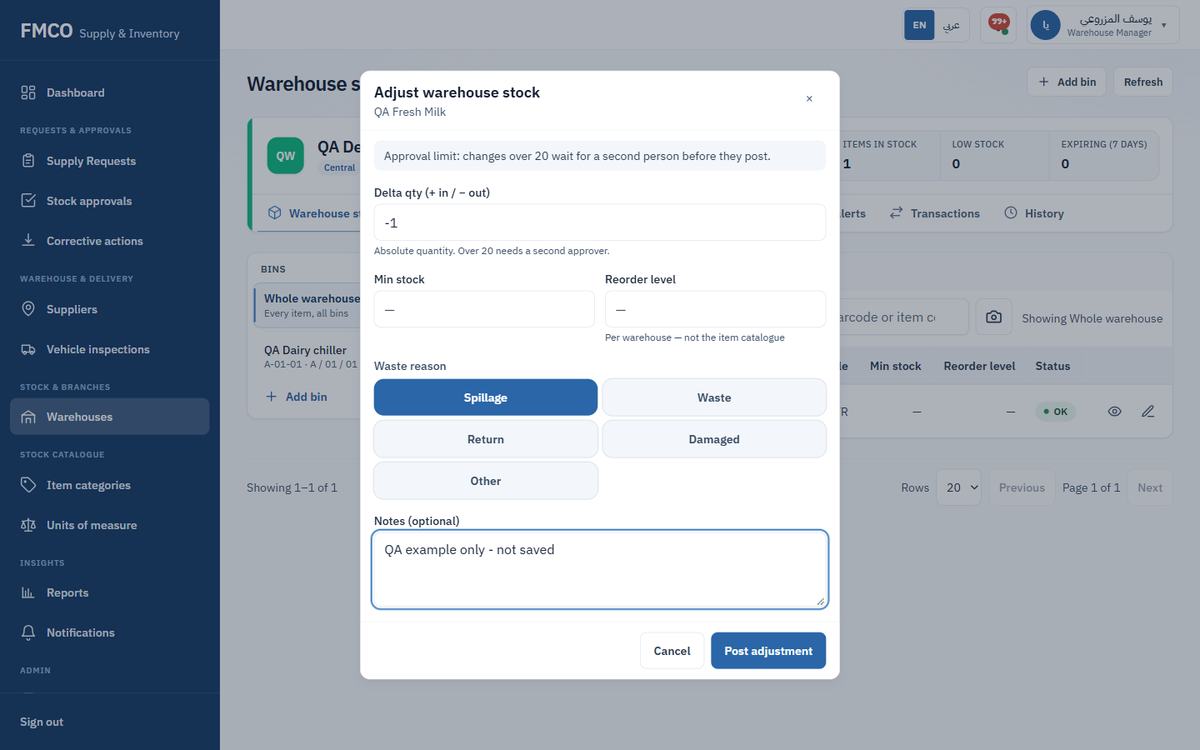
Changes over the approval limit (default 20, Module 13) wait for a second person before they post (Module 28).
The Lots & expiry tab lists each lot with its bin, expiry and quantity. Filter All lots, Expiring ≤ 7 days or Expiring ≤ 30 days. Lot quantities guide first-expiry-first-out picking. Register lot adds a lot record.
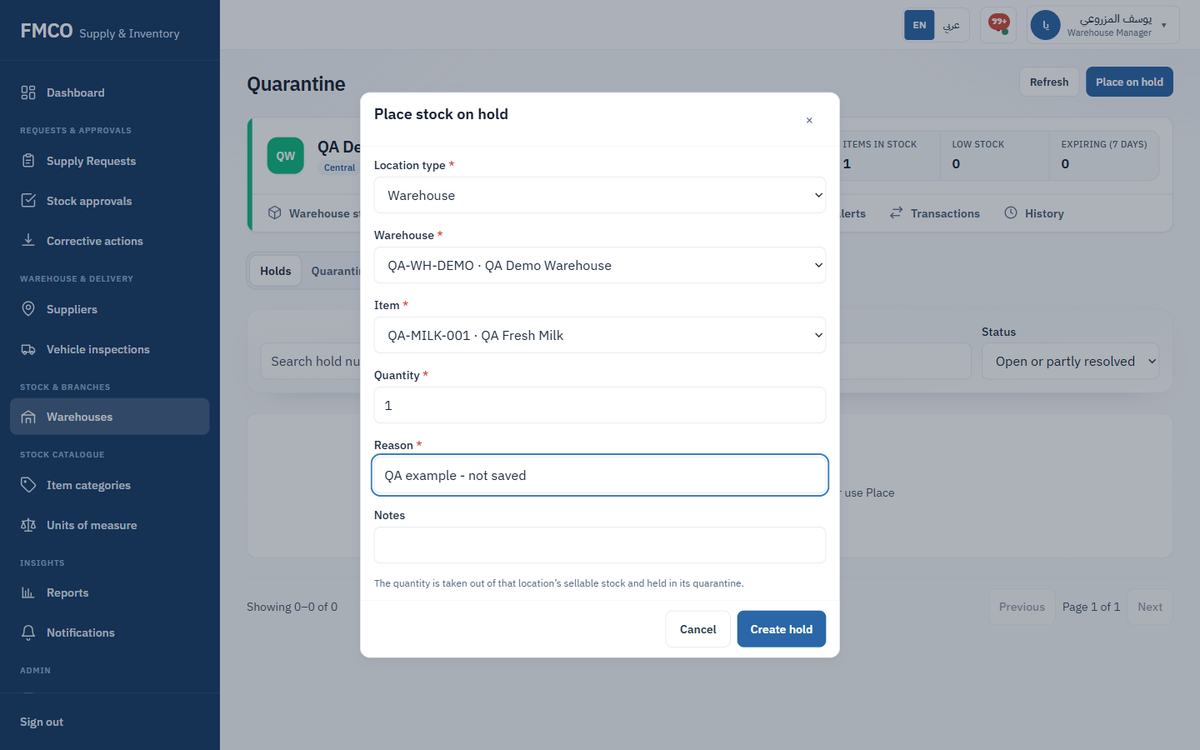
Stock on hold is taken out of sellable stock until a decision is made. Rejected receiving inspections create holds automatically; you can also place stock on hold yourself.
Each hold is listed with its status (Open, Partly resolved, Released, Destroyed, Resolved). Releasing or destroying held stock is a Quarantine disposition and goes through Stock approvals.
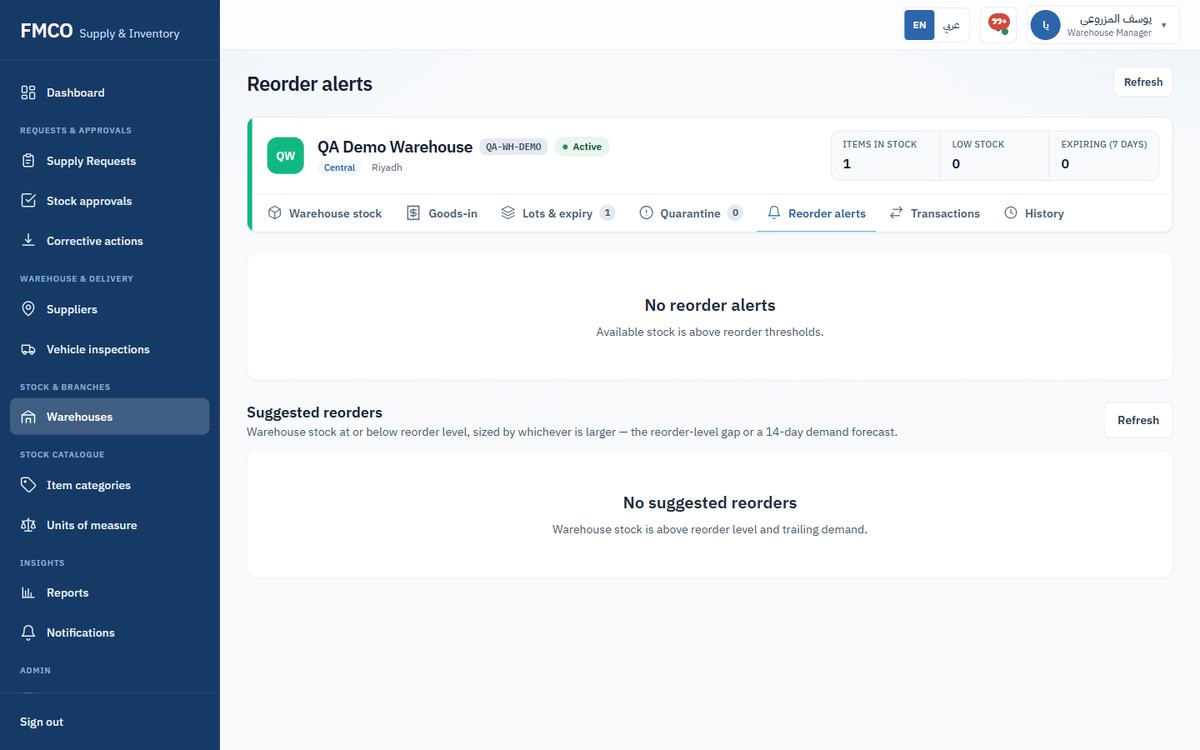
The Reorder alerts tab lists items whose available stock is at or below the reorder level, and Suggested reorders sized by the larger of the reorder-level gap or a 14-day demand forecast.
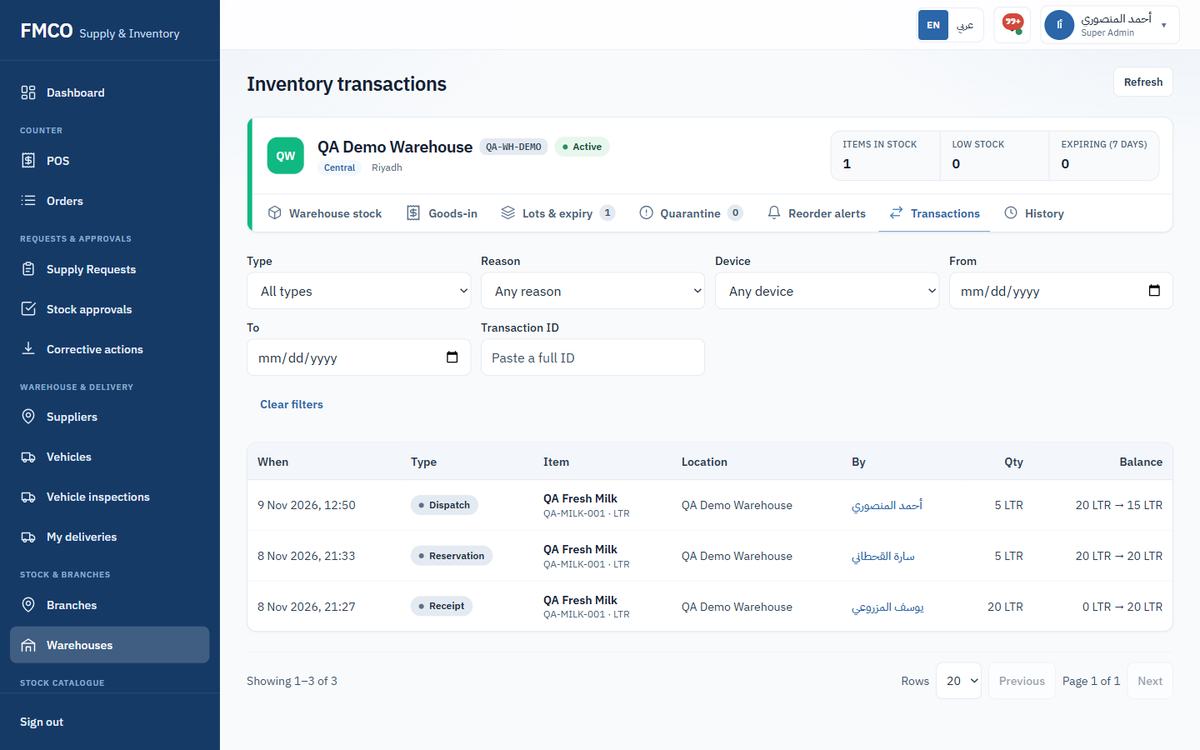
The Transactions tab is the full ledger of the warehouse: When, Type, Item, Location, By, Qty and Balance. Filter by Type (Receipt, Dispatch, Reservation, Adjustment in/out, Stock take, Quarantine in/out, Into/Out of transit, Opening balance…), Reason, Device, dates or Transaction ID. Our milk shows three entries: Receipt 0 → 20, Reservation, and Dispatch 20 → 15.
The History tab shows the daily stock snapshot for a chosen date, produced by the daily close (Settings → Inventory daily close).
What a branch holds and how fast it uses it
Each branch page shows the stock in its storages, how much it uses, and its daily history. Baristas open it from Left menu → Branch stock; administrators from Branches → the branch.
Who: Barista (own branches), Administrator
Shows Items in stock, On hand and Low stock, each storage (the star marks the Main storage), and each item's On hand, Reserved, Min stock, Reorder level and Status. Buttons: Add storage (Module 06) and Count stock (Module 27).
Choose Today, 7 days, 30 days or Custom. The cards show Servings sold, Items used, Items wasted, Stock-count losses and items Running out (under 3 days of stock). The table shows per item: Sold, Recorded, Waste, Count loss, Net use, Per day, On hand and Cover (days). "Net use = sold + recorded + waste + count losses − count gains. Days of cover = branch stock ÷ average daily use." Switch between By item and By product.
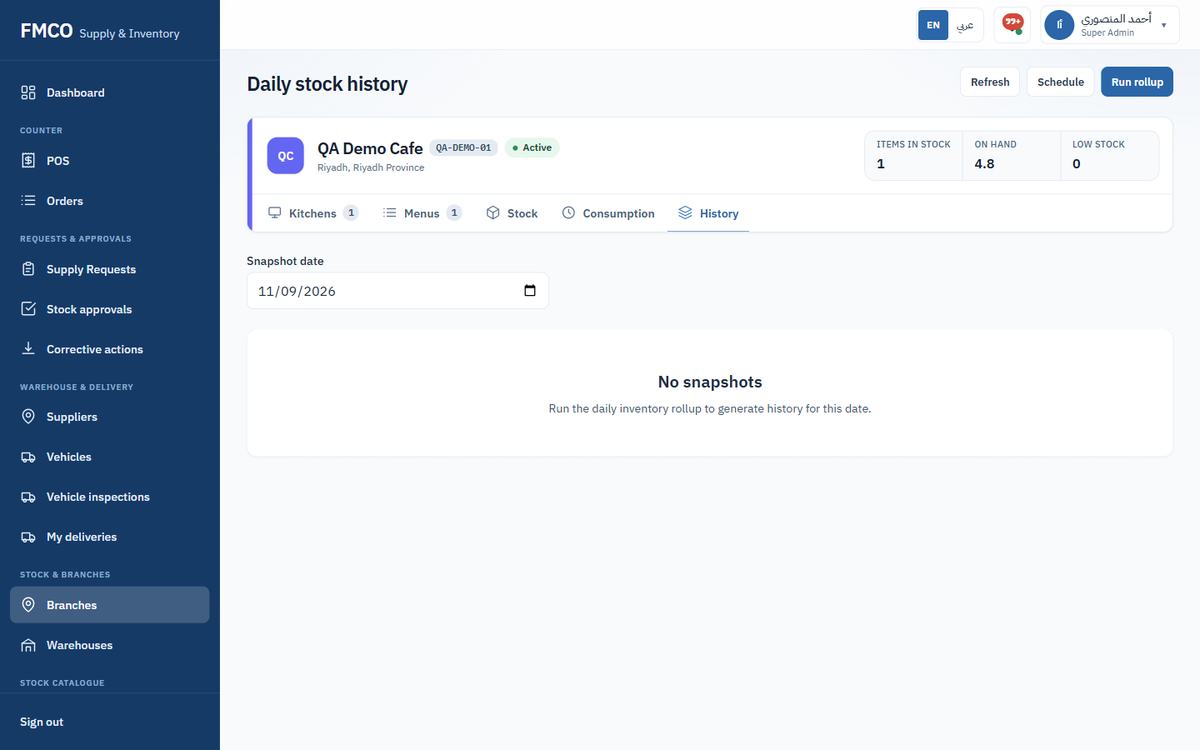
Daily stock history shows the stock snapshot for a chosen date. Snapshots are made by the daily inventory rollup at the daily close time; Run rollup makes one now and Schedule shows its schedule.
Match the system to what is on the shelf
A stock count records what is physically on the shelf. The system posts the difference between the count and what it shows. The first stock of an item at a location is recorded as opening stock; later differences as count corrections.
Who: Barista (branch), Warehouse Manager / Staff (warehouse)
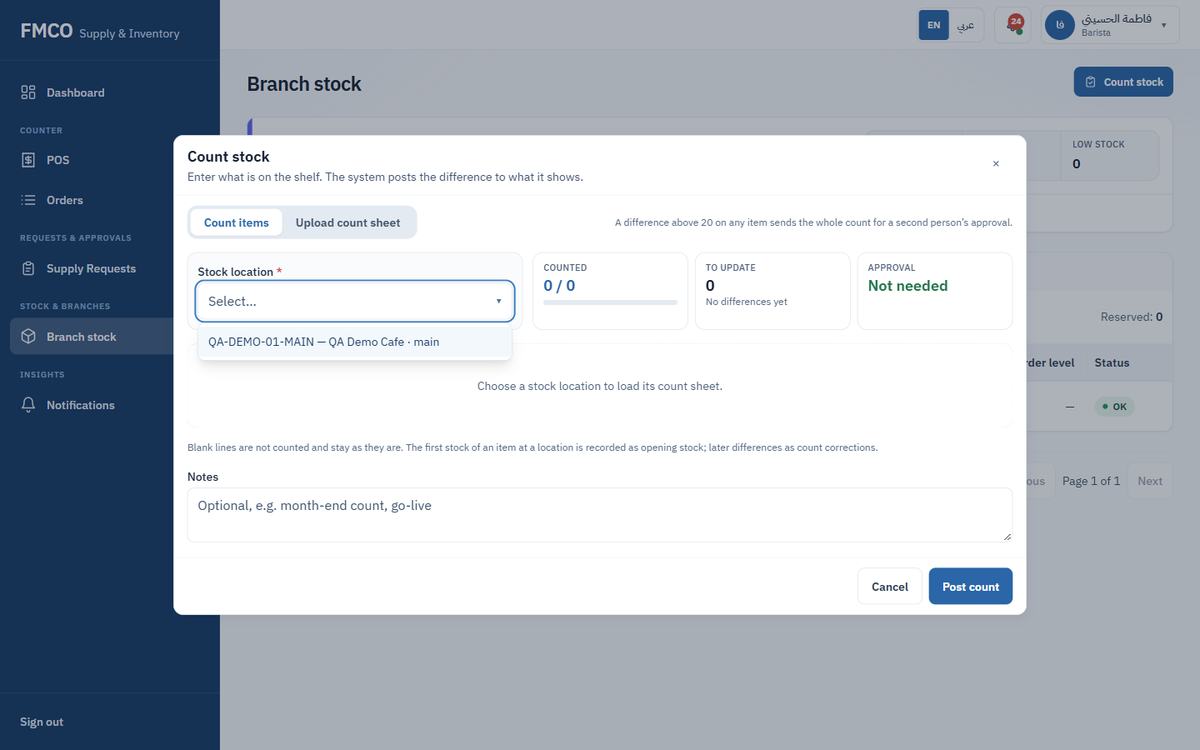
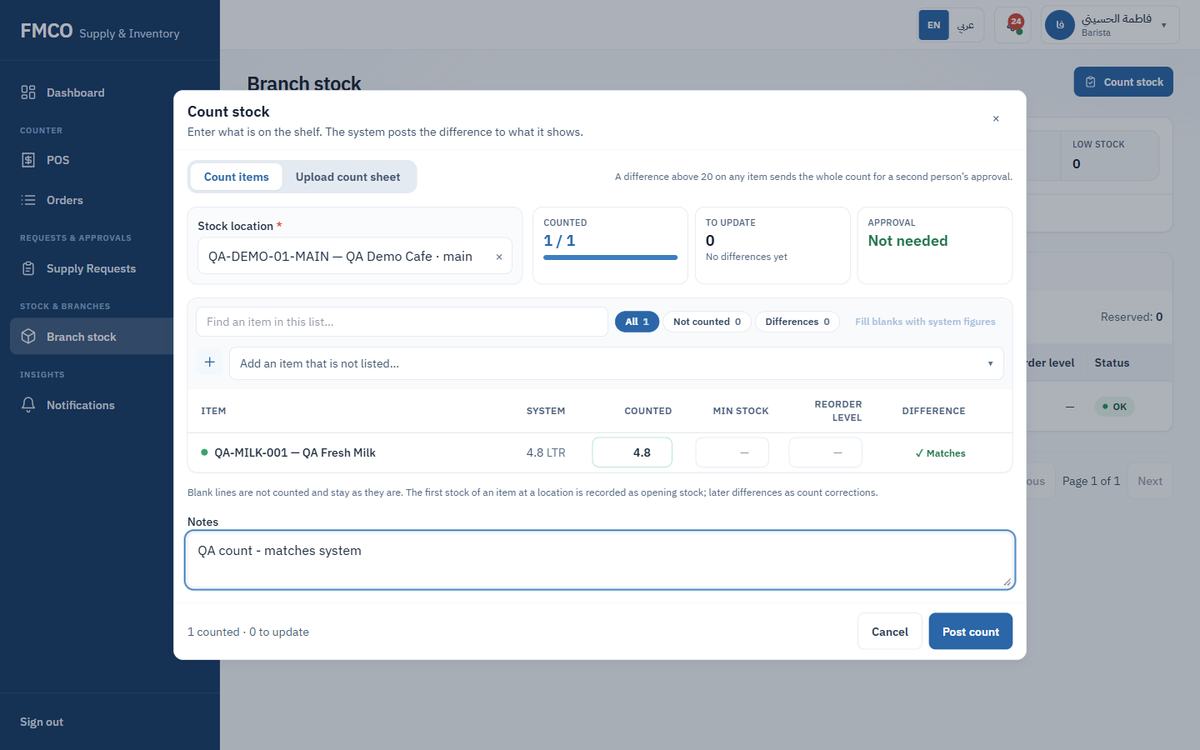
Instead of typing, the Upload count sheet tab loads a whole count from a file.
"A difference above 20 on any item sends the whole count for a second person's approval." (Module 28)
A second person approves large stock changes
Stock changes above the approval limit, and some special changes, wait for a second person before they post. Types: Stock adjustment, POS waste, Stock count, Quarantine disposition and Opening stock.
Who: users with the Stock approvals menu (Warehouse Manager, Food Safety Officer, Administrator, Barista for their own requests)
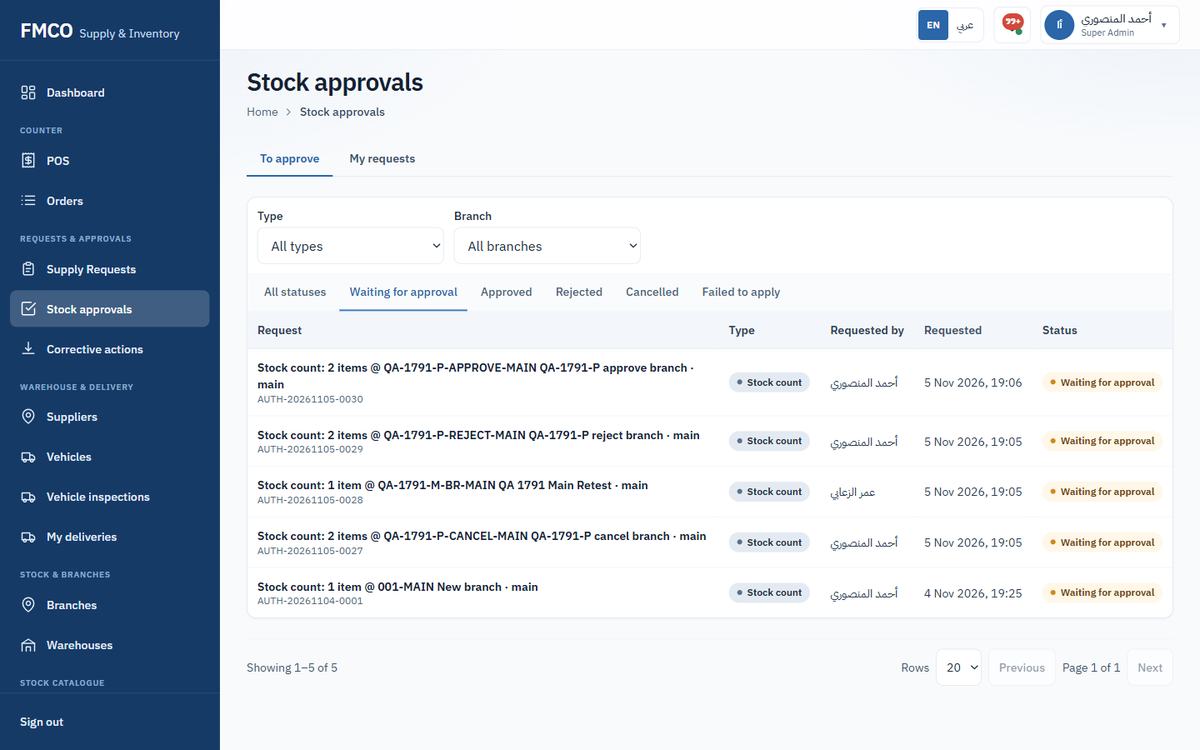
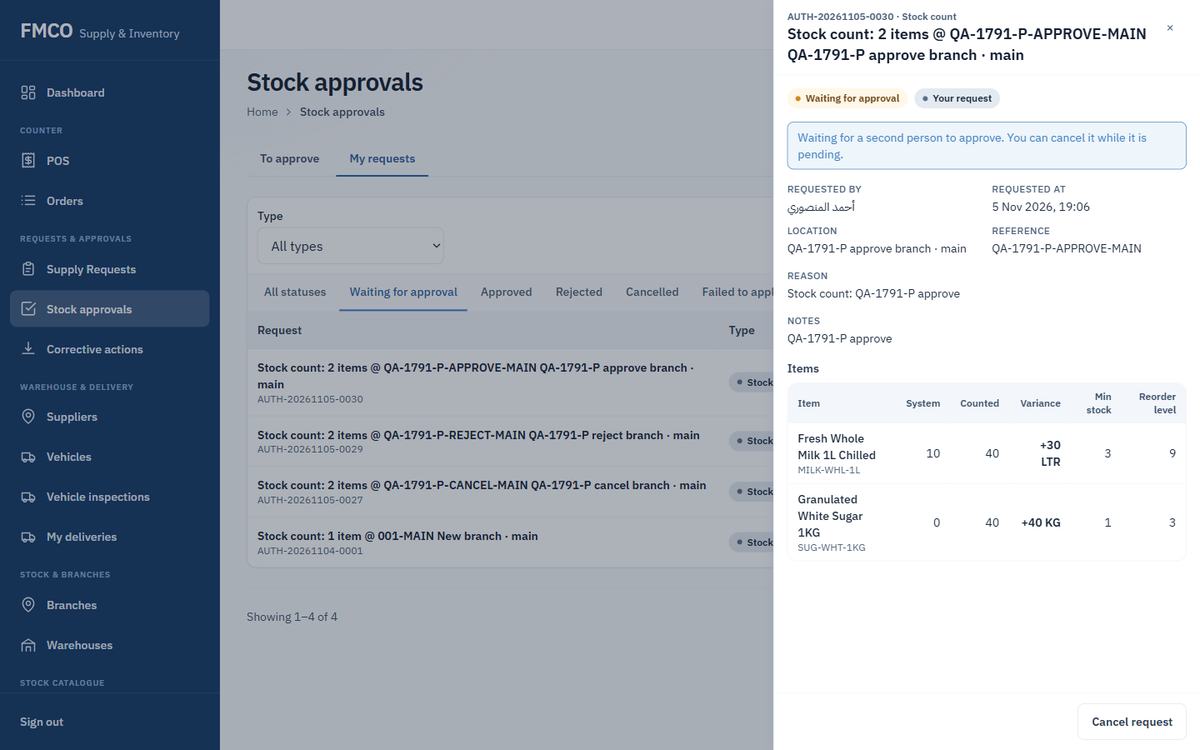
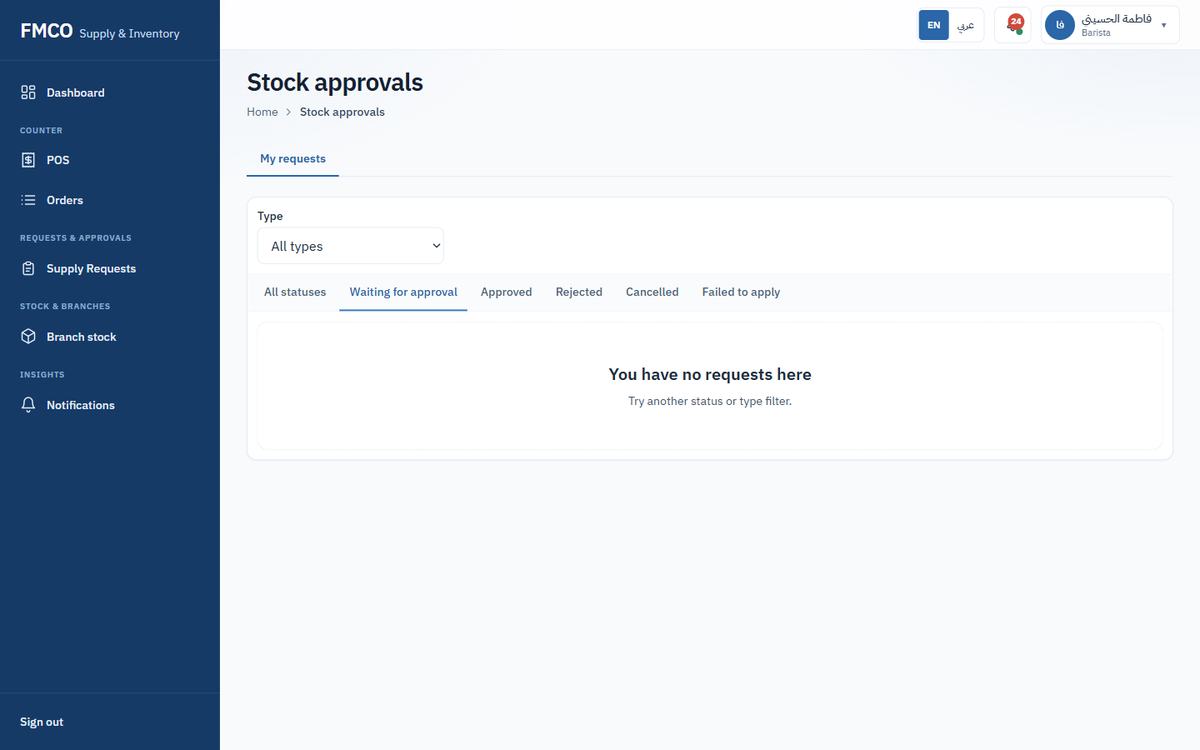
The My requests tab lists the changes you made that need approval and their status.
Follow up stock problems from devices and offline use
Devices such as POS tablets can keep working when the connection drops and send their records later. The Sync console shows what each device has sent. Stock exceptions lists cases where stock needs a person to look at it — for example stock that went negative when an offline sale arrived, or a delivery count that differs.
Who: Super Admin / Administrator (Stock exceptions also: Warehouse Manager)
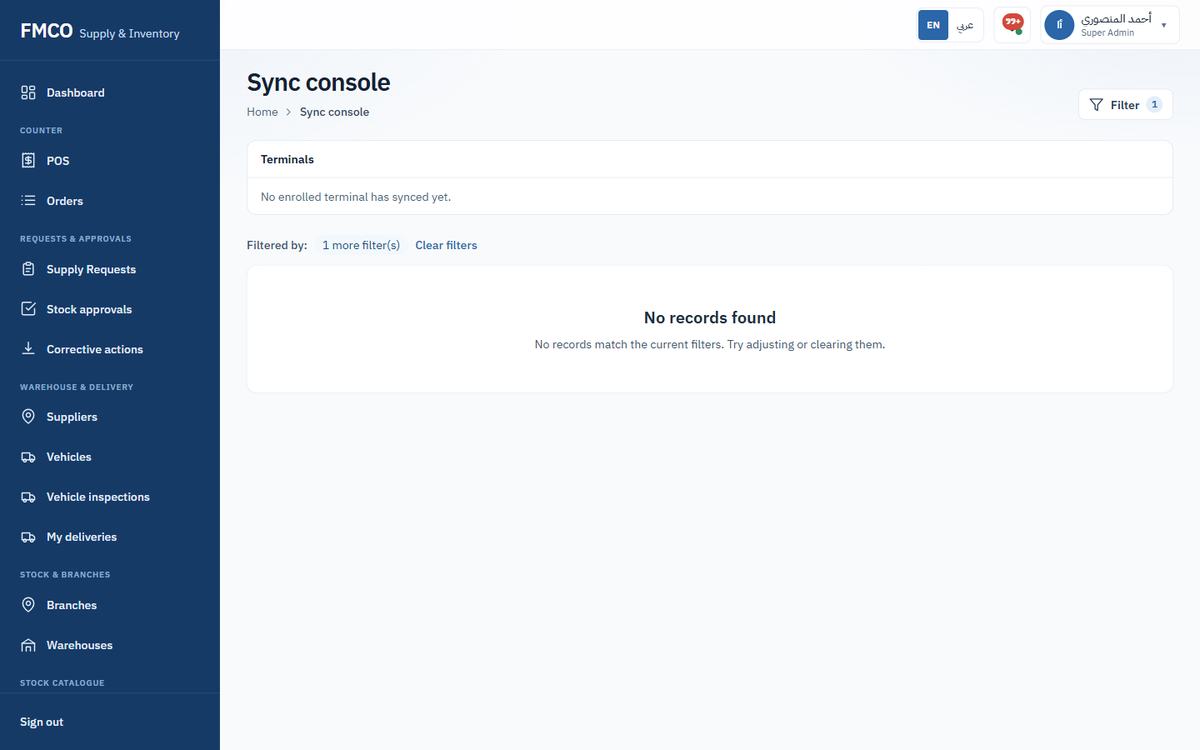
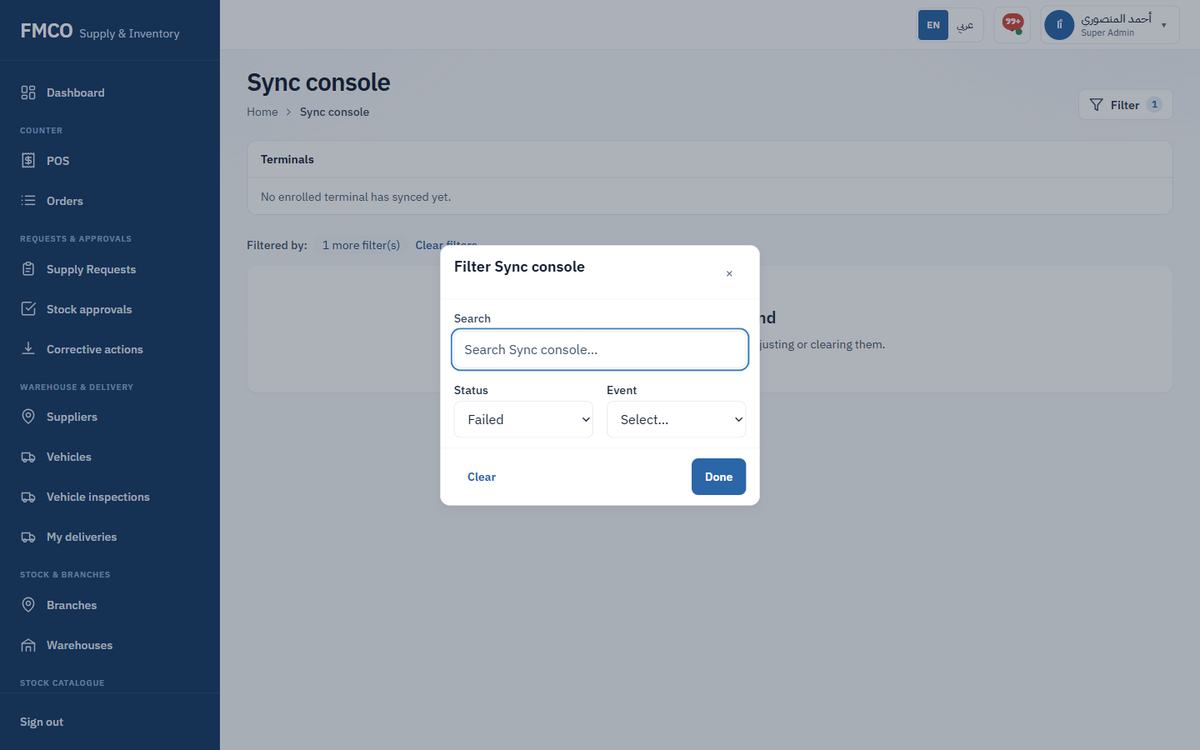
Left menu → Admin → Sync console. A tile shows the number of terminals and when they last synced. Click Filter to filter by Search, Status (Pending, Applied, Failed, Quarantined, Skipped / dismissed) and Event (e.g. sale.completed). Clear filters removes all filters.
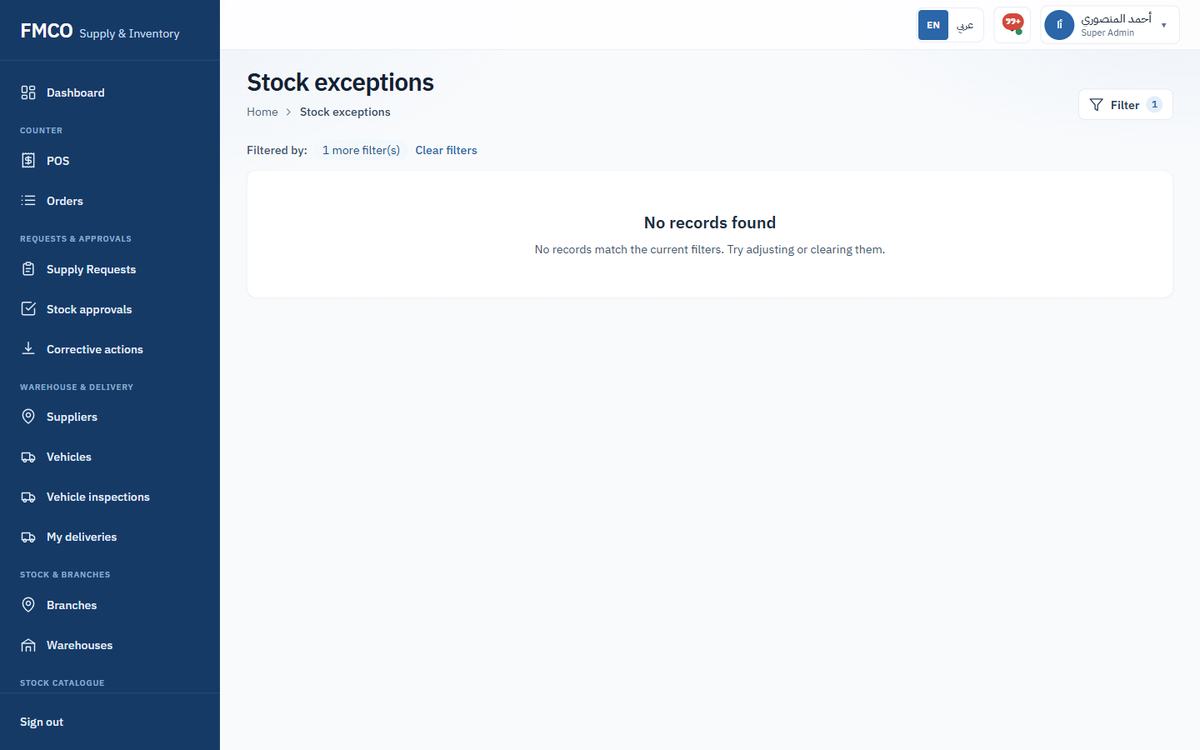
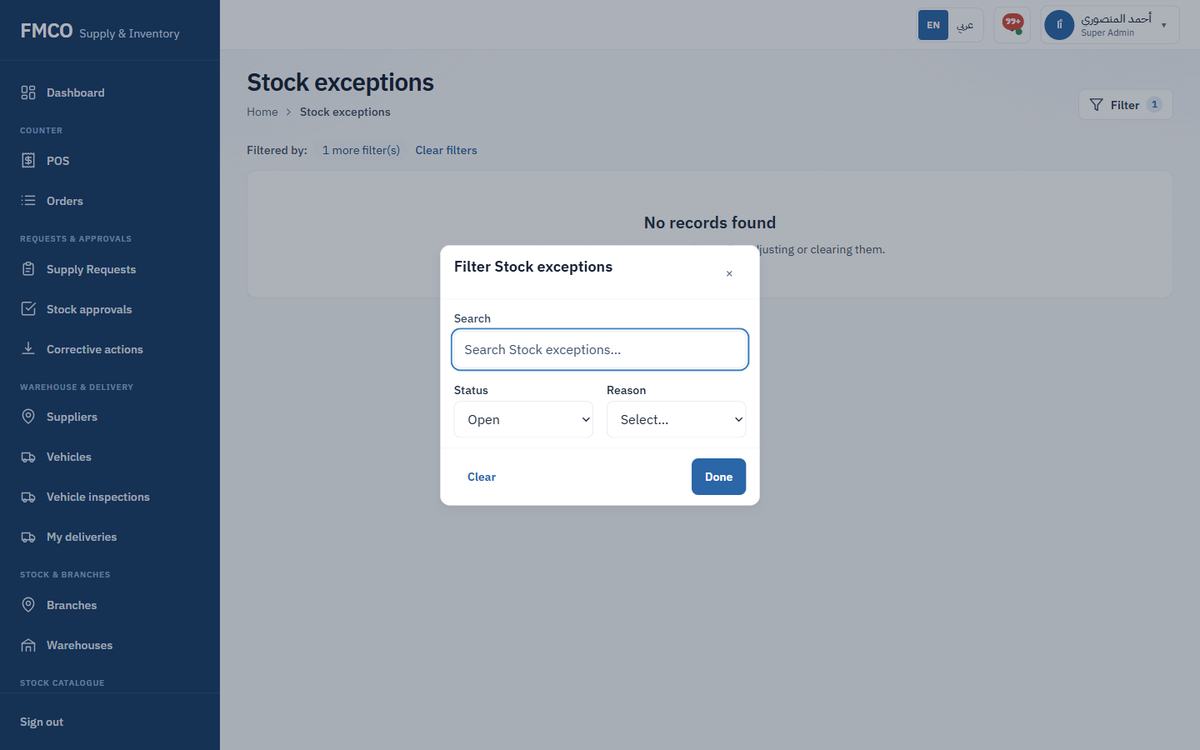
Left menu → Admin → Stock exceptions. Click Filter to choose the Status (Open, Resolved) and the Reason:
| Reason | What it means |
|---|---|
| Went negative on sync | Records sent later by a device took stock below zero. |
| Offline oversell | More was sold offline than the stock on hand. |
| Sold while inactive | A sale arrived for an item, product or kitchen that was inactive. |
| Delivery count differs | The quantity counted on delivery differs from what was sent. |
Run, export and schedule the system's 24 reports
Reports turn everything recorded in the journey into lists and charts: requests, approvals, warehouse shortages, stock, consumption, deliveries, quality and user activity. Any report can be exported, and reports can be emailed on a schedule.
Who: Super Admin / Administrator, Warehouse Manager
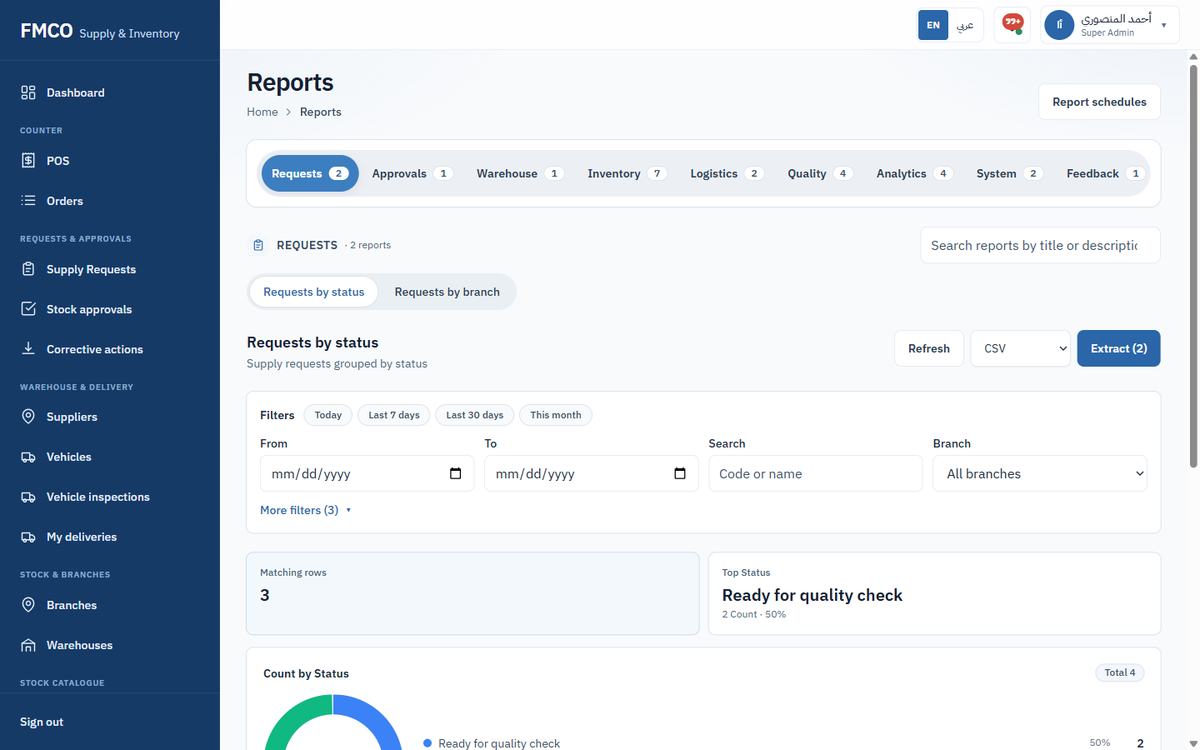
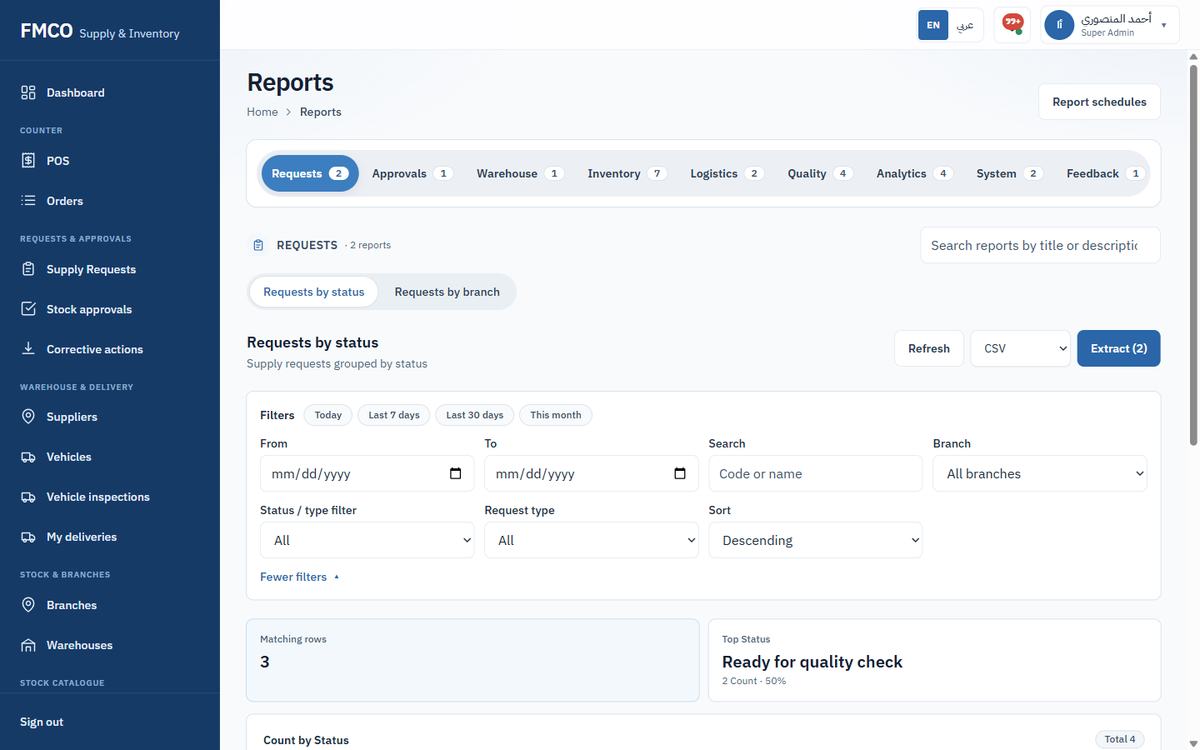
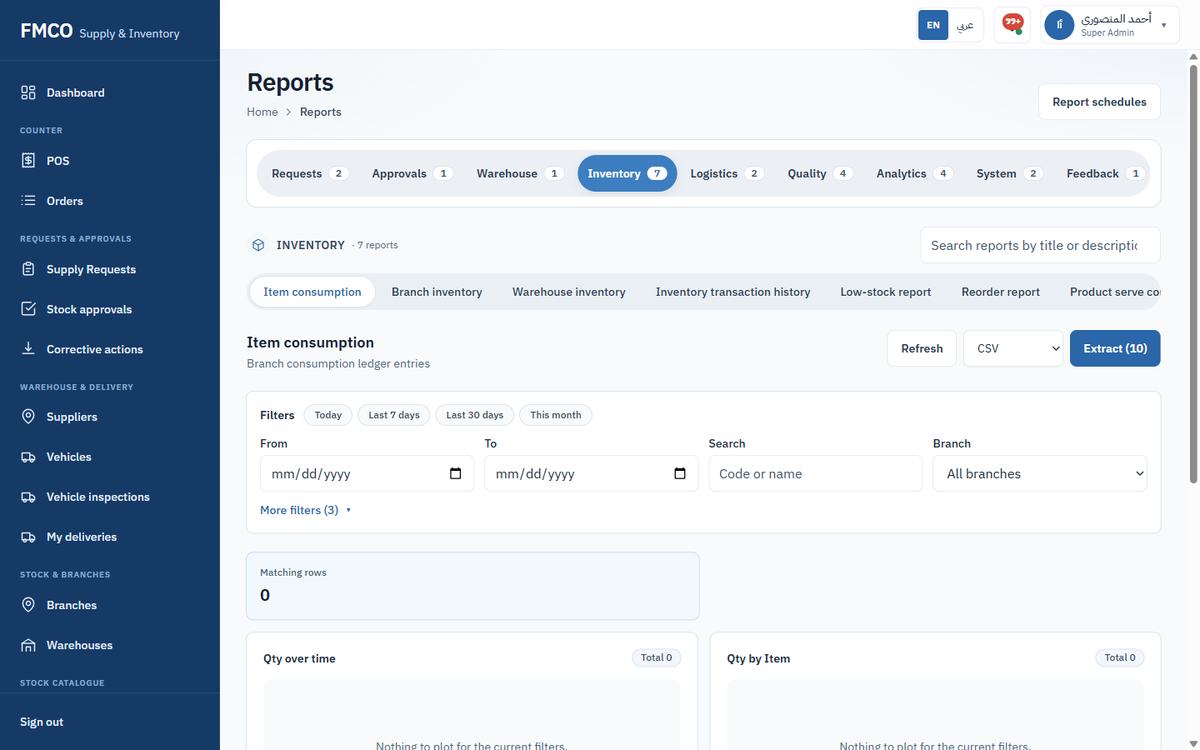
| Category | Reports |
|---|---|
| Requests | Requests by status · Requests by branch |
| Approvals | Approval turnaround time (time from approval creation to decision) |
| Warehouse | Warehouse shortages (requisition lines with unmet demand) |
| Inventory | Item consumption · Branch inventory · Warehouse inventory · Inventory transaction history · Low-stock report · Reorder report · Product serve consumption |
| Logistics | Dispatch report · Delivery report |
| Quality | Quality inspection report (FSO receiving inspections) · Rejection report · Quantity variance report · Food safety report |
| Analytics | Demand forecast (moving average over 7 / 14 / 30 days) · Operations cycle time · Consumption trend · Consumption variance |
| System | User activity report (audit actions by user) · Audit log report |
| Feedback | Branch satisfaction feedback |
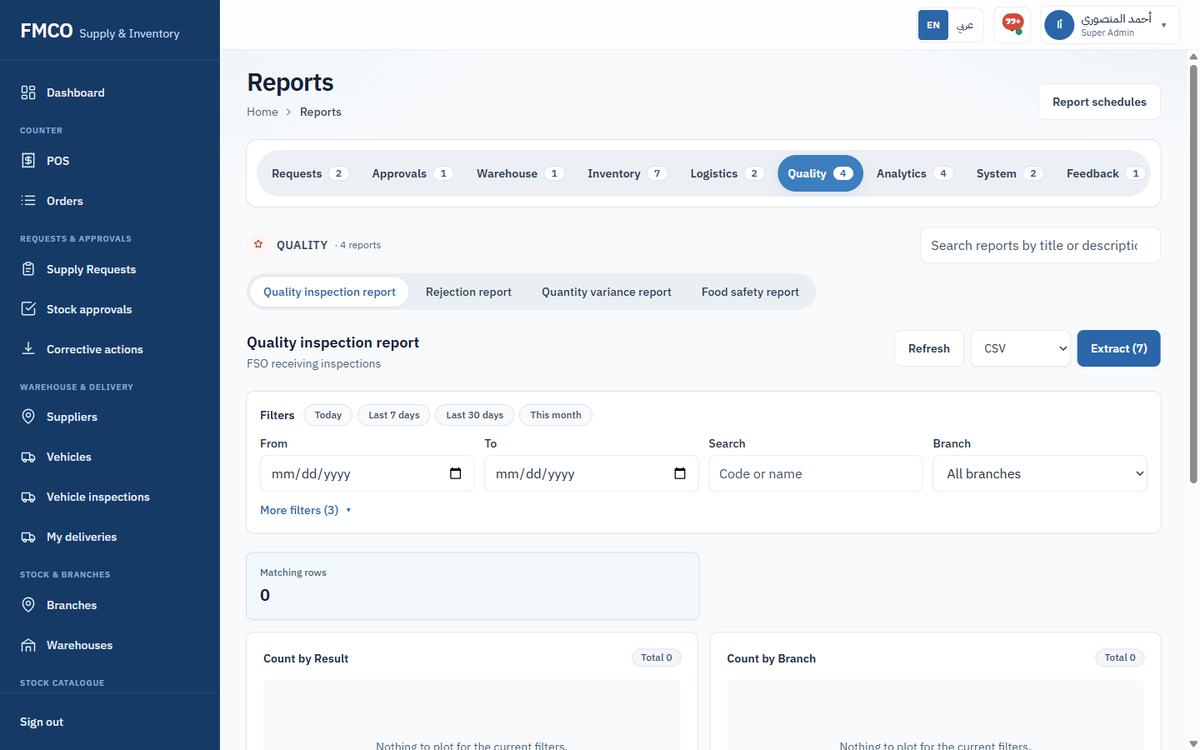
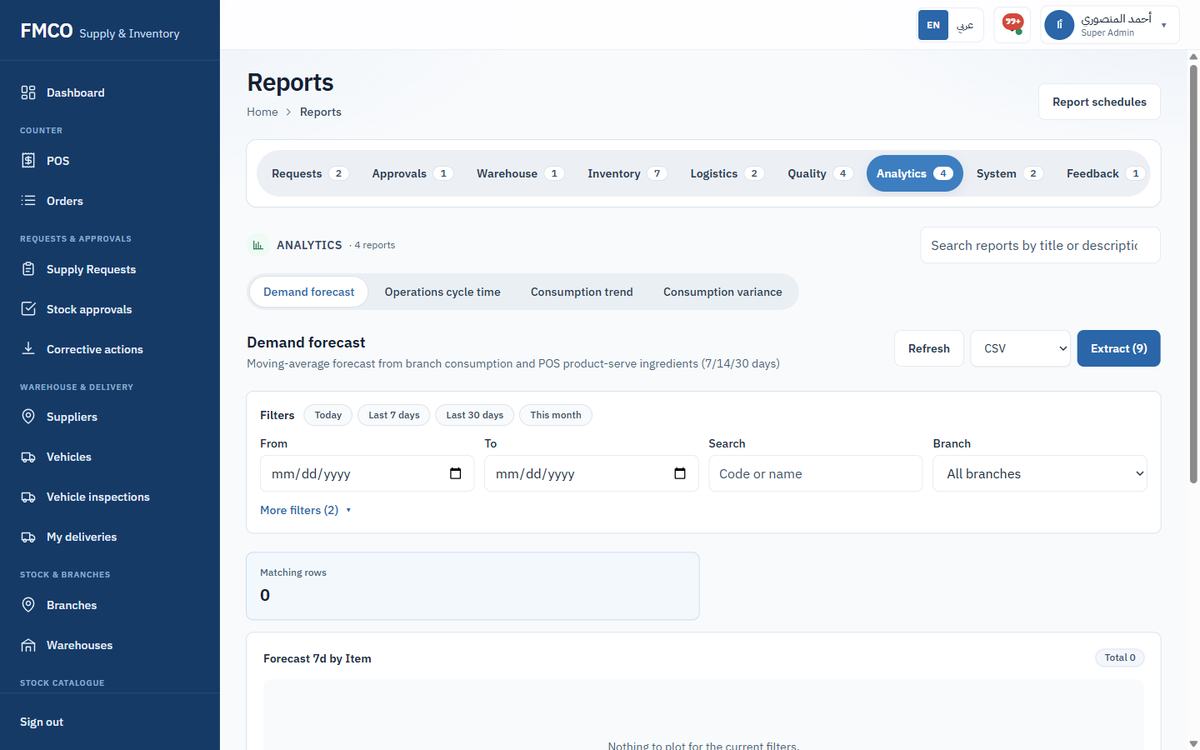
To see the example journey in reports: Inventory transaction history shows the goods-in, reservation, dispatch, branch receipt and POS serve of QA Fresh Milk; Product serve consumption shows the 0.2 LTR used by the serve; Dispatch report and Delivery report show the delivery.
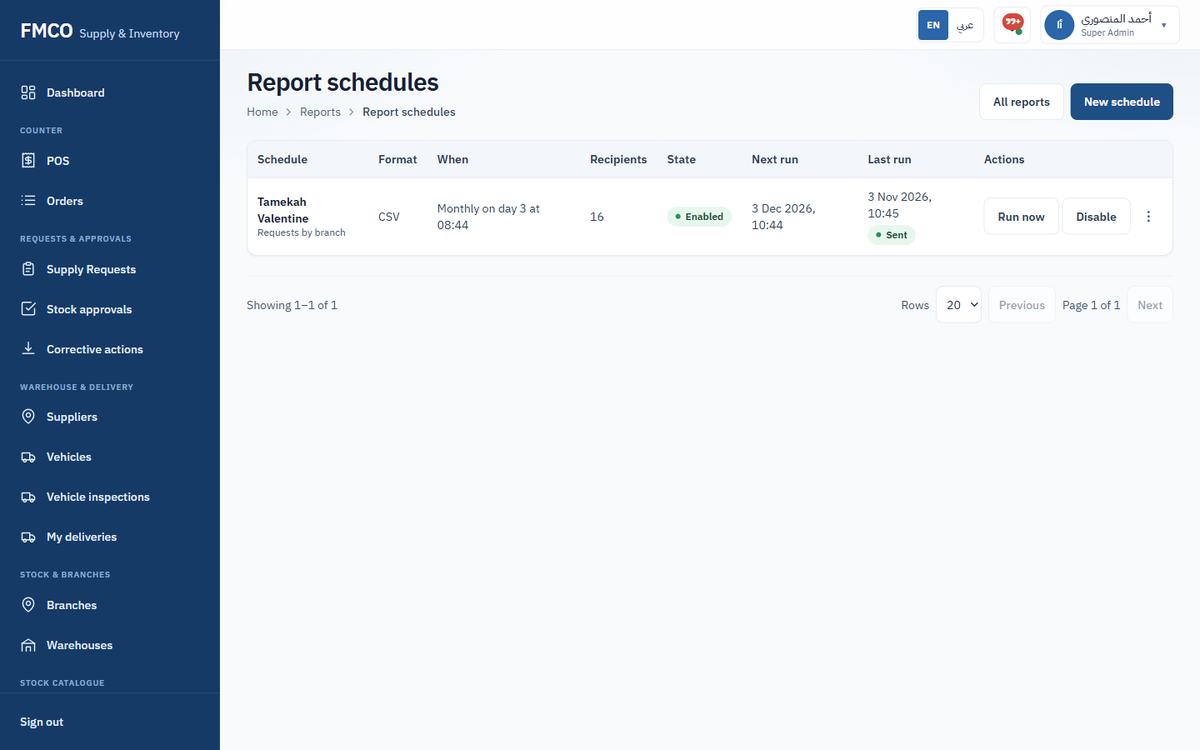
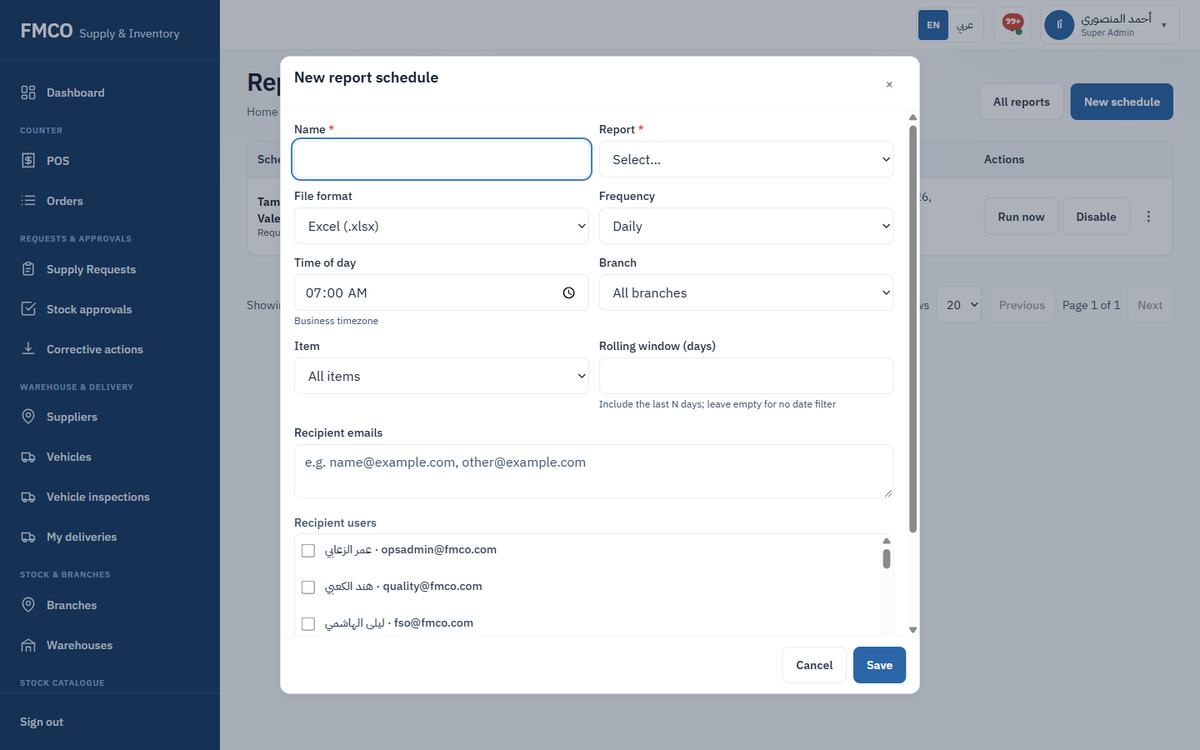
On the Reports page click Report schedules. The list shows each Schedule with its Format, When, Recipients, State, Next run and Last run. Row actions: Run now and Disable / Enable.
Branches rate the service they receive
Branches rate the supply service — overall service, quality of materials, delivery, order accuracy and warehouse service. Managers see the scores per branch and act on low scores.
Give feedback: BaristaReview: Super Admin / Administrator, Project Manager, Client Representative
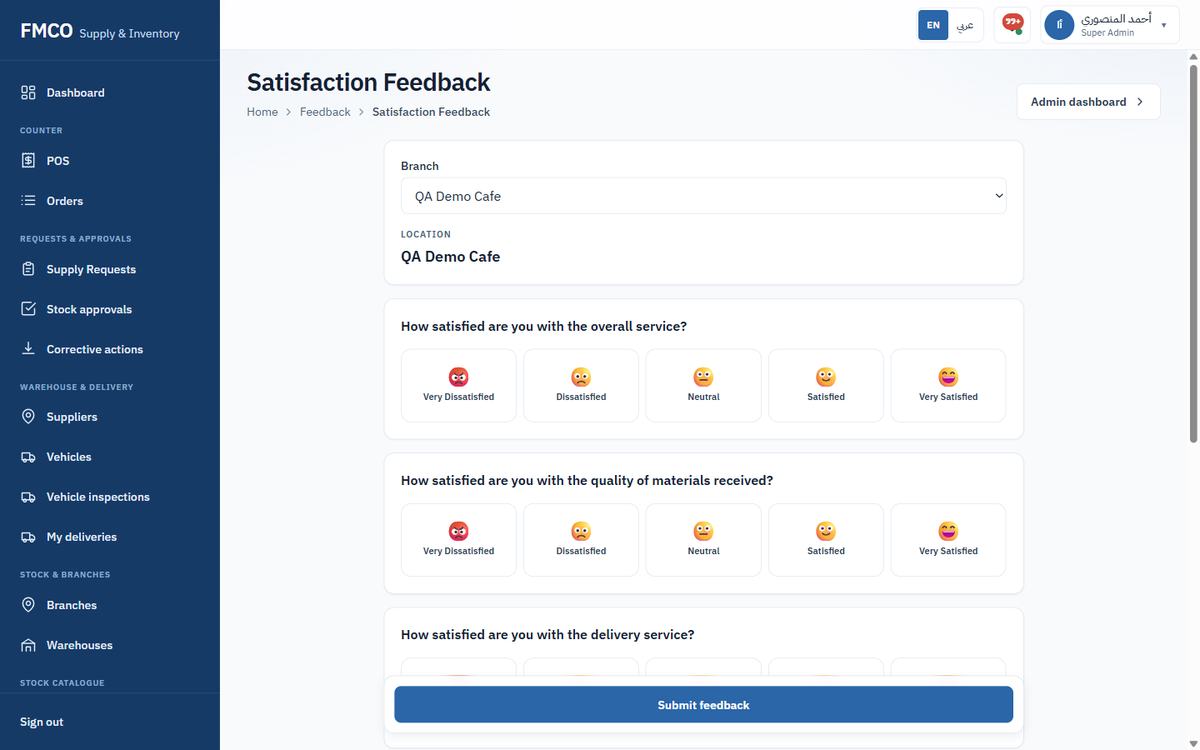
Left menu → Insights → Feedback. The cards show the Overall score (average of all ratings), Satisfaction % (ratings 4–5), Total responses and Pending today. Branch comparison ranks branches (Lowest satisfaction, Highest satisfaction, Most feedback, Most dissatisfied); Trend and Needs attention follow. Export report downloads the feedback.
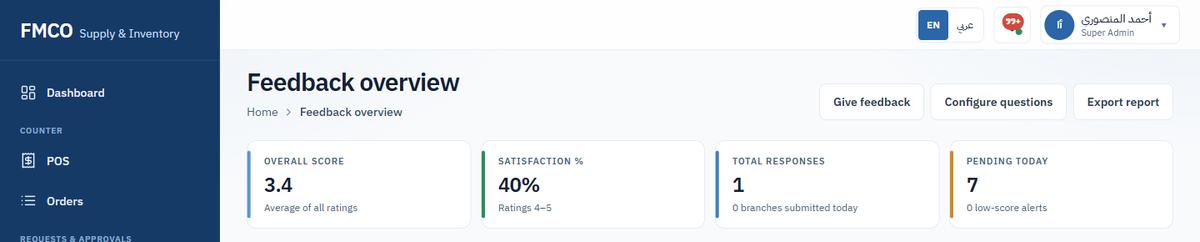
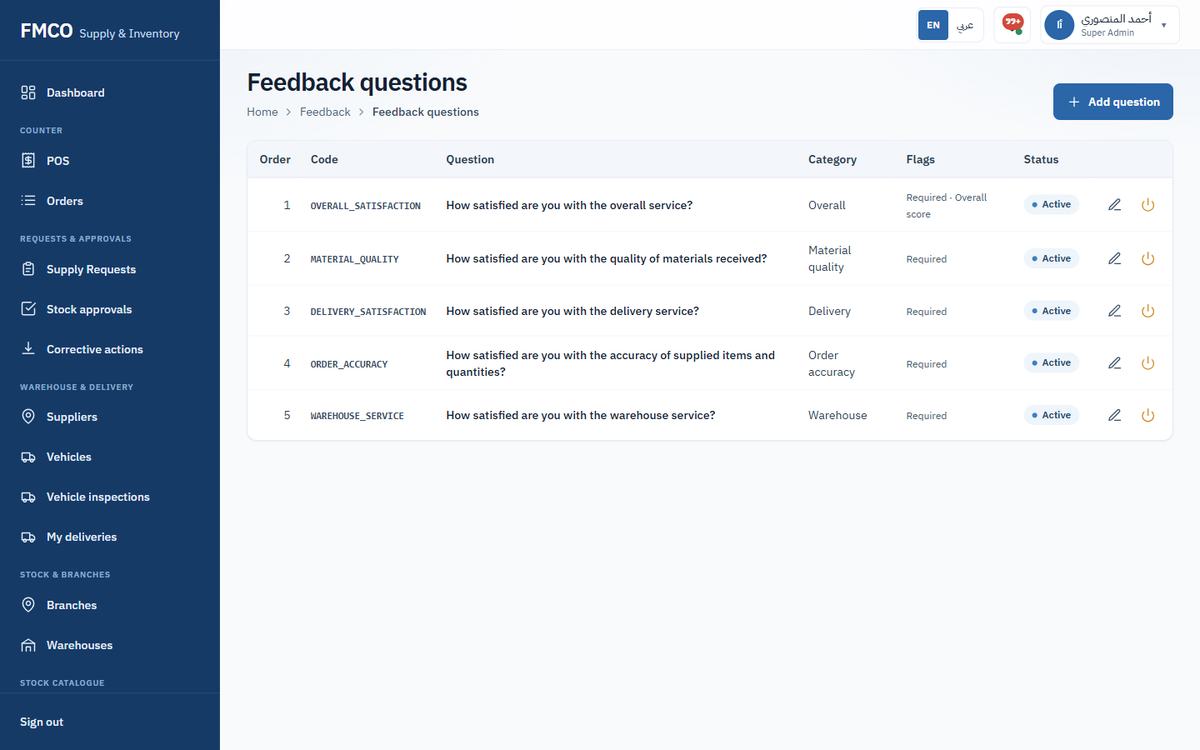
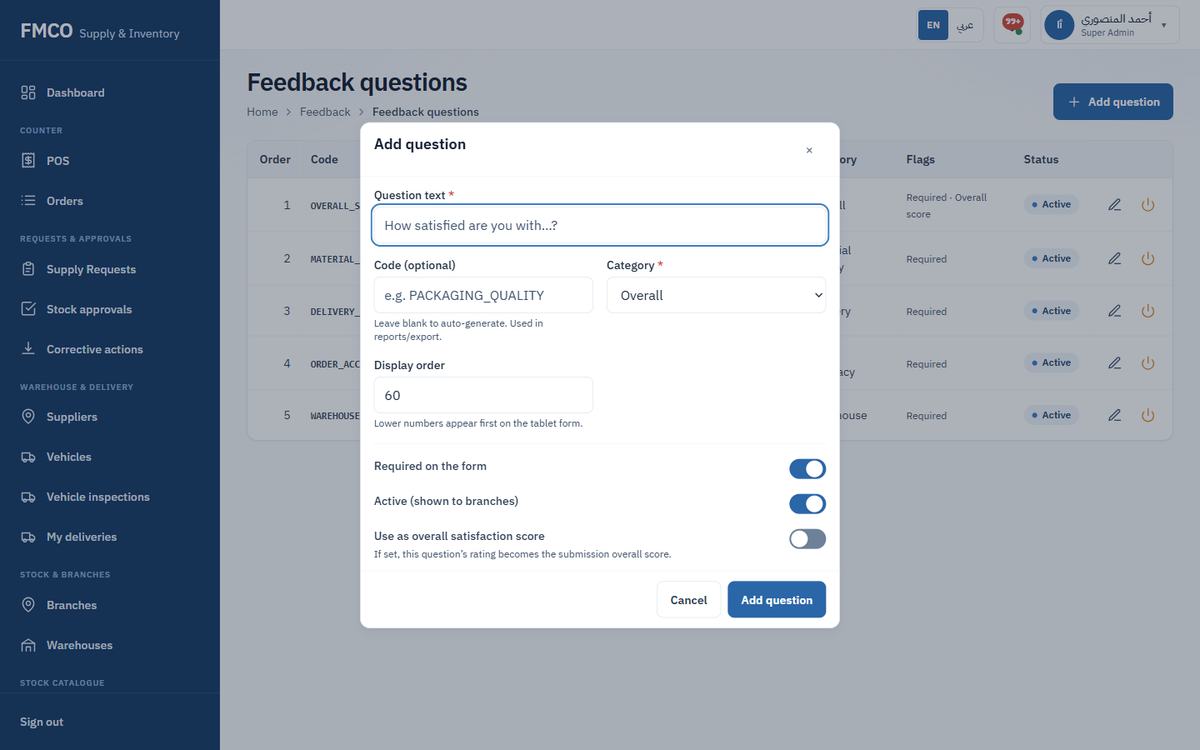
Click Configure questions. The list shows Order, Code, Question, Category, Flags and Status. Click Add question:
| Field / Button | What it means & how to use it |
|---|---|
| Question text * | The question shown to branches. |
| Code (optional) | Leave blank to auto-generate. Used in reports and export. |
| Category * | Overall, Material quality, Delivery, Order accuracy or Warehouse. |
| Display order | Lower numbers appear first on the form. |
| Required on the form / Active | Whether the question must be answered, and whether it is shown to branches. |
| Use as overall satisfaction score | This question's rating becomes the submission's overall score. |
Know when something needs you
The system sends an alert at every step that needs someone: a request waiting for approval, a delivery ready for collection, a branch receipt to confirm, low stock, expiring stock, a temperature out of range and more. Alerts appear under the bell and, if chosen, by email.
Who: every user
Left menu → Insights → Notifications (or "View all notifications" under the bell). The list shows When, Event, Message and Status. Use Filter (All, Unread, Read, Archived), the row actions Mark read and Archive, and Mark all read.
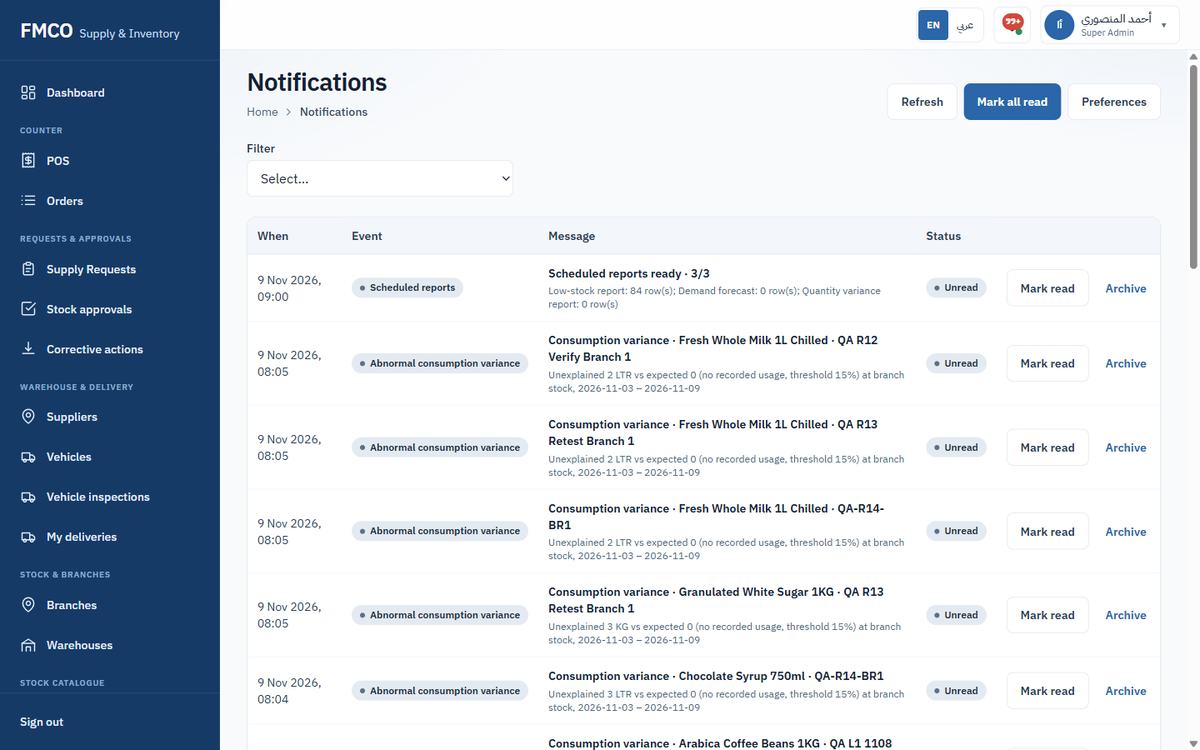
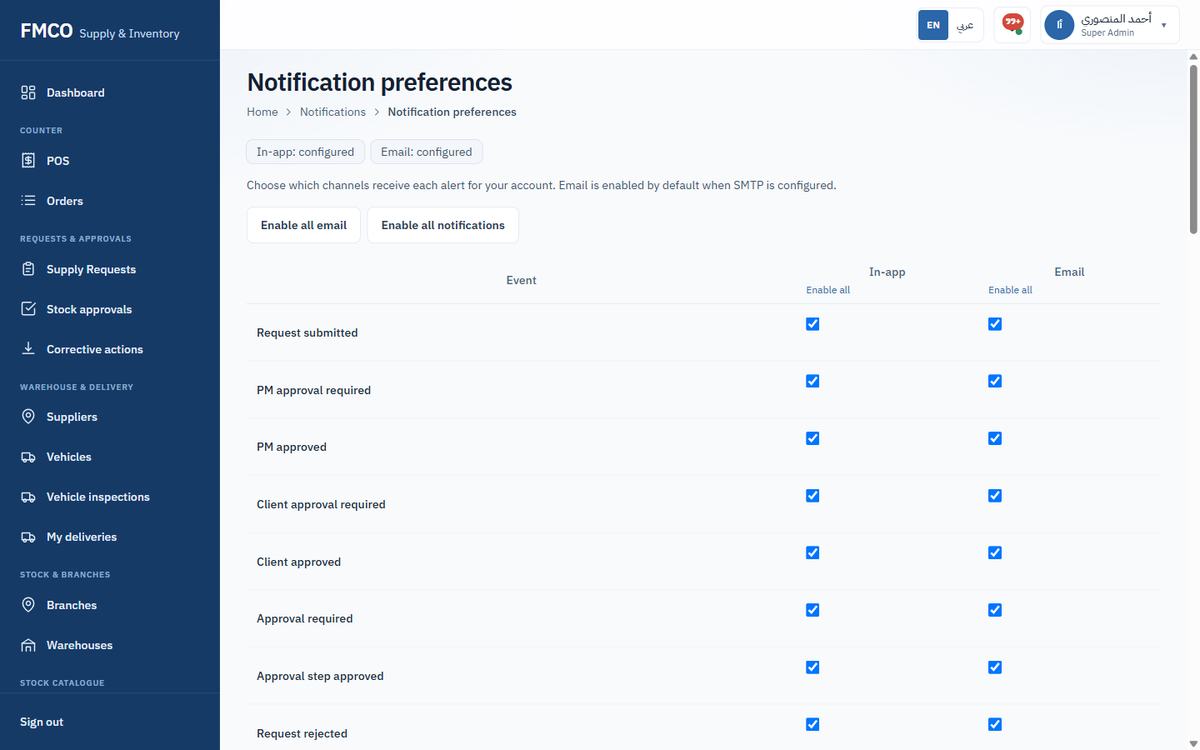
Events include: Request submitted, PM / Client approval required and approved, Request rejected or returned, Warehouse preparation, Shortage identified, Quality check required, Quality approved / rejected, Dispatch completed, Ready for collection, Delivery in transit / collected / arrived, FSO inspection required, Branch receipt, Low stock, Reorder required, Approval overdue / escalated, Stock expiry alert, Variance detected, Stock approval needed / decided, Goods receipt posted, Corrective action assigned / overdue, Temperature out of range, Low satisfaction feedback and Scheduled reports.
Who did what, and when
Every important action — sign-ins, creating and changing records, approvals, postings and stock movements — is written to the audit log with the time, the person and the device. Use it to answer "who changed this?".
Who: Super Admin / Administrator
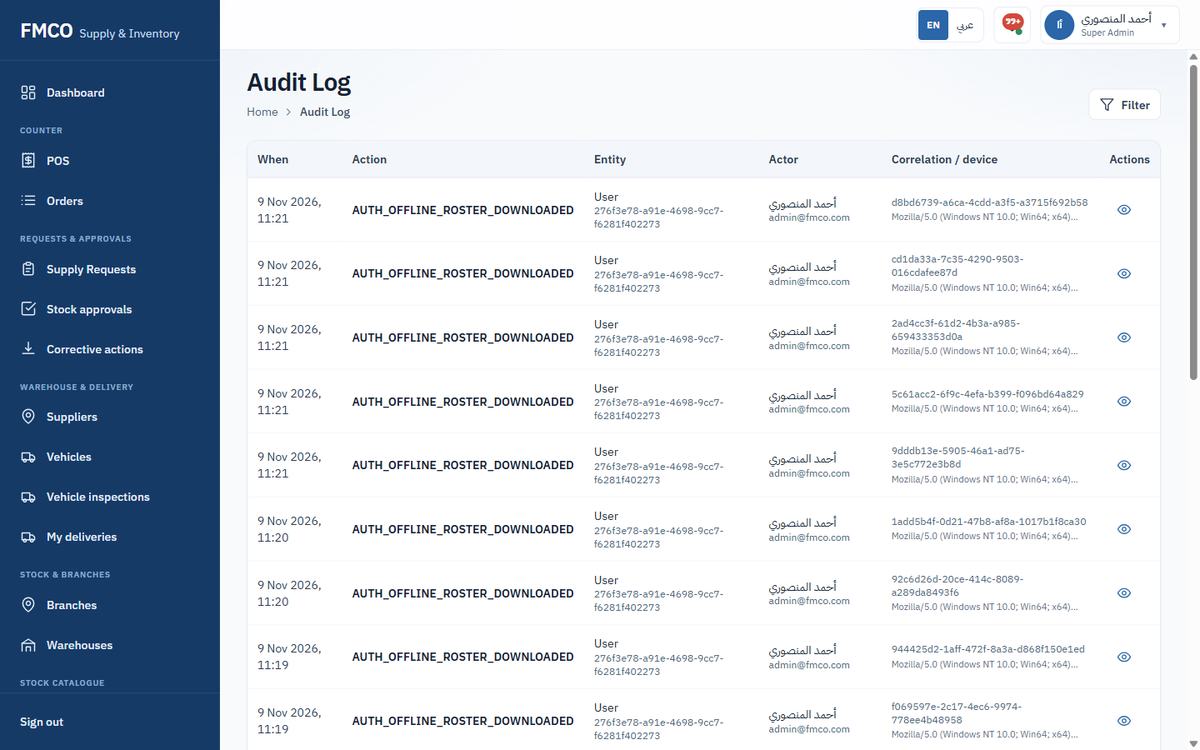
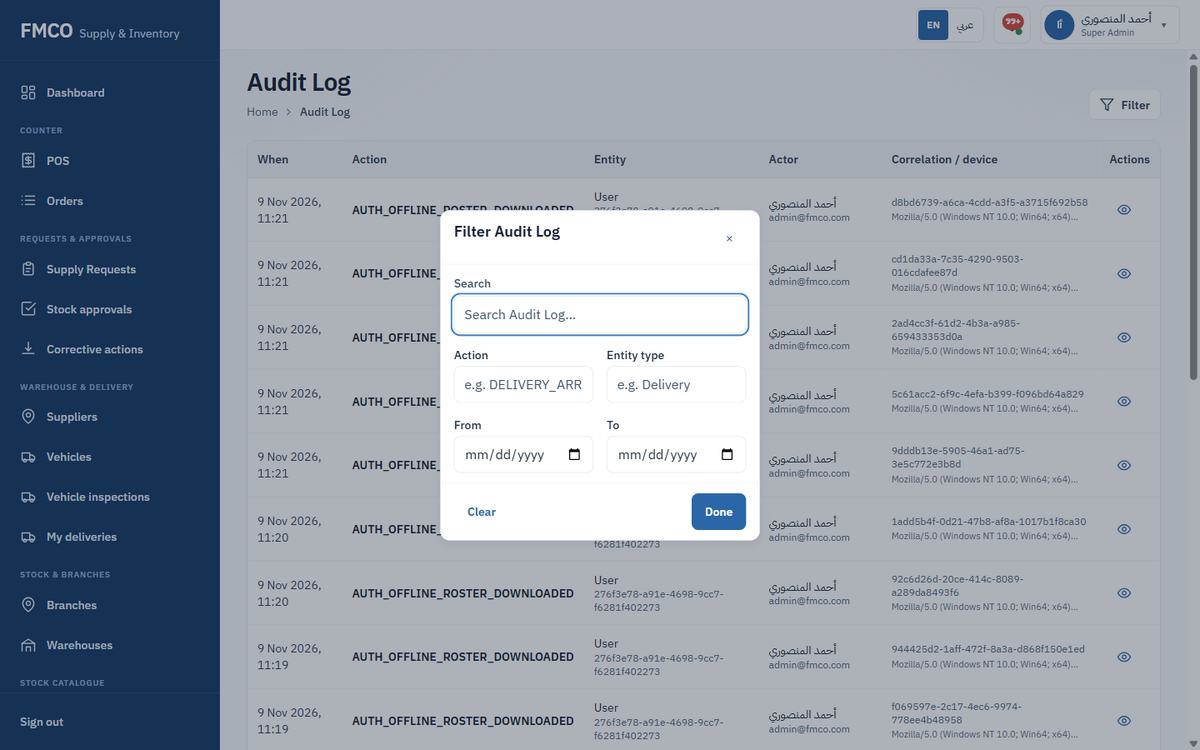
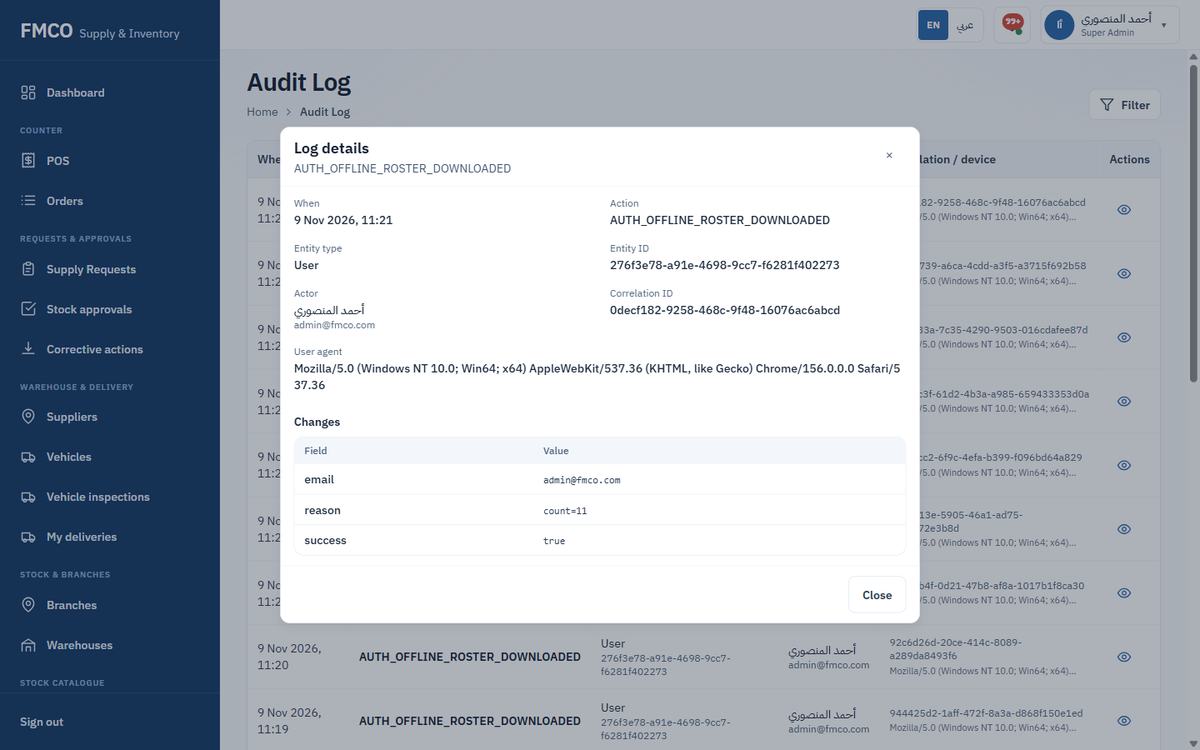
For a summary by person, use the User activity report and Audit log report in Reports → System (Module 30), or the Audit Trail tab of the Dashboard.
Every litre of the milk delivered by the supplier can be traced. At the end of the journey:
| Where | Quantity | Recorded by | Where to see it |
|---|---|---|---|
| Received from the supplier | 20 LTR | Goods receipt GRN-20261108-0001 (Module 15) | Warehouse → Goods-in; Transactions "Receipt" |
| Still in the warehouse | 15 LTR | Lot QA-MILK-LOT-01, bin A-01-01 | Warehouse stock; Lots & expiry |
| Delivered to QA Demo Cafe | 5 LTR | Dispatch and branch receipt BR-20261109-0001 (Modules 20–23) | Transactions "Dispatch"; branch receipt |
| Still at the branch | 4.8 LTR | Main storage QA-DEMO-01-MAIN | Branch stock |
| Used by 1 serve | 0.2 LTR | POS ticket POS-20261109-0001 (Module 24) | Branch Consumption; POS orders |
20 LTR = 15 LTR + 4.8 LTR + 0.2 LTR
Goods-in as deliveries arrive · branches order before the cut-off · approvers decide within the time limit · the warehouse prepares, checks and dispatches · drivers deliver · FSO inspects · branches receive · the POS records every serve · counts and reports close the day.
Sets up the whole system: master data, users, roles and settings.
Sets up and maintains master data, users and settings.
Posts goods receipts, releases dispatches and oversees warehouse stock.
Records goods-in, prepares, picks and packs orders, creates dispatches.
Inspects packed orders before they are dispatched.
Collects, transports and hands over deliveries, on a phone.
Inspects deliveries at the branch before they are received.
Orders stock for the branch, receives deliveries and counts branch stock.
Serves products on the POS counter.
Gives the first approval of supply requests.
Gives the final approval of supply requests.
Follow one litre of milk from the supplier to the customer, and learn every screen on the way. No technical knowledge needed.
Start readingSee the journeyDownload the PDF manualPick your role to see only the parts of the guide you need.
Sets up the whole system: master data, users, roles and settings.
Sets up and maintains master data, users and settings.
Posts goods receipts, releases dispatches and oversees warehouse stock.
Records goods-in, prepares, picks and packs orders, creates dispatches.
Inspects packed orders before they are dispatched.
Collects, transports and hands over deliveries, on a phone.
Inspects deliveries at the branch before they are received.
Orders stock for the branch, receives deliveries and counts branch stock.
Serves products on the POS counter.
Gives the first approval of supply requests.
Gives the final approval of supply requests.
Click a step, or press play, to see who does what and where the milk is.
The guide has three parts. Each module explains what it is for, who uses it, the steps, and what every field means.
Before any stock can move, the system needs to know what you stock, where you keep it, who supplies it, what you sell and who does the work. Complete these modules in order: each one uses records created in the modules before it. All of Part A is done by a Super Admin or Administrator.
14 modules
Open Part APart B follows one delivery of milk through the whole system: received from the supplier into the warehouse, ordered by the branch, approved, prepared, checked, delivered, inspected, received at the branch and finally served on the POS. Each module shows who does the step and what the system records.
10 modules
Open Part BPart C shows how to watch and correct stock in warehouses and branches, count it, approve changes, and use the reports, feedback, alerts and audit tools that sit across the whole system.
9 modules
Open Part Cمرحبًا بك في نظام FMCO لإدارة المخزون (IMS). هذا الدليل موجّه لموظفي FMCO ومديريها الذين يستخدمون النظام يوميًا: المسؤولون الذين يقومون بإعداده، وفرق المستودعات، والسائقون، ومسؤولو سلامة الغذاء، وموظفو الفروع، وجهات الاعتماد.
بدلًا من شرح كل شاشة على حدة، يتابع هذا الدليل صنفًا واحدًا في رحلته الكاملة داخل النظام. يستخدم كل فصل السجلات النموذجية نفسها، فترى كيف تغذّي كل شاشة الشاشة التي تليها: يُعدّ صنف لتر الحليب، ثم يُستلم من المورد، ويطلبه مقهى، ثم يُعتمد الطلب، ويُعبّأ، ويُفحص، ويُسلَّم، ويُستلم، وأخيرًا يُستخدم في نقطة البيع.
يتكوّن الدليل من ثلاثة أجزاء:
يدعم النظام اللغتين الإنجليزية والعربية. استخدم مفتاح EN / عربي في الشريط العلوي للتبديل بينهما. عند اختيار العربية تتحول الشاشة كلها إلى الاتجاه من اليمين إلى اليسار.
الصور في هذا الدليل مأخوذة من الواجهة الإنجليزية للنظام. لذلك كتبنا اسم كل زر وحقل بالعربية، ثم بالإنجليزية بين قوسين، لتتمكن من مطابقته بما تراه في الصورة. وعندما تبدّل لغة النظام إلى العربية (زر «عربي» في الشريط العلوي) ستظهر لك الأسماء العربية نفسها.
تعرض القائمة الجانبية الأقسام التي يستطيع دورك الوصول إليها فقط، وبعض الأزرار لا تظهر إلا مع الصلاحية المناسبة. تذكر كل وحدة الدور الذي ينفّذها. إذا لم يظهر زر على شاشتك، فاطلب الصلاحية من المسؤول الإداري.
يربط نظام FMCO IMS بين أربعة أماكن: المورد الذي يسلّم البضائع، والمستودع الذي يحتفظ بها، والفرع (المقهى) الذي يستخدمها، ونقطة البيع التي تُقدَّم فيها المنتجات. تُسجَّل كل حركة مخزون بين هذه الأماكن في سجل المخزون.
تستخدم كل لقطات الشاشة السجلات التجريبية التالية. تبدأ الأسماء بـ QA لأنها أُنشئت في النظام التجريبي لأجل هذا الدليل.
| السجل | المثال المستخدم |
|---|---|
| صنف المخزون | QA Fresh Milk (QA-MILK-001)، وحدة المخزون LTR (لتر) |
| منتج نقطة البيع | QA Milk Training Drink (QA-DRINK-001)؛ الوصفة: 0.2 LTR من QA Fresh Milk لكل حصة |
| المورد | QA Demo Dairy Supplier (QA-SUP-DEMO) |
| المستودع وموقع التخزين | QA Demo Warehouse (QA-WH-DEMO)، موقع التخزين A-01-01 «QA Dairy chiller» |
| الفرع والمخزن الرئيسي | QA Demo Cafe (QA-DEMO-01)، المخزن الرئيسي QA-DEMO-01-MAIN |
| المطبخ (جهاز نقطة البيع) والقائمة | QA Demo Cafe POS (QA-POS-DEMO)، القائمة QA Demo Menu |
| المركبة | QA Demo Van، اللوحة QA-0001 |
الحليب مثال مبسّط: فاللاتيه الحقيقي يستخدم أيضًا حبوب القهوة وكوبًا، وتضيفهما إلى الوصفة بالطريقة نفسها تمامًا.
| الدور | المهام الرئيسية في الرحلة |
|---|---|
| مشرف النظام / المسؤول الإداري | إعداد البيانات الرئيسية والمستخدمين والأدوار والإعدادات (الجزء (أ)). |
| موظف المستودع | تسجيل استلام البضائع، وتجهيز الطلبات وانتقاؤها وتعبئتها، وإنشاء الشحنات. |
| مدير المستودع | ترحيل سندات الاستلام وإطلاق الشحنات؛ والإشراف على مخزون المستودع. |
| باريستا | رفع طلبات التوريد للفرع، واستلام التسليمات، وجرد مخزون الفرع. |
| مدير المشروع | الاعتماد الأول لطلبات التوريد. |
| ممثل العميل | الاعتماد النهائي لطلبات التوريد. |
| مفتش الجودة | فحص الطلبات المعبّأة قبل الشحن. |
| السائق | استلام التسليمات ونقلها وتسليمها. |
| مسؤول سلامة الغذاء (FSO) | فحص التسليمات في الفرع قبل استلامها. |
| كاشير نقطة البيع | تقديم المنتجات في نقطة البيع. |
يجب أن يُكمل بعض الخطوات شخص مختلف عمّن بدأها (مثل ترحيل سند الاستلام أو اعتماد تغيير كبير في المخزون). رتّب فريقك بحيث يتوفر مستخدمان مخوّلان.
افتح عنوان FMCO IMS في المتصفح. تحتوي صفحة تسجيل الدخول على مفتاح للتبديل بين الإنجليزية والعربية في أعلى الصفحة من جهة اليمين.
| الحقل / الزر | المعنى وطريقة الاستخدام |
|---|---|
| EN / عربي | يبدّل التطبيق كله بين الإنجليزية والعربية (من اليمين إلى اليسار). متاح في كل شاشة. |
| البريد الإلكتروني (Email) * / كلمة المرور (Password) * | بريدك الإلكتروني وكلمة المرور الخاصان بالعمل، ويسلّمهما لك المسؤول الإداري. |
| التحقق من الحساب (Verify account) | للحساب الجديد. أدخل بريدك الإلكتروني وكلمة المرور والرمز المكوّن من 6 أرقام المرسل إلى بريدك، ثم اضغط على تحقق وسجّل الدخول (Verify and sign in). |
| دخول نقطة البيع (POS login) | تسجيل دخول المنضدة لموظفي نقطة البيع في الفرع (انظر أدناه). |
يضغط كاشير نقطة البيع على دخول نقطة البيع (POS login) في صفحة تسجيل الدخول. تعرض صفحة نقطة بيع FMCO (FMCO POS) الرسالة: «تسجيل دخول المنضدة لموظفي الفرع. لا توجد أسعار — يُسجَّل المخزون فقط.» أدخل البريد الإلكتروني وكلمة المرور ثم اضغط على فتح منضدة نقطة البيع (Open POS counter). يعيدك «دخول الموظفين» إلى صفحة تسجيل الدخول العادية.
اطلب المساعدة من المسؤول الإداري. يستطيع تعيين كلمة مرور جديدة لك من القائمة: المسؤول ← المستخدمون (الوحدة 12).
القائمة الجانبية ← لوحة المعلومات (Dashboard). تمنح المديرين صورة مباشرة عن الطلبات والمخزون والتسليمات. استخدم عوامل التصفية: نطاق التاريخ (Date range) (اليوم، آخر 7 / 14 / 30 يومًا)، والفرع (Branch)، والمستودع (Warehouse)؛ ويعيدها مسح عوامل التصفية (Clear filters) إلى وضعها الأصلي. يوجد الطلبات المفتوحة (Open requests) وتحديث (Refresh) في الأعلى.
| التبويب | ما يعرضه |
|---|---|
| العمليات (Operations) | حجم الطلبات، وحالة المخزون، وتدفق التوريد من البداية إلى النهاية (الاعتمادات ← المستودع ← الشحن ← الاستلام)، والطلبات حسب الفرع، والنقص، وأداء التسليم، وحالة الشحنات، وأولويات المتابعة، ونافذة انتهاء الصلاحية، ومدة الدورة، والفحوصات، وأعداد الطوابير، والمخزون المنخفض الحرج، وتنبيهات المخزون، وحجوزات الحجر. وفي الأسفل: جدول الطلبات المفتوحة (تصدير Excel، عرض الكل)، وتنبيهات النظام، وإجراءات سريعة. |
| المخزون (Inventory) | المخزون المتوفر والمحجوز والذي في الطريق وفي الحجر والتالف وقارب الانتهاء، مع روابط إلى مخزون المستودع ومخزون الفرع والدفعات والحجر والمخزون المنخفض. |
| الاستهلاك (Consumption) | الاستخدام حسب الصنف والمنتج، وعمليات التقديم في نقطة البيع، والهدر والتسويات، مع روابط إلى تقارير الاستهلاك. |
| سلامة الغذاء (Food Safety) | الفحوصات ونتائجها، وحالات الرفض، والإجراءات التصحيحية (المفتوحة والمتأخرة)، والحجر. |
| سجل التدقيق (Audit Trail) | إجراءات المستخدمين وحركات المخزون خلال الفترة، مع روابط إلى سجل التدقيق وتقارير الحركات. |
يمكن الضغط على كثير من البطاقات («اضغط على شريط لفتح تلك القائمة»). تفتح إجراءات سريعة في الأسفل الشاشات الأكثر استخدامًا مباشرة: إنشاء الطلب اليومي، وقائمة الاعتمادات، وقائمة المستودع، وجاهز للشحن، وفي الطريق، وتوصيلاتي، وفحوصات سلامة الغذاء، واستلام الفرع، والتقارير، والإشعارات.
يرى كل دور عناصر القائمة التي يحتاجها فقط، ويبدأ من الشاشة الأكثر استخدامًا لديه.
| الدور | يبدأ من | القائمة الجانبية |
|---|---|---|
| مشرف النظام / المسؤول الإداري | لوحة المعلومات | كل القوائم: نقطة الخدمة، والطلبات والموافقات، والمستودع والتوصيل، والمخزون والفروع، وكتالوج المخزون، والقائمة ونقطة الخدمة، والتقارير والمتابعة، والمسؤول. |
| مدير المستودع | طلبات التوريد | لوحة المعلومات؛ طلبات التوريد، واعتمادات المخزون، والإجراءات التصحيحية؛ الموردون، وفحوصات المركبات؛ المستودعات؛ فئات الأصناف، ووحدات القياس؛ التقارير، والإشعارات؛ الأجهزة، واستثناءات المخزون. |
| موظف المستودع | طلبات التوريد | لوحة المعلومات؛ طلبات التوريد؛ الموردون، وفحوصات المركبات، ومخزون المستودع؛ الإشعارات. |
| مفتش الجودة | طلبات التوريد الجاهزة لفحص الجودة | طلبات التوريد، والإجراءات التصحيحية؛ الإشعارات. |
| السائق | توصيلاتي (شاشة الجهاز المحمول) | لا توجد قائمة جانبية — شاشة بحجم الهاتف. |
| مسؤول سلامة الغذاء | لوحة المعلومات (العمليات، وسلامة الغذاء، وسجل التدقيق) | لوحة المعلومات؛ طلبات التوريد، واعتمادات المخزون، والإجراءات التصحيحية؛ الإشعارات. |
| باريستا | الصفحة الرئيسية للفرع | لوحة المعلومات؛ نقطة البيع، والطلبات؛ طلبات التوريد؛ مخزون الفرع؛ الإشعارات. |
| كاشير نقطة البيع | منضدة نقطة البيع (بملء الشاشة) | لا توجد قائمة جانبية. |
| مدير المشروع | طلبات التوريد التي تنتظر اعتماده | لوحة المعلومات؛ طلبات التوريد؛ الملاحظات، والإشعارات؛ المستخدمون. |
| ممثل العميل | طلبات التوريد التي تنتظر اعتماده | لوحة المعلومات؛ طلبات التوريد؛ الملاحظات، والإشعارات. |
يبدأ الباريستا من الصفحة الرئيسية للفرع (Branch home): اليوم باختصار (طلبات اليوم، والطلبات المعادة للتعديل، والتسليمات في الطريق، والاستلامات المعلقة، والمخزون المنخفض)، وبطاقات كبيرة لمهامه اليومية — إنشاء مسودة طلب اليوم تلقائيًا (Auto-draft today’s order) (تملأ مسودة من المخزون المنخفض وعمليات التقديم أمس)، ومنضدة نقطة البيع (POS counter)، وإنشاء طلب اليوم (Create today’s order)، واستلام شحنة (Receive a delivery)، وملاحظات الرضا (Satisfaction Feedback). يعرض «يحتاج إلى متابعتك» الطلبات المعادة للتعديل والاستلامات المعلقة.
يبدأ مديرو المستودع وموظفوه من قائمة طلبات التوريد. تعدّ الشرائح في الأعلى الطلبات حسب الخطوة التي تنتظرها (مثل تجهيز الأصناف، ودرجات الحرارة، وفحص المركبة)؛ اضغط على شريحة للتصفية، وعلى فتح (Open) للعمل على الطلب.
عرّف النظام بكيفية قياس الكميات
يُعدّ كل صنف مخزون بوحدة مخزون واحدة (وحدة المخزون): لتر أو كيلوغرام أو قطعة أو صندوق وغير ذلك. تتيح التحويلات إدخال الكميات بوحدة مختلفة — فقد تستخدم الوصفة المليلتر بينما يُحفظ المخزون باللتر. يحوّل النظام الكميات تلقائيًا ويخزّنها دائمًا بوحدة مخزون الصنف.
من يستخدمها: مشرف النظام / المسؤول الإداري
القائمة الجانبية ← كتالوج المخزون (Stock catalogue) ← وحدات القياس (Units of measure). تعرض الصفحة كل الوحدات (الرمز، الاسم، الوصف، الحالة، الإجراءات). يوجد قسم التحويلات (Conversions) في أسفل الصفحة نفسها.
يحتوي النظام مسبقًا على LTR (لتر). في مثال الحليب نضيف ML (مليلتر).
ML والاسم Millilitre. يمكنك اختياريًا إضافة الاسم بالعربية ووصف.| الحقل / الزر | المعنى وطريقة الاستخدام |
|---|---|
| الرمز (Code) * | رمز قصير للوحدة (مثل KG أو BOX-12). أحرف وأرقام وشرطات وشرطات سفلية فقط. يُحفظ بأحرف كبيرة. |
| الاسم (Name) * | اسم الوحدة بالإنجليزية (مثل Millilitre). |
| الاسم (عربي) (Name (Arabic)) | اختياري. يُعرض عندما تكون لغة التطبيق العربية. |
| الوصف (Description) / الوصف (عربي) (Description (Arabic)) | ملاحظات اختيارية عن الوحدة. |
| الحقل / الزر | المعنى وطريقة الاستخدام |
|---|---|
| ينطبق على (Applies to) * | كل الأصناف (عام) (All items (global)) أو صنف واحد (استثناء) (One item (override)). يتقدّم الاستثناء الخاص بصنف على المعامل العام لذلك الصنف وحده (مثلًا يحتوي صندوق الحليب على 12 بينما يحتوي صندوق الأكواب على 50). في حالة الاستثناء يجب أن تكون إحدى الوحدتين (من/إلى) هي وحدة مخزون الصنف. |
| من وحدة (From unit) * / إلى وحدة (To unit) * | الوحدتان المراد التحويل بينهما. التحويلات من خطوة واحدة وليست متسلسلة. |
| المعامل (Factor) * | عدد وحدات «إلى» التي تساوي وحدة «من» واحدة. يجب أن يكون أكبر من 0 ولا يزيد على 1,000,000. ويُطبَّق العكس (1 ÷ المعامل) تلقائيًا. |
| ملاحظات (Notes) | اختياري، حتى 500 حرف. |
| عوامل التصفية (Filters) | ينطبق على (الكل / العامة فقط / الخاصة بالأصناف فقط)، والحالة، والصنف — اختر صنفًا للانتقال إلى تحويلاته. |
أعدّ الوحدات والتحويلات أولًا. لا يمكن تغيير وحدة الصنف بعد إنشائه.
صنّف أصناف المخزون ليسهل العثور عليها وإعداد التقارير عنها
تنظّم فئات الأصناف كتالوج المخزون (مثل المشروبات › القهوة، والألبان والمبرّدات). ينتمي كل صنف مخزون إلى فئة واحدة. يمكن أن يكون للفئة مستوى واحد من الفئات الفرعية.
من يستخدمها: مشرف النظام / المسؤول الإداري
القائمة الجانبية ← كتالوج المخزون (Stock catalogue) ← فئات الأصناف (Item categories). تعرض القائمة الاسم والرمز والوصف وأصناف المخزون والحالة والإجراءات. تظهر الفئات الفرعية تحت الفئة الرئيسية؛ استخدم «طي الكل» لطيّها.
QA-DAIRY، الفئة الرئيسية لا شيء – فئة من المستوى الأعلى (None – top-level category)، الاسم QA Dairy.| الحقل / الزر | المعنى وطريقة الاستخدام |
|---|---|
| الرمز (Code) * | أحرف وأرقام وشرطات فقط (مثل BEV أو BEV-COLD). يُحفظ بأحرف كبيرة. حتى 50 حرفًا. |
| الفئة الرئيسية (Parent category) | اتركها «لا شيء» للفئة من المستوى الأعلى، أو اختر فئة رئيسية لتصبح هذه الفئة فرعية. مستويان كحد أقصى. |
| الاسم (Name) * | اسم الفئة. يمكن إضافة الاسم العربي اختياريًا بعد علامة «·» (مثل Coffee · القهوة). |
| الوصف (Description) | اختياري، حتى 500 حرف. |
| صورة الفئة (Category photo) | اختياري. التقط صورة أو اختر ملفًا (بحد أقصى 5 ميجابايت). |
أنشئ البضائع الفعلية التي تخزّنها وتنقلها
صنف المخزون هو سلعة فعلية تحتفظ بها في المخزون — مثل الحليب وحبوب القهوة والأكواب. وهو ليس ما تبيعه نقطة البيع؛ فذلك هو المنتج (الوحدة 09). وتربط وصفة المنتج بين الاثنين. عند إنشاء الصنف يكون مخزونه صفرًا في كل مكان؛ ويصل المخزون لاحقًا عبر استلام البضائع (الوحدة 15).
من يستخدمها: مشرف النظام / المسؤول الإداري
القائمة الجانبية ← كتالوج المخزون (Stock catalogue) ← أصناف المخزون (Inventory items). تعرض القائمة الصنف (الاسم والرمز)، والباركود، والفئة، ووحدة القياس، وتكلفة الوحدة (SAR)، والسمات (الكتالوج / حرارة / هواء)، والحالة، والإجراءات (تعديل، تفعيل/إلغاء التفعيل، ⋮ ← إزالة).
QA-MILK-001، اسم الصنف QA Fresh Milk، الفئة QA-DAIRY، وحدة القياس LTR – Liter. اترك الباركود فارغًا لاستخدام رمز الصنف كباركود.6.00.0 والحد الأقصى °م 4 (الحليب مبرّد).| الحقل / الزر | المعنى وطريقة الاستخدام |
|---|---|
| رمز الصنف (Item code) * | أحرف وأرقام وشرطات فقط (مثل ITM-001). يُحفظ بأحرف كبيرة. |
| اسم الصنف (Item name) * / اسم الصنف (عربي) (Item name (Arabic)) | الاسم الذي يظهر في كل شاشات المخزون. |
| الباركود (Barcode) | رمز GTIN أو باركود المورد. اختياري — أحرف وأرقام و . _ - فقط. اتركه فارغًا لاستخدام رمز الصنف كباركود. يملؤه «مسح الباركود بالكاميرا» من كاميرا الجهاز. |
| الوصف (Description) / الوصف (عربي) (Description (Arabic)) | اختياري، حتى 1,000 حرف. |
| الفئة (Category) * | فئة الصنف (الوحدة 02). |
| وحدة القياس (Unit of measure) * | وحدة المخزون. مقفلة بعد الإنشاء — فكميات المخزون والتكاليف تستخدم هذه الوحدة. |
| رمز المحتوى المحلي (Local content code) | رمز اختياري لتصنيف المحتوى المحلي. |
| تكلفة الوحدة (Unit cost) | تكلفة الكتالوج بالريال (SAR) لأغراض التقارير — لا تظهر في الكافتيريا. |
| الوحدات في الصندوق (Units per box) | كم وحدة تتسع في صندوق الشحن الواحد — تُستخدم لتعبئة الطلبات تلقائيًا. عدد صحيح لا يقل عن 1. اتركه فارغًا للتعبئة يدويًا. |
| صنف كتالوج نشط (Active catalogue item) | لا يمكن طلب الأصناف واستلامها وعدّها إلا إذا كانت نشطة. |
| يتطلب التحكم في درجة الحرارة (Requires temperature control) / التحكم في درجة الحرارة المحيطة (ambient temperature control) | يحدد البضائع المبرّدة/المجمّدة أو المحيطة. يطلب التحكم في درجة الحرارة الحد الأدنى °م (Min °C) * والحد الأقصى °م (Max °C) *، ويُستخدمان أثناء الفحوصات. |
| صورة الكتالوج (Catalogue photo) | صورة اختيارية للمنتج لشاشات الطلب والمخزون (بحد أقصى 5 ميجابايت). |
افتح صنفًا موجودًا بأيقونة القلم لترى وحدات الطلب والصرف (Order and issue units): أي الوحدات التي يمكن إدخال الصنف بها. يعرض QA Fresh Milk وحدة LTR (وحدة المخزون) و«1 ML = 0.001 LTR · عام» من التحويل الذي أُعدّ في الوحدة 01.
أصبح QA Fresh Milk معروفًا للنظام، لكن مخزونه 0 LTR في كل مكان. لم يُستلم شيء بعد.
تسميات لمخازن الفروع وأجهزة نقطة البيع
تصف أنواع مواقع المخزون مناطق التخزين داخل الفرع (تخزين عام، مبرّد، بار…). يجب أن يكون لكل مخزن نوع. وتصنّف أنواع المطابخ أجهزة نقطة البيع في الفرع (جهاز رئيسي، كشك، خدمة السيارات…). يجب أن يكون لكل مطبخ نوع. لا يؤثر أي من النوعين في طريقة خصم المخزون: فمبيعات نقطة البيع تُخصم دائمًا من المخزن الرئيسي للفرع.
من يستخدمها: مشرف النظام / المسؤول الإداري
القائمة الجانبية ← المخزون والفروع (Stock & branches) ← الفروع (Branches)، ثم اضغط على أنواع مواقع المخزون (Stock location types) أو أنواع المطابخ (Kitchen types) في أعلى الصفحة. تعرض الشاشتان الرمز والاسم والحالة والإجراءات، وتوفران التصفية وقائمة / بطاقات وإضافة نوع (Add type).
لا يمكن إنشاء مطبخ إلا بعد وجود نوع مطبخ نشط واحد على الأقل. إذا عرضت شاشة أنواع المطابخ «لا توجد أنواع بعد»، فأضف نوعًا أولًا:
QA-MAIN والاسم QA Main register (ويمكنك إضافة الاسم بالعربية اختياريًا).| الحقل / الزر | المعنى وطريقة الاستخدام |
|---|---|
| الرمز (Code) * | رمز قصير فريد (مثل MAIN أو KIOSK أو CHILLED). أحرف وأرقام وشرطات وشرطات سفلية؛ يُحفظ بأحرف كبيرة. لا يمكن تغييره بعد الإنشاء. |
| الاسم (Name) * | الاسم المقروء بالإنجليزية. يجب أن يكون فريدًا. |
| الاسم (عربي) (Name (Arabic)) | اختياري لكنه موصى به — يظهر عندما يكون التطبيق بالعربية. |
| تعديل (Edit) (أيقونة القلم) | غيّر الاسم أو الاسم العربي. الرمز ثابت. |
| إلغاء التفعيل (Deactivate) / تفعيل (Activate) (أيقونة التشغيل) | يُمنع ما دامت مخازن (أو مطابخ) نشطة ما زالت تستخدم النوع. لا يمكن اختيار الأنواع غير النشطة للسجلات الجديدة. |
| تصفية (Filter) / قائمة (List) / بطاقات (Cards) | ابحث بالرمز أو الاسم، وصفِّ حسب الحالة، وبدّل طريقة العرض. |
أعدّ المقاهي والمواقع التي تعمل فيها FMCO
الفرع موقع فعلي تخدم فيه FMCO العملاء. كل ما في ذلك الموقع يتبع فرعه: المخازن والمطابخ والقوائم وحركاتها. تُرفع طلبات التوريد لفرع معيّن، وتُستلم التسليمات فيه.
من يستخدمها: مشرف النظام / المسؤول الإداري
القائمة الجانبية ← المخزون والفروع (Stock & branches) ← الفروع (Branches). تعرض كل بطاقة اسم الفرع ورمزه وحالته ومدينته، وشريط حالة المخزون (Stock health) (الأصناف المتتبعة، والسليمة، والمنخفضة، والتي نفد مخزونها)، وأعداد المطابخ والقوائم ومواقع المخزون.
QA-DEMO-01، الاسم QA Demo Cafe، المدينة Riyadh، المنطقة Riyadh Province.QA-DEMO-01-MAIN باسم «QA Demo Cafe · main».| الحقل / الزر | المعنى وطريقة الاستخدام |
|---|---|
| الرمز (Code) * | أحرف وأرقام وشرطات فقط (مثال: FMCO-01). يُحفظ بأحرف كبيرة. لا يمكن تغييره بعد الإنشاء. |
| الاسم (Name) * / الاسم (عربي) (Name (Arabic)) | اسم الفرع؛ يجب أن يكون فريدًا. يظهر الاسم العربي عندما تكون لغة التطبيق العربية. |
| العنوان (Address) / العنوان (عربي) (Address (Arabic))، المدينة (City)، المنطقة (Region) | مكان الفرع. يمكن استخدام المدينة والمنطقة لتصفية القائمة. |
| تعديل (Edit) (أيقونة القلم) | غيّر التفاصيل. يبقى الرمز ثابتًا. |
| إلغاء التفعيل (Deactivate) / تفعيل (Activate) (أيقونة التشغيل) | لا يمكن استخدام الفرع غير النشط في العمليات. ألغِ تفعيله فقط بعد إلغاء تفعيل مطابخه وإفراغ مخازنه. |
اضغط على اسم الفرع لفتحه. يعرض الترويس: أصناف في المخزون، والكمية المتوفرة، ومخزون منخفض. التبويبات هي:
صافي الاستخدام = المباع + المسجّل + الهدر + نقص الجرد − زيادة الجرد. أيام التغطية = مخزون الفرع ÷ متوسط الاستخدام اليومي.
الأماكن داخل الفرع التي يُحفظ فيها المخزون
المخازن هي أماكن المخزون داخل الفرع: المخزن الرئيسي، والمبرّد، والبار. إجمالي الفرع هو مجموع كل مخازنه. مخزن واحد بالضبط في كل فرع هو المخزن الرئيسي (يُشار إليه بالعلامة ★).
من يستخدمها: مشرف النظام / المسؤول الإداري
افتح الفرع واضغط على تبويب المخزون (Stock). تعرض اللوحة اليسرى المخازن («1 نشط من 1»، وصف «كل المخازن / الفرع بالكامل»، وصف لكل مخزن). وتعرض اللوحة اليمنى أصناف المخزن المحدد مع عرضي كل الأصناف / مخزون منخفض ومربع بحث.
يستلم المخزن الرئيسي كل تسليمات الفرع، ويُخصم منه كل بيع وهدر في نقطة البيع. ولا يمكن إلغاء تفعيله. إذا لم يكن للفرع مخزن رئيسي نشط، يتوقف الاستلام ومبيعات نقطة البيع لذلك الفرع مع ظهور خطأ.
يحتاج مثالنا إلى المخزن الرئيسي فقط. لإضافة مبرّد أو بار:
| الحقل / الزر | المعنى وطريقة الاستخدام |
|---|---|
| النوع (Type) * | نوع موقع المخزون (الوحدة 04). تُعرض الأنواع النشطة فقط. |
| الرمز (Code) * / الاسم (Name) * / الاسم (عربي) (Name (Arabic)) | الرمز فريد داخل الفرع، ويُحفظ بأحرف كبيرة، ولا يمكن تغييره لاحقًا. |
| موقع رئيسي (Main location) (مفتاح) | «موقع المخزون الأساسي للفرع. واحد فقط لكل فرع.» عند تفعيله لمخزن جديد يُنقل الوضع الرئيسي من المخزن السابق. |
| ملاحظات (Notes) | أي معلومات إضافية عن المخزن. |
| إلغاء التفعيل (Deactivate) / تفعيل (Activate) | لا يمكن إلغاء تفعيل المخزن إلا إذا كان لا يحتوي على مخزون وليس هو الرئيسي. |
منشآت التوريد التي تزوّد فروعك بالمخزون
يحتفظ المستودع بكميات كبيرة من المخزون قبل إرسالها إلى الفروع. وداخل المستودع تكون مواقع التخزين هي أماكن الأرفف الدقيقة (الممر، والرف القائم، والرف) التي توضع فيها الدفعات ويُنتقى منها.
من يستخدمها: مشرف النظام / المسؤول الإداري، مدير المستودع
القائمة الجانبية ← المخزون والفروع (Stock & branches) ← المستودعات (Warehouses). تعرض كل بطاقة الاسم والرمز والحالة، وشارة «مركزي» إن وُجدت، والموقع، وحالة المخزون، وثلاثة أرقام: مواقع التخزين في المستودع، ودفعات بها مخزون، وحجوزات الحجر.
QA-WH-DEMO، الاسم QA Demo Warehouse، المدينة Riyadh.| الحقل / الزر | المعنى وطريقة الاستخدام |
|---|---|
| مستودع مركزي (Central warehouse) (مفتاح) | يجعل هذا المستودع مركز التوريد الرئيسي للنظام. يمكن أن يكون مستودع واحد فقط مركزيًا. |
| الرمز (Code) * | أحرف وأرقام وشرطات فقط (مثال: FMCO-WH-01). يُحفظ بأحرف كبيرة. لا يمكن تغييره بعد الإنشاء. |
| الاسم (Name) * | مطلوب وفريد. |
| المدينة (City)، المنطقة (Region)، العنوان (Address)، العنوان (عربي) (Address (Arabic)) | موقع المستودع. |
تُلبّى طلبات التوريد افتراضيًا من المستودع المركزي. عند تحديد مستودع آخر كمركزي تُزال الشارة من المستودع السابق.
اضغط على اسم المستودع لفتحه. يعرض الترويس: أصناف في المخزون، ومخزون منخفض، وتنتهي (7 أيام). التبويبات هي:
| التبويب | ما يعرضه |
|---|---|
| مخزون المستودع (Warehouse stock) | الكمية المتوفرة / المحجوزة / المتاحة لكل صنف بشكل مباشر، إضافة إلى لوحة المواقع (الوحدة 25). |
| استلام البضائع (Goods-in) | التسليمات من الموردين: إعداد مسودة سندات الاستلام وفحصها وترحيلها (الوحدة 15). |
| الدفعات وتواريخ الانتهاء (Lots & expiry) | كل دفعة مع تاريخ انتهائها. تُوجّه كميات الدفعات اقتراحات الانتقاء بنظام FEFO (الأقرب انتهاءً يخرج أولًا). التصفية: كل الدفعات / تنتهي خلال 7 أيام أو أقل / 30 يومًا أو أقل. |
| الحجر (Quarantine) | المخزون المعلّق (مفتوح، معالج جزئيًا، مُفرج عنه، مُتلف، تمت المعالجة) و«حجز في الحجر». |
| تنبيهات إعادة الطلب (Reorder alerts) | طلبات إعادة الطلب المقترحة للأصناف التي بلغت حد إعادة الطلب أو نزلت عنه. |
| الحركات (Transactions) | سجل مخزون المستودع، ويمكن تصفيته حسب النوع (الاستلام، الشحن، التعديل، الحجز، الدخول إلى الطريق / الخروج منه…) والسبب والجهاز والتواريخ. |
| السجل (History) | لقطات يومية للمخزون. |
A-01-01، الاسم QA Dairy chiller، الممر A، الرف القائم 01، الرف 01.| الحقل / الزر | المعنى وطريقة الاستخدام |
|---|---|
| الرمز (Code) * | معرّف الموقع، وهو فريد داخل المستودع ويُحفظ بأحرف كبيرة. استخدم صيغة [الممر]-[الرف القائم]-[الرف] وضع على الأرفف ملصقات تطابقها. |
| الاسم (Name) * | ما يراه الموظفون عند البحث عن المواقع (مثل «Dairy chiller»). |
| الممر (Aisle)، الرف القائم (Rack)، الرف (Shelf)، ملاحظات (Notes) | تفاصيل الموضع والملاحظات الاختيارية (حدود الوزن، نوع الصنف…). |
| حذف (Delete) (أيقونة الموقع) | لا يمكن حذف موقع ما زال يحتوي على دفعات بها مخزون — انقل الدفعات أولًا. |
الشركات التي تسلّم البضائع إلى مستودعاتك
يسلّم المورد البضائع إلى المستودع. يذكر كل سند استلام (الوحدة 15) مورده، فيمكن تتبّع التسليمات إلى مصدرها. لا تطلب الفروع من الموردين مباشرة — بل تطلب المخزون من المستودع.
من يستخدمها: مشرف النظام / المسؤول الإداري، مدير المستودع
QA-SUP-DEMO، الاسم QA Demo Dairy Supplier. أضف الشخص المسؤول والهاتف والبريد الإلكتروني إن كانت معروفة.| الحقل / الزر | المعنى وطريقة الاستخدام |
|---|---|
| الرمز (Code) * / الاسم (Name) * / الاسم (عربي) (Name (Arabic)) | تحدد المورد في سندات الاستلام والتقارير. |
| الشخص المسؤول (Contact person)، الهاتف (Phone)، البريد الإلكتروني (Email) | من تتصل به بشأن التسليم. |
| ملاحظات (Notes) / ملاحظات (عربي) (Notes (Arabic)) | أي معلومات إضافية (أيام التسليم، الشروط…). |
ما تقدمه نقطة البيع، وأي مخزون يُستهلك مع كل تقديم
المنتج هو ما تقدمه نقطة البيع، مثل مشروب أو معجنات. تحدد وصفته (المكونات) أصناف المخزون المستخدمة في تقديم واحد. عند تقديم المنتج، يخصم النظام هذه المكونات تلقائيًا من المخزن الرئيسي للفرع. تُجمع المنتجات في فئات المنتجات، وتصبح هذه الفئات هي التبويبات في نقطة البيع.
من يستخدمها: مشرف النظام / المسؤول الإداري
QA-TRAINING، الاسم QA Training Drinks. يمكنك اختياريًا تحديد ترتيب العرض (الأرقام الأقل تظهر أولًا) وصورة تظهر على تبويب الفئة في نقطة البيع.QA-DRINK-001، الفئة QA-TRAINING · QA Training Drinks، الحالة نشط (Active)، الاسم QA Milk Training Drink.0.2 (لتر لكل تقديم). اترك نسبة الهدر % عند 0.| الحقل / الزر | المعنى وطريقة الاستخدام |
|---|---|
| صورة القائمة (Menu photo) | اختياري. تساعد الصورة الواضحة الباريستا على اختيار المشروب الصحيح في شاشة الكافتيريا (الحد الأقصى 5 MB). |
| الرمز (Code) * | رمز المنتج الفريد (مثال: RCP-CAPPUCCINO). |
| فئة (Category) | تبويب نقطة البيع الذي يظهر فيه المنتج. المنتجات التي لا فئة لها تظهر تحت «أخرى». |
| فئة فرعية (Sub-category) | اختياري. تظهر كزر أسفل تبويب الفئة في نقطة البيع. |
| الحالة (Status) | نشط أو غير نشط. المنتجات النشطة فقط تظهر في نقطة البيع. |
| عنصر تحضير / وصفة فرعية (Is prep / sub-recipe) | لعنصر التحضير (مثل صلصة أو قاعدة) المصنوع من مكونات أخرى. لا يظهر أبدًا في القوائم، وتستخدمه وصفات أخرى كوصفة فرعية. |
| الاسم (Name) * / الوصف (Description) | يمكن إضافة الاسم العربي اختياريًا بعد علامة «·»، ويظهر في شاشة الكافتيريا. |
| المكونات (Ingredients) ← الصنف (Item) / وصفة فرعية (Sub-recipe) | كل سطر هو صنف مخزون أو وصفة فرعية، ويُخصم من المخزن الرئيسي للفرع لكل تقديم واحد. |
| الكمية (Qty) | الكمية لكل تقديم، بوحدة مخزون الصنف (تظهر بجانب الحقل، مثل LTR). |
| نسبة الهدر % (Wastage %) | كمية إضافية مسموح بها لفاقد التحضير الطبيعي. |
| اختياري (Optional) | يمكن حذف المكوّن عند التقديم. |
| إضافات المنتج (Product add-ons) | إضافات مشتركة (جرعة إضافية، شرابات) تُعرض على هذا المنتج. تُدار من إضافات المنتج. |
| استيراد CSV (Import CSV) / فتح نقطة البيع (Open POS) | استيراد عدة منتجات دفعة واحدة، أو الانتقال إلى نقطة البيع. |
QA Fresh Milk هو صنف مخزون (يُخزَّن ويُنقل). QA Milk Training Drink هو منتج (يُقدَّم). تربط الوصفة بينهما: تقديم واحد = 0.2 LTR حليب. لا يوجد سعر بيع للمنتجات في نظام IMS.
القائمة الجانبية ← القائمة ونقطة الخدمة (Menu & POS) ← إضافات المنتج (Product add-ons). أنشئ الإضافات المشتركة مرة واحدة (مثل جرعة إضافية، شرابات) بالضغط على إضافة جديدة (New add-on)، ثم اعرضها على المنتجات التي تحتاجها، أو على كل المنتجات. لا يستخدم مثالنا أي إضافات.
اختر ما تعرضه نقطة البيع في كل فرع للبيع
القائمة هي مجموعة من فئات المنتجات المعروضة في فرع واحد أو أكثر. تظهر المنتجات الموجودة في هذه الفئات تلقائيًا في نقطة البيع، وذلك للمنتجات النشطة وغير التحضيرية في الفئات النشطة فقط.
من يستخدمها: مشرف النظام / المسؤول الإداري
QA Demo Menu، الرمز QA-MENU-DEMO (اختياري — يُنشأ تلقائيًا إذا تُرك فارغًا)، الحالة نشط (Active). اترك القائمة الافتراضية (Default menu) متوقفة.| الحقل / الزر | المعنى وطريقة الاستخدام |
|---|---|
| الاسم (Name) * / الاسم (عربي) (Name (Arabic)) | اسم القائمة. |
| الرمز (Code) | اختياري — يُنشأ تلقائيًا إذا تُرك فارغًا. يجب أن يكون فريدًا. |
| الحالة (Status) | نشط أو غير نشط. القائمة غير النشطة تُزال من كل مطبخ كان يستخدمها. |
| الوصف (Description) / الوصف (عربي) (Description (Arabic)) | يظهر على بطاقة القائمة. |
| القائمة الافتراضية (Default menu) (مفتاح تبديل) | تُستخدم عندما لا تكون للمطبخ قائمة محددة وليس لفرعه قائمة نشطة. يمكن أن تكون قائمة واحدة فقط هي الافتراضية. |
| الفروع (Branches) | الفروع التي يمكن لمطابخها استخدام هذه القائمة. |
| فئات هذه القائمة (Categories on this menu) | فئات المنتجات التي تظهر في نقطة البيع. تظهر المنتجات مباشرة حسب الفئة. |
1. القائمة المحددة في المطبخ نفسه (الوحدة 11)، إذا كانت نشطة. 2. وإلا، قائمة نشطة معروضة في فرع المطبخ. 3. وإلا، القائمة الافتراضية للشركة. 4. وإلا، لا توجد قائمة — ولا تعرض نقطة البيع أي منتجات.
إعداد أجهزة نقطة البيع في الفرع
المطبخ هو جهاز نقطة بيع في الفرع، مثل كاونتر أو كشك أو نافذة خدمة السيارات. وهو المكان الذي تُسجَّل فيه عمليات التقديم. المطبخ ليس موقع مخزون: تُخصم مبيعاته من المخزن الرئيسي للفرع.
من يستخدمها: مشرف النظام / المسؤول الإداري
QA-POS-DEMO، الاسم QA Demo Cafe POS.| الحقل / الزر | المعنى وطريقة الاستخدام |
|---|---|
| الفرع (Branch) * | الفرع الذي يبيع له هذا المطبخ. لا يمكن تغييره بعد الإنشاء. |
| النوع (Type) * | نوع المطبخ (الوحدة 04). مطلوب. |
| القائمة (Menu) | القائمة التي يبيعها هذا المطبخ. اختيارية؛ تظهر فقط القوائم المعروضة في هذا الفرع. |
| الجهاز (Device) | اختياري — الجهاز اللوحي أو جهاز نقطة البيع المرتبط بهذا المطبخ. يمكن ربط الجهاز بمطبخ واحد فقط. |
| الرمز (Code) * / الاسم (Name) * / الاسم (عربي) (Name (Arabic)) | الرمز فريد، ويُحفظ بأحرف كبيرة، ولا يمكن تغييره بعد الإنشاء. |
| إلغاء التفعيل (Deactivate) / تفعيل (Activate) | المطابخ النشطة فقط يمكنها البيع. |
القائمة الجانبية ← المسؤول (Admin) ← الأجهزة (Devices) ← إضافة جهاز (Add device). أدخل الرمز والاسم، واختر نوع الجهاز (المستودع، السائق، سلامة الغذاء، الفرع، نقطة البيع، أخرى) والحقول التي يحتاجها هذا النوع، ثم احفظ. اربط جهاز نقطة البيع بمطبخ من خلال حقل الجهاز في المطبخ. لا يستخدم مثالنا أي جهاز.
امنح كل شخص الصلاحيات التي تتطلبها وظيفته
لكل شخص يستخدم النظام حساب مستخدم له دور واحد. يحدد الدور القوائم والأزرار التي يراها. كما يُربط موظفو الفروع ومديرو المشاريع بالفروع التي يعملون لصالحها.
من يستخدمها: مشرف النظام / المسؤول الإداري
القائمة الجانبية ← المسؤول (Admin) ← المستخدمون (Users). تعرض القائمة: الاسم/البريد الإلكتروني، الدور، الفروع، الحالة، موثّق، الإجراءات.
| الحقل / الزر | المعنى وطريقة الاستخدام |
|---|---|
| الدور (Role) * | أحد الأدوار الأحد عشر (انظر أدناه). |
| الفروع المعيّنة (Assigned branches) | مطلوبة للباريستا (يطلبون ويستلمون ويجردون المخزون للفروع المحددة) ولمديري المشاريع الذين يجب أن يعتمدوا لهذه الفروع فقط. اتركها فارغة ليغطي مدير المشروع كل الفروع. يرى المسؤولون الإداريون كل الفروع دائمًا. |
| مطابخ نقاط البيع (POS kitchens) | «جميع المطابخ في فروعه» أو «مطابخ محددة». يحدد مكان البيع المسموح للمستخدم؛ أما الطلب والاستلام والمخزون فتغطي الفروع المعيّنة في الحالتين. |
| كلمة مرور جديدة (New password) (عند التعديل فقط) | اتركها فارغة للإبقاء على كلمة المرور الحالية. |
في هذه الرحلة، أُعطيت حسابات الباريستا ومدير المشروع وكاشير نقطة البيع الموجودة صلاحية الوصول إلى QA Demo Cafe بإضافته إلى الفروع المعيّنة (Assigned branches) لديهم، مع الإبقاء على فروعهم الأخرى.
يُربط كاشير نقطة البيع (POS Operator) بالمطابخ بدلًا من الفروع: في المطابخ المُسندة (Assigned kitchens) اختر المطبخ (مثال: QA-POS-DEMO · QA Demo Cafe). يبيع الكاشير فقط على المطابخ المُسندة هنا، وفرعه هو فرع كل مطبخ. أسند مطبخًا واحدًا على الأقل للكاشير.
القائمة الجانبية ← المسؤول (Admin) ← الأدوار (Roles). يعرض كل دور عدد صلاحياته ومستخدميه. اضغط على الصلاحيات (Permissions) لعرض مجموعات الصلاحيات (الاعتمادات، استلام الفرع، الفروع، الإجراءات التصحيحية، لوحة المعلومات…) مع اسم كل صلاحية ووصفها ومفتاحها.
إجراءات الصف في الدور: تعديل (Edit) (لتغيير الاسم * والوصف)، وإلغاء التفعيل (Deactivate)، والصلاحيات (Permissions).
امنح كل شخص الدور الذي يناسب وظيفته. تتحقق خطوات الاعتماد والترحيل من الدور، وفي حالات عدة من أن المعتمِد شخص مختلف عن مقدّم الطلب.
الجدول اليومي والاعتمادات وقوائم الفحص لكامل النظام
تتحكم الإعدادات في القواعد التي تسري في كل مكان: مواعيد الإغلاق اليومية، ومن يعتمد طلبات التوريد، وحد موافقة تسوية المخزون، وقوائم الفحص المستخدمة في الفحوصات. لا تغيّرها إلا بعد الاتفاق مع إدارة FMCO.
من يستخدمها: مشرف النظام (بعض الإعدادات: المسؤول الإداري)
القائمة الجانبية ← المسؤول (Admin) ← الإعدادات (Settings). التبويبات: الجدول اليومي (Daily schedule)، الاعتمادات (Approvals)، سلّم الاعتماد (Approval ladder)، قوائم الفحص (Checklists)، استيراد البيانات (Import data)، متقدم (Advanced).
| الحقل / الزر | المعنى وطريقة الاستخدام |
|---|---|
| المنطقة الزمنية (Timezone) * / العملة (Currency) * | المنطقة الزمنية للعمل (مثال: Asia/Riyadh) والعملة (مثال: SAR). |
| آخر موعد لطلبات الفروع (Branch order cutoff) * | الوقت اليومي الذي يجب أن ترسل الفروع قبله طلبات التوريد لليوم التشغيلي التالي. الافتراضي 17:00. |
| تجميع المستودع (Warehouse consolidation) * | الوقت الذي يجمّع فيه المستودع الطلبات المعتمدة لليوم. الافتراضي 18:00. |
| موعد انطلاق الشحنة (Dispatch departure) * | وقت الشحن المخطط. الافتراضي 19:00. |
| الإقفال اليومي للمخزون (Inventory daily close) * | وقت الإقفال والتجميع اليومي للمخزون. الافتراضي 23:30. |
| مدة الطريق المتوقعة (بالدقائق) (Expected travel time (minutes)) * | تُستخدم لتخطيط التسليمات. |
يحتوي تبويب الاعتمادات (Approvals) على توقيت الاعتماد («متأخر بعد (ساعات)») وحد موافقة تسوية المخزون (Stock adjustment approval limit): التغييرات التي تتجاوز هذه الكمية تنتظر شخصًا ثانيًا (الوحدة 28). القيمة 0 تعني أنه لا يلزم شخص ثانٍ أبدًا؛ والقيمة الافتراضية 20؛ ولا يستطيع تغييرها إلا مشرف النظام.
يحدد تبويب سلّم الاعتماد (Approval ladder) الخطوات التي يمر بها طلب التوريد. السلّم المعتاد: الخطوة 1 مدير المشروع (Project Manager)، الخطوة 2 العميل (Client). لكل خطوة اسم الخطوة، وصاحب القرار، وشرط التطبيق (دائمًا / فقط عند تحقق شرط)، ونطاقها وحدودها.
يحتوي تبويب قوائم الفحص (Checklists) على الأسئلة التي تُطرح خلال الفحوصات الثلاثة في الرحلة: جودة المستودع (Warehouse quality) (الوحدة 19)، وفحص المركبة (Vehicle inspection) (الوحدة 20)، واستلام سلامة الغذاء (Food Safety receiving) (الوحدة 22). يمكن تحديد كل بند بأنه «مطلوب للنجاح».
يحمّل استيراد البيانات (Import data) البيانات الرئيسية الأولية من ملف Excel: نزّل القالب، واملأه، واختر الملف، ثم اضغط على «استيراد الملف» (فعّل «تحديث الصفوف الموجودة مسبقًا» للتحديث). يعرض متقدم (Advanced) كل إعدادات النظام مع مجالها وقيمتها وآخر تحديث لها.
الشاحنات الصغيرة التي تنقل التسليمات إلى الفروع
تنقل مركبةٌ كلَّ شحنة، ويجب أن تجتاز كل مركبة فحصًا قبل مغادرتها (الوحدة 20).
من يستخدمها: مشرف النظام / المسؤول الإداري، مدير المستودع
QA-0001، الشركة المصنّعة QA Make، الطراز QA Demo Van، ملاحظات السعة (مثال: «مبرّدة، 20 صندوقًا»).| الحقل / الزر | المعنى وطريقة الاستخدام |
|---|---|
| رقم اللوحة (Plate number) * | يُحفظ بأحرف كبيرة وبدون مسافات، لأغراض المطابقة. |
| الشركة المصنّعة (Make) * / الطراز (Model) * | الشركة المصنّعة للمركبة وطرازها. |
| ملاحظات السعة (Capacity notes) | نص حر: الحجم، والتبريد، وسعة الصناديق. |
صار النظام يعرف الصنف، ومكان تخزينه، ومن يوفّره، وما يُستخدم فيه، ومن يقوم بالعمل. ما زال المخزون صفرًا في كل مكان: يُدخل الجزء (ب) الحليب.
استلام المخزون من المورد إلى المستودع
يسجّل استلام البضائع شحنة واردة من مورد. وهو الطريقة الوحيدة التي يدخل بها مخزون جديد إلى النظام. يسجّل موظفو المستودع الشحنة كـمسودة مع التحقق من الدفعات وتواريخ الانتهاء ودرجات الحرارة. ثم يقوم مدير المستودع بـترحيلها، فتُضاف الكمية إلى مخزون المستودع.
التسجيل: موظف المستودعالترحيل: مدير المستودع
القائمة الجانبية ← المخزون والفروع (Stock & branches) ← المستودعات (Warehouses) ← افتح المستودع (مثال: QA Demo Warehouse) ← تبويب استلام البضائع (Goods-in). يعرض التبويب كل سندات الاستلام مع عوامل تصفية للبحث والمورد والحالة (مسودة / مُرحّل / ملغى) وتاريخ من / إلى.
QA-DN-0001 (رقم مذكرة التسليم لدى المورد). يكون وقت الاستلام افتراضيًا هو الوقت الحالي.20، والوحدة LTR – وحدة المخزون، والموقع A-01-01 – QA Dairy chiller، ورقم الدفعة QA-MILK-LOT-01، وتاريخ الانتهاء، ودرجة الحرارة عند الوصول 4 °C.| الحقل / الزر | المعنى وطريقة الاستخدام |
|---|---|
| المستودع (Warehouse) * | المستودع الذي يستلم البضائع. يُعبّأ تلقائيًا عند البدء من صفحة المستودع. |
| المورد (Supplier) * | المورد الذي يسلّم البضائع (الوحدة 08). |
| مرجع المورد (Supplier reference) * | رقم مذكرة التسليم أو الفاتورة لدى المورد، لأغراض المطابقة. |
| وقت الاستلام (Received at) | تاريخ ووقت وصول البضائع. الافتراضي هو الوقت الحالي. |
| مسح الباركود (Scan barcode) / البحث عن صنف (Find item) | أضف صنفًا إلى السند بمسح الباركود الخاص به أو بالبحث عنه. |
| الكمية (Quantity) * / الوحدة (Unit) | الكمية المستلمة. يمكنك إدخالها بوحدة المخزون أو بأي وحدة معرّفة في الوحدة 01 (مثل ML)؛ وتُحفظ بوحدة المخزون. |
| الموقع (Bin) | الرف الذي توضع عليه البضائع (الوحدة 07). |
| رقم الدفعة (Lot number) / تاريخ الانتهاء (Expiry date) | الدفعة وتاريخ انتهائها. تُستخدم الدفعات لاحقًا في الانتقاء حسب FEFO (الأقرب انتهاءً يخرج أولًا). |
| درجة الحرارة عند الوصول (Temperature on arrival) * | مطلوبة للأصناف التي تحتاج إلى تحكم في الحرارة. يأتي النطاق المسموح من الصنف (هنا من 0 إلى 4 °C). |
| مذكرة التسليم والصور (Delivery note & photos) | صور أو فيديو اختياري. التقاط صورة (Take photo)، تسجيل فيديو (Record video)، أو اختيار ملفات (Choose files). |
| حفظ المسودة (Save draft) / إلغاء المسودة (Cancel draft) | تابع العمل على السند، أو ألغه. المسودة لا تغيّر المخزون. |
لا يمكن تغيير السند بعد ترحيله. لتصحيح المخزون بعد ذلك، استخدم تسوية المخزون (الوحدة 25).
يعرض تبويب مخزون المستودع (Warehouse stock) الآن QA Fresh Milk: الكمية المتوفرة 20 LTR، المحجوز 0 LTR، المتاح 20 LTR، في الموقع A-01-01. ويعرض تبويب الدفعات وتواريخ الانتهاء (Lots & expiry) الدفعة QA-MILK-LOT-01 مع تاريخ انتهائها و«مستلمة بموجب GRN-20261108-0001».
يطلب الفرع المخزون من المستودع
طلب التوريد هو طلب الفرع ليوم تشغيلي. يختار الباريستا الأصناف والكميات، ويضيف سببًا مختصرًا، ثم يرسله للاعتماد. بعدها يمر الطلب بسلّم الاعتماد (الوحدة 17)، ثم التجهيز في المستودع، وفحص الجودة، والتسليم، وتعرض صفحته كل خطوة.
من يستخدمها: باريستا (للفروع المعيّنة له)
القائمة الجانبية ← الطلبات والموافقات (Requests & approvals) ← طلبات التوريد (Supply Requests). تعرض القائمة: الطلب، الفرع، مقدم الطلب، الحالة، الأصناف، الطلب ليوم، تاريخ الإنشاء، الإجراءات، مع زر لكل حالة (الكل، موافقة المدير، …).
5 LTR بالأزرار + / − أو بالكتابة. اترك الأصناف الأخرى عند الصفر.| الحقل / الزر | المعنى وطريقة الاستخدام |
|---|---|
| الفرع (Branch) * | الفرع الذي يطلب (وللباريستا هو الفرع المعيّن له). |
| الطلب ليوم (Order for the day of) | اليوم التشغيلي الذي يلزم فيه المخزون. |
| المستودع (Warehouse) * | المستودع الذي يرسل هذا الطلب. المخزون المعروض من هذا المستودع. |
| استخدم كل المقترحات (Use all suggestions) / مسح (Clear) | املأ الكميات المقترحة لكل الأصناف، أو أعد كل الكميات إلى الصفر. |
| بحث (Search) / مسح الباركود (Scan barcode) | ابحث عن صنف بالاسم أو بمسحه. |
| الكل (All) / مضافة (Added) / مخزون منخفض (Running low) | اعرض كل الأصناف، أو الأصناف الموجودة في هذا الطلب فقط، أو الأصناف المنخفضة في الفرع فقط. |
| بطاقة الصنف (Item card) | تعرض الكمية المتوفرة في الفرع، والمخصص، والمستخدم في المرة السابقة، مع − / + والوحدة (مثل LTR أو ML). |
| مبرر الطلب (Business justification) * | سبب مختصر. مطلوب قبل الإرسال؛ ويساعد المعتمِدين على اتخاذ القرار أسرع. |
| حفظ لوقت لاحق (Save for later) / إرسال للاعتماد (Send for approval) | احتفظ بالطلب كمسودة، أو أرسله. بعد الإرسال لا يمكن تغييره. |
يجب إرسال طلبات اليوم قبل آخر موعد لطلبات الفروع (Branch order cutoff) (الوحدة 13، الافتراضي 17:00). بعد هذا الموعد تعرض الشاشة رسالة بأن الطلبات الجديدة لذلك التاريخ متوقفة: اختر يوم التشغيل التالي بدلًا منه.
يظهر الطلب في القائمة بالحالة موافقة المدير (Manager approval). اضغط على فتح (Open) لعرض صفحته: يعرض شريط التقدم كل المراحل — مسودة، مُرسَل، موافقة المدير، معتمد من العميل، تجهيز المستودع، فحص الجودة، التسليم، مكتمل — مع الخطوات داخل كل مرحلة. تعرض اللوحة الجانبية الفرع والتاريخ التشغيلي والأصناف والقيمة التقديرية والمبرر؛ ويعرض كل صنف ما طُلب وما خُصص وكم يملك المستودع.
يقرر مدير المشروع ثم العميل
يمر كل طلب توريد عبر سلّم الاعتماد المحدد في الإعدادات (الوحدة 13): أولًا مدير المشروع، ثم العميل. يستطيع كل معتمِد أن يعتمد الطلب، أو يعيده للتعديل، أو يرفضه. وبعد الاعتماد الأخير فقط يبدأ المستودع التجهيز.
الخطوة 1: مدير المشروعالخطوة 2: ممثل العميل
| الحقل / الزر | المعنى وطريقة الاستخدام |
|---|---|
| اعتماد (Approve) | قبول الطلب. ينتقل إلى الخطوة التالية في السلّم. |
| إعادة للتعديل (Send back for changes) | إعادة الطلب إلى الباريستا مع تعليق. يصحّحه الباريستا ويرسله مرة أخرى. |
| رفض (Reject) | إيقاف الطلب. لن يُجهَّز. |
| التعليق (Comment) | اختياري عند الاعتماد؛ يشرح القرار للخطوة التالية ولمقدم الطلب. |
لكل خطوة حد زمني («متأخر بعد (ساعات)» في الإعدادات ← الاعتمادات). الطلبات التي لا يُتخذ فيها قرار في الوقت المحدد تُعلَّم كمتأخرة ويُذكَّر المعتمِد.
حجز الطلب وانتقاؤه وتعبئته وختمه
بعد اعتماد الطلب، يجهّزه المستودع في أربع خطوات تظهر في صفحة الطلب: حجز المخزون (Reserve stock)، وتجهيز الأصناف (Pick items)، وتعبئة وختم الصناديق (Pack & seal boxes)، والتحويل إلى الجودة (Hand off to quality). تعرض اللوحة السفلية دائمًا الخطوة التالية وزرها: «نفّذ خطوة المستودع التالية لهذا الطلب.»
من يستخدمها: موظف المستودع / مدير المستودع
افتح الطلب (الحالة قيد التجهيز في المستودع (Warehouse preparing)) واضغط على حجز المخزون (Reserve stock). تُحجز الكمية 5 LTR لهذا الطلب حتى لا تُعطى لطلب آخر. وفي مخزون المستودع يعرض الحليب الآن: الكمية المتوفرة 20 LTR، المحجوز 5 LTR، المتاح 15 LTR.
تقول اللوحة الآن «سجّل كل سطر، ثم أرسل الطلب إلى الجودة» وتعرض كل سطر مع الكمية والدفعة والموقع المطلوب الانتقاء منهما (هنا: انتقاء 5 · الدفعة QA-MILK-LOT-01 · الموقع A-01-01). يقترح النظام الدفعة الأقرب انتهاءً (FEFO). خذ البضائع من الرف واضغط على تسجيل التجهيز (Record pick) عند كل سطر. يعرض العداد «1/1 تم تجهيزه» ويُعلَّم السطر بـتم التجهيز (Picked).
يحصل الصندوق على رقم (مثال: BOX-20261108-0001) وحالة مفتوح (Open)، ويعرض الطلب مكتمل التعبئة (Fully packed): «تمت تعبئة كل الأصناف — اختم الصناديق أدناه للتسليم إلى الجودة.» لكل صندوق الأزرار: طباعة الملصق (Print label)، والسجل (History)، وختم (Seal)، وإزالة (Remove).
يصبح الطلب جاهز لفحص الجودة (Ready for quality check) وتقول اللوحة «بانتظار مفتش الجودة لفحص هذا الطلب.» ويصل مفتش الجودة تنبيه.
افحص الطلب المعبأ قبل خروجه من المستودع
قبل الشحن، يفحص مفتش الجودة الطلب المعبأ: درجات الحرارة، وقائمة فحص، وصورًا اختيارية، ثم يتخذ قرارًا بشأن كل صنف. لا يمكن شحن الطلب إلا إذا اجتاز الفحص.
من يستخدمها: مفتش الجودة
تؤكد الرسالة «اجتاز QI-20261109-0001 · التالي: شحن المستودع» نجاح الفحص. تتحول حالة الطلب إلى تم فحص الجودة (Quality check done) وهو بانتظار «تعيين المركبة والسائق».
| الحقل / الزر | المعنى وطريقة الاستخدام |
|---|---|
| الحرارة المحيطة °م (Ambient °C) / حرارة المنتج °م (Product °C) | درجة حرارة المكان ودرجة حرارة المنتج. يجب أن تكون حرارة المنتج ضمن النطاق المحدد للصنف. |
| بنود قائمة الفحص (Checklist items) | تُحدَّد من الإعدادات ← قوائم الفحص ← جودة المستودع (الوحدة 13). البنود المعلّمة بأنها مطلوبة يجب أن تنجح. |
| الكمية المقبولة (Accepted qty) / الكمية المرفوضة (Rejected qty) | الكمية التي تجتاز الفحص من كل صنف. المخزون المرفوض لا يخرج من المستودع. |
| تأكيد القبول (Confirm pass) / رفض بدلاً من ذلك (Reject instead) | اعتماد الطلب للشحن، أو رفضه. |
عيّن المركبة والسائق، وافحص المركبة، ثم أفرج عن الحمولة
بعد فحص الجودة ينشئ المستودع شحنة (dispatch): يعيّن مركبة وسائقًا، ويفحص المركبة، ثم يفرج عن الصناديق المختومة ليستلمها السائق. تظهر خطوات التوصيل في صفحة الطلب: التعيين، فحص المركبة، الإفراج، الاستلام، الوصول، فحص السلامة، الاستلام النهائي.
من يستخدمها: مدير المستودع / المسؤول الإداري
لا يمكن تعيين سائق إلا بعد تسجيل رقم رخصة قيادته. يضيفها السائق بنفسه عند فتح توصيلاتي (My deliveries) لأول مرة (الوحدة 21).
لا يستطيع من عبّأ فحص المركبة أن يعتمده: «أنت من عبّأ هذا الفحص، لذا يجب أن يعتمده شخص آخر.» يؤكد مستخدم ثانٍ مخوَّل القبول.
تُعرض جميع الفحوصات من القائمة الجانبية ← المستودع والتوصيل (Warehouse & delivery) ← فحوصات المركبات (Vehicle inspections)، ويمكن تصفيتها حسب اليوم والنتيجة (الكل، ناجح…). يبدأ فحص جديد (New inspection) فحصًا لمركبة تختارها خارج الشحنة. ينتج عن الفحص الراسب إجراء تصحيحي (الوحدة 22).
الاستلام والقيادة والوصول — على هاتف السائق
يستخدم السائقون توصيلاتي (My deliveries)، وهي شاشة مناسبة للهاتف. لكل توصيلة ثلاث خطوات: الاستلام (Collect) من المستودع، والقيادة (Drive)، والوصول (Arrive) إلى الفرع. لا يستلم السائق المخزون: التالي هو فحص سلامة الغذاء.
من يستخدمها: السائق
عند أول تسجيل دخول تطلب الشاشة «أضف رخصة القيادة — لا يمكن للمستودع إسناد حمولة إليك حتى يُسجَّل رقم رخصتك.» أدخل رقم الرخصة (Licence number) * ورقم الهاتف (Phone) إن رغبت، ثم اضغط على حفظ الرخصة (Save licence).
أصبحت التوصيلة الآن في الطريق (On the road): «اتجه إلى QA Demo Cafe. عند وصولك اضغط وصلت ليفحص مسؤول سلامة الغذاء.» إذا كانت هناك مشكلة، اضغط على توجد مشكلة في هذه الحمولة (Something wrong with this load).
تعرض التوصيلة «في الفرع — التالي سلامة الغذاء». وبذلك ينتهي عمل السائق.
افحص الشحنة في الفرع قبل استلامها
في الفرع، يفحص مسؤول سلامة الغذاء (FSO) البضائع الواصلة: درجات الحرارة، وقائمة فحص الشحنة، وحالة كل صنف، وصور الإثبات. تُفرج الأصناف المقبولة لتُستلم في الفرع، بينما تبقى الأصناف الراسبة في الحجر. تُتابع المشكلات عبر الإجراءات التصحيحية (corrective actions).
من يستخدمها: مسؤول سلامة الغذاء
| الحقل / الزر | المعنى وطريقة الاستخدام |
|---|---|
| قبول (Accept) / قبول مع ملاحظات (Accept with notes) | يمكن للفرع استلام الصنف. |
| حجز في الحجر (Hold in quarantine) | يُحفظ الصنف بمعزل عن غيره إلى أن يُتخذ قرار (الوحدة 25). |
| رفض (Reject) / رفض الشحنة بالكامل (Reject entire delivery) | لا يُستلم الصنف (أو الشحنة كلها). صور الإثبات مطلوبة عند الرفض. |
| إنشاء إجراء تصحيحي (Raise a corrective action) | سجّل ما يجب عمله، ولأي صنف، ومن المسؤول (المسؤول)، وموعد الإنجاز (تاريخ الاستحقاق). |
| وقّع وأفرج للاستلام (Sign and release for receiving) | «أفرج عن الأصناف المقبولة لاستلام الفرع. تبقى الأصناف الراسبة في الحجر. لا يمكن التراجع عن هذا الإجراء.» |
ينتقل الطلب إلى بانتظار الفرع — استلام الفرع (Waiting for branch — Branch receipt).
القائمة الجانبية ← الطلبات والموافقات (Requests & approvals) ← الإجراءات التصحيحية (Corrective actions) تعرض كل إجراء تصحيحي نتج عن فحوصات سلامة الغذاء أو المركبات، مع حالته (مفتوح، قيد التنفيذ، مغلق) ومسؤوله وتاريخ استحقاقه. يمكنك التصفية حسب الحالة أو «المتأخر فقط». يحدد تعديل (Edit) ما الذي يجب عمله * والمسؤول وتاريخ الاستحقاق والحالة؛ ويغلق إغلاق (Close) الإجراء عند الانتهاء منه.
أكّد التسليم في مخزون الفرع
يؤكد الباريستا ما وصل إلى الفرع. يقارن الاستلام بين ما طُلب وما اعتُمد وما شُحن وما استُلم (المطابقة الثلاثية (three-way match))، ثم يرحّل الكمية المعتمدة من مسؤول سلامة الغذاء إلى المخزن الرئيسي للفرع. وبذلك يكتمل طلب التوريد.
من يستخدمها: باريستا
يصبح الطلب مكتمل (Completed): «هذا الطلب مكتمل — تم استلام 1 من الأصناف.» يعرض مخزون الفرع QA Fresh Milk بكمية 5 LTR في المخزن الرئيسي.
سجّل التقديم واخصم مكوناته تلقائيًا
تسجّل منضدة نقطة البيع ما يُقدَّم. لا توجد أسعار: «بدون قيمة مالية — خصم من المخزون فقط». يخصم كل تقديم مكونات وصفة المنتج من المخزن الرئيسي للفرع.
من يستخدمها: كاشير نقطة البيع، باريستا
| الحقل / الزر | المعنى وطريقة الاستخدام |
|---|---|
| تبويبات الفئات (Category tabs) | فئات المنتجات الموجودة في قائمة المطبخ (الوحدة 10). |
| بطاقة المنتج (Product tile) / DETAILS | اضغط لإضافة تقديم واحد؛ ويعرض DETAILS بيانات المنتج. |
| تأكيد التقديم (Confirm serve) | يسجّل التذكرة ويخصم المكونات من المخزون. |
| WASTE | لتسجيل الهدر: امسح الأصناف، وحدد السبب في كل سطر، ثم اضغط على هدر الكل (Waste all). قد يحتاج الهدر إلى اعتماد (الوحدة 28). |
| ORDERS | التذاكر المسجلة على هذه النقطة؛ اضغط على إحداها لعرض أسطرها. |
| DAY | تقرير اليوم: التذاكر والحصص والحصص حسب المنتج ليوم العمل. |
| OUT | تسجيل الخروج من المنضدة. |
القائمة الجانبية ← نقطة الخدمة (Counter) ← الطلبات (Orders) تعرض كل تذاكر نقطة البيع مع المنتجات والأصناف والمطبخ والفرع ومن قدّمها. صفِّ حسب من / إلى، ثم اضغط على فتح (Open) لعرض التذكرة.
استهلك تقديم واحد 0.2 LTR من الحليب. أصبح مخزون الفرع الآن 4.8 LTR.
اطلع على كل ما يحتفظ به المستودع وأدِره
تعرض صفحة المستودع ما هو محفوظ، وأين، وفي أي دفعة، وكل حركة دخول وخروج. ومن هنا يعدّل المستودع المخزون، ويحجز المخزون، ويطلع على اقتراحات إعادة الطلب.
من يستخدمها: مدير المستودع (للعرض: موظف المستودع، المسؤول الإداري)
القائمة الجانبية ← المخزون والفروع (Stock & branches) ← المستودعات (Warehouses) ← افتح المستودع (موظف المستودع: القائمة الجانبية ← مخزون المستودع (Warehouse stock)). يعرض الجزء العلوي أصناف في المخزون، ومخزون منخفض، وتنتهي (7 أيام). تعرض لوحة المواقع (Bins) المستودع بالكامل وكل موقع على حدة؛ ويعرض الجدول لكل صنف الكمية المتوفرة، والمحجوز، والمتاح، والحد الأدنى، وحد إعادة الطلب، والحالة. يمكنك التصفية بين كل الأصناف / مخزون منخفض، أو البحث، أو مسح باركود.
استخدم التسوية لتصحيح المخزون خارج المسار المعتاد (انسكاب، تلف، خطأ في العد). في صف الصنف اضغط على أيقونة تعديل (Adjust) (وتفتح أيقونة الموقف الكامل (Full position) الموقف الكامل لمخزون الصنف).
التغييرات التي تتجاوز حد الاعتماد (الافتراضي 20، الوحدة 13) تنتظر شخصًا ثانيًا قبل ترحيلها (الوحدة 28).
يعرض تبويب الدفعات وتواريخ الانتهاء (Lots & expiry) كل دفعة مع موقعها وتاريخ انتهائها وكميتها. يمكنك التصفية: كل الدفعات، أو تنتهي خلال 7 أيام فأقل، أو تنتهي خلال 30 يومًا فأقل. تساعد كميات الدفعات على الانتقاء بنظام الأقدم انتهاءً أولًا. يضيف تسجيل دفعة (Register lot) سجل دفعة.
يُسحب المخزون المحجوز من المخزون القابل للبيع إلى أن يُتخذ قرار. تنشئ فحوصات الاستلام المرفوضة حجوزات تلقائيًا؛ ويمكنك أيضًا حجز المخزون بنفسك.
يظهر كل حجز مع حالته (مفتوح، معالج جزئيًا، مُفرج عنه، مُتلف، تمت المعالجة). إن الإفراج عن المخزون المحجوز أو إتلافه هو قرار الحجر الصحي (Quarantine disposition) ويمر عبر اعتمادات المخزون.
يعرض تبويب تنبيهات إعادة الطلب (Reorder alerts) الأصناف التي بلغ مخزونها المتاح حد إعادة الطلب أو انخفض عنه، كما يعرض طلبات إعادة الطلب المقترحة (Suggested reorders) وتُحسب بالقيمة الأكبر بين فجوة حد إعادة الطلب وتوقع الطلب لمدة 14 يومًا.
يمثل تبويب الحركات (Transactions) السجل الكامل للمستودع: الوقت، والنوع، والصنف، والموقع، ومن نفّذ، والكمية، والرصيد. يمكنك التصفية حسب النوع (الاستلام، الشحن، حجز، تسوية بالزيادة / بالنقص، جرد، دخول الحجر / خروجه، دخول الطريق / خروج من الطريق، الرصيد الافتتاحي…) أو السبب أو الجهاز أو التواريخ أو معرّف الحركة. يعرض الحليب لدينا ثلاثة قيود: استلام 0 ← 20، وحجز، وشحن 20 ← 15.
يعرض تبويب السجل (History) لقطة المخزون اليومية لتاريخ تختاره، وتنتج عن الإقفال اليومي (الإعدادات ← الإقفال اليومي للمخزون).
ما يحتفظ به الفرع وسرعة استهلاكه
تعرض صفحة كل فرع المخزون في مخازنه، وكمية استهلاكه، وسجله اليومي. يفتحها الباريستا من القائمة الجانبية ← مخزون الفرع (Branch stock)، ويفتحها المسؤولون الإداريون من الفروع (Branches) ← الفرع.
من يستخدمها: باريستا (فروعه فقط)، المسؤول الإداري
يعرض أصناف في المخزون، والكمية المتوفرة، ومخزون منخفض، وكل مخزن (تشير النجمة إلى المخزن الرئيسي)، ولكل صنف الكمية المتوفرة، والمحجوز، والحد الأدنى، وحد إعادة الطلب، والحالة. الأزرار: إضافة مخزن (Add storage) (الوحدة 06) وجرد المخزون (Count stock) (الوحدة 27).
اختر اليوم، أو 7 أيام، أو 30 يومًا، أو مخصص. تعرض البطاقات الحصص المباعة، والأصناف المستخدمة، وأصناف مهدرة، ونقص الجرد، والأصناف على وشك النفاد (مخزون يكفي أقل من 3 أيام). ويعرض الجدول لكل صنف: المباع، والمسجل، والهدر، ونقص الجرد، وصافي الاستخدام، ويوميًا، والكمية المتوفرة، والتغطية (بالأيام). «صافي الاستخدام = المباع + المسجل + الهدر + نقص الجرد − زيادة الجرد. أيام التغطية = مخزون الفرع ÷ متوسط الاستخدام اليومي.» بدّل بين حسب الصنف (By item) وحسب المنتج (By product).
يعرض السجل اليومي للمخزون (Daily stock history) لقطة المخزون لتاريخ تختاره. تُنشأ اللقطات بالإقفال اليومي للمخزون في وقت الإقفال اليومي؛ ويُنشئ تشغيل الإقفال اليومي (Run rollup) لقطة الآن، ويعرض الجدولة (Schedule) جدولها.
طابق النظام مع ما هو موجود على الرف
يسجّل الجرد ما هو موجود فعليًا على الرف. ويرحّل النظام الفرق بين الجرد وما يعرضه. يُسجَّل أول مخزون لصنف في موقع ما كمخزون افتتاحي، وتُسجَّل الفروق اللاحقة كتصحيحات جرد.
من يستخدمها: باريستا (الفرع)، مدير المستودع / موظف المستودع (المستودع)
بدلًا من الكتابة، يحمّل تبويب رفع ورقة الجرد (Upload count sheet) جردًا كاملًا من ملف.
«أي فرق يزيد على 20 في أي صنف يرسل الجرد كله إلى شخص ثانٍ للاعتماد.» (الوحدة 28)
يعتمد شخص ثانٍ تغييرات المخزون الكبيرة
تنتظر تغييرات المخزون التي تتجاوز حد الاعتماد، وبعض التغييرات الخاصة، شخصًا ثانيًا قبل ترحيلها. الأنواع: تسوية مخزون، وهدر نقطة البيع، وجرد المخزون، وقرار الحجر الصحي، ومخزون افتتاحي.
من يستخدمها: المستخدمون الذين لديهم قائمة اعتمادات المخزون (مدير المستودع، مسؤول سلامة الغذاء، المسؤول الإداري، وباريستا لطلباتهم الخاصة)
يعرض تبويب طلباتي (My requests) التغييرات التي أجريتها وتحتاج إلى اعتماد، وحالة كل منها.
تابع مشكلات المخزون الواردة من الأجهزة ومن الاستخدام دون اتصال
تستطيع الأجهزة مثل أجهزة نقطة البيع اللوحية مواصلة العمل عند انقطاع الاتصال، ثم ترسل سجلاتها لاحقًا. تعرض لوحة المزامنة (Sync console) ما أرسله كل جهاز. وتعرض استثناءات المخزون (Stock exceptions) الحالات التي تحتاج إلى مراجعة من شخص — مثل مخزون أصبح سالبًا عند وصول عملية بيع أُجريت دون اتصال، أو عدّ شحنة مختلف.
من يستخدمها: مشرف النظام / المسؤول الإداري (استثناءات المخزون أيضًا: مدير المستودع)
القائمة الجانبية ← المسؤول (Admin) ← لوحة المزامنة (Sync console). تعرض بطاقة عدد الأجهزة ووقت آخر مزامنة لها. اضغط على تصفية (Filter) للتصفية حسب البحث والحالة (قيد الانتظار، مُطبَّق، فشل، في الحجر، متجاوَز / مستبعَد) والحدث (مثل sale.completed). يزيل مسح عوامل التصفية (Clear filters) كل عوامل التصفية.
القائمة الجانبية ← المسؤول ← استثناءات المخزون (Stock exceptions). اضغط على تصفية (Filter) لاختيار الحالة (مفتوح، تمت المعالجة) والسبب:
| السبب | المعنى |
|---|---|
| أصبح سالباً عند المزامنة | سجلات أرسلها جهاز لاحقًا أنزلت المخزون إلى ما دون الصفر. |
| بيع زائد دون اتصال | بيع دون اتصال كمية أكبر من الكمية المتوفرة في المخزون. |
| بيع وهو معطّل | وصلت عملية بيع لصنف أو منتج أو مطبخ كان معطّلًا. |
| عدّ الشحنة مختلف | الكمية المعدودة عند التسليم تختلف عما أُرسل. |
شغّل تقارير النظام الأربعة والعشرين وصدّرها وجدولها
تحوّل التقارير كل ما سُجّل في رحلة الطلب إلى قوائم ورسوم بيانية: الطلبات، والاعتمادات، ونقص المستودع، والمخزون، والاستهلاك، والتسليمات، والجودة، ونشاط المستخدمين. يمكن تصدير أي تقرير، ويمكن إرسال التقارير بالبريد الإلكتروني وفق جدول زمني.
من يستخدمها: مشرف النظام / المسؤول الإداري، مدير المستودع
| الفئة | التقارير |
|---|---|
| الطلبات | الطلبات حسب الحالة · الطلبات حسب الفرع |
| الاعتمادات | زمن إنجاز الموافقات (الوقت من إنشاء الموافقة حتى اتخاذ القرار) |
| المستودع | نقص في المستودع (بنود الطلب ذات الاحتياج غير المغطى) |
| المخزون | استهلاك الأصناف · مخزون الفرع · مخزون المستودع · سجل حركات المخزون · تقرير المخزون المنخفض · تقرير إعادة الطلب · استهلاك المنتجات المقدمة |
| الخدمات اللوجستية | تقرير الإرساليات · تقرير التسليم |
| الجودة | تقرير فحص الجودة (فحوصات الاستلام من مسؤول سلامة الغذاء) · تقرير الرفض · تقرير فروقات الكميات · تقرير سلامة الغذاء |
| التحليلات | توقع الطلب (متوسط متحرك على 7 / 14 / 30 يومًا) · زمن دورة العمليات · اتجاه الاستهلاك · فروقات الاستهلاك |
| النظام | تقرير نشاط المستخدمين (إجراءات التدقيق لكل مستخدم) · تقرير سجل التدقيق |
| الملاحظات | تقييمات رضا الفروع |
لمشاهدة الرحلة التجريبية في التقارير: يعرض سجل حركات المخزون (Inventory transaction history) استلام البضائع والحجز والشحن واستلام الفرع وتقديم نقطة البيع للصنف QA Fresh Milk؛ ويعرض استهلاك المنتجات المقدمة (Product serve consumption) الكمية 0.2 LTR التي استهلكها التقديم؛ ويعرض تقرير الإرساليات (Dispatch report) وتقرير التسليم (Delivery report) عملية التسليم.
في صفحة التقارير اضغط على جداول التقارير (Report schedules). تعرض القائمة كل جدولة مع الصيغة والوقت والمستلمين والحالة والتشغيل التالي وآخر تشغيل. إجراءات الصف: تشغيل الآن (Run now) وتعطيل (Disable) / تفعيل.
تقيّم الفروع الخدمة التي تتلقاها
تقيّم الفروع خدمة التوريد — الخدمة بوجه عام، وجودة المواد، والتسليم، ودقة الطلب، وخدمة المستودع. يطلع المديرون على النتائج لكل فرع ويتابعون النتائج المنخفضة.
إرسال الملاحظات: باريستاالمراجعة: مشرف النظام / المسؤول الإداري، مدير المشروع، ممثل العميل
القائمة الجانبية ← التقارير والمتابعة ← الملاحظات (Feedback). تعرض البطاقات التقييم العام (متوسط جميع التقييمات)، ونسبة الرضا ٪ (التقييمات من 4 إلى 5)، وإجمالي الردود، وبانتظار الإرسال اليوم. تصنّف مقارنة الفروع (Branch comparison) الفروع (الأقل رضا، الأعلى رضا، الأكثر ملاحظات، الأكثر عدم رضا)؛ ثم يأتي اتجاه (Trend) ويحتاج إلى متابعة (Needs attention). ينزّل تصدير التقرير (Export report) الملاحظات.
اضغط على إعداد الأسئلة (Configure questions). تعرض القائمة الترتيب والرمز والسؤال والفئة والسمات والحالة. اضغط على إضافة سؤال (Add question):
| الحقل / الزر | المعنى وطريقة الاستخدام |
|---|---|
| نص السؤال (Question text) * | السؤال الذي يظهر للفروع. |
| الرمز (اختياري) (Code (optional)) | اتركه فارغًا ليُنشأ تلقائيًا. يُستخدم في التقارير والتصدير. |
| فئة (Category) * | التقييم العام، أو جودة المواد، أو التسليم، أو دقة الطلب، أو المستودع. |
| ترتيب العرض (Display order) | تظهر الأرقام الأصغر أولًا في النموذج. |
| إلزامي في النموذج (Required on the form) / نشط (Active) | هل يجب الإجابة عن السؤال، وهل يظهر للفروع. |
| استخدامه كتقييم الرضا العام (Use as overall satisfaction score) | يصبح تقييم هذا السؤال هو التقييم العام للإرسال. |
اعرف متى يحتاج الأمر إلى تدخلك
يرسل النظام تنبيهًا عند كل خطوة تحتاج إلى شخص: طلب بانتظار الاعتماد، أو شحنة جاهزة للاستلام، أو استلام فرع يحتاج إلى تأكيد، أو مخزون منخفض، أو مخزون قارب على الانتهاء، أو درجة حرارة خارج النطاق، وغير ذلك. تظهر التنبيهات تحت الجرس، وبالبريد الإلكتروني إن اخترت ذلك.
من يستخدمها: كل مستخدم
القائمة الجانبية ← التقارير والمتابعة ← الإشعارات (Notifications) (أو «عرض كل الإشعارات» تحت الجرس). تعرض القائمة الوقت والحدث والرسالة والحالة. استخدم تصفية (Filter) (الكل، غير مقروء، مقروءة، مؤرشفة)، وإجراءات الصف تعليم كمقروء (Mark read) وأرشفة (Archive)، وتعليم الكل كمقروء (Mark all read).
تشمل الأحداث: تم إرسال الطلب، ويلزم اعتماد مدير المشروع / العميل وتم اعتماده، وتم رفض الطلب أو إعادته، والتجهيز في المستودع، وتم رصد نقص، ومطلوب فحص الجودة، واجتاز فحص الجودة / رُفض، واكتمل الشحن، وجاهز للاستلام، والتسليم في الطريق / تم الاستلام / وصل، ومطلوب فحص سلامة الغذاء، واستلام الفرع، ومخزون منخفض، وإعادة طلب مطلوبة، واعتماد متأخر / مُصعَّد، وتنبيه انتهاء صلاحية المخزون، وتم اكتشاف فرق، ومطلوب اعتماد مخزون / تم اتخاذ قرار بشأنه، وتم ترحيل استلام البضائع، وتم إسناد إجراء تصحيحي / تأخر، ودرجة الحرارة خارج النطاق، وملاحظات برضا منخفض، والتقارير المجدولة.
من فعل ماذا، ومتى
يُسجَّل كل إجراء مهم — تسجيل الدخول، وإنشاء السجلات وتعديلها، والاعتمادات، والترحيلات، وحركات المخزون — في سجل التدقيق مع الوقت والشخص والجهاز. استخدمه للإجابة عن سؤال «من غيّر هذا؟».
من يستخدمها: مشرف النظام / المسؤول الإداري
للحصول على ملخص لكل شخص، استخدم تقرير نشاط المستخدمين (User activity report) وتقرير سجل التدقيق (Audit log report) في التقارير ← النظام (الوحدة 30)، أو تبويب سجل التدقيق (Audit Trail) في لوحة المعلومات.
يمكن تتبع كل لتر من الحليب الذي سلّمه المورد. في نهاية الرحلة:
| المكان | الكمية | سُجّل بواسطة | أين تراه |
|---|---|---|---|
| المستلم من المورد | 20 LTR | سند الاستلام GRN-20261108-0001 (الوحدة 15) | المستودع ← استلام البضائع (Goods-in)؛ الحركات «الاستلام» (Receipt) |
| ما زال في المستودع | 15 LTR | الدفعة QA-MILK-LOT-01، الموقع A-01-01 | مخزون المستودع (Warehouse stock)؛ الدفعات وتواريخ الانتهاء (Lots & expiry) |
| المسلَّم إلى QA Demo Cafe | 5 LTR | الشحن واستلام الفرع BR-20261109-0001 (الوحدات 20–23) | الحركات «الشحن» (Dispatch)؛ استلام الفرع |
| ما زال في الفرع | 4.8 LTR | المخزن الرئيسي QA-DEMO-01-MAIN | مخزون الفرع (Branch stock) |
| المستهلك في تقديم واحد | 0.2 LTR | تذكرة نقطة البيع POS-20261109-0001 (الوحدة 24) | استهلاك الفرع (Consumption)؛ طلبات نقطة البيع (POS orders) |
20 LTR = 15 LTR + 4.8 LTR + 0.2 LTR
استلام البضائع عند وصول الشحنات · الفروع تطلب قبل موعد الإغلاق · المعتمِدون يقررون خلال الحد الزمني · المستودع يجهّز ويفحص ويشحن · السائقون يسلّمون · مسؤول سلامة الغذاء يعاين · الفروع تستلم · نقطة البيع تسجل كل تقديم · الجرد والتقارير تُقفل اليوم.
يُعدّ النظام بالكامل: البيانات الأساسية والمستخدمين والأدوار والإعدادات.
يُعدّ البيانات الأساسية والمستخدمين والإعدادات ويتابعها.
يرحّل إيصالات الاستلام، ويُفرج عن الشحنات، ويشرف على مخزون المستودع.
يسجّل استلام البضائع، ويجهّز الطلبات ويجمعها ويعبّئها، وينشئ الشحنات.
يفحص الطلبات المعبأة قبل شحنها.
يستلم الشحنات وينقلها ويسلّمها من خلال الهاتف.
يفحص الشحنات في الفرع قبل استلامها.
يطلب المخزون للفرع، ويستلم الشحنات، ويجرد مخزون الفرع.
يسجّل تقديم المنتجات على شاشة نقطة البيع.
يمنح الاعتماد الأول لطلبات التوريد.
يمنح الاعتماد النهائي لطلبات التوريد.
تابع لتر الحليب من المورّد حتى العميل، وتعرّف على كل شاشة في الطريق. لا حاجة لأي معرفة تقنية.
ابدأ القراءةشاهد الرحلةحمّل دليل PDFاختر دورك لترى الأجزاء التي تحتاجها فقط من الدليل.
يُعدّ النظام بالكامل: البيانات الأساسية والمستخدمين والأدوار والإعدادات.
يُعدّ البيانات الأساسية والمستخدمين والإعدادات ويتابعها.
يرحّل إيصالات الاستلام، ويُفرج عن الشحنات، ويشرف على مخزون المستودع.
يسجّل استلام البضائع، ويجهّز الطلبات ويجمعها ويعبّئها، وينشئ الشحنات.
يفحص الطلبات المعبأة قبل شحنها.
يستلم الشحنات وينقلها ويسلّمها من خلال الهاتف.
يفحص الشحنات في الفرع قبل استلامها.
يطلب المخزون للفرع، ويستلم الشحنات، ويجرد مخزون الفرع.
يسجّل تقديم المنتجات على شاشة نقطة البيع.
يمنح الاعتماد الأول لطلبات التوريد.
يمنح الاعتماد النهائي لطلبات التوريد.
اضغط على خطوة أو شغّل الرحلة لترى من يفعل ماذا وأين الحليب.
الدليل من ثلاثة أجزاء. تشرح كل وحدة الغرض منها ومن يستخدمها والخطوات ومعنى كل حقل.
قبل أن يتحرك أي مخزون، يحتاج النظام إلى معرفة ما تخزّنه، وأين تحتفظ به، ومن يورّده، وما تبيعه، ومن يقوم بالعمل. أكمل هذه الوحدات بالترتيب: فكل وحدة تستخدم سجلات أُنشئت في الوحدات التي قبلها. يقوم بكل مهام الجزء (أ) مشرف النظام أو المسؤول الإداري.
14 وحدة
افتح الجزء (أ)يتتبع الجزء (ب) شحنة حليب واحدة عبر النظام كله: تُستلم من المورد في المستودع، ثم يطلبها الفرع، وتُعتمد، وتُجهَّز، وتُفحص، وتُسلَّم، وتُعاين، وتُستلم في الفرع، وأخيرًا تُقدَّم في نقطة البيع. توضح كل وحدة من ينفّذ الخطوة وما يسجله النظام.
10 وحدة
افتح الجزء (ب)يوضح الجزء (ج) كيفية متابعة المخزون وتصحيحه في المستودعات والفروع، وجرده، واعتماد التغييرات، واستخدام التقارير والملاحظات والتنبيهات وأدوات التدقيق المشتركة في النظام كله.
9 وحدة
افتح الجزء (ج)